How to Add a People Picker in Power Apps

A people picker is a combo box that finds people as you type. In Power Apps, point the combo box at a SharePoint Person column with Choices, and pass it what has been typed: the people come back as records the column can save.
The example below is the Approvers box on a form that adds and edits departments: each department has approvers, the people who approve its staff's overtime.
Prerequisites
- A SharePoint list with a Person column, added to the app as a data source (How to Add a Person Column to a SharePoint List). The example's Departments list has an Approvers column that allows several people.
- A modern combo box (How to Add a Combo Box in Power Apps), here
cmbApproversED.
Step 1: Set Items
Select the combo box and set its Items:
Choices(Departments.Approvers, Self.SearchText)
Departments.Approversis the list's Person column, written directly on the list. Microsoft's Choices function reference says the column reference can't go through a function, a variable or a control (How to Get the Options of a SharePoint Choice Column in Power Apps with Choices).Self.SearchTextis what has been typed in this combo box. Choices uses it as a text filter: the reference says it returns only the choices that start with that text, and all of them for an empty text.- Each choice is a person, as a record with DisplayName, Email, Claims, Department, JobTitle and Picture.
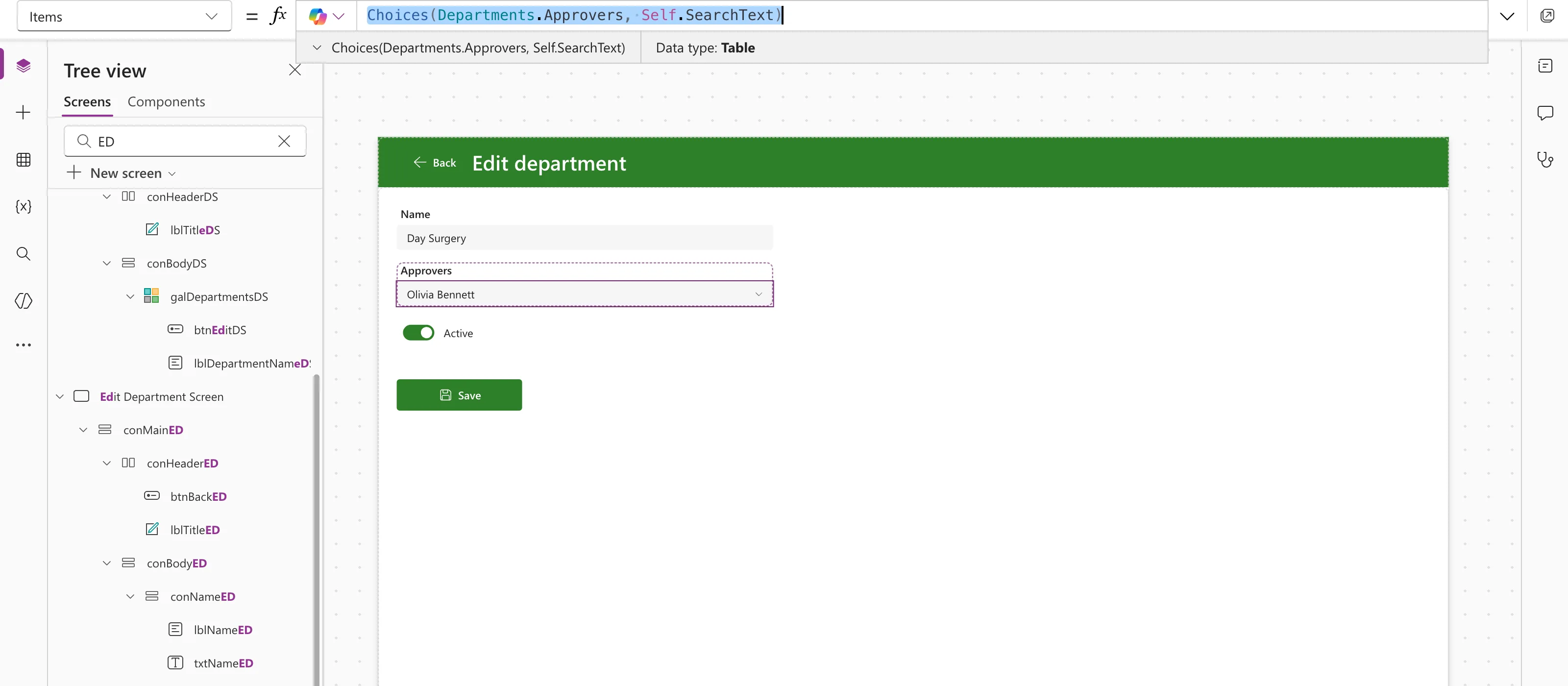
In Studio nothing is typed, so the strip under the formula bar shows the result for an empty search (How to See What a Formula Returns in Power Apps Studio). Selecting the arrow on the strip opened the table: one person, Aisha Khan, with the six fields of a person record:
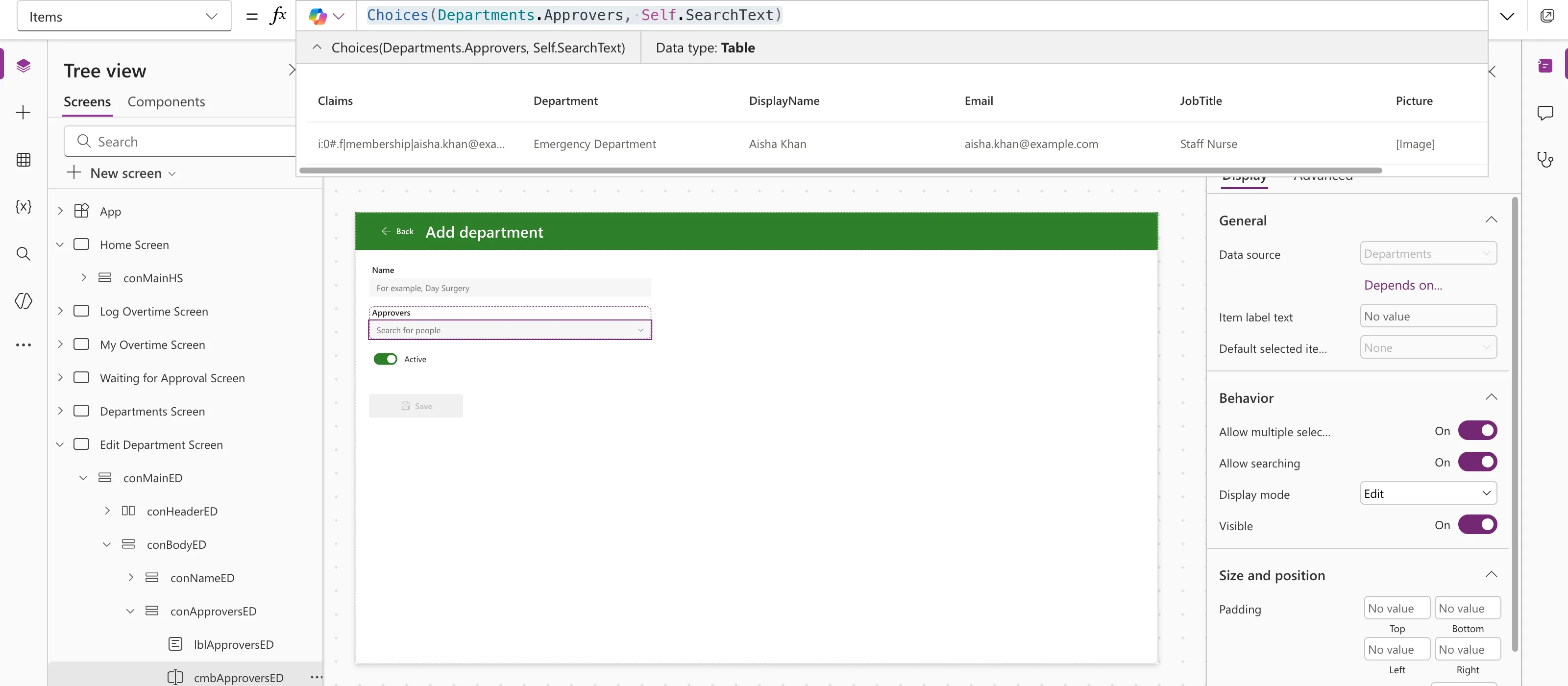
Microsoft's reference says an empty filter returns all the choices, and its pages don't explain why only one person came back. Typed searches found the people asked for (Step 4).
Step 2: Show the Names
Set ItemDisplayText to the person's name:
ThisItem.DisplayName
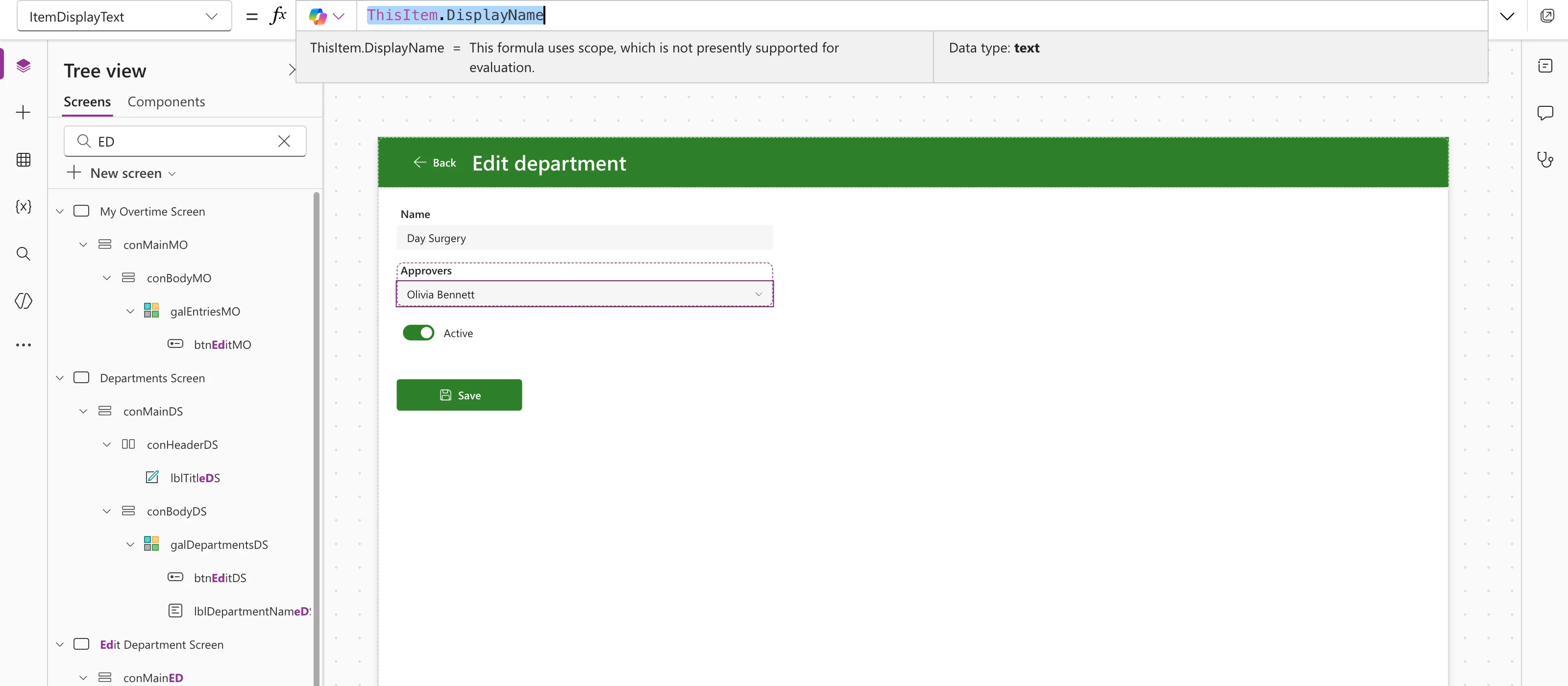
ThisItem is each person in the list, so the strip can't show one value and says so. The list and the box show the names.
Step 3: Set How It Searches
| Property | Value | Why |
|---|---|---|
| SelectMultiple | true | Choose several people. Microsoft's combo box page gives true as the default. |
| DelayOutput | true | SearchText updates when the typing pauses, not on every keystroke, so each search waits for more of the name. The default is false. |
| InputTextPlaceholder | "Search for people" | Says what to type. |
| AccessibleLabel | "Approvers: the people who approve overtime in this department" | What screen readers announce. |
Step 4: Try It
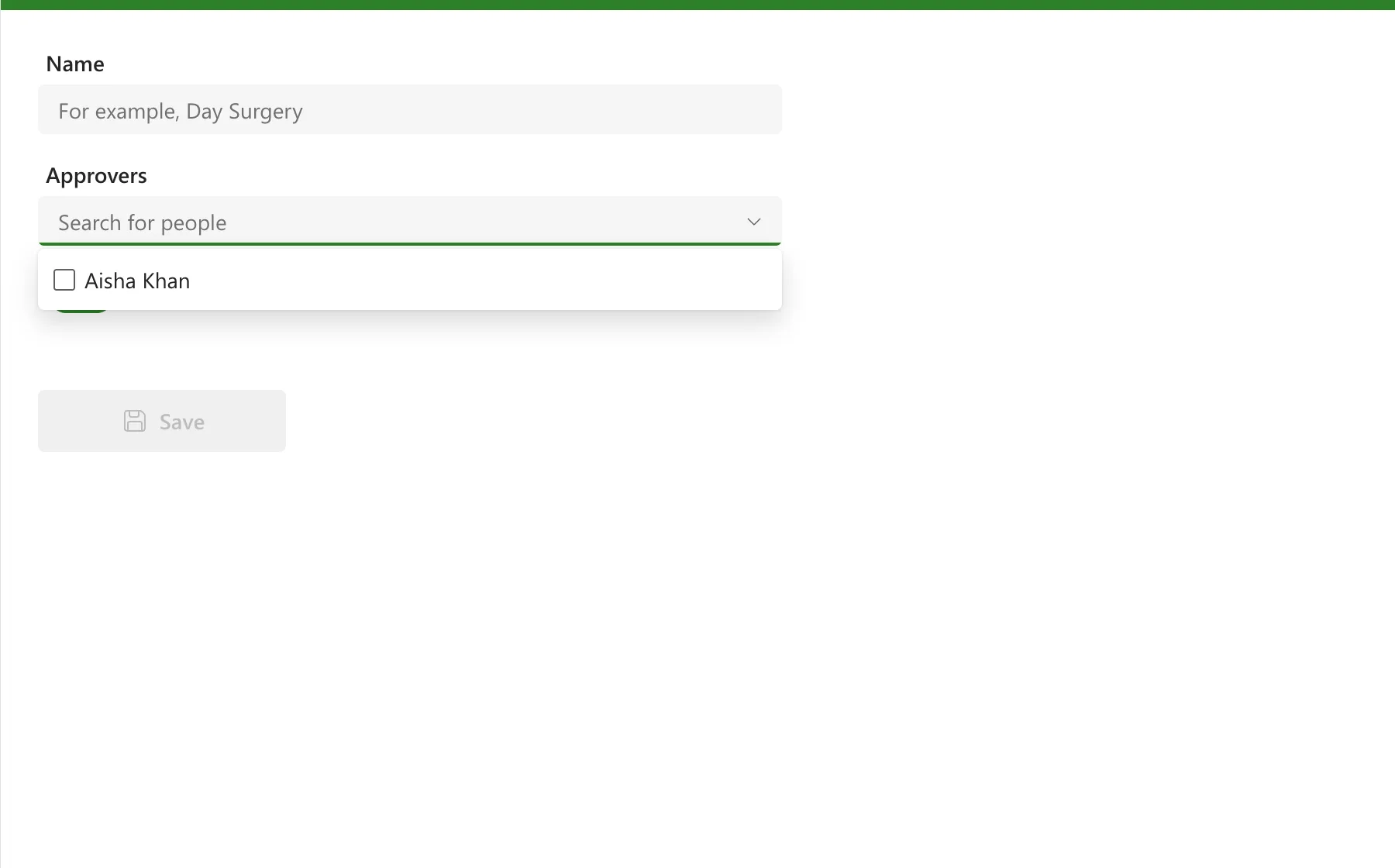
In Preview, with nothing typed, the list showed the same single person as the strip:
Typing Oli listed Olivia Bennett:
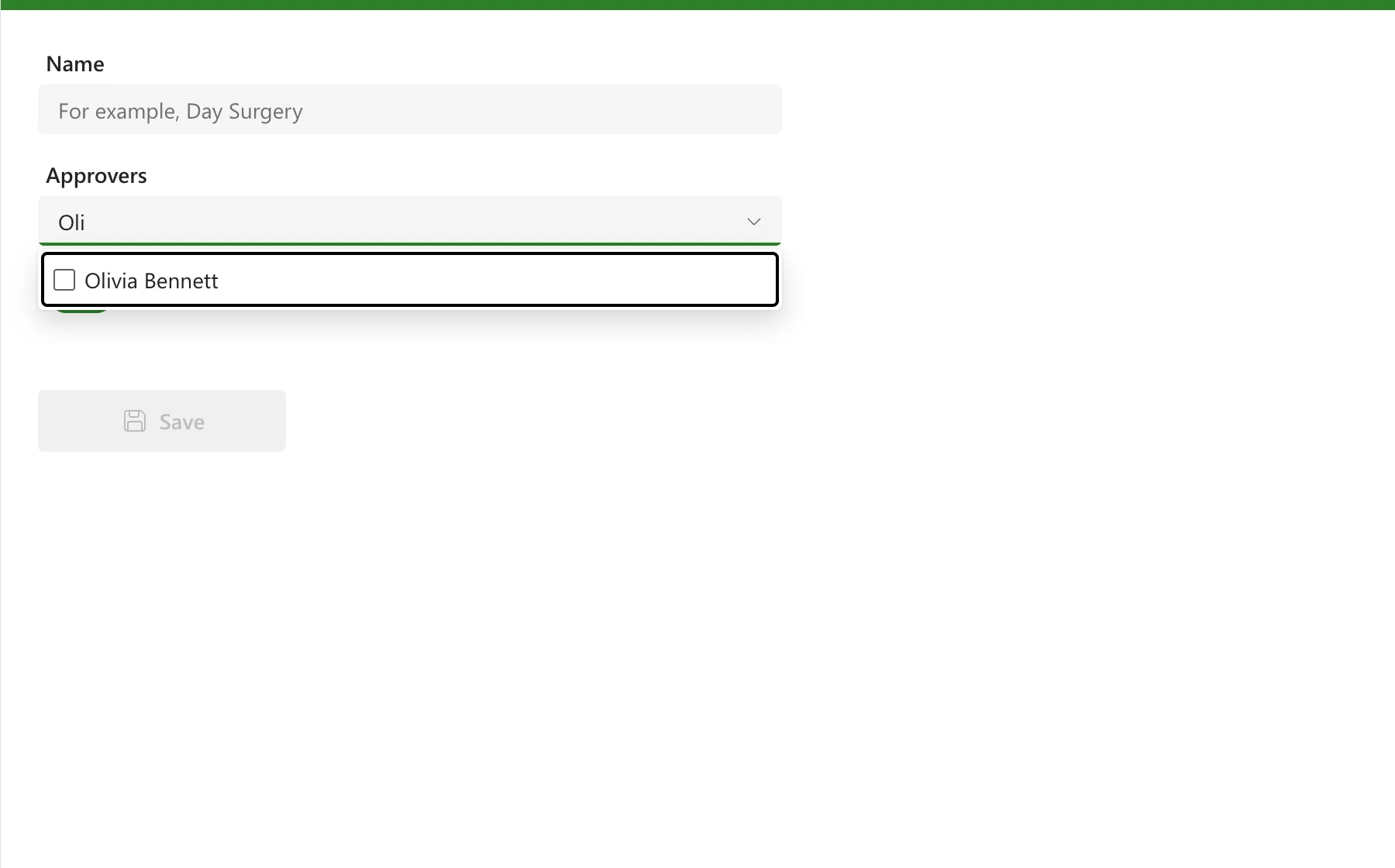
The search matches the start of a first name or a surname, and ignores case:
| Typed | Found |
|---|---|
| Oli, olivia | Olivia Bennett |
| Ben | Olivia Bennett |
| Dan, Bro | Daniel Brooks |
| liv, ennett | Nobody |
Choosing a person ticks them and keeps the list open, with the typed text still in the box, so several people can be chosen in a row. Microsoft's combo box page says the search text clears on selection; here it stayed until the list closed. Selecting anywhere outside the box closes the list, and the box shows everyone chosen, separated by a comma and a space:
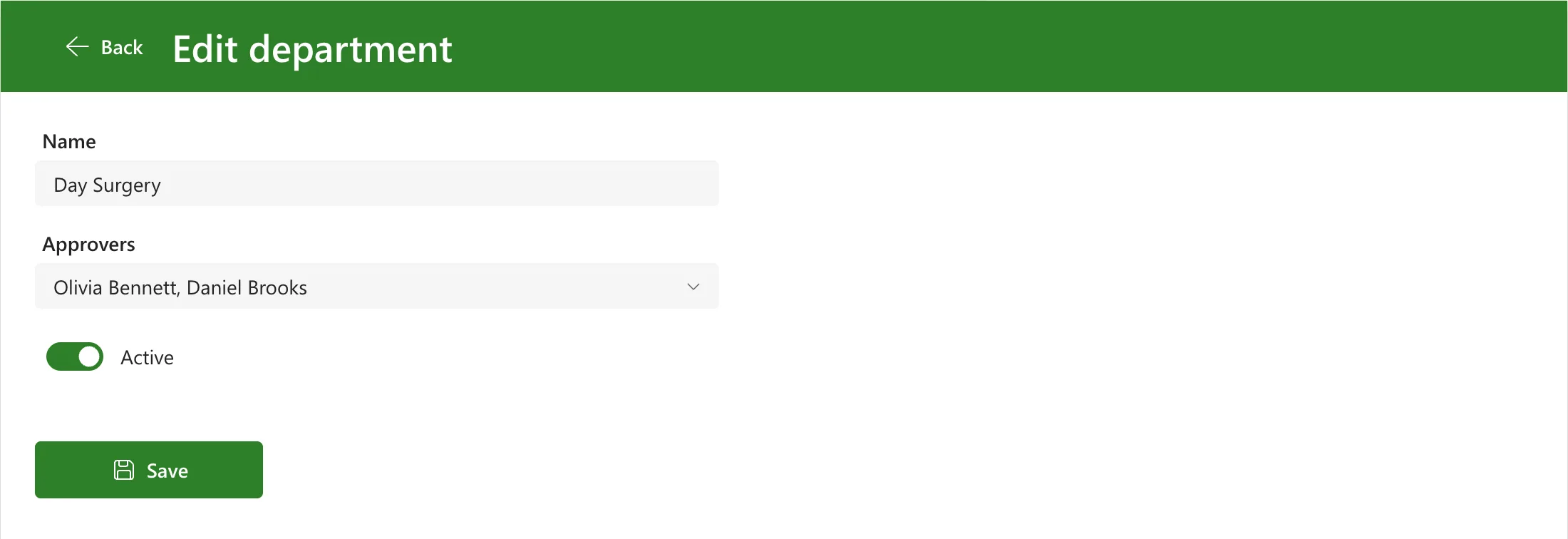
To take a person off, open the list and select them again: the combo box page says selecting a selected item deselects it.
Common Mistakes
| Mistake | What happens | Do this instead |
|---|---|---|
Choices(locDepartment.Approvers, ...) | Microsoft's reference doesn't allow it: the column reference must be direct | Choices(Departments.Approvers, ...) |
| Typing the middle of a name | Nobody is found: liv finds nobody | Type the start of a first name or surname |
Troubleshooting
| Symptom | Likely cause | Fix |
|---|---|---|
| One person shows before anything is typed | What Choices returned for an empty search | Type the start of a name |
| The search finds nobody | The text isn't the start of a first name or surname | Type Oli, not liv |
| The typed text stays after choosing someone | The list is still open | Select outside the box to close it |
FAQ
Can it pick only one person?
Set SelectMultiple to false. Microsoft's combo box page says only one item can be selected then, and Selected returns it.
Do I need the Office 365 Users connector?
Not for this picker: its formula uses only the SharePoint list.
Where do the chosen people go?
SelectedItems is a table of the chosen people. Save it to the column with Patch (How to Save People to a SharePoint Person Column with Patch in Power Apps), and show the saved ones when an item is opened again (How to Show Saved People in a Combo Box in Power Apps).
Conclusion
Choices(List.PersonColumn, Self.SearchText) in a combo box's Items, with ItemDisplayText ThisItem.DisplayName, makes a people picker: the start of a first name or surname finds people, as records the column can save.
Additional Resources
- Choices function: the column reference and the text filter.
- Combo box modern control: SearchText, DelayOutput, SelectMultiple and ItemDisplayText.
