How to Add a Package to a Python Project with uv

uv add installs a package into your project and records it, all in one step. It updates pyproject.toml, writes the exact versions to uv.lock, and installs everything into the project's own environment. This guide explains the command's syntax first, then adds a package and two development tools to a small hello-world project, with real output from uv 0.13.8.
Syntax
uv add [OPTIONS] <PACKAGES>...
From uv's command reference:
| Part | What it means |
|---|---|
uv add | Adds packages to the project in the folder you're in |
[OPTIONS] | Settings, such as the group the packages go in. Square brackets mean you can leave them out |
<PACKAGES>... | The packages to add. Angle brackets mean you must fill this part in, and ... means you can list several, separated by spaces |
A package is named the way it's listed on PyPI, the Python Package Index, which is where uv downloads packages from. You can add a version range right after the name, in the standard Python format that uv's reference calls a PEP 508 requirement.
The forms you'll use most:
| Form | What it adds |
|---|---|
uv add <name> | The newest version of the package that works with your project |
uv add <name> <name> | Several packages in one go |
uv add "<name><range>" | A version that fits the range. uv add "rich>=14" adds Rich 14 or newer, and uv add "rich==14.2.0" exactly 14.2.0 |
uv add --dev <name> | A tool you only need while working on the code, kept in a separate dev group |
Keep the quotes around a version range. Without them, zsh and bash read > as "write the output to a file" (see Common Mistakes).
Prerequisites
- A uv project. The example uses the
hello-worldproject from How to Create a Python Project with uv. Any folder with apyproject.tomlworks. - A terminal in the project folder, the one that holds
pyproject.toml.
The commands work the same in Terminal (macOS), PowerShell (Windows) and Linux shells.
Step 1: Add a Package
The example adds Rich, a popular package that prints colored text, tables and boxes in the terminal. Its name on PyPI is rich:
uv add rich
Resolved 5 packages in 784ms
      Built hello-world @ file:///Users/you/source/hello-world
Prepared 4 packages in 461ms
Uninstalled 1 package in 1ms
Installed 5 packages in 14ms
 ~ hello-world==0.1.0 (from file:///Users/you/source/hello-world)
 + markdown-it-py==4.3.0
 + mdurl==0.1.2
 + pygments==2.21.0
 + rich==15.0.0
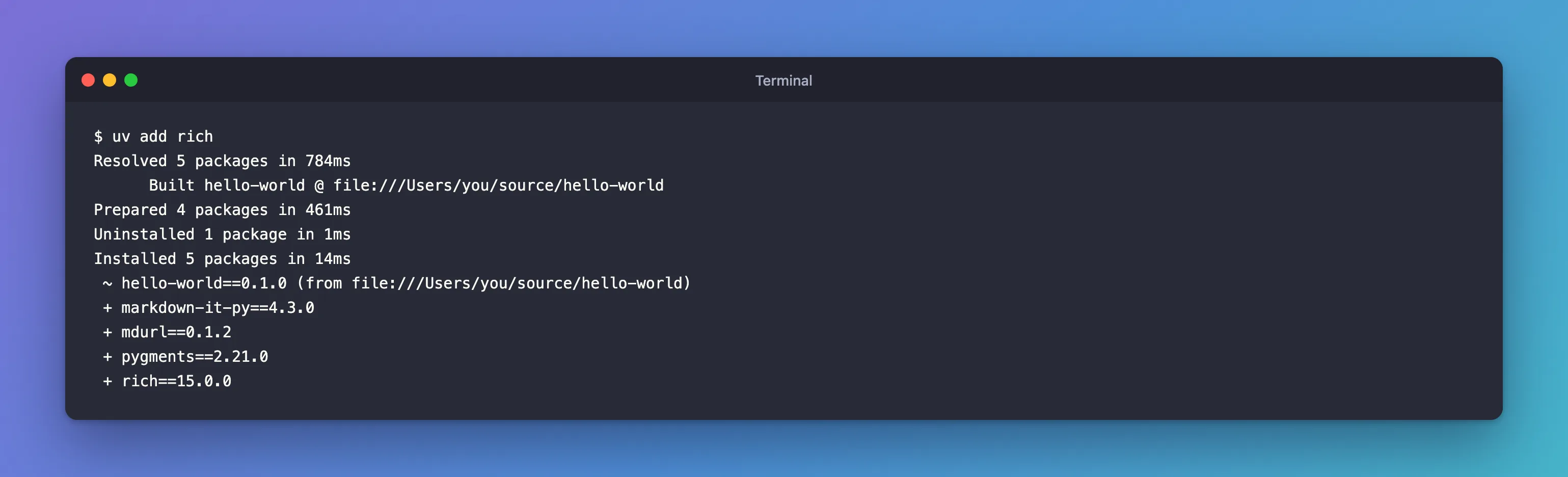
Reading the output from the top:
| Line | What happened |
|---|---|
Resolved 5 packages | uv worked out a set of versions that fit together: Rich, the three packages that come with it, and your own project |
Built hello-world | uv rebuilt your own project, because its pyproject.toml changed |
Prepared 4 packages | uv downloaded or built what it didn't already have in its cache |
Uninstalled 1 package | The old copy of your project was removed, to be replaced by the new one |
Installed 5 packages | Everything went into the project's .venv folder. + marks a new package and ~ one that was reinstalled |
Rich brought three packages with it: markdown-it-py and pygments, which Rich uses, and mdurl, which markdown-it-py uses. You only asked for Rich, so only Rich is listed in pyproject.toml; the others are installed because it needs them.
Step 2: See What Changed
uv added Rich to the dependencies list in pyproject.toml:
dependencies = [
    "rich>=15.0.0",
]
The entry is a range: >=15.0.0 means "15.0.0 or newer". uv writes the version it installed as the lowest one allowed, so the project never goes back to an older one.
The exact versions of all five packages went into uv.lock, with where each came from. This is Rich's entry, without its long download links:
[[package]]
name = "rich"
version = "15.0.0"
source = { registry = "https://pypi.org/simple" }
dependencies = [
    { name = "markdown-it-py" },
    { name = "pygments" },
]
uv's documentation says uv.lock "should be checked into version control" and "is managed by uv and should not be edited manually". Anyone who runs uv sync or uv run on the project gets exactly the same versions. That's the difference from a plain pip install: the install is recorded and repeatable.
Step 3: Add Development Tools to Their Own Group
Tools you only need while working on the code belong in a separate group. The example adds two in one command: pytest, which runs tests, and Ruff, which checks and formats code:
uv add --dev pytest ruff
Resolved 11 packages in 266ms
      Built hello-world @ file:///Users/you/source/hello-world
Prepared 1 package in 6ms
Uninstalled 1 package in 3ms
Installed 6 packages in 8ms
 ~ hello-world==0.1.0 (from file:///Users/you/source/hello-world)
 + iniconfig==2.3.1
 + packaging==26.3
 + pluggy==1.7.0
 + pytest==9.2.0
 + ruff==0.17.5
Prepared 1 package but Installed 6 packages: the others were already in uv's cache from an earlier install. The two tools went into a new table at the end of pyproject.toml. This is the whole file now:
[project]
name = "hello-world"
version = "0.1.0"
description = "Add your description here"
readme = "README.md"
authors = [
    { name = "Your Name", email = "you@example.com" }
]
requires-python = ">=3.15"
dependencies = [
    "rich>=15.0.0",
]

[project.scripts]
hello-world = "hello_world:main"

[build-system]
requires = ["uv_build>=0.13.8,<0.14.0"]
build-backend = "uv_build"

[dependency-groups]
dev = [
    "pytest>=9.2.0",
    "ruff>=0.17.5",
]
| Where | What's in it |
|---|---|
dependencies | Packages your code needs to run: Rich |
[dependency-groups], dev | Tools for working on the code: pytest and Ruff. --dev is short for --group dev |
uv puts the dev group in your environment by default, so uv run pytest works. But development dependencies "will not be included in the project requirements when published", so people who install your project don't get pytest and Ruff.
Common Mistakes
| Mistake | What happens | Do this instead |
|---|---|---|
Leaving out the quotes around a version range, as in uv add rich>=14 | zsh stops with zsh: 14 not found. bash adds Rich without your range and creates an empty file named =14. PowerShell 7 passes it through unchanged | Quote it: uv add "rich>=14". The quotes work in every shell |
Running pip install rich in a uv project | The package isn't recorded in pyproject.toml or uv.lock, and may land outside .venv | Use uv add rich |
Editing uv.lock by hand | uv overwrites it, or the lock and pyproject.toml disagree | Change pyproject.toml or use uv add, and let uv rewrite the lock |
Adding test tools to dependencies | Everyone who installs your package also gets pytest | Use uv add --dev |
Forgetting to commit uv.lock | Other computers can resolve different versions | Commit uv.lock with pyproject.toml |
Troubleshooting
| Symptom | Likely cause | Fix |
|---|---|---|
error: No `pyproject.toml` found in current directory or any parent directory | The terminal isn't in a project folder | cd into the project, or create one with uv init |
No solution found when resolving dependencies | Two packages need versions that can't go together, or a package doesn't support your Python version | Read the explanation uv prints; loosen a version range or choose another Python |
A Built line for a package you didn't write | The package has no ready-made wheel for your Python, so uv built it from source | Expected; it only happens once, then the cache is used |
uv add downloads a lot the first time | The cache is empty | Expected; later projects reuse the cache |
FAQ
How do I add a specific version?
Put the version after the name, in quotes. uv add "rich==14.2.0" adds exactly 14.2.0, and uv add "rich>=14" adds the newest Rich that's 14 or newer. uv writes the range to pyproject.toml exactly as you typed it, and when the package is already there, it replaces the old entry.
How do I remove a package?
uv remove rich. It takes Rich out of pyproject.toml and uv.lock and uninstalls it, together with the packages only Rich needed.
Why is the version written as >=?
So the project accepts newer releases. The exact version you're using is in uv.lock, which is what makes installs repeatable.
How do I upgrade one package later?
Run uv lock --upgrade-package rich, then uv sync. To also raise the lowest version in pyproject.toml, add it again with a range, such as uv add "rich>=15".
Where did the packages go?
Into the project's .venv folder. Nothing is installed for your whole computer.
Do I need to activate the environment?
No. uv run uses the project's environment for you: How to Run a Python Script with uv run.
Conclusion
uv add [OPTIONS] <PACKAGES>... adds packages to a project. uv add rich resolved five packages, installed them into .venv, and wrote a >= range to pyproject.toml and the exact versions to uv.lock. uv add --dev pytest ruff put two development tools in their own dev group.
Additional Resources
- Managing dependencies — uv's guide to
uv add, ranges and dependency groups. - The lockfile — what
uv.lockholds and why to commit it. - uv add reference — every option of the command.
- Version specifiers — what ranges such as
>=15.0.0mean.
