How to Add a Number Input in Power Apps

For a number, such as a quantity or a break in minutes, use the modern Number input. It has up and down buttons, keeps the number between Min and Max, and moves by Step. Formulas read the number from Value, which changes when the person leaves the box.
The example is the Log overtime screen of the Overtime Timesheet app, where numBreakLO holds the unpaid break, in minutes.
Prerequisites
- Modern controls turned on: How to Turn On Modern Controls and Themes in Power Apps.
Step 1: Insert the Number Input
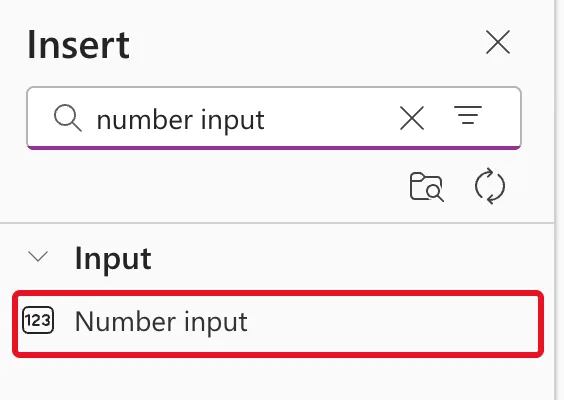
Open Insert and search for number input. It appears only under Input; there's no classic version:
Rename it, here numBreakLO. Its starting values were:
| Property | Default |
|---|---|
| Default | 0 |
| Min, Max | empty |
| Step | 1 |
| Precision | DecimalPrecision.Auto |
| HintText | "" |
| Width, Height | 320, 32 |
Step 2: Set the Range, Step and Precision
A break is a whole number of minutes, at least 0 and no longer than a day:
| Property | Value | Why |
|---|---|---|
| Min | 0 | No negative breaks |
| Max | 1440 | A day has 1,440 minutes |
| Step | 5 | The up and down buttons move five minutes at a time |
| Precision | DecimalPrecision.'0' | Whole numbers only |
| HintText | "0" | Shown while the box is empty |
| AccessibleLabel | "Unpaid break in minutes" | What screen readers announce |
The Properties pane shows the first five under General:

Microsoft's Number Input modern control reference recommends setting Min and Max, matching Precision to the data and choosing a meaningful Step. A Max of a whole day is only an outer limit. Whether the break fits the shift is checked by the screen's own rules (How to Validate a Form Without an Edit Form in Power Apps).
Step 3: Read the Number
Formulas read Value:
numBreakLO.Value
In the example, the hours worked are the shift's minutes minus numBreakLO.Value, shown in a text control as the person fills the form in.
When Value Changes
Microsoft says the control's OnChange fires when the user moves focus away from the control (on blur) or clicks the increment or decrement step buttons, not on every keystroke. The value that formulas read behaved the same way.
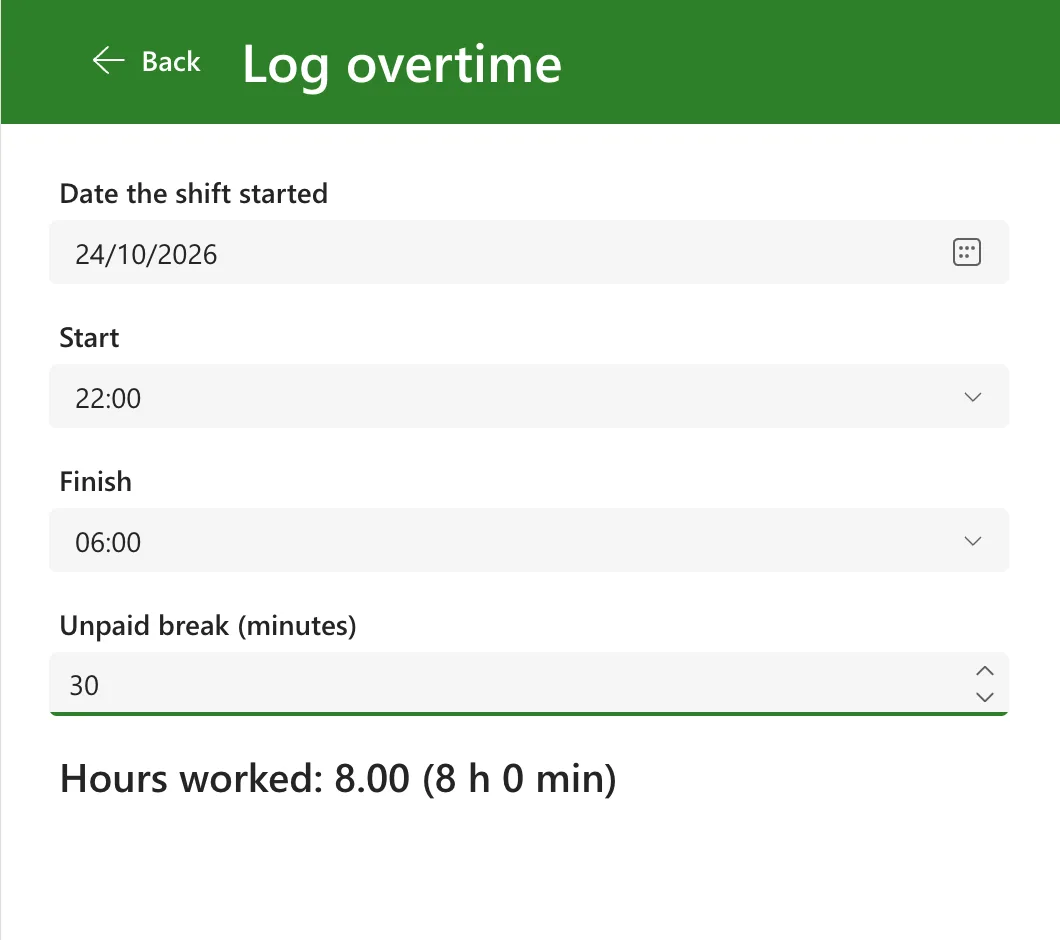
With a 60-minute break already entered and the hours showing 8.00, I typed 30 into the box. While the cursor was still in it, the hours stayed at 8.00:
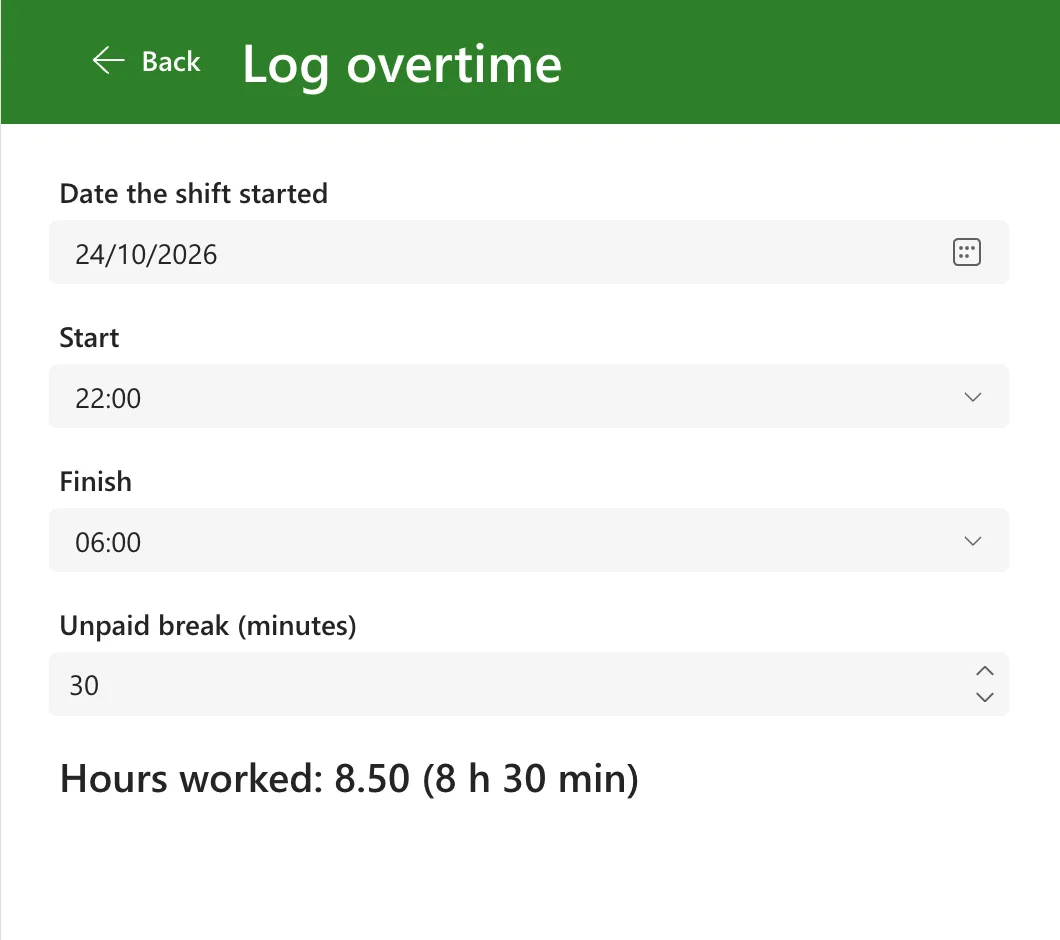
After pressing Tab to leave the box, they changed to 8.50:
So anything that depends on the number updates when people move on to the next field, or use the up and down buttons.
Common Mistakes
| Mistake | What happens | Do this instead |
|---|---|---|
| Leaving Min and Max empty | Any number, negative ones included, can be entered | Set both |
| Leaving Precision on Auto for whole numbers | Decimals can be entered | DecimalPrecision.'0' |
| Expecting Value to change on every keystroke | Results change only after leaving the box | Expect the update on focus out |
| Reading Default in formulas | You get the starting number, not the one entered | Read Value |
Troubleshooting
| Symptom | Likely cause | Fix |
|---|---|---|
| A result doesn't change while typing | Value updates when the box loses focus | Press Tab, or use the step buttons |
| The step buttons move by 1 | Step is the default | Set Step |
| The box shows the last number when the screen opens again | Controls keep their value | Reset(numBreakLO) in the screen's OnVisible (How to Reset a Control to Its Default Value in Power Apps with Reset) |
FAQ
Can it show a currency symbol?
Microsoft lists that as a limitation: the control doesn't support currency symbols directly; put the symbol in a text control next to it.
What precisions are there?
DecimalPrecision.Auto, and DecimalPrecision.'0' to DecimalPrecision.'3' for zero to three decimal places.
Conclusion
Insert Number input, set Min, Max, Step and Precision for the number you need, label it for screen readers and read Value, remembering that it updates when people leave the box.
Additional Resources
- Number Input modern control in canvas apps: every property, the OnChange behavior and best practices.
