How to Add a Number Column to a SharePoint List

A Number column holds counts and measurements: minutes, hours, quantities, IDs. Its settings decide how the numbers look, what a new item starts with, and which numbers are allowed. This guide adds one and walks through each setting.
The examples come from the OvertimeEntries list of the Overtime Timesheet series, which has three number columns:
| Column | What it holds | Settings |
|---|---|---|
| BreakMinutes | The unpaid break, in minutes | 0 decimal places, default 0, minimum 0 |
| Hours | Hours worked, such as 7.50 | 2 decimal places, minimum 0, maximum 24 |
| DepartmentId | The ID of an item in another list | 0 decimal places, no thousands separator |
Prerequisites
- A SharePoint list, and permission to change it. How to Create a List and Add Columns in SharePoint Online creates one.
Step 1: Choose Number
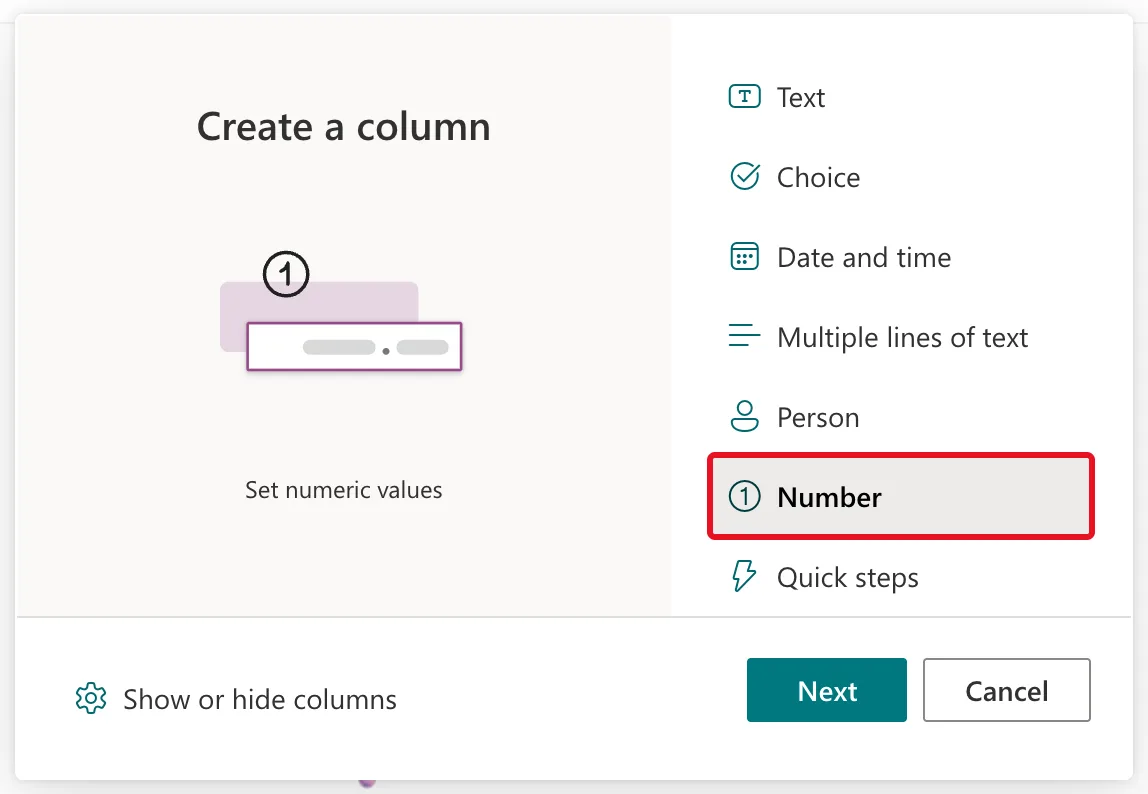
In the list, select + Add column. In Create a column, select Number, then Next:
Step 2: Name It and Set the Format
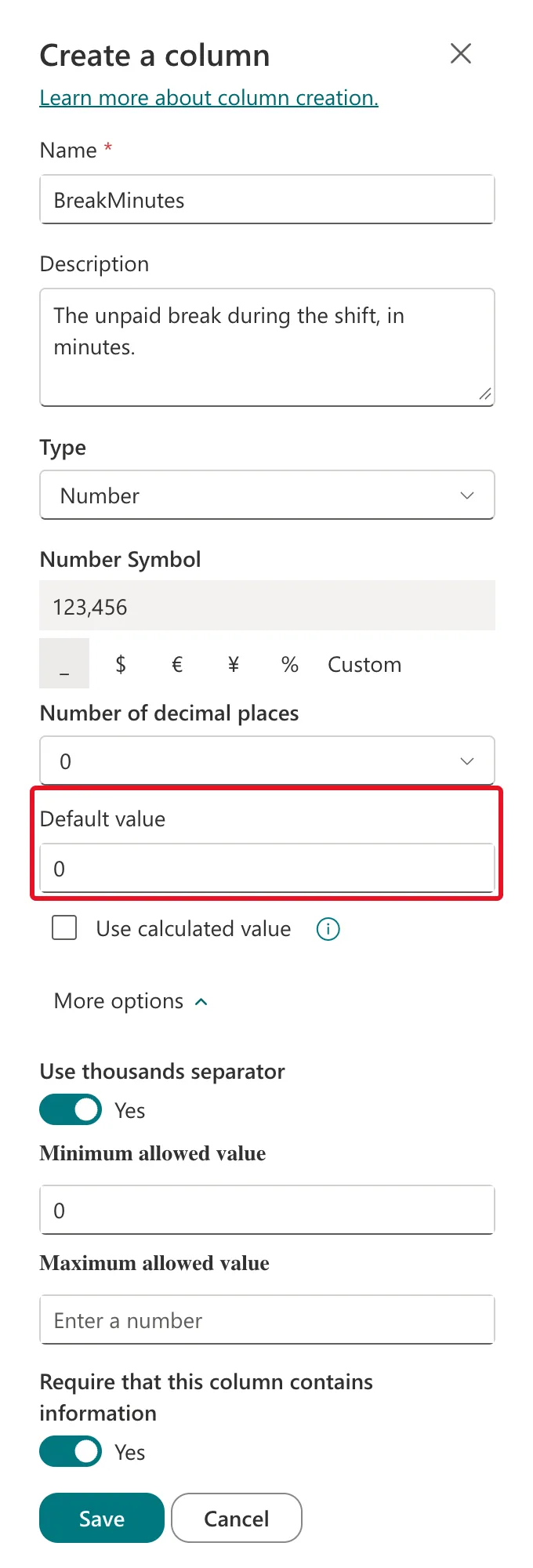
The Create a column panel opens. Fill in the top of it:
| Setting | BreakMinutes | What it does |
|---|---|---|
| Name | BreakMinutes | The column's name. Without spaces, its internal name matches it exactly |
| Description | The unpaid break during the shift, in minutes. | Shown under the field in the item form (How to Add a Description to a SharePoint List Column) |
| Number Symbol | _ (No symbol), the default | A symbol shown with each value: $, €, ¥, % or your own with Custom |
| Number of decimal places | 0 | Automatic by default. Choose a fixed number for a consistent look |
| Default value | 0 | What a new item starts with (How to Set a Default Value for a SharePoint List Column) |
Number of decimal places offers Automatic and 0 to 5:
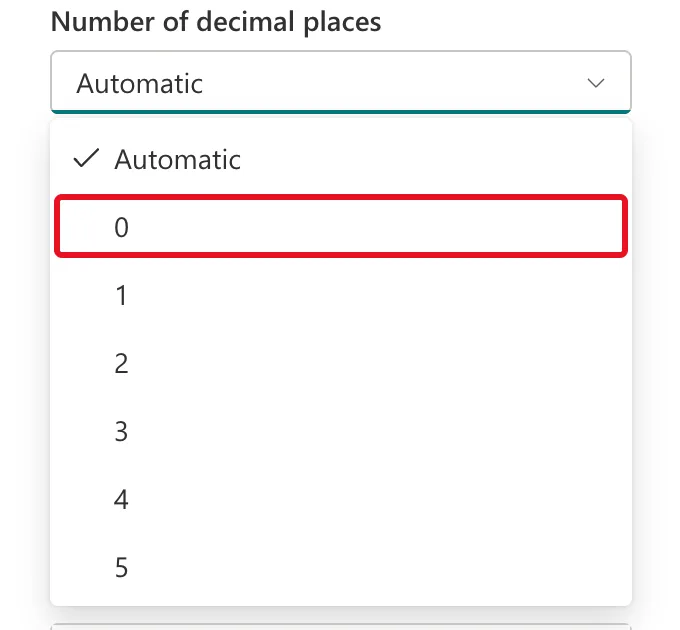
The grey preview under Number Symbol shows the result: 123,456 with 0 decimal places, and 123,456.00 with 2. Filled in for BreakMinutes, the panel looks like this:
Step 3: Set the More Options
Select More options for the rest:
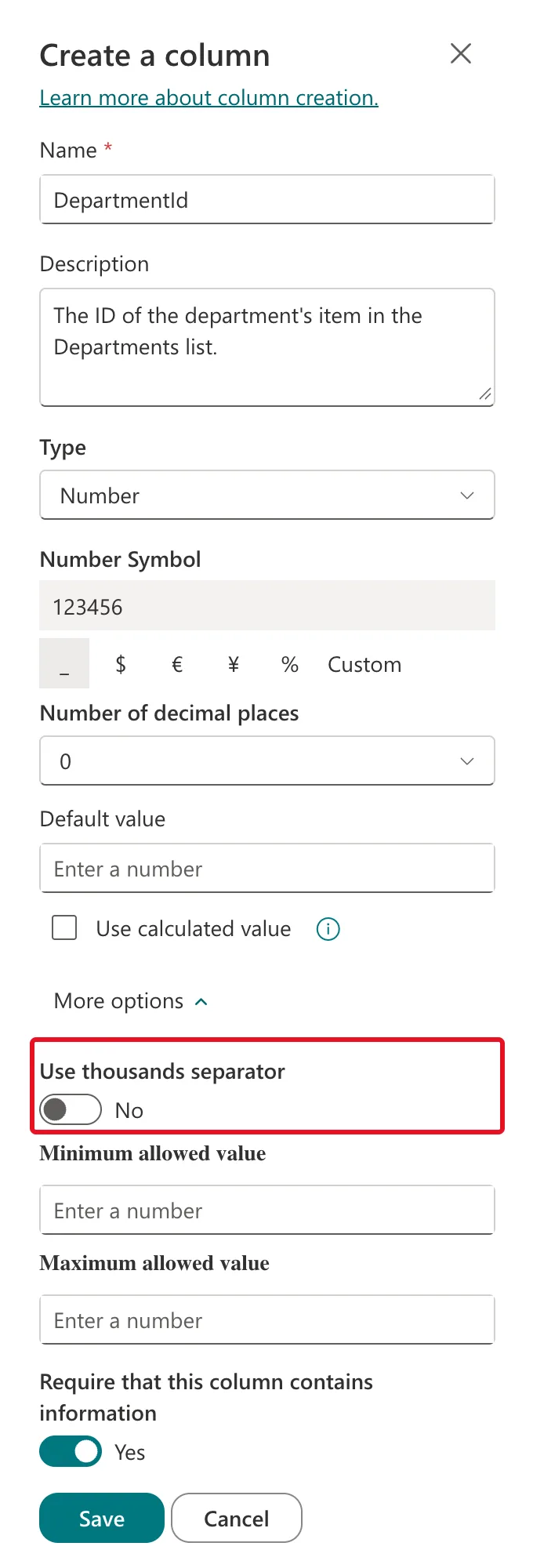
- Use thousands separator, on by default. It shows 1234 as 1,234, which suits amounts but not IDs. For DepartmentId it's off, and the preview changes to 123456:
- Minimum allowed value and Maximum allowed value limit the numbers people can save: How to Set a Minimum and Maximum Value for a SharePoint Number Column.
- Require that this column contains information makes the column required: How to Make a Column Required in a SharePoint List.
- Enforce unique values stops two items having the same number: How to Enforce Unique Values in a SharePoint List Column.
Step 4: Save and Check the Form
Select Save. The column appears at the end of the list's view. Open + New and the field is there, already holding its default value:

Common Mistakes
| Mistake | What happens | Do this instead |
|---|---|---|
| Leaving the thousands separator on for IDs | ID 1234 shows as 1,234 | Switch Use thousands separator off |
| Using a Number column for money | No currency format | Use the Currency column type for amounts of money |
| Using a Single line of text for numbers | No sums, no number filters, no ranges | Use Number for anything you count or measure |
Troubleshooting
| Symptom | Likely cause | Fix |
|---|---|---|
| Values show more decimals than you want | Number of decimal places is Automatic | Choose a fixed number |
| Can't save a value | It's outside the minimum or maximum | Check Minimum and Maximum allowed value |
| A new item starts empty | No default value | Set Default value |
FAQ
Number or Currency?
Use Currency for money: it's its own column type in the Create a column list, for "monetary amounts" as the picker puts it. Use Number for everything else you count or measure.
Can Power Apps filter on a Number column?
Yes. Microsoft's Connect to SharePoint from a canvas app lists =, <, <=, > and >= as delegable for Number columns, so SharePoint does the filtering.
Can I change the decimal places later?
Yes. Open Settings (the gear) → List settings, select the column's name under Columns, and change it there.
Conclusion
+ Add column → Number → name, description, symbol, decimal places and default → More options for the separator, the range and Require → Save. Choose the decimal places for what the column holds: 0 for minutes and IDs, 2 for hours.
