How to Add a New Screen in Power Apps

Most canvas apps have more than one screen: a home screen, a list, a detail page. Adding one takes a couple of clicks in Power Apps Studio. The choice that matters is the layout, because some layouts come with controls already on them.
Prerequisites
- A canvas app open for editing in Power Apps Studio. The example is the Career Development Plan app from Part 4 of the series, which so far has one screen, Home Screen.
Step 1: Open the New Screen Menu
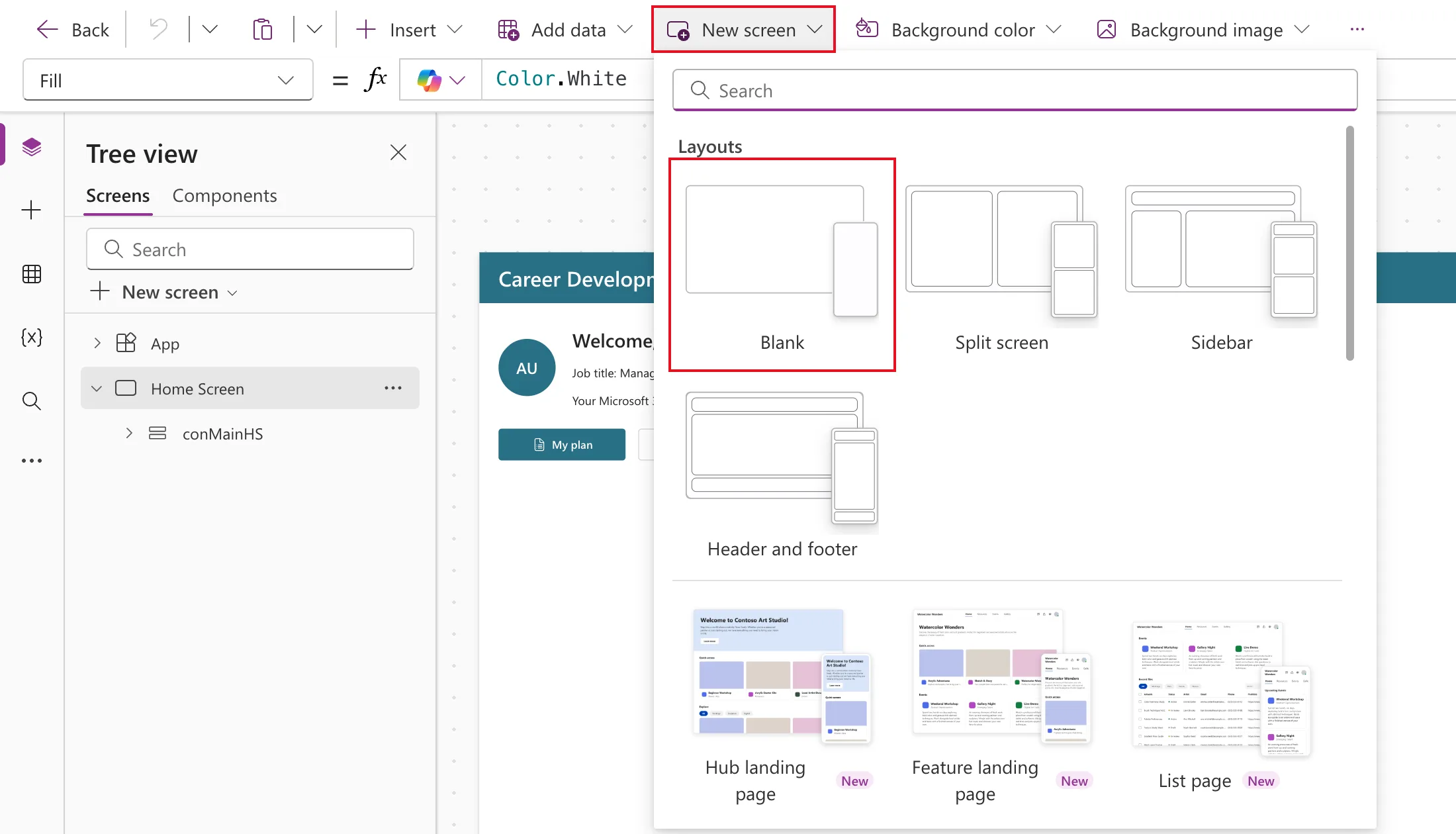
Select New screen on the command bar. The same menu is at the top of Tree view, as + New screen (Add and navigate screens).
The menu lists the layouts under Layouts. In the example, it offered Blank, Split screen, Sidebar, Header and footer, three marked New (Hub landing page, Feature landing page and List page), and templates such as Approval request, Welcome screen, Header and gallery, Header and form, Scrollable, Email, People and Calendar:
Step 2: Choose a Layout
Every layout except Blank adds controls for you. Header and gallery, for example, adds containers, a header, a gallery and a button inside each gallery item, according to Microsoft.
Choose Blank when you build your layout yourself from containers, as the Career Development Plan series does. Every screen then has the same structure, and you know what each control is for.
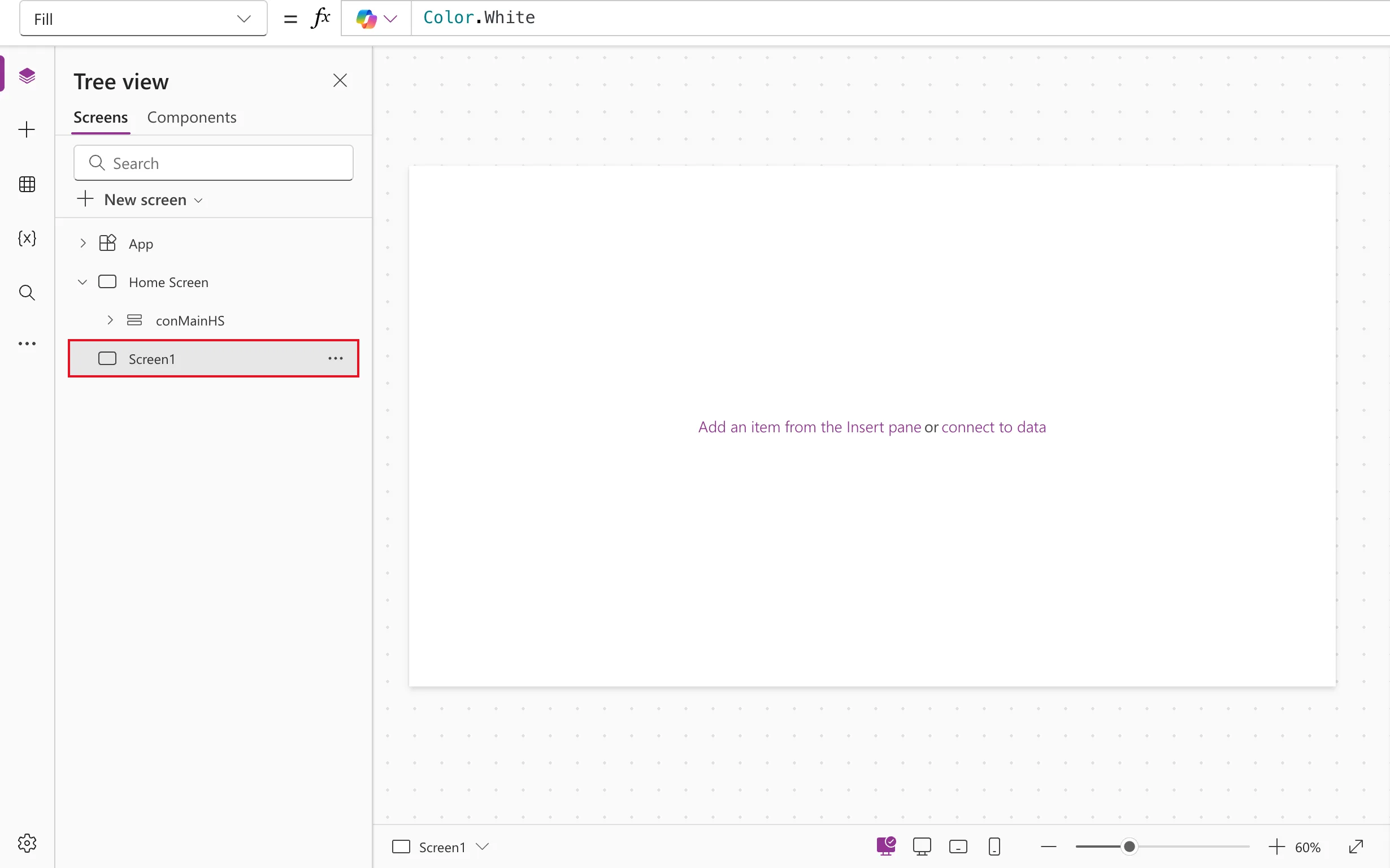
Studio adds the screen at the end of Tree view and selects it. In the example it was called Screen1:
Step 3: Name the Screen
Rename it straight away, with ... next to it in Tree view → Rename (How to Rename a Screen or Control in Power Apps). The example's new screen became My Plan Screen.
The name isn't only for you. Screen readers say a screen's name when it loads (Organize controls in accessible canvas apps). Microsoft recommends plain words that end in Screen, which Power Apps Naming Conventions for Screens, Controls and Formulas covers.
Common Mistakes
| Mistake | What happens | Do this instead |
|---|---|---|
| Leaving the name as Screen1 | Screen readers announce "Screen1", and formulas are hard to read | Rename it to what it shows, ending in Screen |
| Picking a template you only need part of | Controls you have to delete or work around | Start from Blank and add what you need |
| Expecting the new screen to open first | The app still opens on the start screen | Set App.StartScreen (How to Set the Start Screen) |
Troubleshooting
| Symptom | Likely cause | Fix |
|---|---|---|
| The new screen isn't where you expect in Tree view | Studio adds screens at the end | That's fine: the order doesn't decide which screen opens first; StartScreen does |
| There's no way to reach the screen in the app | Nothing navigates to it yet | Add a button with Navigate (How to Go to Another Screen in Power Apps with Navigate) |
FAQ
Can I add a screen from Tree view instead?
Yes. + New screen at the top of Tree view opens the same layouts.
Which layout should I choose?
Blank when you design the screen yourself. A template when it's close to what you need, since it saves you building the containers.
Conclusion
New screen → Blank adds an empty screen at the end of Tree view. Rename it right away to a clear name that ends in Screen, then add a way to get to it.
Additional Resources
- Add and navigate screens in canvas apps: adding screens, the layouts and navigation.
- Screen control: the screen's properties, including OnVisible.
