How to Add a Multiple Lines of Text Column to a SharePoint List

Single line of text stops at 255 characters. For anything longer, such as a reason, a comment or notes, SharePoint has Multiple lines of text. Its key setting is whether people can format the text, and for most lists the answer should be no.
The OvertimeEntries list of the Overtime Timesheet series has two of these columns: Reason, why the overtime was needed, and ApproverComment, what the approver said. Both are plain text.
Prerequisites
- A SharePoint list, and permission to change it. How to Create a List and Add Columns in SharePoint Online creates one.
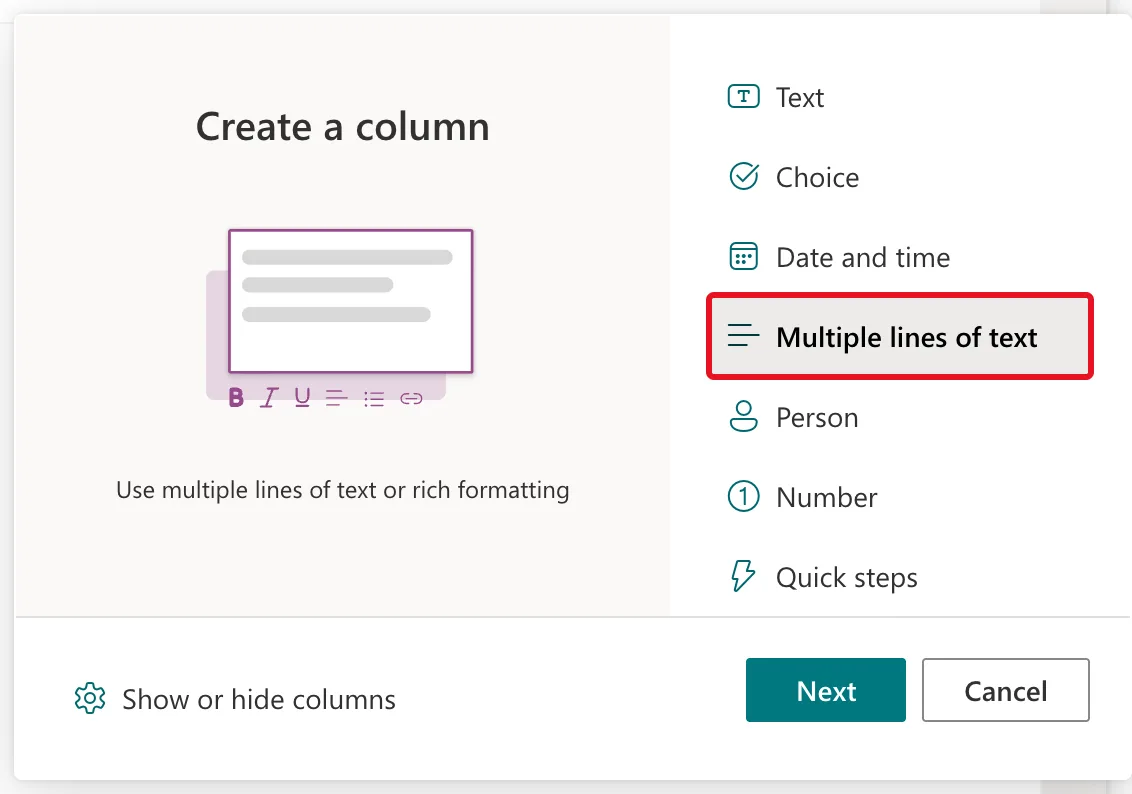
Step 1: Choose Multiple Lines of Text
Select + Add column, then Multiple lines of text, then Next:
Step 2: Name It and Keep It Plain
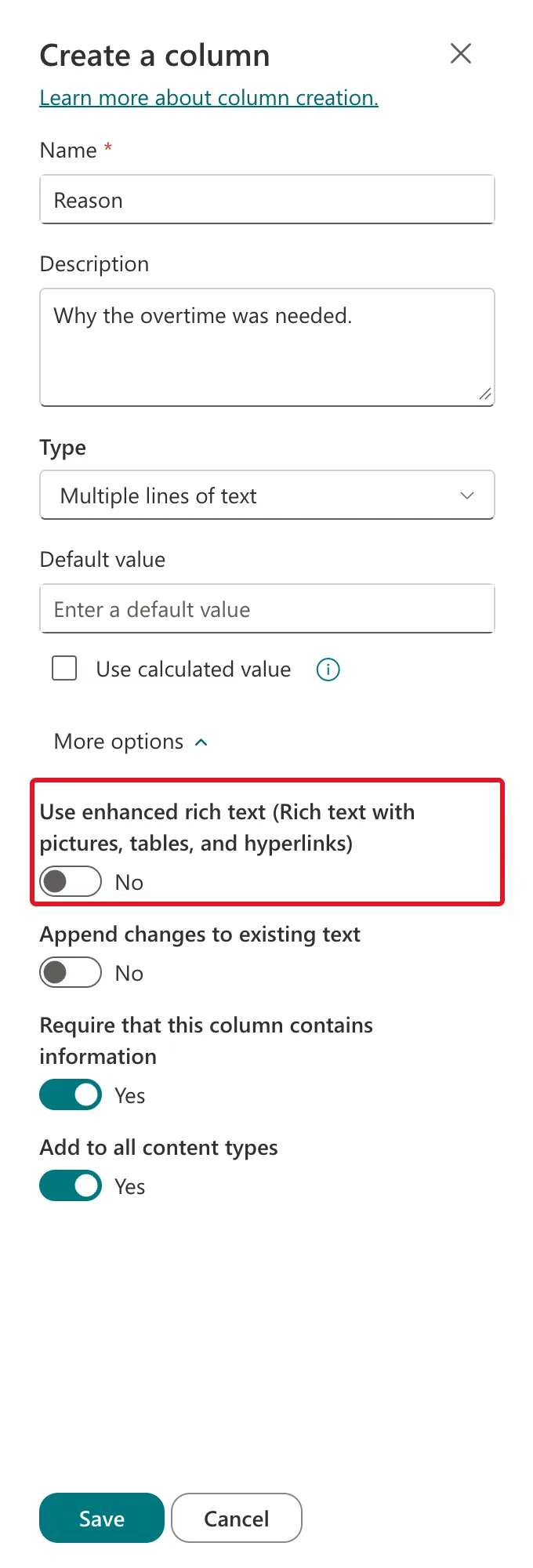
Enter the Name, such as Reason, and a Description, such as Why the overtime was needed. Then open More options:
| Setting | Value | Why |
|---|---|---|
| Use enhanced rich text (Rich text with pictures, tables, and hyperlinks) | No, the default | Plain text is what apps, flows and reports read and write |
| Append changes to existing text | No, the default | Each edit replaces the text, which is what a reason or comment needs |
| Require that this column contains information | Yes for Reason, No for ApproverComment | Every entry needs a reason; not every decision needs a comment |
Microsoft's Edit a rich text list column confirms that "the default setting for text in list columns is plain text." Select Save.
Step 3: Check the Form
In the item form, the column is a larger box that wraps onto several lines:

Plain Text or Enhanced Rich Text?
- Plain text stores exactly what was typed. Choose it when an app, a flow or a report uses the text.
- Enhanced rich text lets people format the text, with pictures, tables and links. Choose it for content people read in SharePoint itself, such as notes or instructions. Microsoft's page notes "you can't edit an enhanced rich text column in Quick Edit view", SharePoint's grid view.
About Append Changes to Existing Text
With versioning on, Append changes to existing text keeps every earlier entry when someone adds new text, like a log. Microsoft's List and library column types and options has an important warning: "If you turn off this option after you create the column, all information except the most recent entry is deleted." Decide before the list has data.
What This Column Type Can't Do
- It can't be indexed. Microsoft's Add an index to a list or library column lists "Multiple lines of text" among the column types that can't be indexed. The Create a new index page of this list didn't offer Reason or ApproverComment.
- List validation can't use it. The Insert Column list on the list's Validation settings page left both columns out.
So use it for text people read, not for values a list or an app filters on.
Common Mistakes
| Mistake | What happens | Do this instead |
|---|---|---|
| Turning on enhanced rich text for an app's column | The text can come back with formatting the app doesn't expect | Keep Use enhanced rich text off |
| Using it for a value you'll filter on | It can't be indexed | Use Single line of text for short values |
| Turning Append changes off later | All but the latest entry is deleted | Decide before the list has data |
Troubleshooting
| Symptom | Likely cause | Fix |
|---|---|---|
| Can't edit the column in grid view | It's enhanced rich text | Edit the item in its form |
| The column is missing from the index list | Multiple lines of text can't be indexed | Filter on another column |
| Text longer than 255 characters is refused | The column is Single line of text | Use Multiple lines of text |
FAQ
How long can the text be?
Microsoft's List and library column types and options says "A Multiple lines of text column can store up to 63,999 characters."
Should a comment column be required?
Only if every item needs one. In the Overtime Timesheet list, Reason is required because every shift needs a reason, but ApproverComment isn't, because approvers often approve without a comment.
Conclusion
+ Add column → Multiple lines of text → under More options, leave Use enhanced rich text and Append changes to existing text off → Save. Use it for reasons and comments, and filter on other columns.
Additional Resources
- List and library column types and options
- Edit a rich text list column
- Add an index to a list or library column
