How to Add a Multi-Line Text Input in Power Apps

For more than a line of text, such as a comment or a description, use the modern Text input control with Type set to Multiline. Give it room, a placeholder and an accessible label, and read what's typed from its Text.
Prerequisites
- Modern controls turned on (How to Turn On Modern Controls and Themes in Power Apps).
The example is the Career Development Plan app's Response screen, where people write how they show a competency.
Step 1: Insert a Text Input
Select where it should go, here the conBodyRS container, then Insert → Input → Text input. Rename it, for example txtResponseRS (txt is the prefix for text inputs in Microsoft's naming guidance).
In the example it started single-line, 320 by 32, with the placeholder Enter text.
Step 2: Make It Multi-Line
Set Type:
TextInputType.Multiline
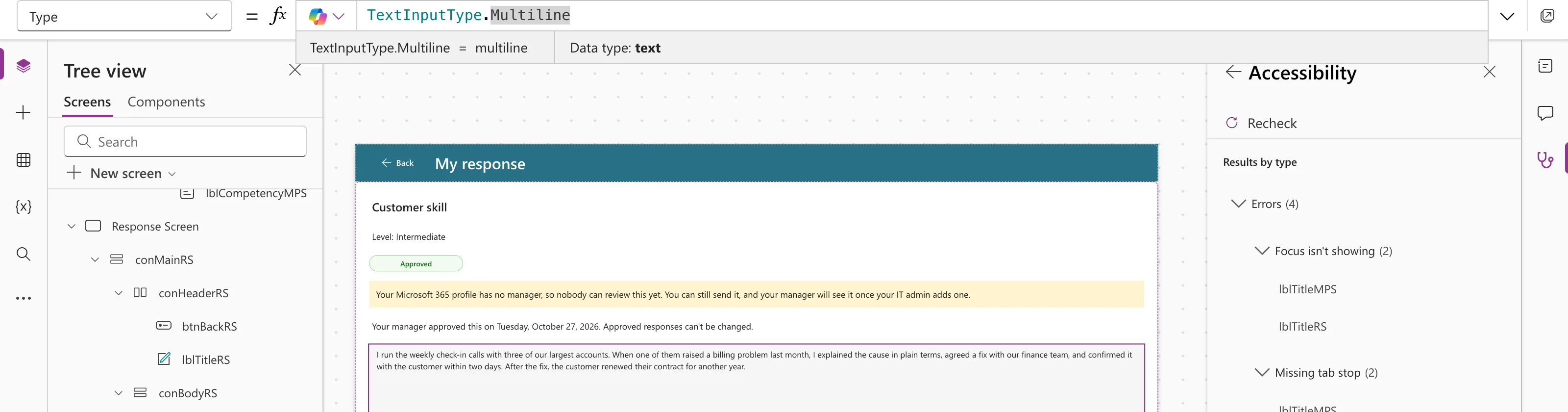
The other types are SingleLine (the default), Password and Search (Text Input modern control).
Step 3: Size and Words
| Property | Example value | Why |
|---|---|---|
| Height | 240 | Room for several lines |
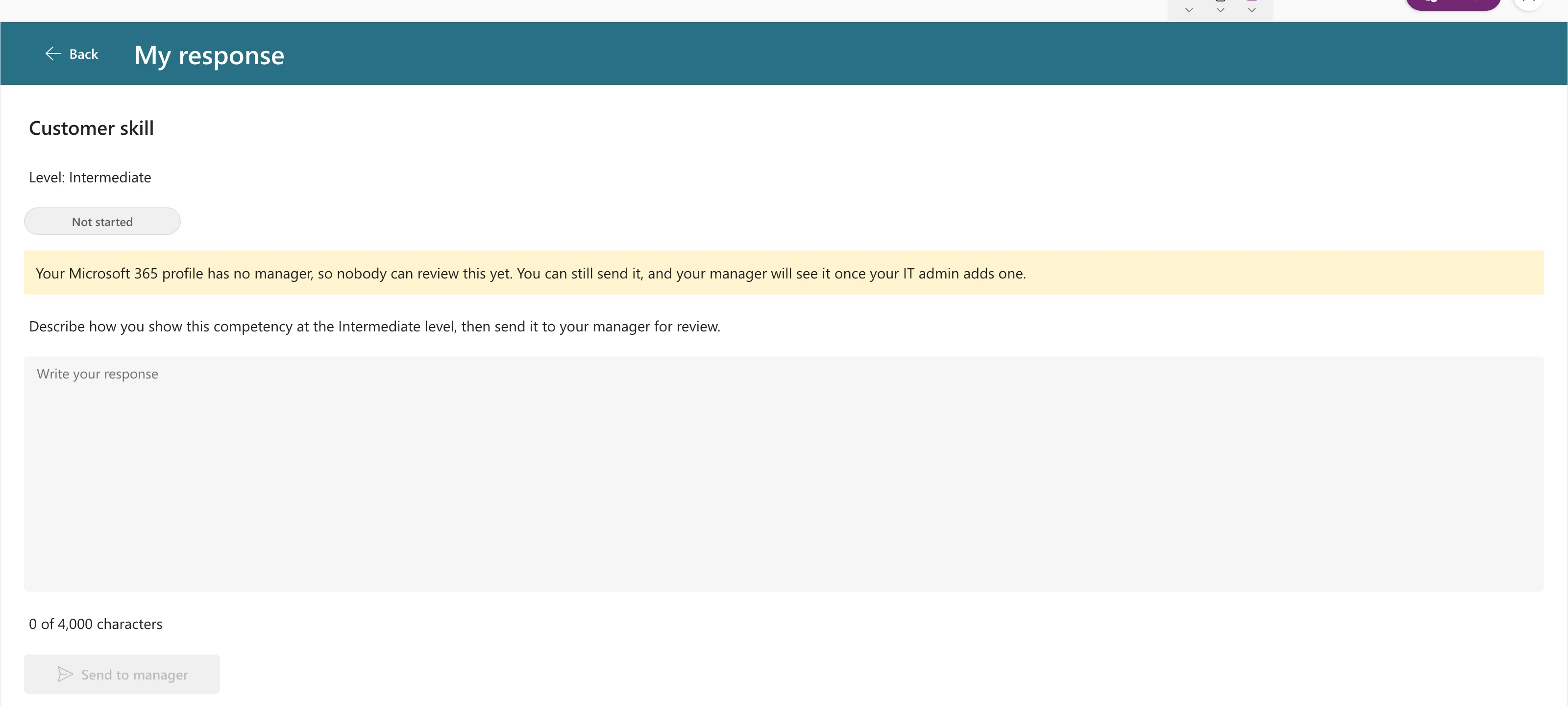
| Placeholder | "Write your response" | A hint while it's empty |
| Default | locResponse.Response | Starts with the saved text, if any |
| AccessibleLabel | "Your response for " & locPlanItem.Competency | Says what to type, for screen readers |
In a vertical container that stretches its children, the box takes the full width on its own (How to Add a Vertical Container in Power Apps).
The empty box in preview, with its placeholder:
Step 4: Read What's Typed
Formulas read the typed text from Text:
txtResponseRS.Text
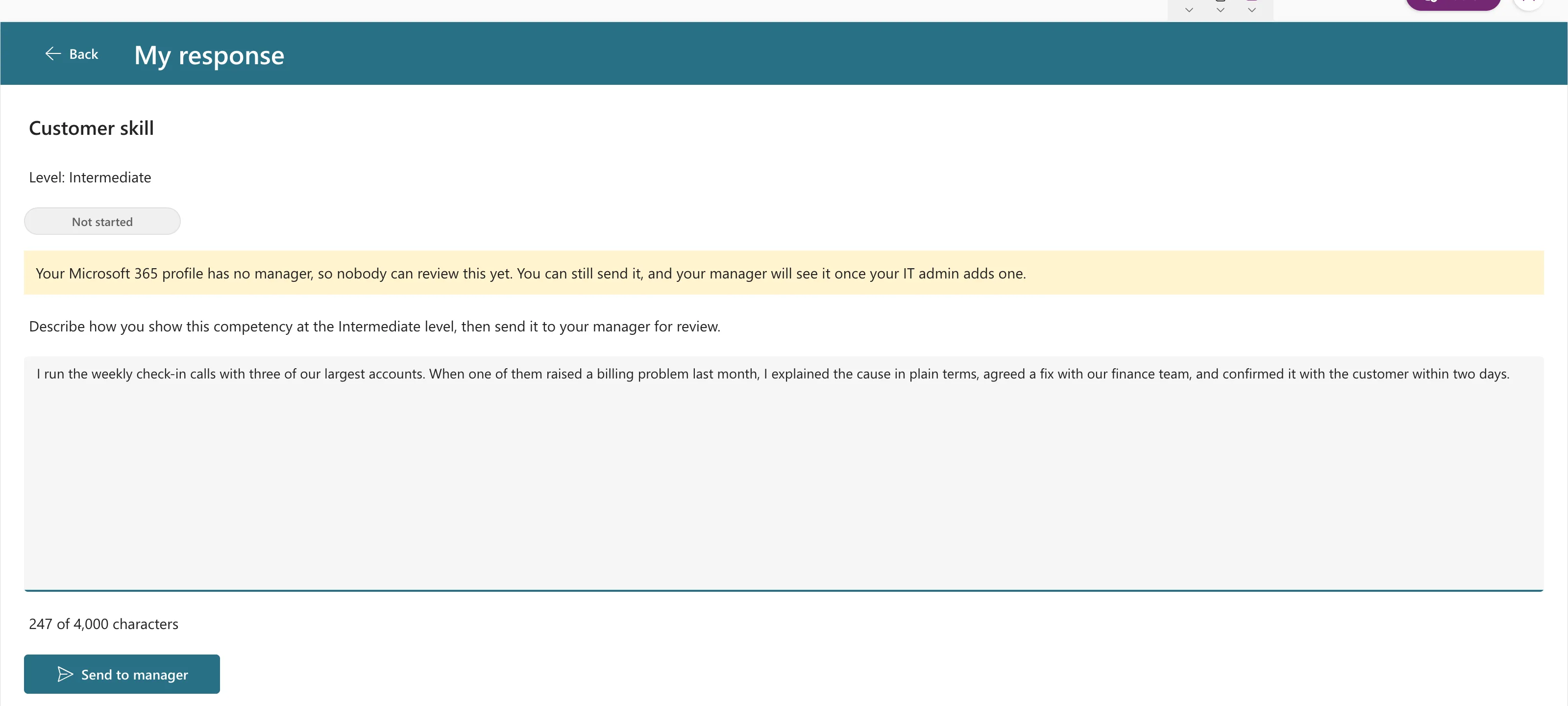
TriggerOutput is Keypress by default, so Text changes with every key, and anything that uses it, such as a character count, updates as you type. With a response typed in:
Common Mistakes
| Mistake | What happens | Do this instead |
|---|---|---|
| Leaving Type single-line | Line breaks aren't possible | TextInputType.Multiline |
| Reading Default instead of Text | You get the starting value, not what was typed | Read txtX.Text |
| No AccessibleLabel | Screen readers can't say what to type | Describe the expected text |
Troubleshooting
| Symptom | Likely cause | Fix |
|---|---|---|
| The box keeps old text when the screen opens | Default didn't change | Reset it in OnVisible |
| It's too small on a phone | A fixed height | Check it at phone size and adjust Height |
FAQ
How do I limit the length?
Use MaxLength (How to Limit Text Length and Show a Character Count in Power Apps).
How do I make it read-only?
Set DisplayMode to DisplayMode.View (How to Make a Control Read-Only in Power Apps with DisplayMode).
Conclusion
Insert Text input, set Type to TextInputType.Multiline, give it a height, a placeholder, a Default and an accessible label, and read the value from Text.
Additional Resources
- Text Input modern control: properties and best practices.
