How to Add a Horizontal Container in Power Apps

A horizontal container lines up the controls inside it from left to right and spreads them across the space it has. Placed inside a vertical container, it's the natural way to build a header bar, a row of buttons, or a picture next to some text. Here's how to add one and give it a fixed height, using an app header as the example.
Prerequisites
- A vertical container that fills the screen. See How to Add a Vertical Container in Power Apps. The example is
conMainHSon the Home screen of the Career Development Plan app, from Part 4 of the series.
Step 1: Insert It Inside the Vertical Container
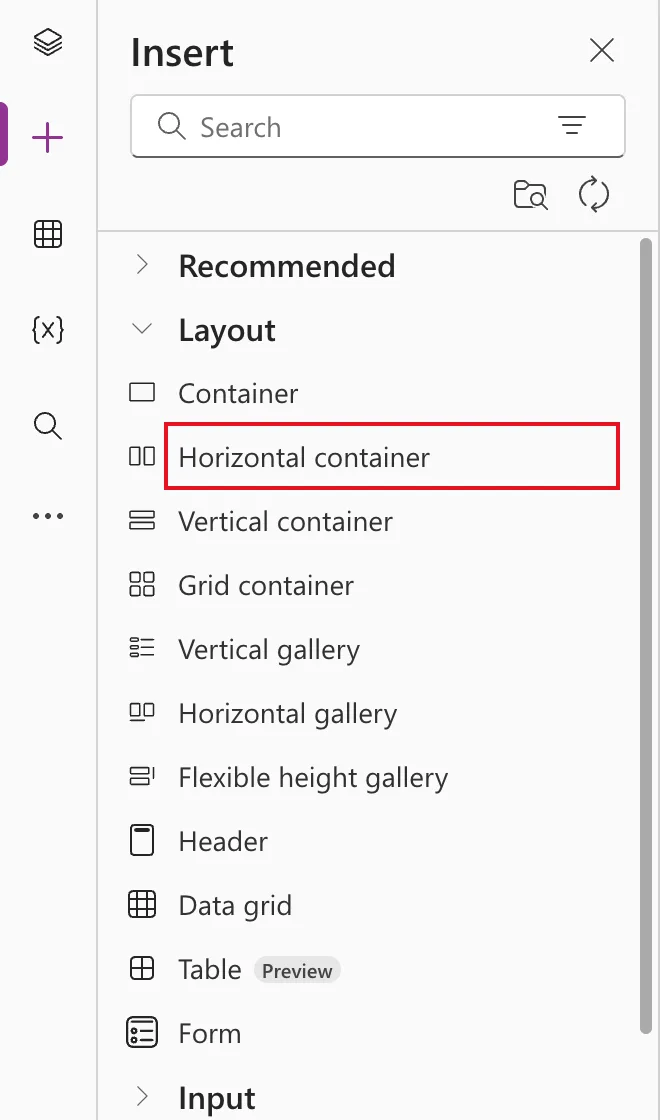
Select the vertical container in the tree view, open Insert → Layout and select Horizontal container:
As the only child of the vertical container, it fills it. The breadcrumb at the bottom of the canvas shows where it sits: Home Screen → conMainHS → Container2:
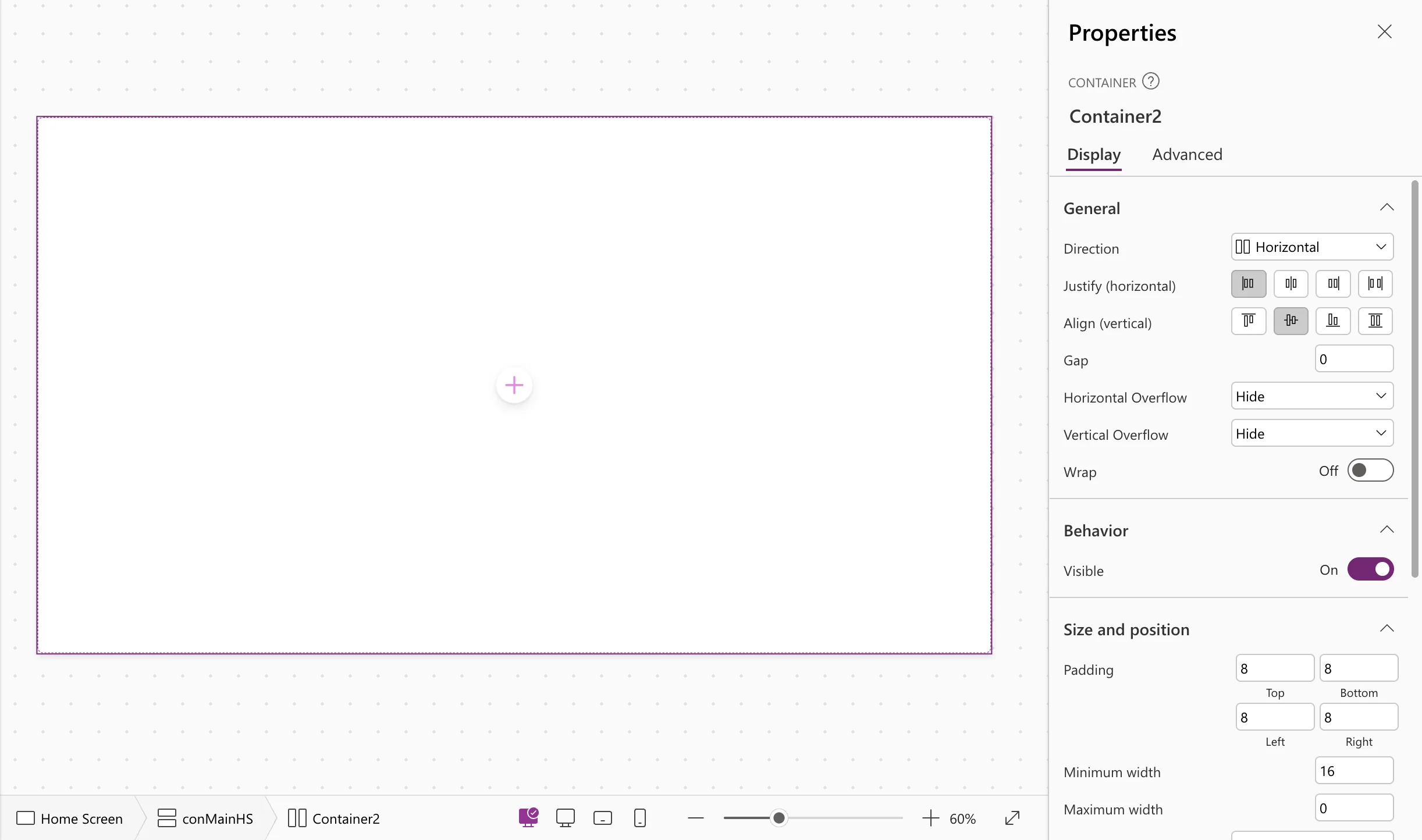
Rename it; the example uses conHeaderHS.
Step 2: Give It a Fixed Height
Inside a vertical container, a child has a Flexible height switch in Size and position. On means it takes a share of the spare height; for a header you want a fixed height instead. Turn Flexible height Off and set Height:
| Setting | Value |
|---|---|
| Flexible height | Off |
| Height | 64 |
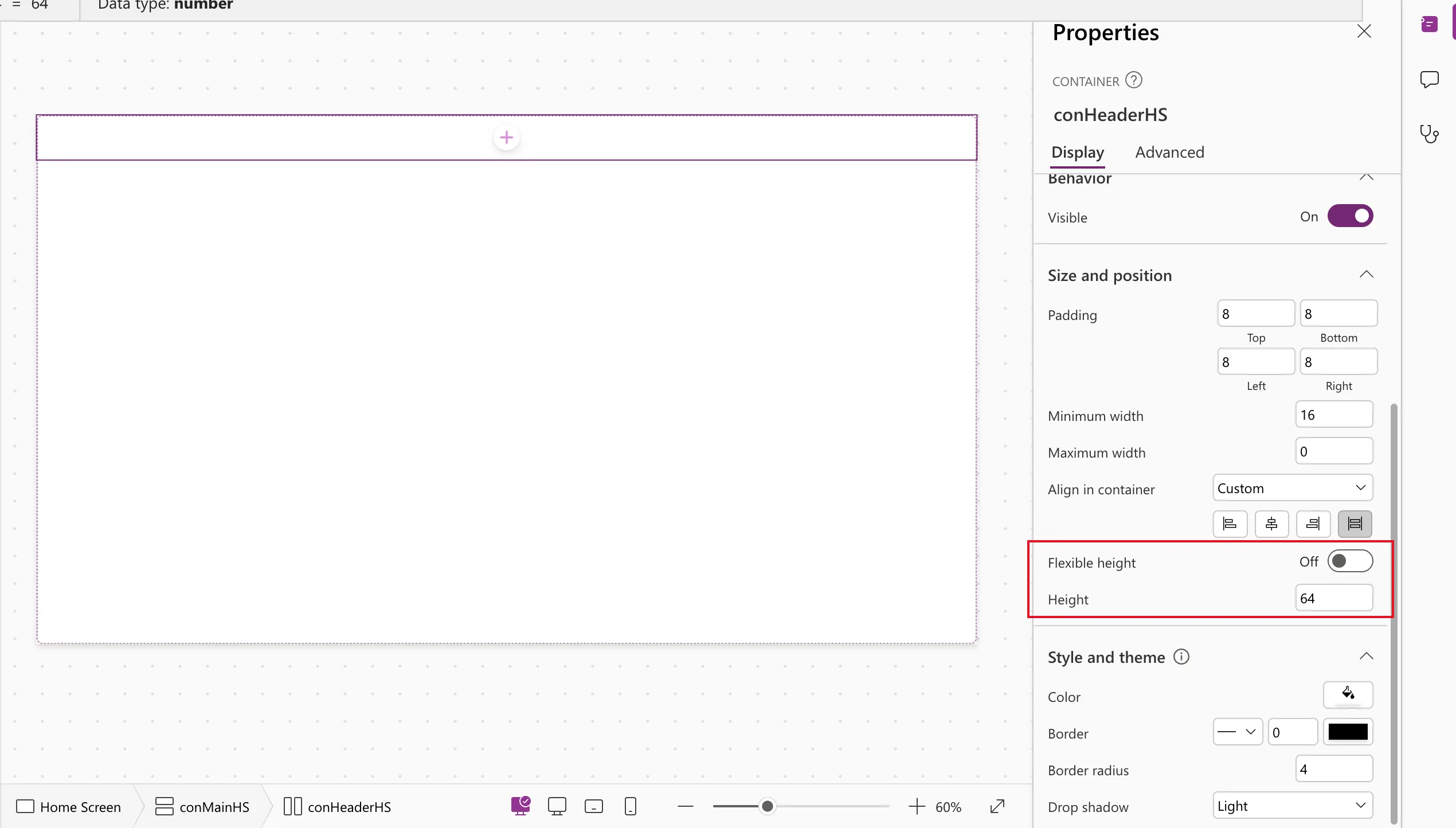
Anything you add below it in the vertical container can keep Flexible height On and take the rest of the screen.
Step 3: Style It as a Header
| Property | Value | Why |
|---|---|---|
| Fill | App.Theme.Colors.Primary | Follows the app's theme; see How to Use Theme Colors and Fonts in Power Apps Formulas |
| PaddingLeft, PaddingRight | 24 | Keeps the title off the edge |
| PaddingTop, PaddingBottom | 0 | The height is fixed already |
| Align (vertical) | Center | Centers the title in the bar |
| DropShadow | DropShadow.None | A flat bar |
| Radius (all four) | 0 | Square corners |
Step 4: Add Controls Side by Side
Select the horizontal container and insert controls; they line up left to right. Each child gets a Flexible width switch. On, it stretches to fill the spare width (in proportion to Fill portions); Off, it keeps its Width. In the example, the title label has Flexible width On, so it uses the whole bar; see How to Add a Heading for Screen Readers in Power Apps.
Common Mistakes
| Mistake | What happens | Do this instead |
|---|---|---|
| Leaving Flexible height on for a header | It grows to share the screen | Turn it off and set Height |
| Inserting with a child control selected | The new control goes into that child's container | Select the container you want first |
| Hard-coding the header color | It doesn't follow theme changes | Use App.Theme.Colors.Primary |
Troubleshooting
| Symptom | Likely cause | Fix |
|---|---|---|
| No Flexible height switch | The container isn't inside a vertical container | Move it into one |
| Children overlap or get cut off | Not enough width | Turn on Wrap, or let some children have Flexible width |
| The container ended up in the wrong place | The wrong item was selected when inserting | Undo, select the right container, insert again |
FAQ
Horizontal or vertical?
Use a horizontal container for things side by side (a header, a row of buttons), and a vertical one for things stacked (sections of a page).
What does Fill portions do?
Among flexible children, it sets the share each gets. Two children with 1 split the space evenly; 1 and 3 split it a quarter and three-quarters.
Can the row wrap on small screens?
Yes. Turn on Wrap, and children that don't fit move to the next line.
Conclusion
Insert a Horizontal container inside your vertical one, switch Flexible height off with a fixed Height for bars like a header, and let its children share the width with Flexible width. It's half of every responsive layout.
Additional Resources
- Horizontal container control: every property.
- Building responsive canvas apps: containers and fill portions.
