How to Add a Heading for Screen Readers in Power Apps

Screen reader users often jump from heading to heading to understand a page. In a canvas app, text only counts as a heading if you mark it as one, and the only control that can do that is the classic Text label, through its Role property. Here's how to add one, even in an app built with modern controls.
Why a Classic Label?
Microsoft's accessibility guidance asks for at least one heading on each screen, created by setting the Role property of a Label. The Role property is available only on the classic Label control: the modern Text control doesn't have it. So, even in a modern app, use a classic Text label for the heading.
Microsoft also suggests exactly one Heading1 per screen, as its main heading, with Heading2 to Heading4 for subheadings. Role doesn't change how the label looks; it only tells screen readers what it is.
Prerequisites
- A canvas app, ideally with a container for the heading, such as a header bar. See How to Add a Horizontal Container in Power Apps. The example is the header of the Career Development Plan app's Home screen, from Part 4 of the series.
Step 1: Insert a Classic Text Label
Select the container, open Insert, expand Classic and select Text label:
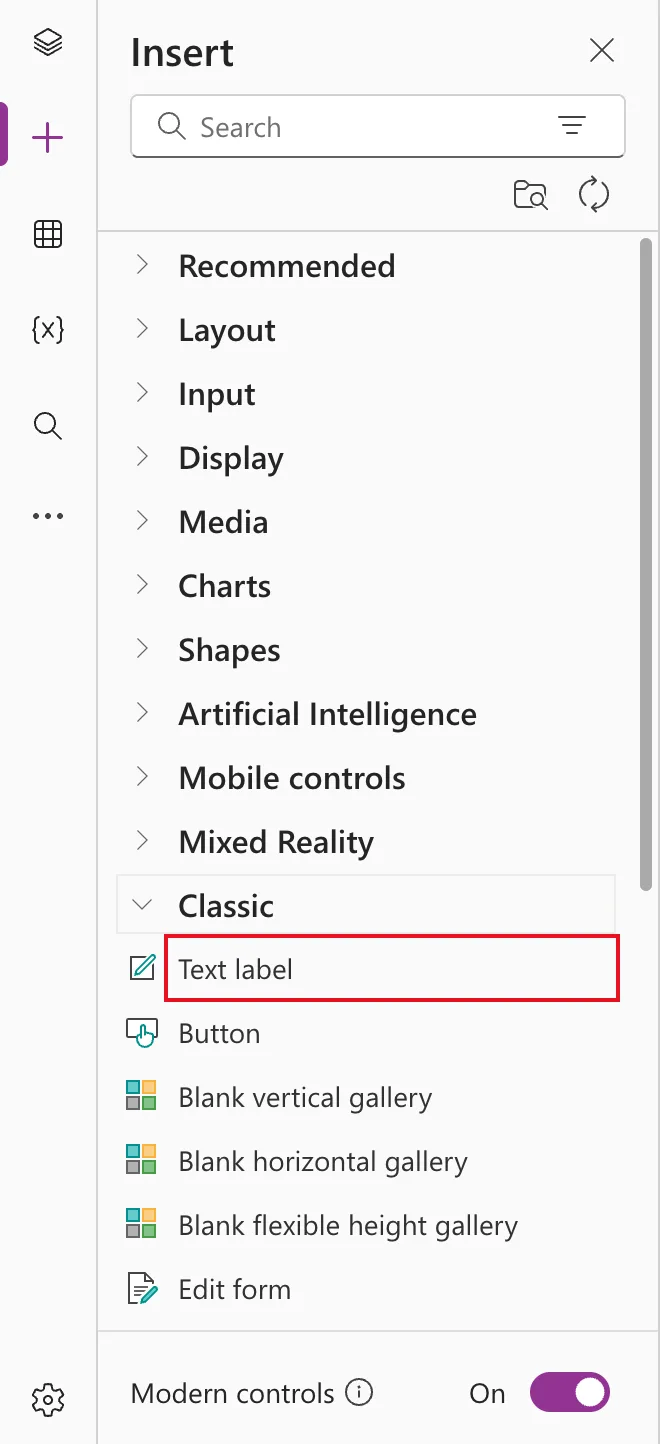
Rename it; the example uses lblTitleHS.
Step 2: Set Role to Heading1
Role isn't on the Display tab of the properties pane. Choose Role in the property list of the formula bar (or find it on the Advanced tab), and enter:
TextRole.Heading1
The preview strip confirms it:
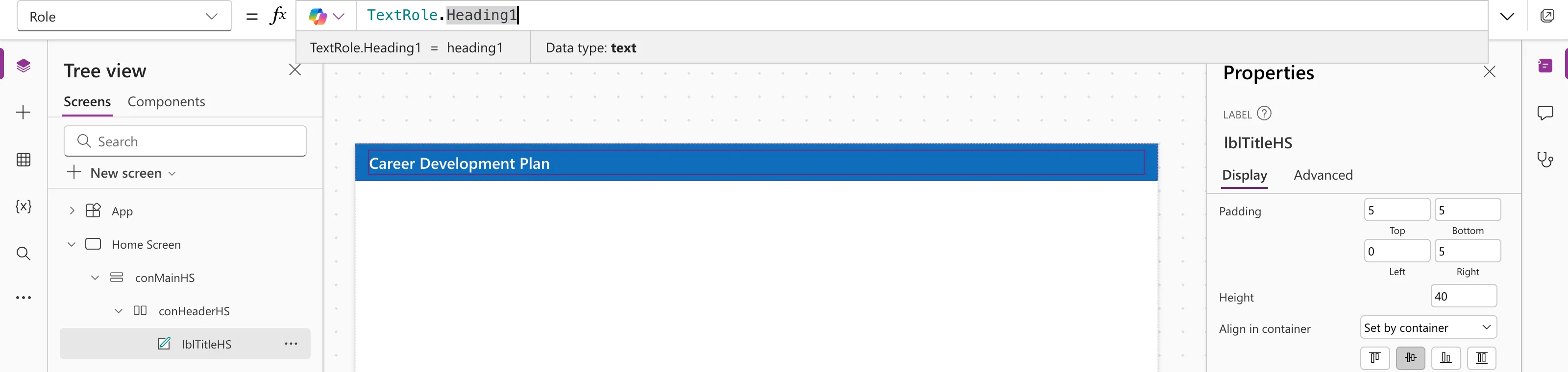
The default is TextRole.Default, plain text.
Step 3: Style It to Match the Modern Controls
A classic label doesn't follow the modern theme on its own. The example sets:
| Property | Value |
|---|---|
| Text | AppTitle (a named formula; see How to Use Named Formulas in Power Apps) |
| Font | App.Theme.Font |
| Color | Color.White (on a header in the theme's primary color) |
| Size | 20 |
| FontWeight | FontWeight.Semibold |
| FillPortions | 1 (stretch across the header) |
| Height | 40 |
| PaddingLeft | 0 |
How to Use Theme Colors and Fonts in Power Apps Formulas explains App.Theme.
Common Mistakes
| Mistake | What happens | Do this instead |
|---|---|---|
| Using a modern Text control for the heading | Screen readers read it as plain text | Use a classic Text label with Role |
| Making the heading look big but leaving Role as Default | It looks like a heading but isn't one | Set Role to TextRole.Heading1 |
| Several Heading1s on one screen | No single main heading | One Heading1; use Heading2 below it |
Troubleshooting
| Symptom | Likely cause | Fix |
|---|---|---|
| Role isn't in the property list | It's a modern Text control | Use a classic Text label |
| The label's font differs from the rest | Classic labels have their own default font | Set Font to App.Theme.Font |
| Role didn't change the look | Expected: it only affects screen readers | Style it with Size and FontWeight |
FAQ
Doesn't the screen name already help?
Yes: screen readers announce a screen's name when it opens. The heading adds a landmark users can jump to and read again.
Can I use Role on other controls?
Microsoft's accessibility properties reference says Role is available only in the Label control.
Do I need headings if my app has one screen?
Yes. Microsoft asks for at least one heading on every screen.
Conclusion
Insert a classic Text label, set Role to TextRole.Heading1, and style it with the theme's font and colors. One Heading1 per screen gives screen reader users something to navigate by, at no cost to how the app looks.
Additional Resources
- Create accessible canvas apps: headings and other screen reader guidance.
- Accessibility properties: Role: the heading levels.
- Label control: every property of the classic label.
