How to Add a .gitignore to a .NET C# Project

A .NET C# project fills up with files that should never be committed: build output in bin and obj, editor settings, and secrets such as .env. The .NET SDK ships a ready-made .gitignore that covers all of them, and one command adds it to your project. This guide adds it, shows what it ignores, and proves a file is really ignored.
What .gitignore Does
.gitignore is a plain text file in your project's root folder. Each line is a pattern, and Git won't offer to save any file that matches one. Lines starting with # are comments.
The one from dotnet new gitignore is based on GitHub's well-known VisualStudio.gitignore; its first lines are the same. Despite the name, it covers Visual Studio, VS Code and JetBrains Rider as well as the .NET build output, so it works whichever editor you use.
Prerequisites
- The .NET SDK. This guide uses .NET 10 (download it from the Downloads page):
dotnet --version
10.0.403
- A Git repository in your project folder. How to Create a Git Repository and Make Your First Commit shows how.
The commands below work unchanged in bash, zsh and PowerShell.
Step 1: Create the .gitignore
In your project's root folder, run:
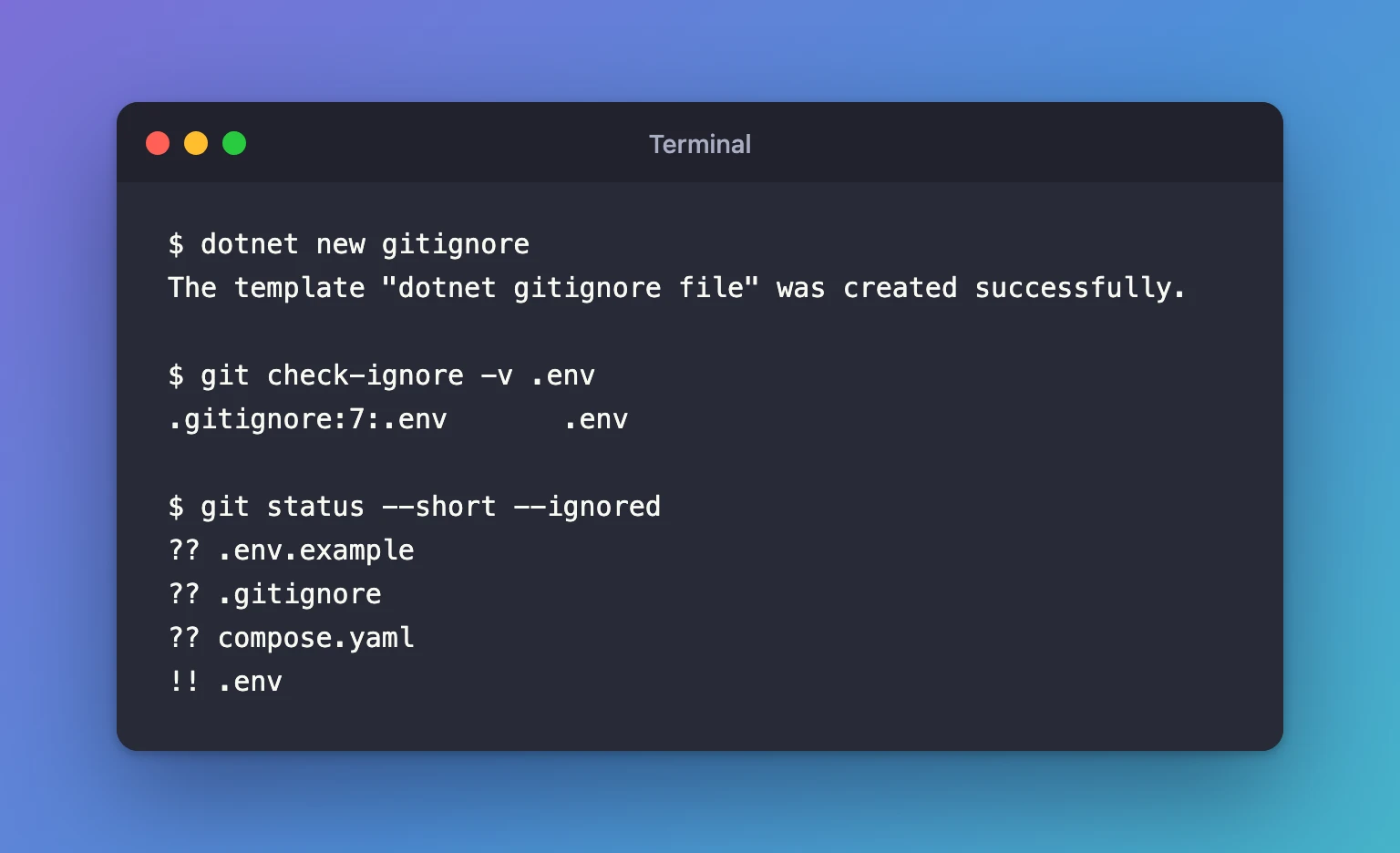
dotnet new gitignore
The template "dotnet gitignore file" was created successfully.
dotnet new creates files from templates, and gitignore is one of the templates built into the SDK. You now have a .gitignore file of 482 lines.
Step 2: Look at What It Ignores
Open .gitignore in your editor. These are its first lines:
## Ignore Visual Studio temporary files, build results, and
## files generated by popular Visual Studio add-ons.
##
## Get latest from `dotnet new gitignore`

# dotenv files
.env

# User-specific files
*.rsuser
*.suo
*.user
A few of the lines that matter most for a .NET C# project:
| Line | Pattern | What it keeps out of Git |
|---|---|---|
| 7 | .env | Files that hold passwords and other secrets |
| 33 | [Bb]in/ | Compiled output (bin, any letter case) |
| 34 | [Oo]bj/ | Temporary build files (obj) |
| 39 | .vs/ | Visual Studio's hidden settings folder |
| 12 | *.user | Your personal Visual Studio settings |
[Bb]in/ uses square brackets to match either letter, so both bin/ and Bin/ are ignored. The / at the end means "a folder".
Step 3: Prove a File Is Ignored
git check-ignore tells you whether a path is ignored and which line ignores it. It works even before the file exists:
git check-ignore -v .env
.gitignore:7:.env .env
Read it from left to right: the file .gitignore, line 7, pattern .env, and then the path you asked about. If a path isn't ignored, the command prints nothing.
Step 4: See Ignored Files in git status
Plain git status hides ignored files completely. Add --ignored to list them too:
git status --short --ignored
?? .env.example
?? .gitignore
?? compose.yaml
!! .env
??marks a file Git can see but isn't tracking yet.!!marks an ignored file. Here,.envholds real passwords and stays on your computer, while.env.example(no secrets) gets committed.
Commit .gitignore like any other file, so everyone who clones the project gets the same rules.
Common Mistakes
| Mistake | What happens | Do this instead |
|---|---|---|
Adding .gitignore after a secret was already committed | The secret stays in Git's history; .gitignore only affects untracked files | Add .gitignore before your first git add, and change any secret that was committed |
Putting .gitignore in a subfolder | Its rules apply only inside that subfolder | Keep it in the repository's root folder |
Running dotnet new gitignore a second time | It refuses to overwrite the file you may have edited | Pass --force only if you want the original back |
Troubleshooting
| Symptom | Likely cause | Fix |
|---|---|---|
Creating this template will make changes to existing files and exit code 73 | A .gitignore already exists | Keep yours, or run dotnet new gitignore --force to replace it |
A file you expect to be ignored still shows in git status | It was committed before the rule existed | git rm --cached <file> stops tracking it but keeps it on disk; then commit |
git check-ignore prints nothing | No pattern matches that path | Check the spelling, or add a line for it to .gitignore |
Here is the real message from the second run:
Creating this template will make changes to existing files:
  Overwrite   ./.gitignore

To create the template anyway, run the command with '--force' option:
   dotnet new gitignore --force


For details on the exit code, refer to https://aka.ms/templating-exit-codes#73
FAQ
Does this .gitignore work with VS Code and Rider too?
Yes. It ignores the .vscode/ folder except the four files a team usually shares (settings.json, tasks.json, launch.json and extensions.json), Rider's .idea/ folder, and the .NET build output that every editor produces.
Can I add my own lines?
Yes. Add them anywhere, ideally under a comment that says why. Keep the template's lines unless you know you need a file they exclude.
Why is .env ignored when .env.example is not?
.env holds your real values, such as passwords. .env.example lists the same setting names with empty values, so it is safe to share and tells others what to fill in.
Conclusion
dotnet new gitignore gave the project Microsoft's complete .gitignore for .NET and C#, with bin, obj, .vs and .env already covered. git check-ignore -v names the exact line that ignores a file, and git status --ignored shows everything that stays out of Git, so you can check before every commit.
Additional Resources
- dotnet new — creating files and projects from .NET templates.
- gitignore — Git's documentation for patterns, and why tracked files aren't affected.
- git check-ignore — debugging which rule ignores a path.
