How to Add a Flow to a Canvas App in Power Apps

A canvas app can run a flow only after the flow has been added to the app. In Power Apps Studio, open the Power Automate pane, select Add flow, and pick the flow. It then appears under In your app, with the name your formulas use.
Microsoft's Power Automate pane article lists what you need to add an existing flow: access to the flow, access to the flows in the same solution, and a Power Apps trigger for your flows.
The example is the Overtime Timesheet app, which gets Get Waiting Approvals, a flow from its own solution.
Prerequisites
- A flow with the When Power Apps calls a flow (V2) trigger, published (How to Create a Flow That Power Apps Can Run in Power Automate).
- The app open for editing in Power Apps Studio.
Step 1: Open the Power Automate Pane
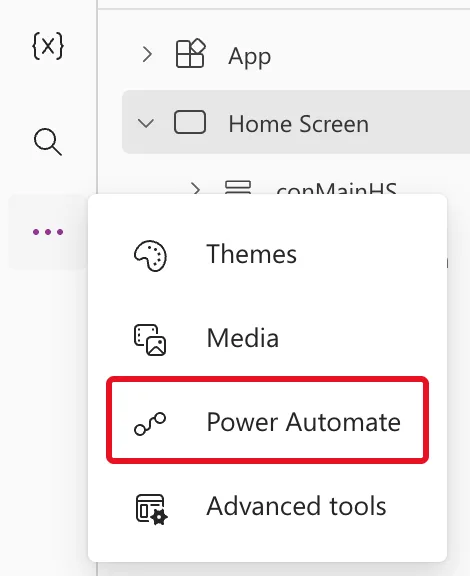
On the narrow bar at the far left of Studio, select More (…), then Power Automate:
Step 2: Select Add Flow and Pick the Flow
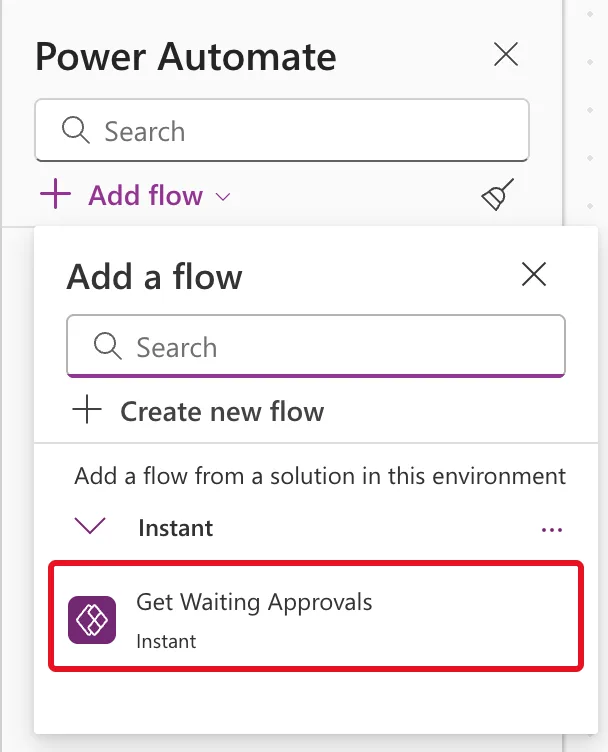
In the pane, select Add flow. The Add a flow list offers Create new flow and, under Add a flow from a solution in this environment, the flows you can add, grouped by type. Select yours:
Step 3: Find It Under In Your App
The flow moves to In your app. Under its display name is the name formulas use, without spaces:
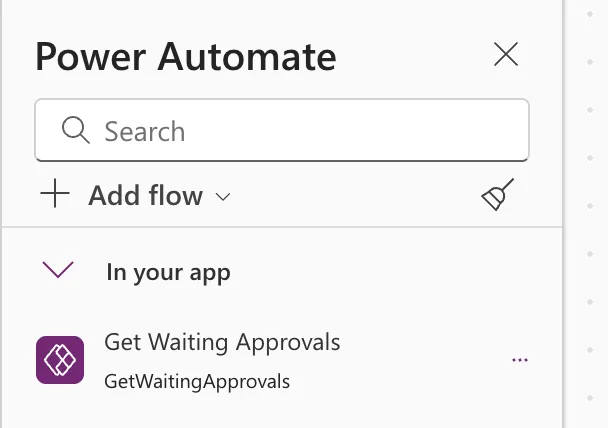
Its More (…) menu holds Edit, Refresh and Remove from app. Adding the flow doesn't put it in any formula: you call it where you need it, such as a button's OnSelect (How to Run a Flow and Use Its Result in Power Apps).
GetWaitingApprovals.Run()
Common Mistakes
| Mistake | What happens | Do this instead |
|---|---|---|
| Looking for a flow with another trigger | It isn't offered | Give it the Power Apps (V2) trigger |
| Changing the flow later without updating the app | The app keeps the flow's old definition | Refresh it in the pane |
| Using the display name in formulas | Spaces aren't allowed there | The name under it, such as GetWaitingApprovals |
Troubleshooting
| Symptom | Likely cause | Fix |
|---|---|---|
| The flow isn't in Add a flow | No Power Apps trigger, or no access to it | Check the trigger and the flow's owners |
Run() isn't offered after the name | The flow isn't in the app | Add it, then type the formula |
| The app shows old outputs | The flow changed outside Studio | Refresh the flow |
FAQ
Does removing the flow from the app delete it?
No. Microsoft's article says Remove from app only removes the flow from the app, while the flow remains intact in the environment.
Can I edit the flow from Studio?
Yes, with Edit in the flow's More menu. Changes made in Power Automate itself need a Refresh in the app (How to Refresh a Flow in a Canvas App in Power Apps).
Conclusion
Open More > Power Automate in Studio, select Add flow, and pick a flow with the Power Apps trigger. It appears under In your app, ready to call as FlowName.Run().
