How to Add a Description to a SharePoint List Column

A column's name says what it is; its description says what to put in it. SharePoint shows the description right under the field in the item form, so it's the cheapest help text a list can have. It's optional, and worth writing for every column.
Every column in the two lists of the Overtime Timesheet series has one. They also tell anyone who opens the list later what each column is for.
Prerequisites
- A SharePoint list, and permission to change it. How to Create a List and Add Columns in SharePoint Online creates one.
Step 1: Type the Description
Description is the second box in the Create a column panel, under Name:
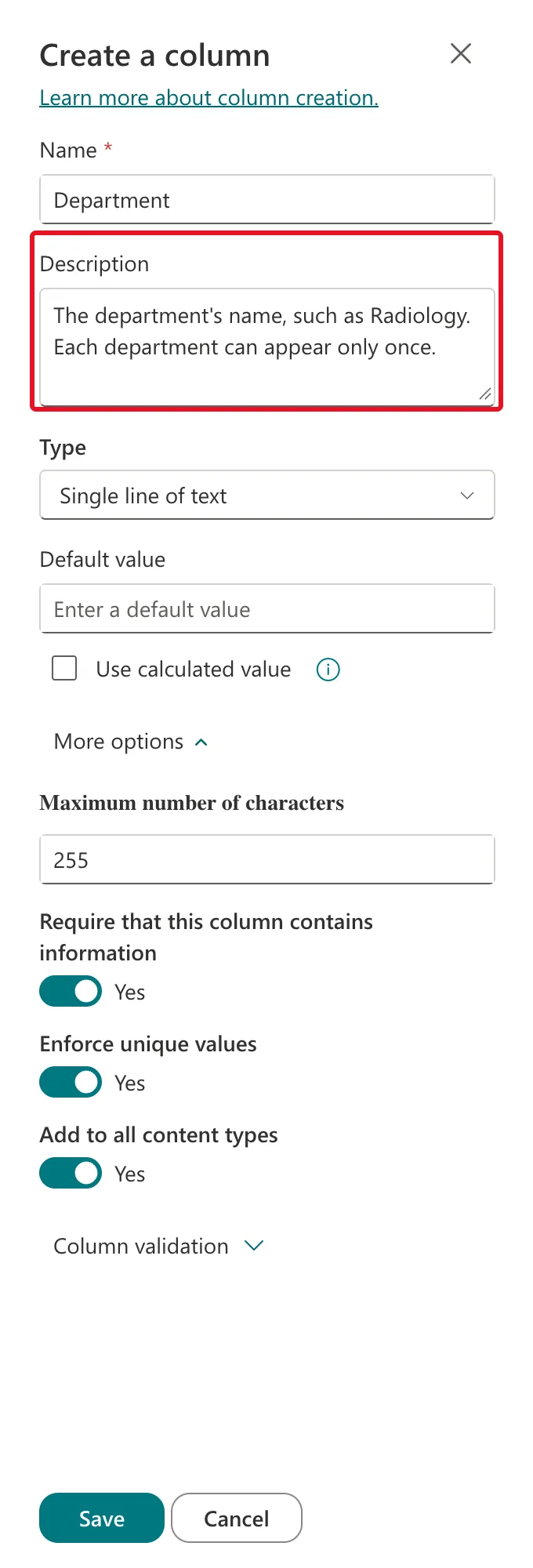
Microsoft's Create a column in a list or library puts its purpose well: "to help people understand the purpose of the column and what data it should contain. This description is optional."
For a column that already exists, open Settings (the gear) → List settings, select the column under Columns, and fill in Description on its page.
Step 2: See It in the Form
Select Save, then + New. The description appears in grey under the field:
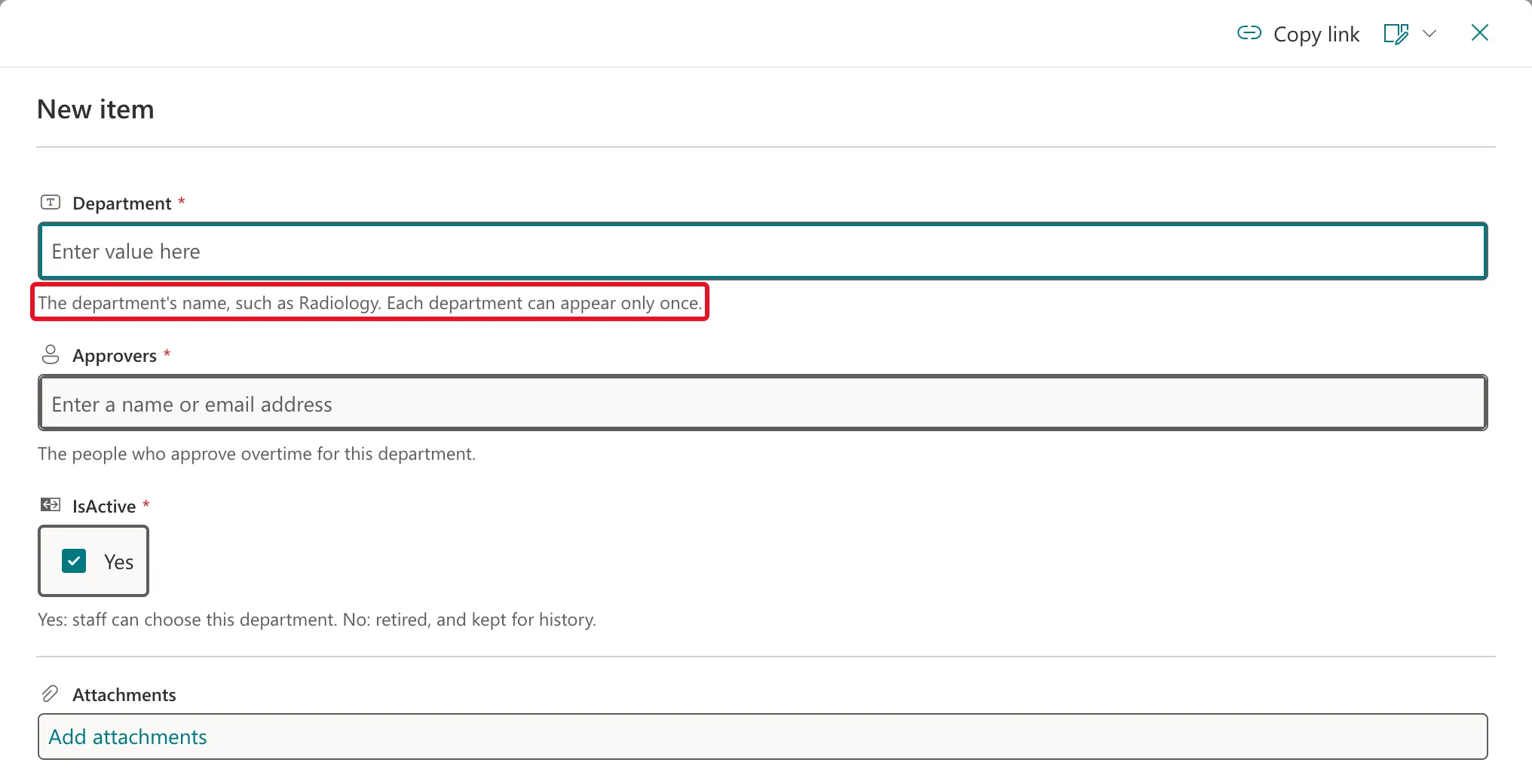
It's there for screen readers too: each field's accessible name in the form included its description. For IsActive, it read "IsActive Required Field, Yes, field editor. Yes: staff can choose this department. No: retired, and kept for history."
Writing Descriptions People Read
The Overtime Timesheet lists follow a few rules:
- Say what goes in, with an example. "The department's name, such as Radiology."
- Say any rule. "Each department can appear only once."
- Say where a value comes from. "Worked out by the app." "Set by the approval flow."
- Explain both values of a Yes/No. "Yes: staff can choose this department. No: retired, and kept for history."
- Keep it to a sentence or two. It sits under every field, every time.
Common Mistakes
| Mistake | What happens | Do this instead |
|---|---|---|
| Repeating the column name | It tells people nothing new | Say what goes in, with an example |
| Leaving descriptions for later | Nobody comes back to them | Write them as you create the columns |
| Writing a paragraph | The form gets long and people stop reading | One or two short sentences |
Troubleshooting
| Symptom | Likely cause | Fix |
|---|---|---|
| The description doesn't show | The column has no description | Add one in the column's settings |
| The description isn't in the list view | Descriptions appear in the item form only | Open the item, or select + New |
FAQ
Can I add a description to the Title column?
Yes: its settings page in List settings has the same Description box. In the Overtime Timesheet lists Title is hidden, so it doesn't need one.
Do descriptions show in list views?
No. They show in the item form, not as columns in the list.
Conclusion
Type a short Description for every column in the Create a column panel. The item form shows it under the field, and screen readers include it when they announce the field.
