How to Add a Description to a Canvas App in Power Apps

A canvas app's description is a sentence or two about what the app is for. Power Apps Studio keeps it in the app's Settings, and its own hint says why: "Provide a description to help end-users find and use your app." Here's where to type it and where it shows up afterwards.
The example is the Overtime Timesheet app, a brand-new canvas app with no description yet.
Prerequisites
- A canvas app open in Power Apps Studio. How to Create a Canvas App Inside a Solution in Power Apps creates one.
- Permission to edit the app: you're its owner or a co-owner.
Step 1: Open Settings
Select App settings, the gear at the bottom of Studio's left-hand bar:
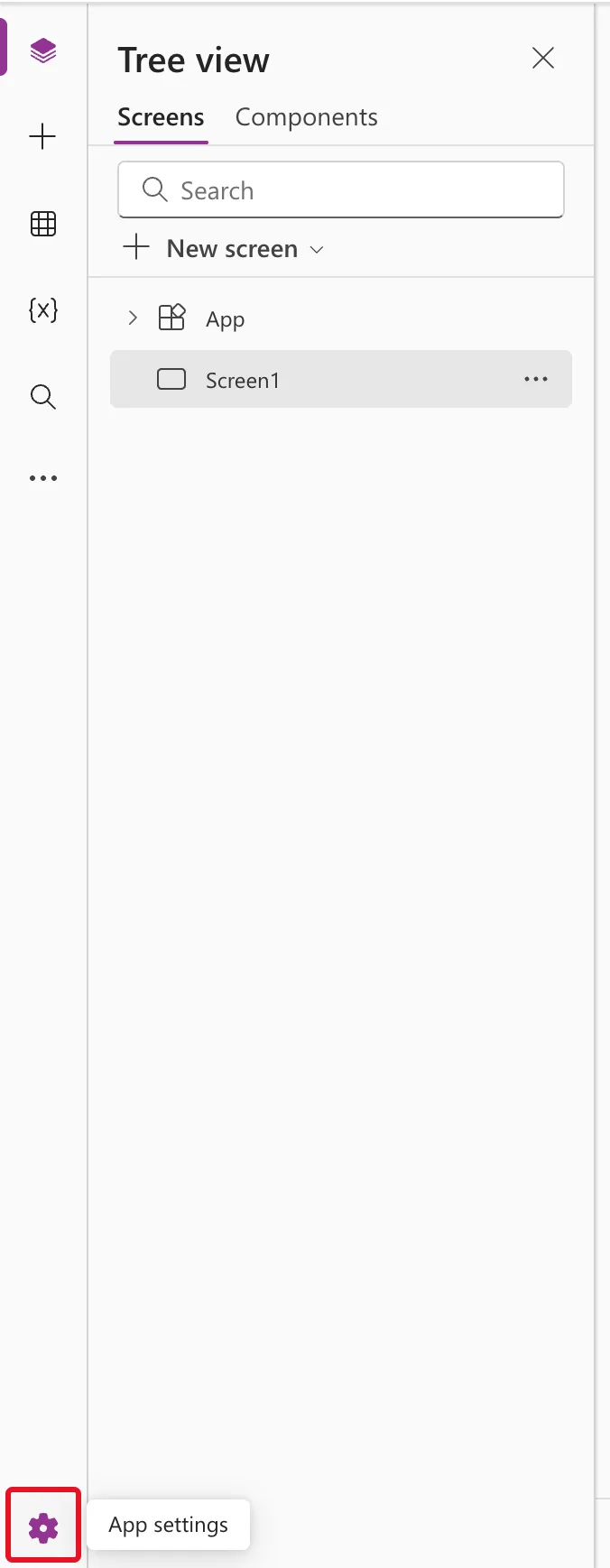
Settings opens on its General tab.
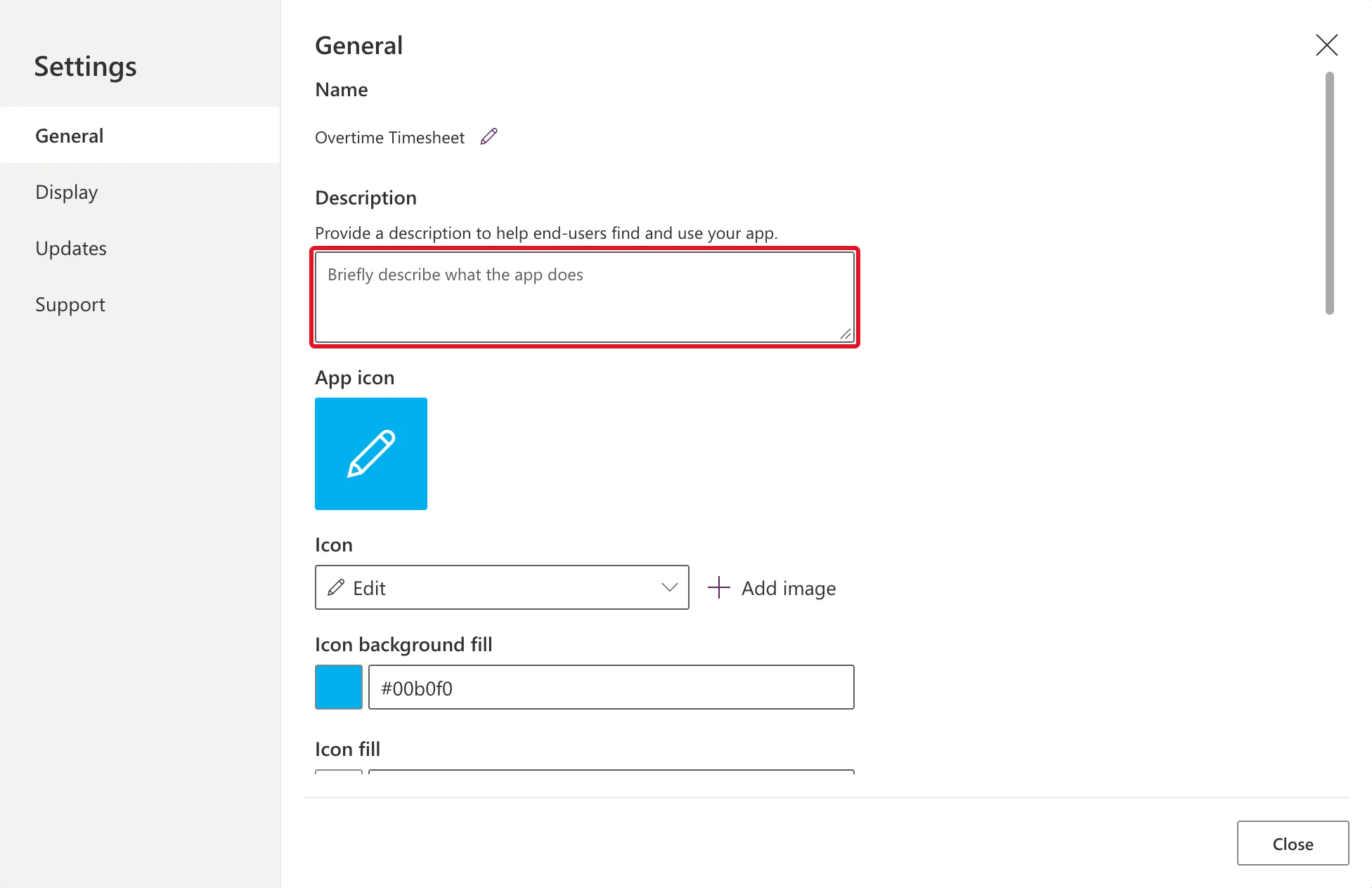
Step 2: Find the Description Box
Description sits below the app's name. The box is empty, with the placeholder Briefly describe what the app does:
Step 3: Type the Description
Write one or two sentences, from the point of view of the people who use the app: what they can do with it. The example:
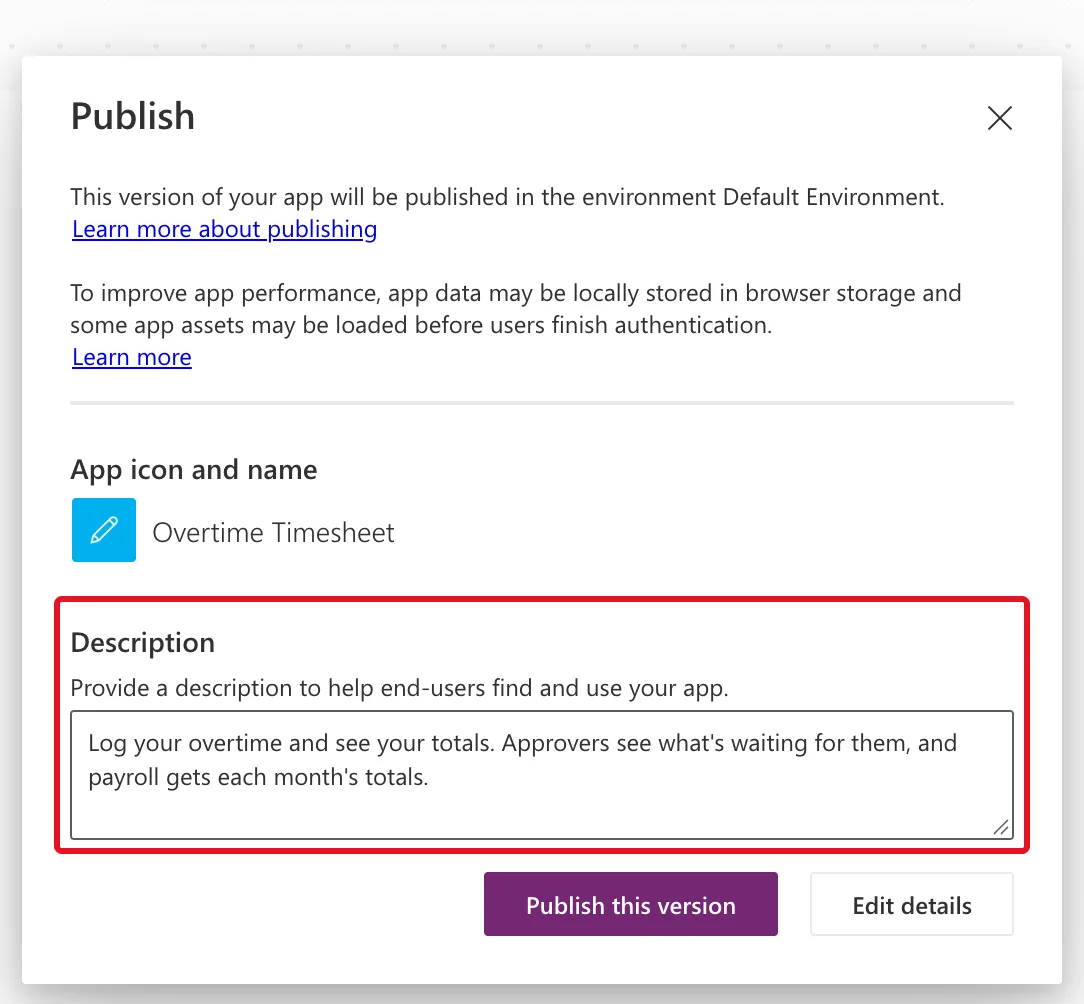
Log your overtime and see your totals. Approvers see what's waiting for them, and payroll gets each month's totals.
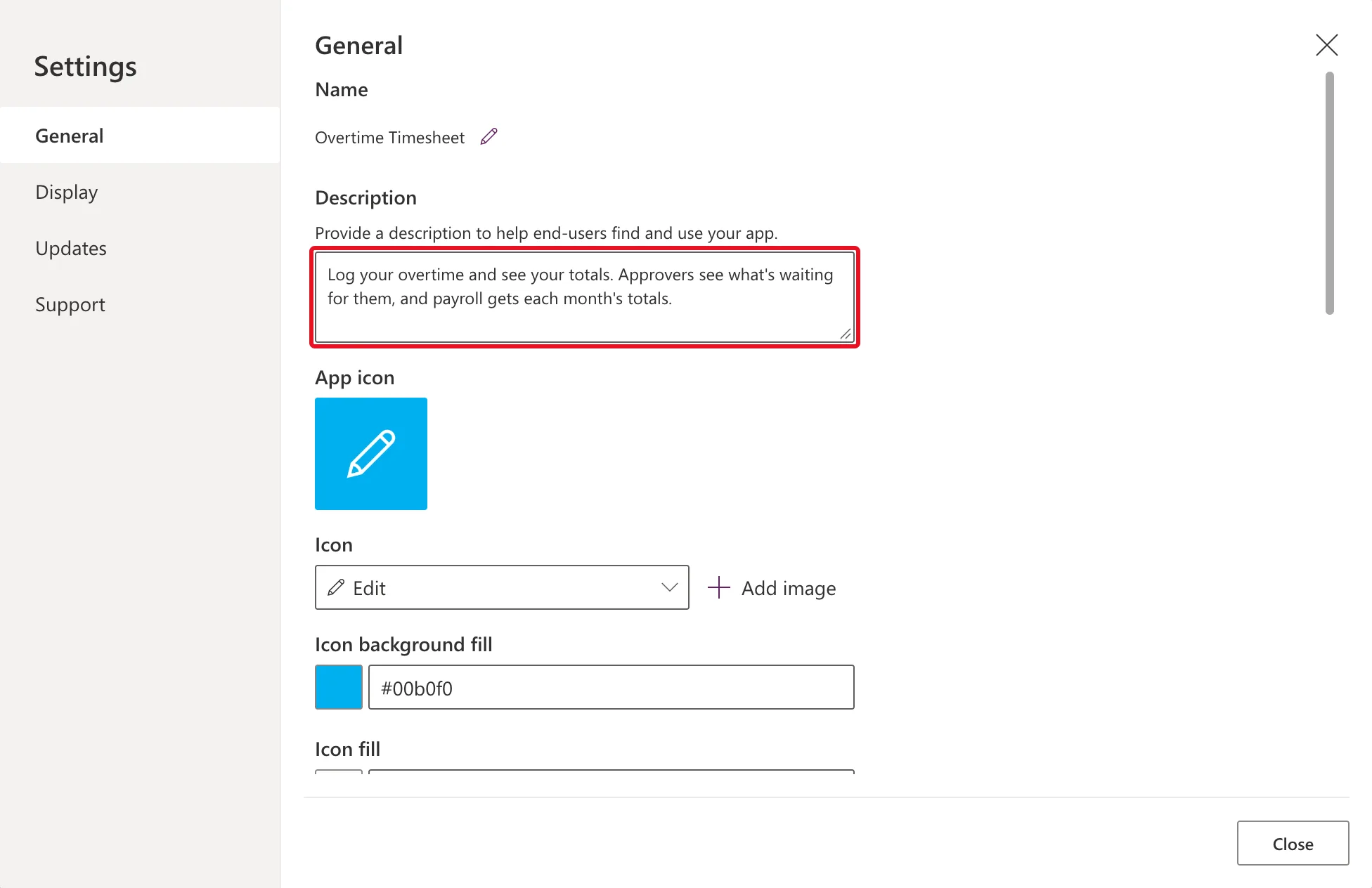
Close Settings and Save the app.
Where the Description Shows
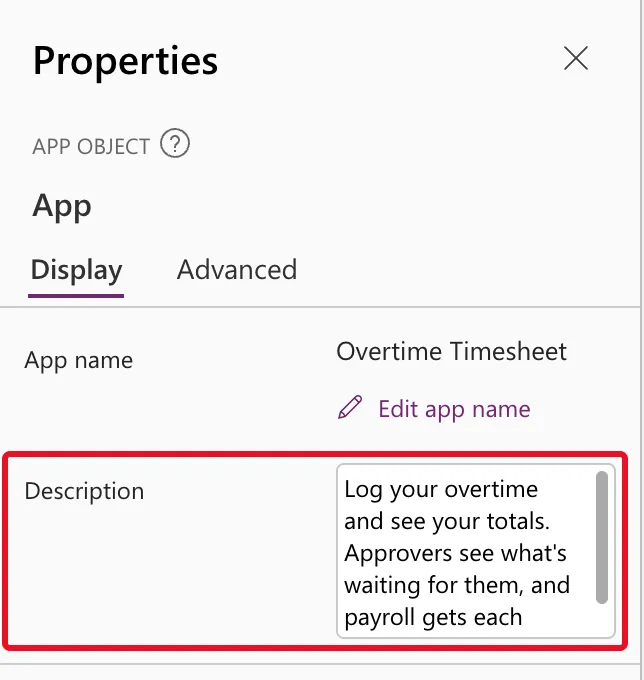
In the App object's properties. Select App in the Tree view: its Properties pane shows the same Description:
In the Publish dialog. When you publish the app, the dialog shows it under the app's icon and name, with the same hint:
What the Details Page Showed
After the app was saved and published, its Details page in Power Apps (Apps → the app → Details) still said Description: Not provided. Another app in the same environment, whose description was set the same way, said the same. Microsoft's documentation doesn't explain the difference, so don't rely on that page to check a description: use Studio's Settings or the App properties.
Common Mistakes
| Mistake | What happens | Do this instead |
|---|---|---|
| Describing how the app is built | Users learn nothing about what it does for them | Say what people can do with it |
| Closing Studio without saving | The description is lost | Save after closing Settings |
| Checking the description on the Details page | It may say Not provided | Check Settings or the App properties |
Troubleshooting
| Symptom | Likely cause | Fix |
|---|---|---|
| No Description box in Settings | You're on another tab | Select General |
| The app's Details page says Not provided | That page didn't show the description in the example either | Check Studio's Settings or the App properties |
FAQ
Can Copilot write the description?
Microsoft's Save and publish canvas apps describes Create descriptions using AI as a preview feature for apps in a Managed Environment. The example's environment isn't managed, and the option didn't appear.
Is the description the same as the app's name?
No. The name is above it on the same tab, with its own pencil icon to rename the app.
Conclusion
Studio's Settings → General → Description holds the app's description. Type one or two sentences about what people can do with the app, then save. It shows in the App object's properties and in the Publish dialog.
Additional Resources
- Save and publish canvas apps: publishing, and AI-written descriptions in Managed Environments.
- Understand Power Apps Studio: the Properties pane, including the App object's description.
