How to Add a Date Picker in Power Apps

When an app needs a date, give people a calendar instead of a text box. The modern Date picker control shows one: insert it, start it on today with DefaultDate, and read the date people choose from SelectedDate.
The example is the Log overtime screen of the Overtime Timesheet app, where dpWorkDateLO asks for the day a shift started.
Prerequisites
- A canvas app with modern controls turned on: How to Turn On Modern Controls and Themes in Power Apps.
- Somewhere to put the control. In the example, it goes into a vertical container under a field label (How to Add a Vertical Container in Power Apps).
Step 1: Insert the Date Picker
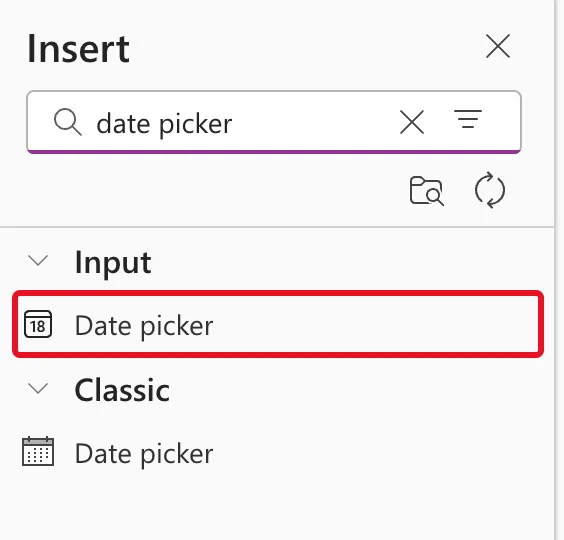
Select the container (or the screen), open Insert and search for date picker. Two controls come back: Date picker under Input, which is the modern one, and Date picker under Classic. Choose the one under Input:
Rename it straight away, here dpWorkDateLO (How to Rename a Screen or Control in Power Apps).
Step 2: Check Its Defaults
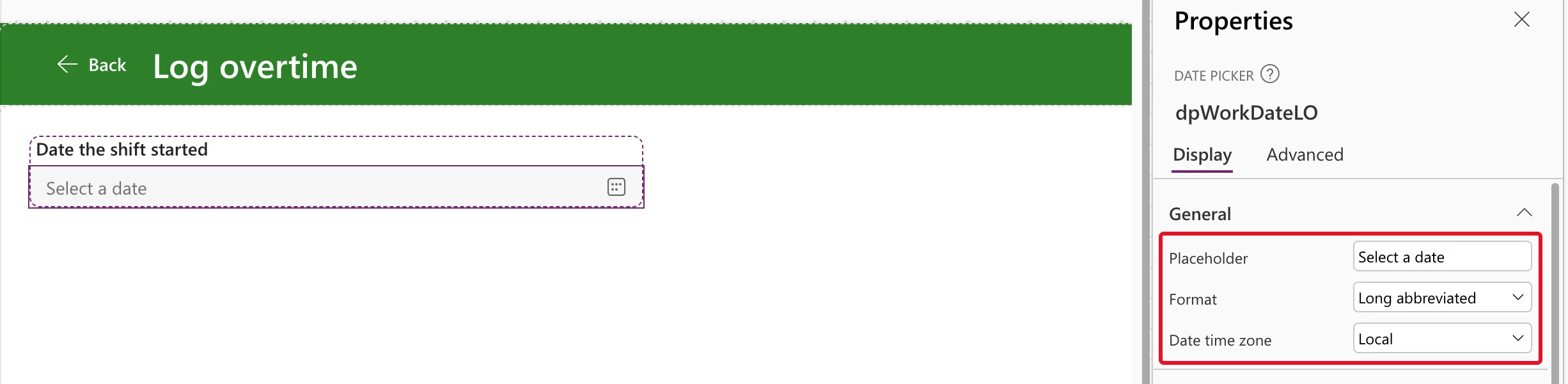
The new date picker shows Select a date until someone picks one. The General section of its Properties pane has Placeholder, Format and Date time zone; Microsoft's reference names SelectedDate, Format and DateTimeZone as the control's key properties:
These were its starting values in the formula bar:
| Property | Default |
|---|---|
| DefaultDate | empty |
| Format | DatePickerFormat.LongAbbreviated |
| DateTimeZone | DateTimeZone.Local |
| StartDate | Date(1900, 1, 1) |
| EndDate | Date(Year(Today())+100, 12, 31) |
| StartOfWeek | StartOfWeek.Sunday |
| Placeholder | "Select a date" |
| IsEditable | false |
| Width, Height | 320, 32 |
IsEditable false means people choose from the calendar rather than typing. DateTimeZone Local shows and stores the date in the person's own time zone.
Step 3: Start It on Today
Most forms start on a sensible date. Set DefaultDate:
Today()
Select the formula, and the preview strip under the formula bar shows today's date at midnight, of type Date. The control now shows it too:

Today returns the date without a time; How to Get the Current Date and Time in Power Apps with Now compares it with Now.
The date reads 08 November 2026 because the default format, Long abbreviated, follows the language the app runs in. Microsoft's reference shows the same format as Jan 15, 2024; this app ran in an English (United Kingdom) browser. To fix the format for everyone, see How to Show Dates as dd/mm/yyyy in a Power Apps Date Picker.
Step 4: Give It an Accessible Label
Screen readers announce AccessibleLabel when someone reaches the control. Describe what the date is for, not the date itself:
"Date the shift started"
Step 5: Read the Chosen Date
Formulas read the date from SelectedDate. To see it, I set a text control's Text to it for a moment:
Text(dpWorkDateLO.SelectedDate, "dddd d mmmm yyyy")
The strip and the text control both show Sunday 8 November 2026:

How to Format a Date in Power Apps with Text lists the format codes. SelectedDate is blank when nothing is chosen, so check it with IsBlank before using it.
Step 6: Try the Calendar
Preview the app (How to Preview a Canvas App in Power Apps Studio) and select the date. The calendar opens with today marked, and a month and year list beside it:
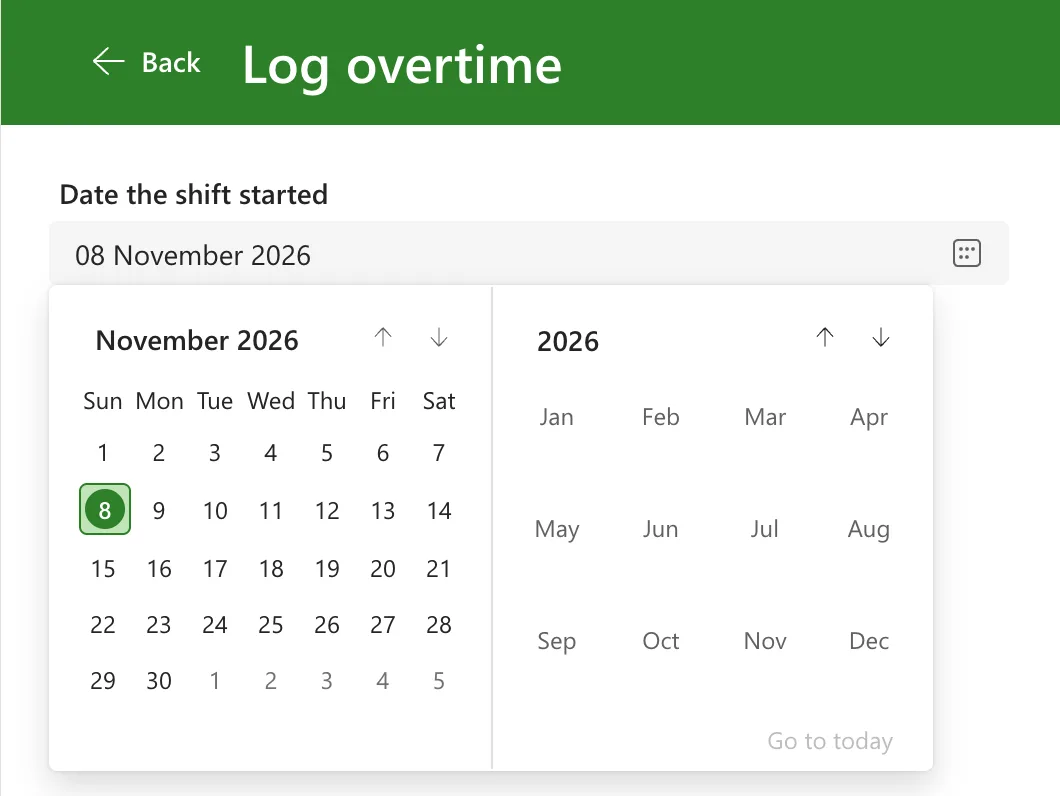
The week starts on Sunday by default. How to Show Dates as dd/mm/yyyy in a Power Apps Date Picker changes that to Monday, and How to Stop Users Picking a Future Date in a Power Apps Date Picker greys out the days after today.
Common Mistakes
| Mistake | What happens | Do this instead |
|---|---|---|
| Inserting the Classic date picker | A different control, with different properties from the ones here | Choose Date picker under Input |
| Reading DefaultDate in formulas | You get the starting date, not what was chosen | Read SelectedDate |
| Using SelectedDate without checking it | A blank date flows into calculations | Check IsBlank(dpWorkDateLO.SelectedDate) first |
| Leaving AccessibleLabel empty | Screen readers don't say what the date is for | Describe its purpose |
Troubleshooting
| Symptom | Likely cause | Fix |
|---|---|---|
| The control shows Select a date | DefaultDate is empty | Set it, for example to Today() |
| The date format isn't what you expected | Format follows the app's language | Set a pattern such as "dd/mm/yyyy" |
| People can't type a date | IsEditable is false | Set it to true if typing suits your users |
| Coming back to the screen shows the last date | Controls keep their value | Reset(dpWorkDateLO) in the screen's OnVisible (How to Reset a Control to Its Default Value in Power Apps with Reset) |
FAQ
What's the difference between DefaultDate and SelectedDate?
DefaultDate is the date the control starts on, which you set. SelectedDate is the date it shows now, which formulas read: the default until someone picks another.
Does the date picker include a time?
No. SelectedDate is a date at midnight. For a time of day, add a separate control: How to Let Users Pick a Time in Power Apps.
Should DateTimeZone be Local or UTC?
Microsoft's reference describes Local as the user's own time zone and the default. Keep it unless your data source stores dates as UTC values that must be shown as they are.
Conclusion
Insert Date picker from the Input group, start it with DefaultDate: Today(), give it an accessible label that says what the date is for, and read the result from SelectedDate.
Additional Resources
- Date picker modern control in canvas apps: every property, including Format, DateTimeZone, StartDate and EndDate.
- Show text, dates, and times in canvas apps: working with dates in formulas.
