How to Add a Date-Only Column to a SharePoint List with the REST API in Power Automate

A birthday is a date, not a moment in time. A SharePoint date column shows only the date when its XML says Format='DateOnly'. A flow can create one with the REST API, next to a date-and-time column for anything with a time.
Syntax
The column is one Field element, sent to createfieldasxml with Send an HTTP request to SharePoint. How to Add a Column to a SharePoint List with CreateFieldAsXml explains the request; only the XML changes here:
<Field Type='DateTime' Name='<internal name>' StaticName='<internal name>' DisplayName='<display name>' Description='<description>' Format='<DateOnly or DateTime>' FriendlyDisplayFormat='Disabled' Required='TRUE' />
Type='DateTime': a date column, with or without a time. Microsoft's Field element reference says to use the Format attribute to specify date formatting.Format:DateOnlyto display (and allow edits to) only the date portion, where the time portion is set to 12:00 A.M..DateTimeto display and edit both date and time of day, which is the default.FriendlyDisplayFormat='Disabled'(optional): show the date itself, as when Friendly format is No in the column's settings. It isn't in the Field element reference;DisabledandRelativecome from Microsoft's DateTimeFieldFriendlyFormatType list.Required='TRUE'(optional): the column must have a value.
The Example
A blank list called Birthdays gets two date columns:
| Column | Format | Holds |
|---|---|---|
| Birthday | DateOnly | The day a person was born; required |
| PartyStarts | DateTime | When their party starts, with a time |
The flow has the trigger Manually trigger a flow and two Send an HTTP request to SharePoint actions, Add Birthday and Add PartyStarts.
Prerequisites
- Permission to change the list, such as Edit or Full Control on the site, for the account the flow's SharePoint connection uses.
Step 1: Add the Date-Only Column
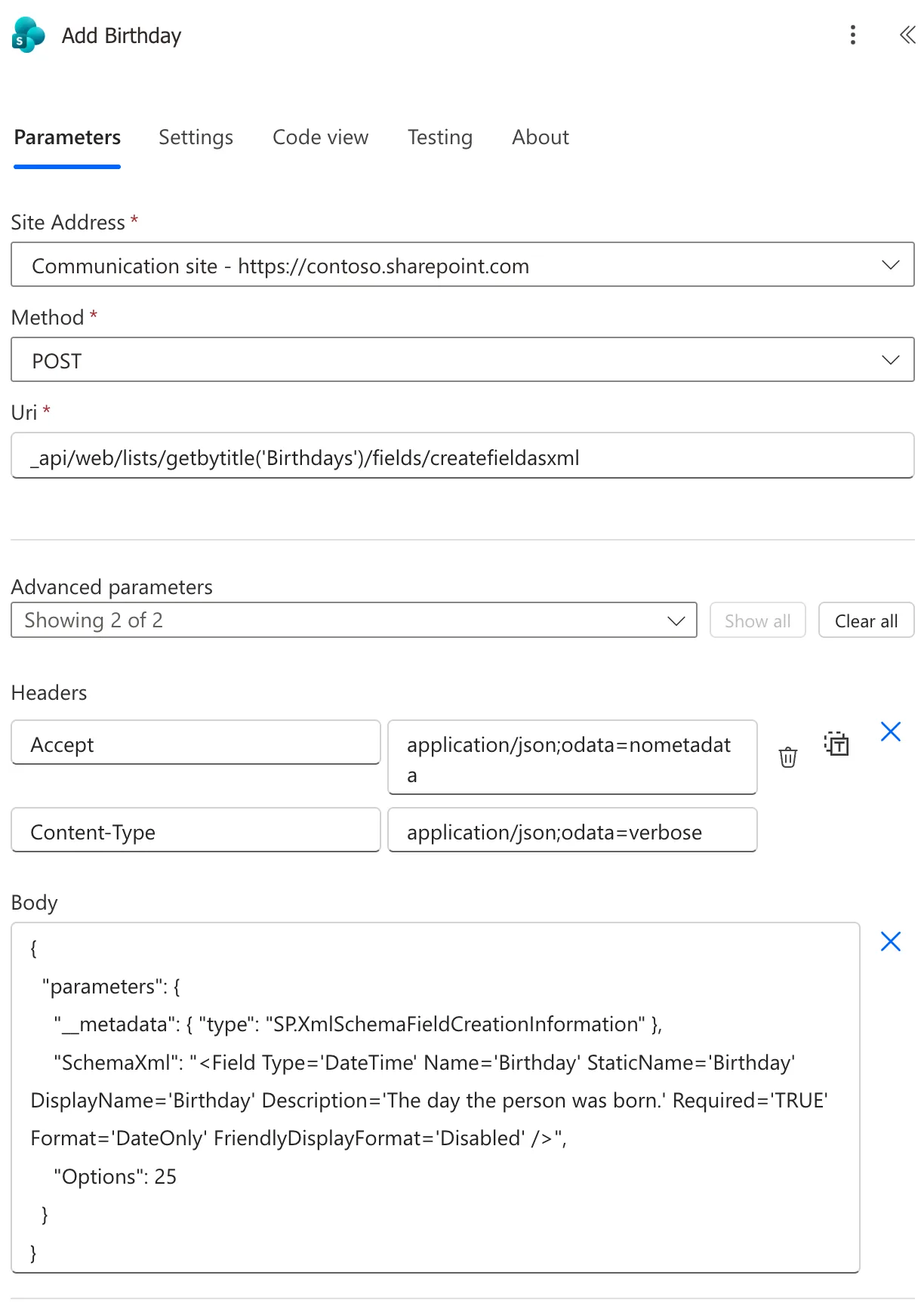
Add Send an HTTP request to SharePoint, rename it Add Birthday, and fill it in:
| Field | Value |
|---|---|
| Site Address | Your site |
| Method | POST |
| Uri | _api/web/lists/getbytitle('Birthdays')/fields/createfieldasxml |
| Headers | Accept: application/json;odata=nometadata |
Content-Type: application/json;odata=verbose |
The headers are under Advanced parameters. The body:
{
  "parameters": {
    "__metadata": { "type": "SP.XmlSchemaFieldCreationInformation" },
    "SchemaXml": "<Field Type='DateTime' Name='Birthday' StaticName='Birthday' DisplayName='Birthday' Description='The day the person was born.' Required='TRUE' Format='DateOnly' FriendlyDisplayFormat='Disabled' />",
    "Options": 25
  }
}
Step 2: Add a Date-and-Time Column
Add a second action, Add PartyStarts, with the same site, method, Uri and headers. Its XML has Format='DateTime' instead, and no Required:
{
  "parameters": {
    "__metadata": { "type": "SP.XmlSchemaFieldCreationInformation" },
    "SchemaXml": "<Field Type='DateTime' Name='PartyStarts' StaticName='PartyStarts' DisplayName='PartyStarts' Description='When the party starts.' Format='DateTime' FriendlyDisplayFormat='Disabled' />",
    "Options": 25
  }
}
Save the flow and test it manually (How to Test a Cloud Flow Manually in Power Automate). Both actions succeeded.
The Result
In the list, I added an item: Ada, with 2/14/1990 typed as the birthday and 12/5/2026 as the party, without a time. This site uses the US date format, so those are 14 February 1990 and 5 December 2026. The saved item shows the difference:
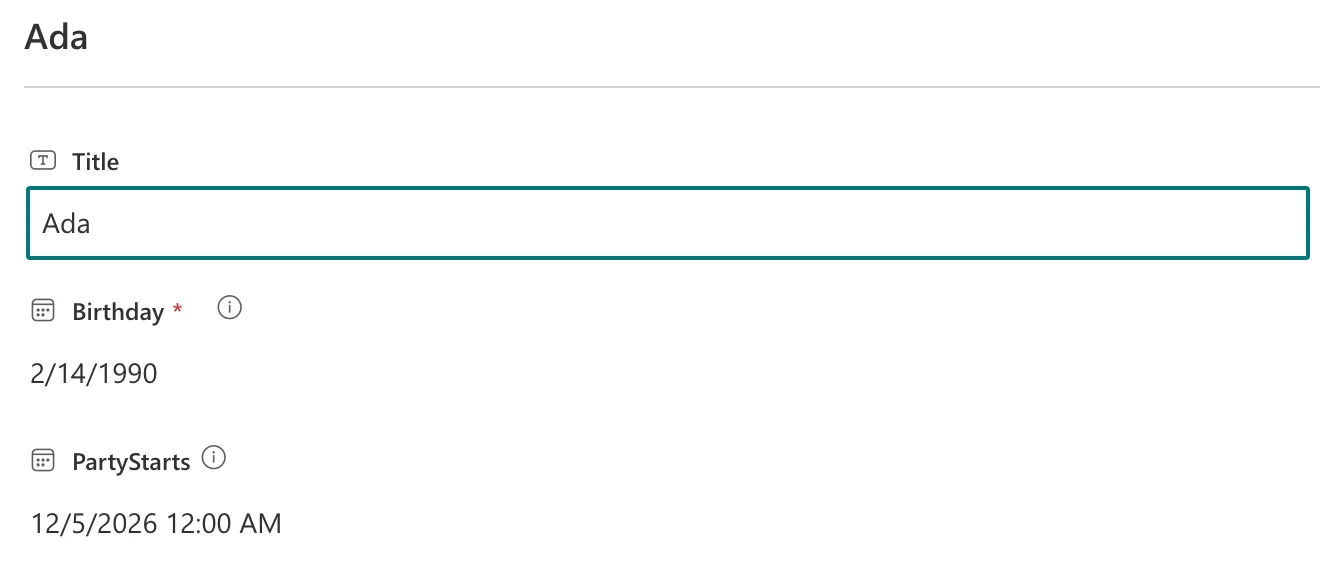
Birthday shows only the date. PartyStarts shows a time too, 12:00 AM, because no time was typed.
The date's order comes from the site's regional settings, not from the column (How to Change the Date Format of a SharePoint Site).
Common Mistakes
| Mistake | What happens | Do this instead |
|---|---|---|
Leaving out Format | The column shows a time as well, because DateTime is the default | Write Format='DateOnly' |
Type='Date' | The reference has no Date type; dates are DateTime | Use Type='DateTime' with Format |
| Reading a typed date in the wrong order | 12/5/2026 is December on a US site, May on a UK one | Check the site's date format |
| Running the flow again unchanged | It tries to add the columns a second time | Check that the column is missing first |
Troubleshooting
| Symptom | Likely cause | Fix |
|---|---|---|
| The date column shows 12:00 AM | It's a DateTime column | Create it with Format='DateOnly' |
| Dates show as words, such as 22 minutes ago | The column uses the relative friendly format | Set FriendlyDisplayFormat='Disabled' |
| Status 404 | No list with that title on the site | Check the title in getbytitle('…') |
FAQ
How does a flow write to a date-only column?
With a date such as 2026-10-02 in Create item or Update item (How to Create an Item in a SharePoint List in Power Automate).
Can I turn an existing date-and-time column into a date-only one?
Yes, in the column's settings in the browser: Include Time No (How to Add a Date Column to a SharePoint List). This request creates new columns.
Does this need a premium licence?
No. Send an HTTP request to SharePoint is part of the standard SharePoint connector.
Conclusion
Create a date column with Type='DateTime' and Format='DateOnly' when only the day matters, and Format='DateTime' when the time does too. FriendlyDisplayFormat='Disabled' keeps the date as a date instead of words such as 22 minutes ago.
Additional Resources
- Field element (List):
DateTimeand itsFormatvalues. - DateTimeFieldFriendlyFormatType enumeration:
DisabledandRelative.
