How to Add a Date Column to a SharePoint List (Date Only or Date and Time)

SharePoint has one column type for dates, Date and time, and one switch, Include Time, decides what it holds: a date, or a date and a time. This guide shows both, and how to choose.
The OvertimeEntries list of the Overtime Timesheet series has both kinds:
| Column | Holds | Include Time |
|---|---|---|
| WorkDate | The day the shift started | No |
| StartTime, EndTime | The exact start and finish of the shift | Yes |
| DecisionOn | When an approver approved or rejected it | Yes |
Prerequisites
- A SharePoint list, and permission to change it. How to Create a List and Add Columns in SharePoint Online creates one.
Step 1: Choose Date and Time
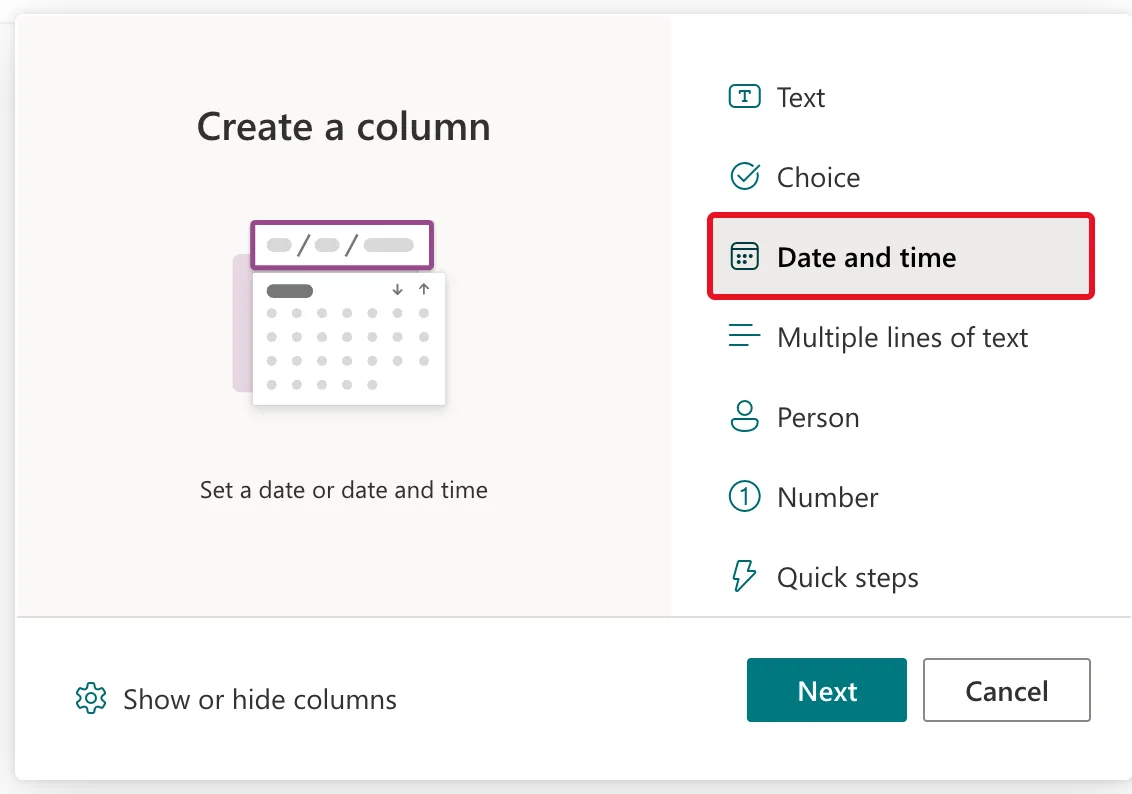
Select + Add column, then Date and time, then Next:
Step 2: Name It
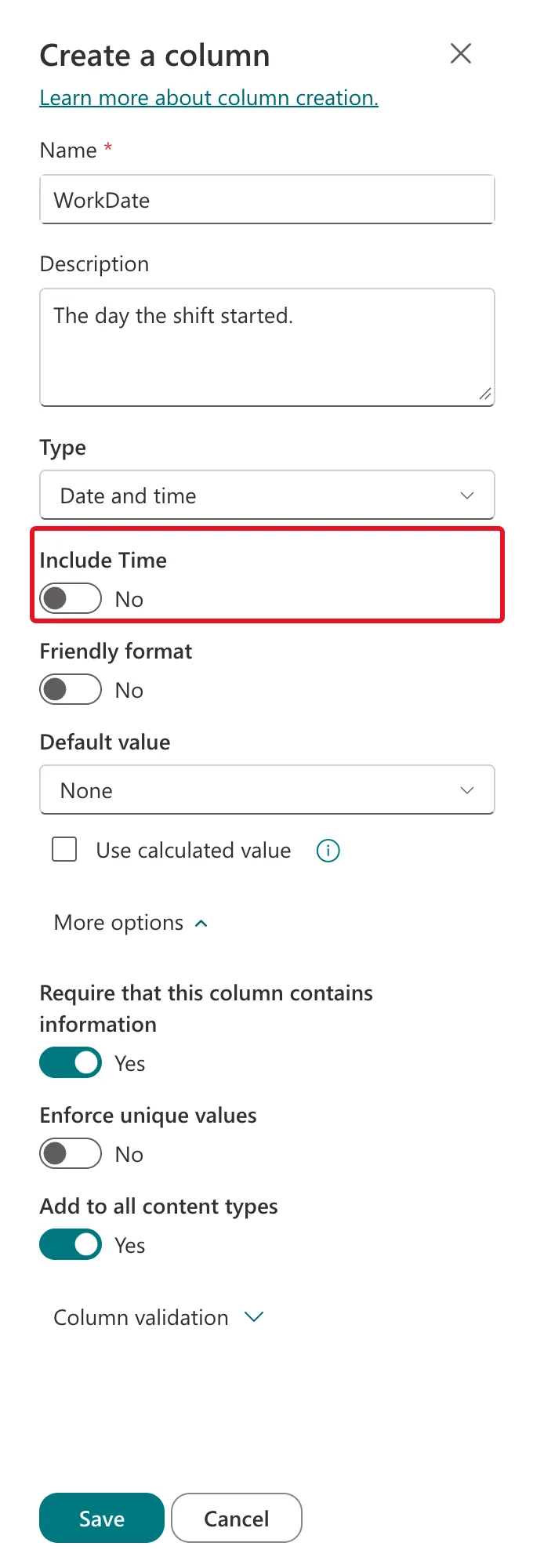
In the Create a column panel, enter the Name, such as WorkDate, and a Description, such as The day the shift started.
Step 3: Decide on Include Time
Include Time is No by default, so a new column holds a date only. That's what WorkDate needs:
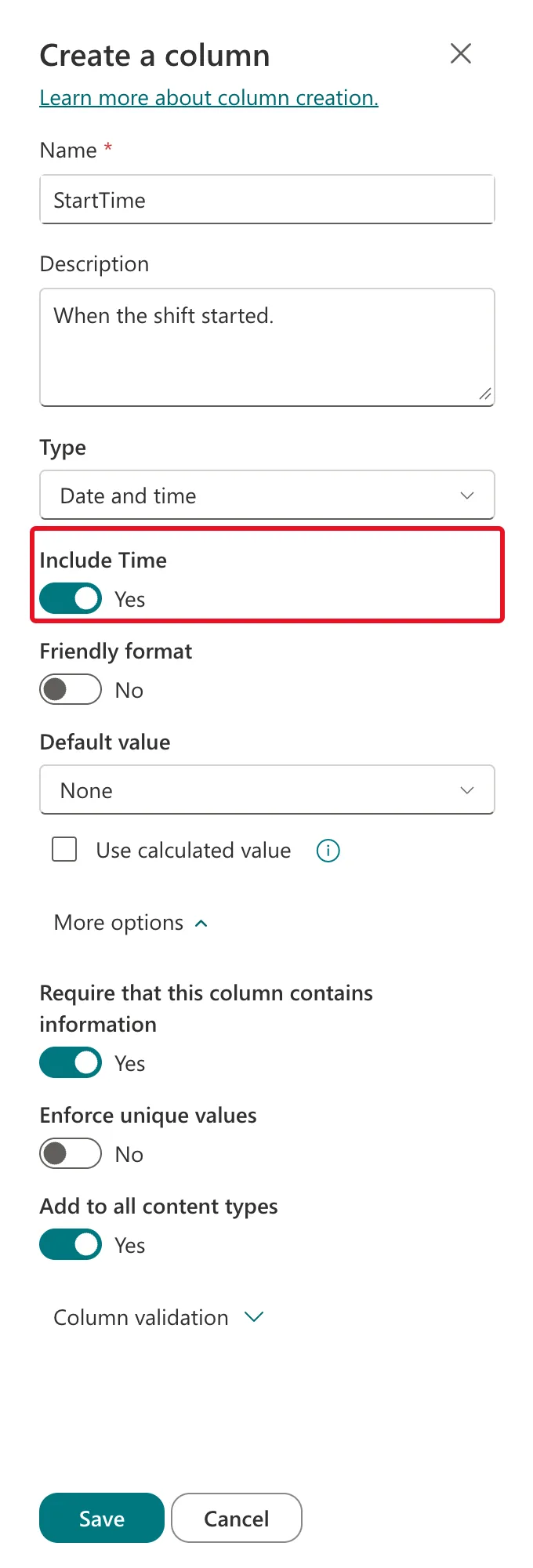
Switch it to Yes when the time matters. StartTime and EndTime need it, because hours are worked out from the exact start and finish:
A rule of thumb:
| You need | Include Time |
|---|---|
| A day, such as a birthday, a deadline or the day a shift started | No |
| A moment, such as when something started, finished or was approved | Yes |
Step 4: Leave Friendly Format Off
Friendly format shows dates relative to today. Microsoft's dateTimeColumn reference describes it as "a friendly relative representation (for example "today at 3:00 PM")", against the standard absolute representation such as "5/10/2017 3:20 PM". For a timesheet, where people compare exact dates, keep it No.
Step 5: Choose a Default Value
Default value has three options:
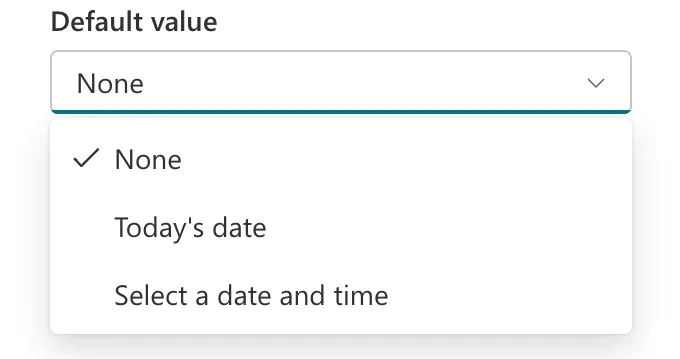
- None: the field starts empty. Right for WorkDate, because overtime is often logged after the day.
- Today's date: new items start with the day they're created.
- Select a date and time: a fixed date you choose.
Step 6: More Options and Save
Under More options, switch Require that this column contains information to Yes if every item must have a date (How to Make a Column Required in a SharePoint List), then select Save.
What the Columns Look Like in the Form
In the item form, a date-only field shows just the date and a date-and-time field adds the time:
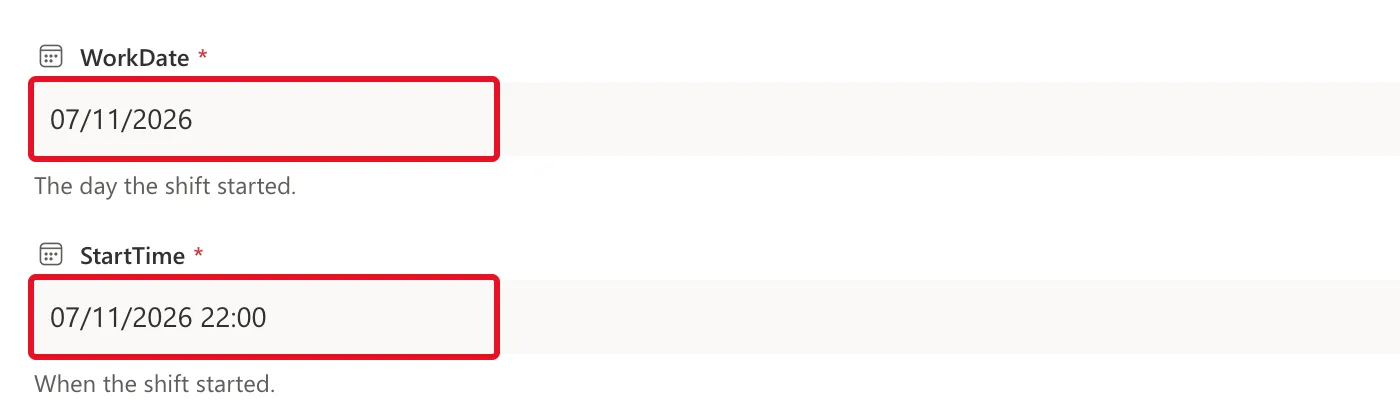
The format comes from the site, not the column. Microsoft's List and library column types and options says "the date format varies based on the regional settings for the site". This site uses UK dates and the 24-hour clock: How to Change the Date Format of a SharePoint Site and How to Show Times in 24-Hour Format in SharePoint.
Common Mistakes
| Mistake | What happens | Do this instead |
|---|---|---|
| Storing start and finish as date only | Hours can't be worked out | Switch Include Time to Yes |
| Storing a time in a Single line of text | No date maths, sorting or filtering by time | Use a Date and time column |
| Turning on Friendly format for records | Dates read as "today" or "yesterday" | Leave it No where exact dates matter |
Troubleshooting
| Symptom | Likely cause | Fix |
|---|---|---|
| No time picker in the form | Include Time is No | Switch it to Yes in the column's settings |
| Dates show month first | The site uses the US locale | Change the site's locale |
| Times are an hour or more out | The site's time zone isn't yours | How to Change the Time Zone of a SharePoint Site |
| A typed date is saved in the wrong month | The form read it month first | Fixed: SharePoint Saves a Typed Date in the Wrong Month |
FAQ
Does a date-only column need care in Power Apps?
Yes. Microsoft's Troubleshoot date and time issues in Power Apps canvas apps lists "The Date Only value shows the wrong date for some users and time zones" among its known issues. The Overtime Timesheet app keeps the shift's month in a separate text column for its filters, and handles dates in its screens.
Can a date column default to a day in the future?
Yes. Choose Select a date and time and pick the day, or use a calculated value such as =[TODAY]+30, the example in Microsoft's List and library column types and options.
Conclusion
+ Add column → Date and time → set Include Time for what the column holds → leave Friendly format off → choose a default → Save. Days are date only; moments include the time.
Additional Resources
- List and library column types and options
- dateTimeColumn resource type
- Troubleshoot date and time issues in Power Apps canvas apps
