How to Add a Dataverse Database to the Default Power Platform Environment

Power Apps solutions, the packages you use to move apps from one environment to another, are stored in Dataverse. Your organization's Default environment doesn't have Dataverse until an admin adds it. It takes a minute, uses storage Microsoft already gives the Default environment, and can't be undone.
Why You Need It
Open Solutions in Power Apps in an environment without Dataverse, and there's nothing to work with:
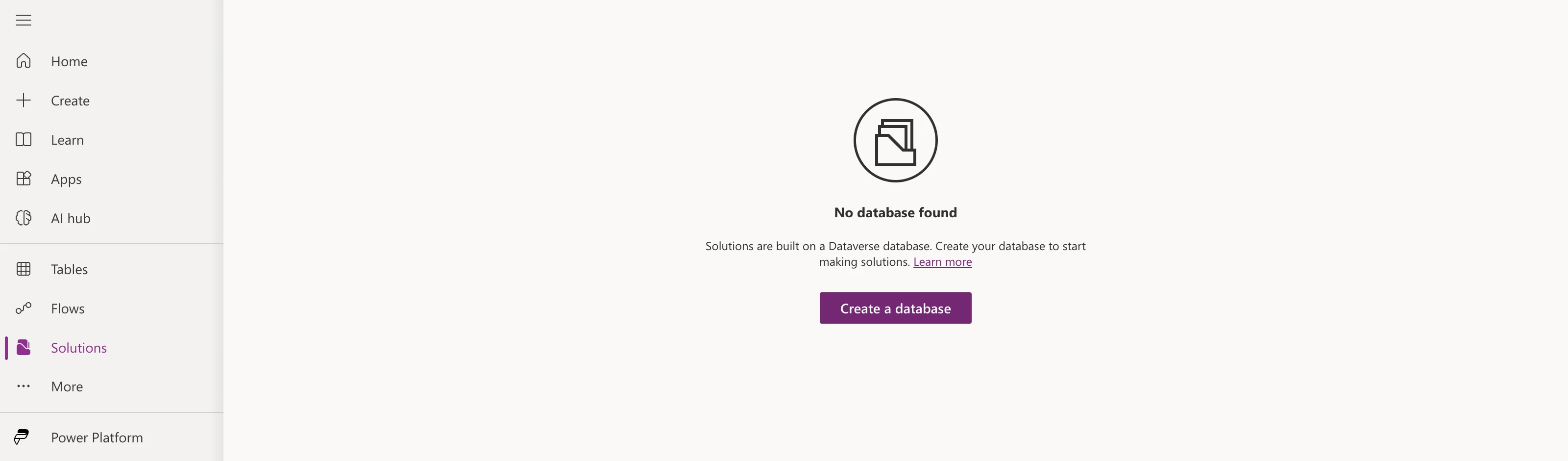
Dataverse is Power Platform's database. Besides tables of business data, it stores the things solutions are made of: the solution itself, its publisher, environment variables and canvas apps inside solutions. No Dataverse, no solutions.
This guide adds it from the Power Platform admin center, using the Career Development Plan series as the example. The steps are the same in any organization.
Before You Start
What it costs. The Default environment comes with its own included Dataverse storage: 3 GB of database, 3 GB of file and 1 GB of log capacity. Adding Dataverse to it uses that, so there's nothing to buy. The panel you'll see says the operation is "subject to capacity constraints": Microsoft's capacity article lists adding a database among the operations that aren't available when there isn't enough capacity.
It's permanent. Microsoft documents no way to remove a Dataverse database from an environment, and the Default environment itself can't be deleted. Add it when you mean to use it.
What the Default environment is for. Microsoft describes it as a place for experimenting and personal productivity, not for production workloads. That's exactly why you build in a solution: the solution is what you later move into a proper environment.
Does storing a solution make apps premium? No. Microsoft's environment variables FAQ answers "Are premium licenses required?" with "No". An app's license needs come from the connectors and data it uses, not from where its solution is stored.
Prerequisites
- A Global Administrator or Power Platform Administrator account in Microsoft 365.
- An environment without Dataverse. This guide uses the Default environment. Every Microsoft 365 organization has one.
Step 1: Open the Default Environment
Sign in to the Power Platform admin center and select Manage → Environments. The list shows your environments, with a Dataverse column. For the Default environment it says No.

The Default environment's name may differ in your organization. Look for Default in the Type column. Select its name to open it.
Step 2: Select Add Dataverse
The environment's page shows its details and, because it has no database yet, an Add Dataverse card. Select + Add Dataverse.
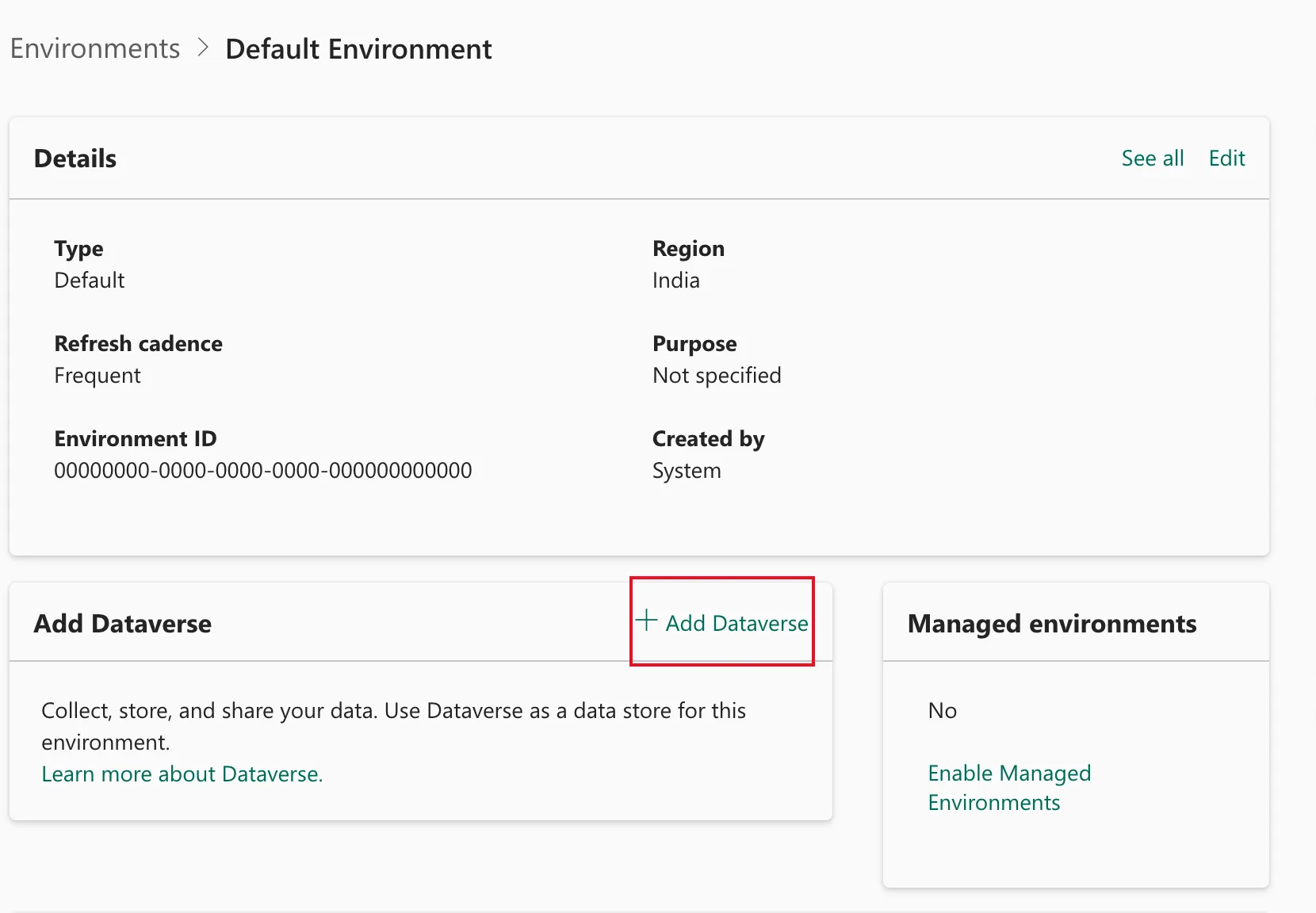
Leave Enable Managed Environments alone. Managed Environments need premium licenses for everyone who uses apps in that environment, from February 2027.
Step 3: Choose the Language and Currency
The Add Dataverse panel has three settings for the Default environment:
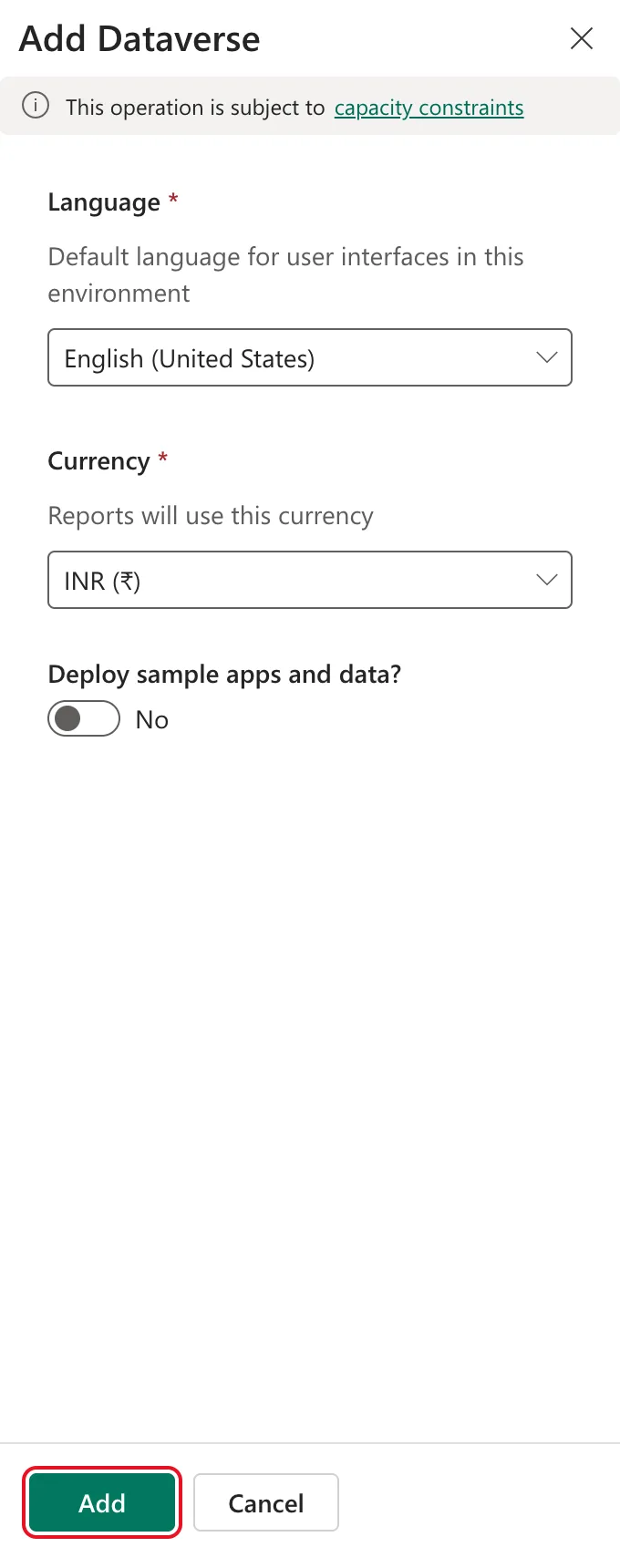
| Setting | What it is | What to choose |
|---|---|---|
| Language | The database's base language, the default for its user interfaces | Your organization's main language. Microsoft's language article says the base language can't be changed later |
| Currency | The base currency that reports use | The currency your organization reports in. The panel suggests one for your region |
| Deploy sample apps and data? | Demo apps and records | No |
The example tenant is in India, so the panel suggested INR (₹), and the example keeps it. An app that stores its data in SharePoint, as the Career Development Plan app does, never uses the currency.
Select Add.
Step 4: Wait for It to Be Ready
You're back on the environments list. The State column now says Preparing:

Select Refresh now and then. In the example tenant, it was Ready about a minute later, with Yes under Dataverse:

Step 5: Look at the Environment's Details
Open the environment again. The Details card has new rows: an Environment URL, the address of the new database, ending in crm.dynamics.com; an Organization ID; and a Version card with the Dataverse version.
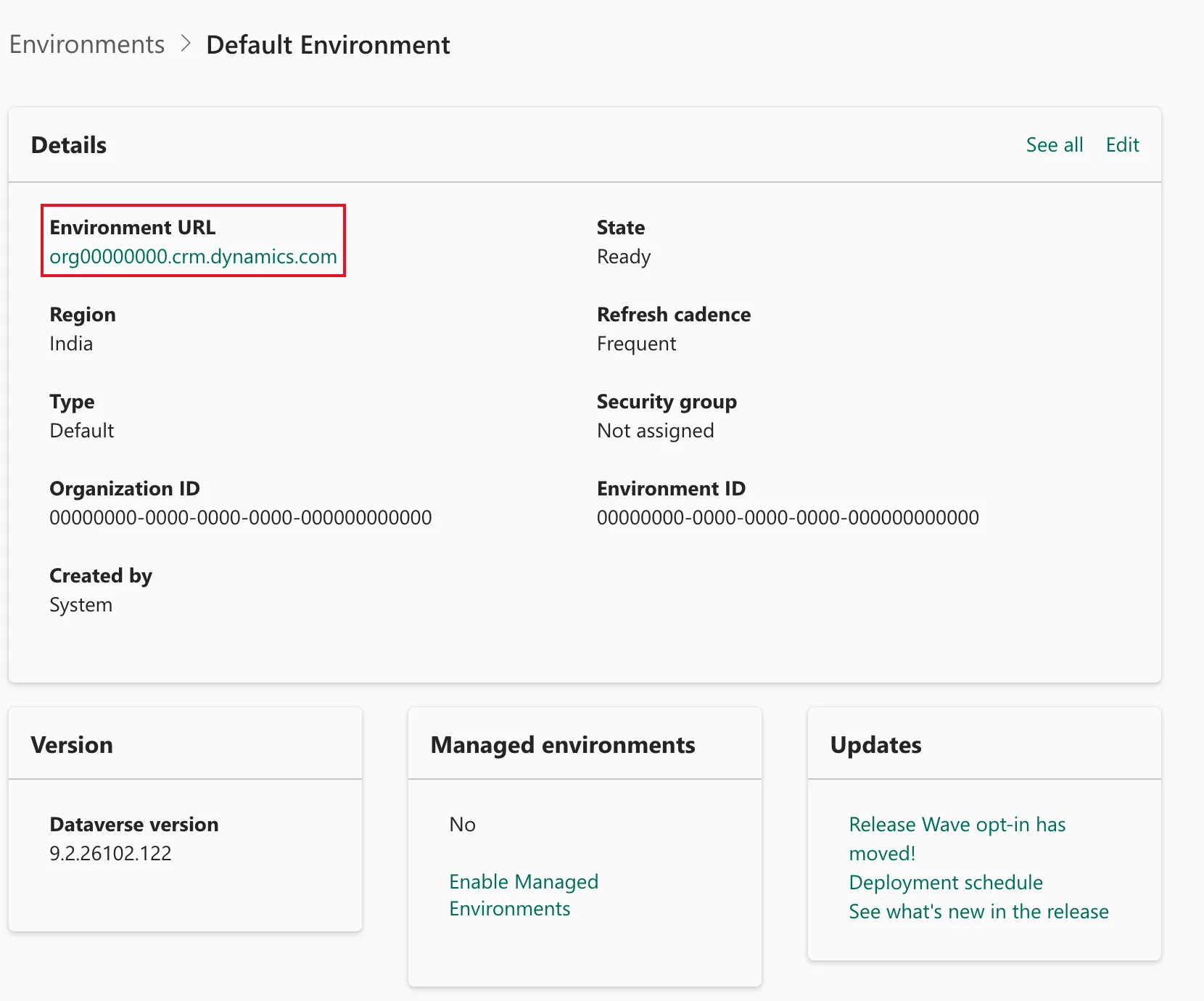
Security group says Not assigned, and it stays that way: Microsoft doesn't let you assign a security group to the Default environment. Everyone in your organization can use it.
Step 6: Check Your Roles
In an environment with Dataverse, what you can do depends on your security roles in it. Microsoft assigns two automatically to everyone added to the Default environment's Dataverse:
- Basic User: the minimum to use apps and see your own records.
- Environment Maker: create apps, flows, connections and solutions.
Admins don't get more automatically. Microsoft no longer makes Global and Power Platform admins System Administrator of an environment's Dataverse; they add the role themselves when they need it.
To see your roles, on the environment's page find the Access card and select See all under Users:
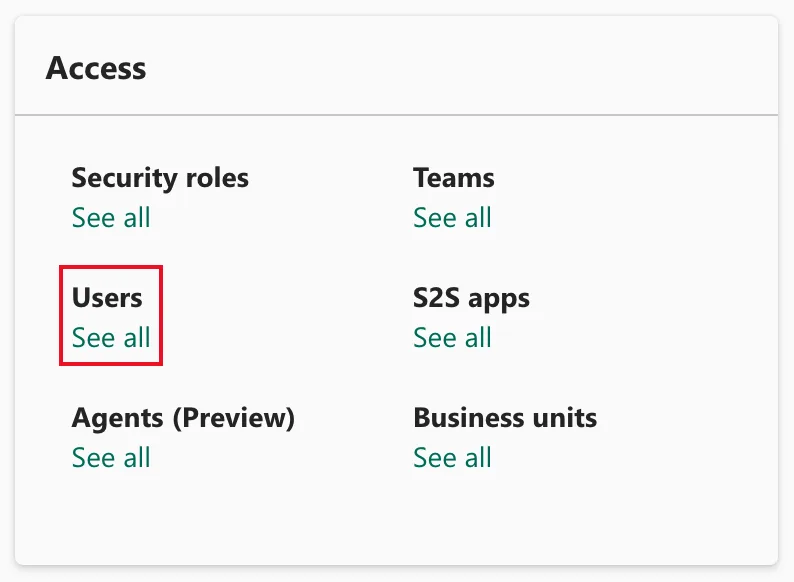
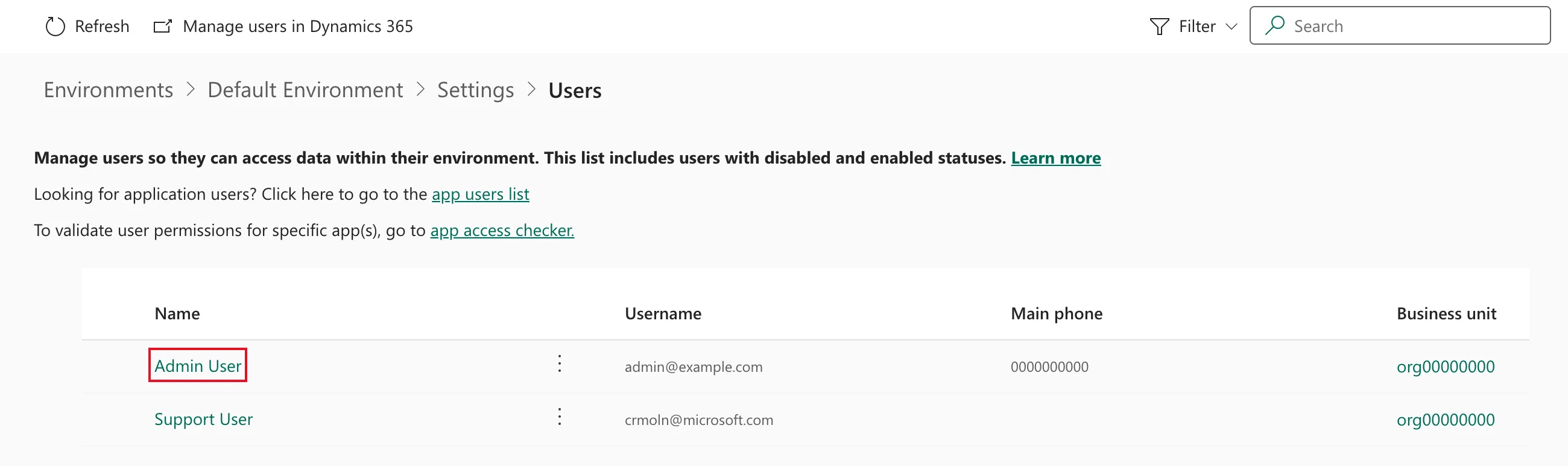
The list shows only the people Dataverse knows so far. Others are added when they first use the environment. Select your own name:
Direct Assigned Roles lists your roles:
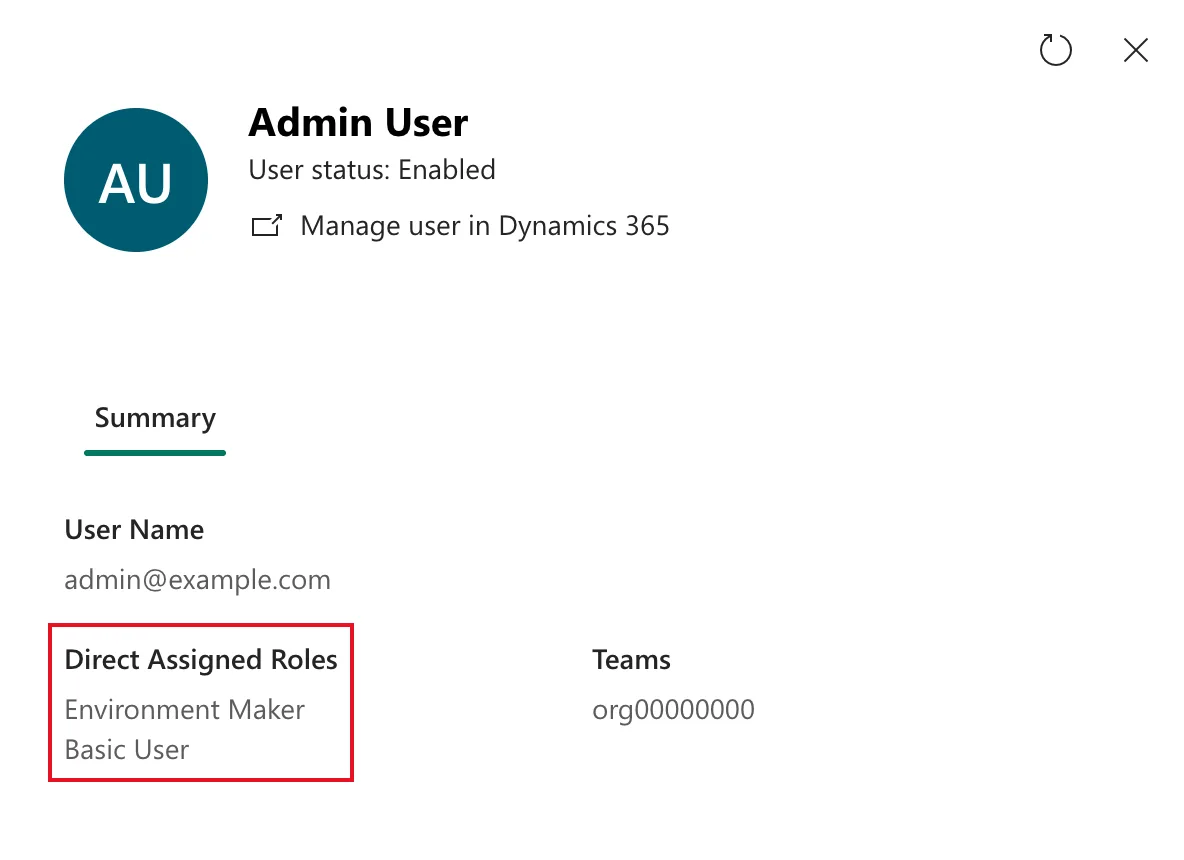
In the example tenant, Basic User was there straight away, but Environment Maker arrived about ten minutes after the database was ready. Until it did, the Solutions page in Power Apps showed this:
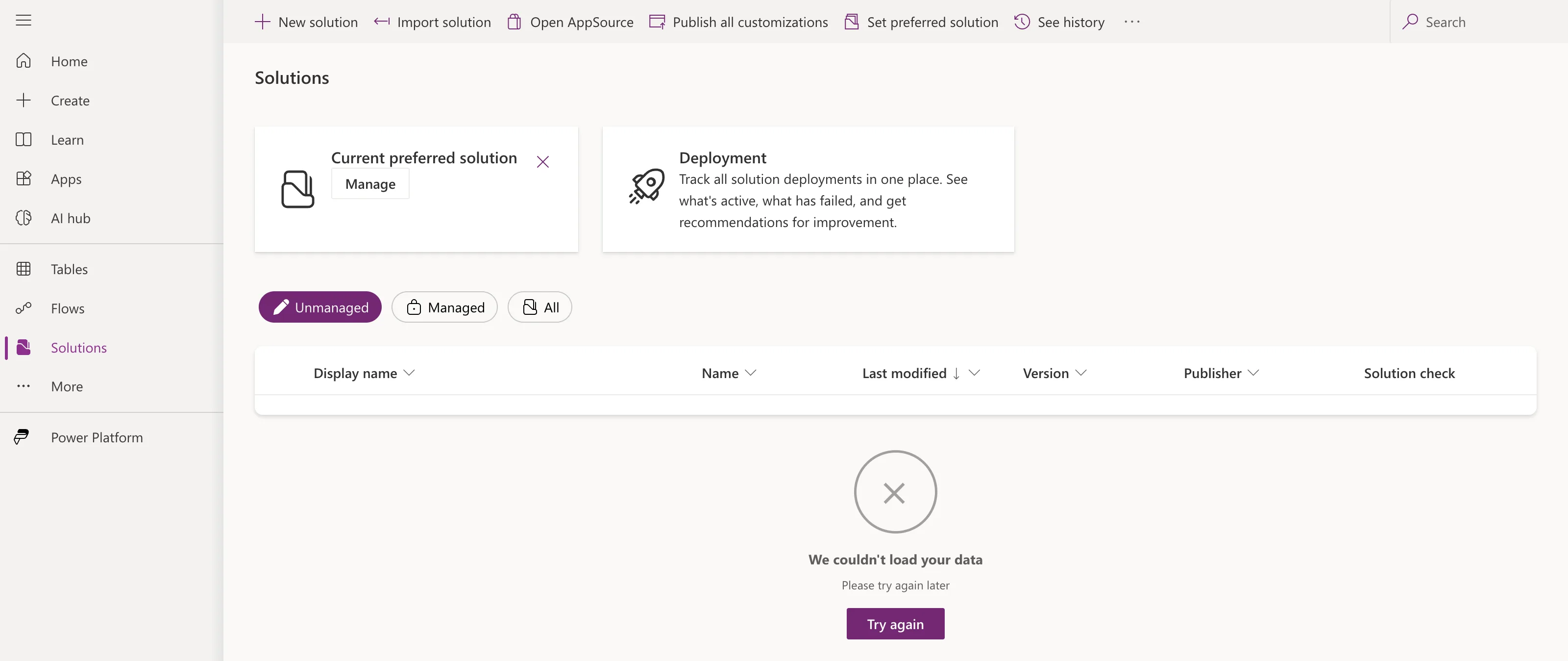
If you see it, give it a few minutes. Fixed: "We Couldn't Load Your Data" on the Power Apps Solutions Page explains the cause and the fixes.
Environment Maker is enough to create a solution. Some commands, such as creating Dataverse tables, need more: see Fixed: One or More Commands Are Unavailable Due to Your Current Privileges for This Environment. If you're the admin who will also export and install solutions, make yourself System Administrator.
Common Mistakes
| Mistake | What happens | Do this instead |
|---|---|---|
| Turning on Deploy sample apps and data | Demo apps and records you then have to ignore | Leave it No |
| Picking a language in a hurry | The base language stays forever | Choose your organization's main language |
| Selecting Enable Managed Environments while you're here | Users of the environment's apps need premium licenses from February 2027 | Leave it off |
| Expecting the admin role to cover Dataverse | You have only Basic User and Environment Maker | Self-elevate when you need System Administrator |
| Treating the Default environment as production | Microsoft recommends against it | Build in a solution and move it to a dedicated environment |
Troubleshooting
| Symptom | Likely cause | Fix |
|---|---|---|
| No Add Dataverse card | The environment already has Dataverse, or you aren't an admin | Check the Dataverse column; sign in as a Global or Power Platform admin |
| The operation is blocked for capacity | The tenant has no Dataverse capacity to spare | See Microsoft's capacity article in Additional Resources |
| State stays Preparing | Provisioning is still running | Select Refresh after a few minutes |
| Solutions shows We couldn't load your data | Your Environment Maker role hasn't arrived yet | Wait and reload; see the fix linked in Step 6 |
FAQ
Can I remove Dataverse again later?
Microsoft doesn't document a way to remove a Dataverse database from an environment, and the Default environment can't be deleted. Treat adding it as permanent.
Does this make my apps premium?
No. Storing solutions, apps and environment variables in Dataverse doesn't need premium licenses. Storing your app's data in Dataverse tables does, which is why the Career Development Plan app keeps its data in SharePoint.
Can Microsoft delete my Default environment?
Yes, if nobody uses it. In tenants without premium licenses, Microsoft deletes a Default environment that has no flows after 120 days without activity, or 402 days if it has flows, and creates a new one without Dataverse. Admins get two warnings first, and launching an app or changing one counts as activity. A Microsoft 365 developer sandbox you only use now and then is exactly where this happens.
Why not create a new environment instead?
A new production or sandbox environment needs Dataverse capacity your organization would have to buy, and Microsoft has deprecated the free unmanaged developer environments. The Default environment's included storage is free.
Conclusion
The Default environment now has a Dataverse database, so Power Apps can store solutions in it. It took one panel with three settings, about a minute to provision, and no purchase. Remember the two things that don't change: the database stays, and so does its base language.
Next, create the solution and its publisher: How to Create a Solution and Publisher in Power Apps.
Additional Resources
- Add a Microsoft Dataverse data store: Microsoft's steps for adding Dataverse to an environment.
- Power Platform environments overview: what the Default environment is for.
- Dataverse capacity-based storage: the Default environment's included capacity, and what happens without enough.
- Assign a security role to a user: the roles the Default environment assigns automatically.
- Manage admin roles with Privileged Identity Management: why admins are no longer System Administrator automatically.
- Enable languages: the base language and additional languages.
- Automatic deletion of Power Platform environments: the inactivity rules for Default environments.
