How to Add a Condition in Power Automate

A Condition splits a flow in two: the steps in its True branch run when a comparison is true, and the ones in False when it isn't. This guide adds one in the new designer, compares an expression with true, and adds a step to the branch that needs it.
Prerequisites
- A value to test. The example is If the list is missing, from the setup flow in Part 11 of the Career Development Plan series. It tests whether a SharePoint search found the list, using
empty()(How to Check Whether an Array Is Empty).
Step 1: Find Condition
Select the + where the condition should go, then Add an action, and search for Condition. The first results are actions from connectors that have condition in their names, such as AccuWeather's Get Current Conditions:
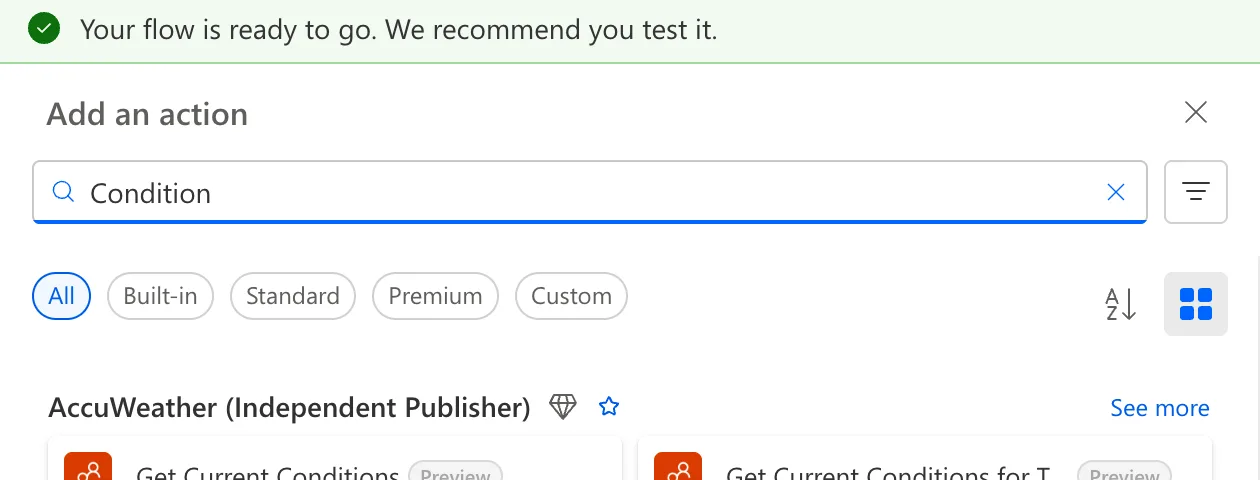
Scroll down to Control and select Condition there.
Step 2: Rename It
Select the name at the top of its pane and type what it checks, phrased as a question, here If the list is missing. The run history and the canvas then read like a sentence.
Step 3: Set the Comparison
A condition row has three parts: a value, an operator, and a value to compare with.
| Part | Example |
|---|---|
| First value | The expression empty(body('Find_the_list')?['value']) |
| Operator | is equal to |
| Second value | The expression true |
Add both values through the expression editor (How to Add an Expression). The second one matters: true typed as plain text is the word true, not the Boolean value:
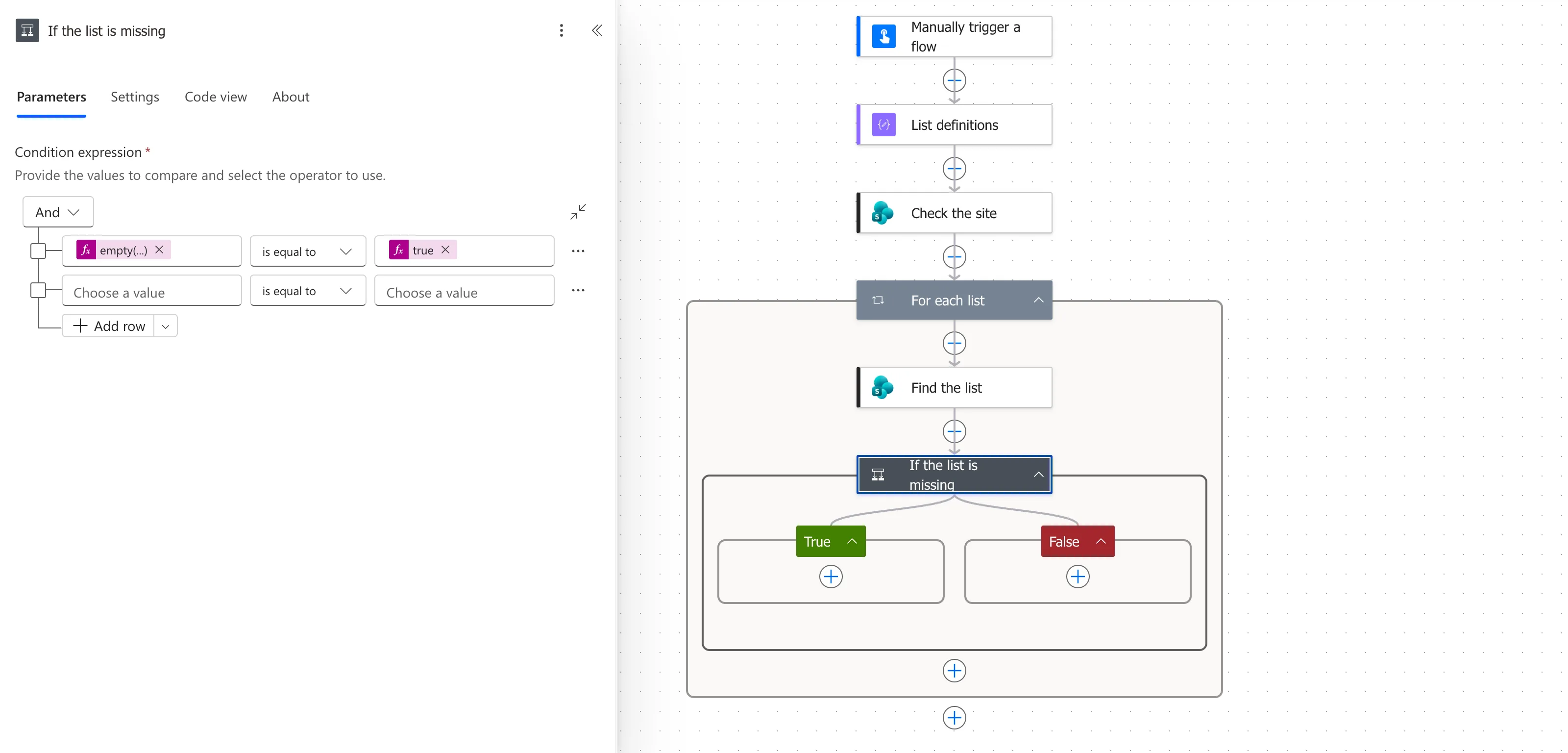
The pane also shows an empty second row with Choose a value. It wasn't saved: the condition's Code view held one comparison only:
"expression": {
  "and": [
    {
      "equals": [
        "@empty(body('Find_the_list')?['value'])",
        "@true"
      ]
    }
  ]
}
And at the top joins the rows: with more rows, all of them must be true. Switch it to Or if any one row is enough.
Step 4: Add Steps to a Branch
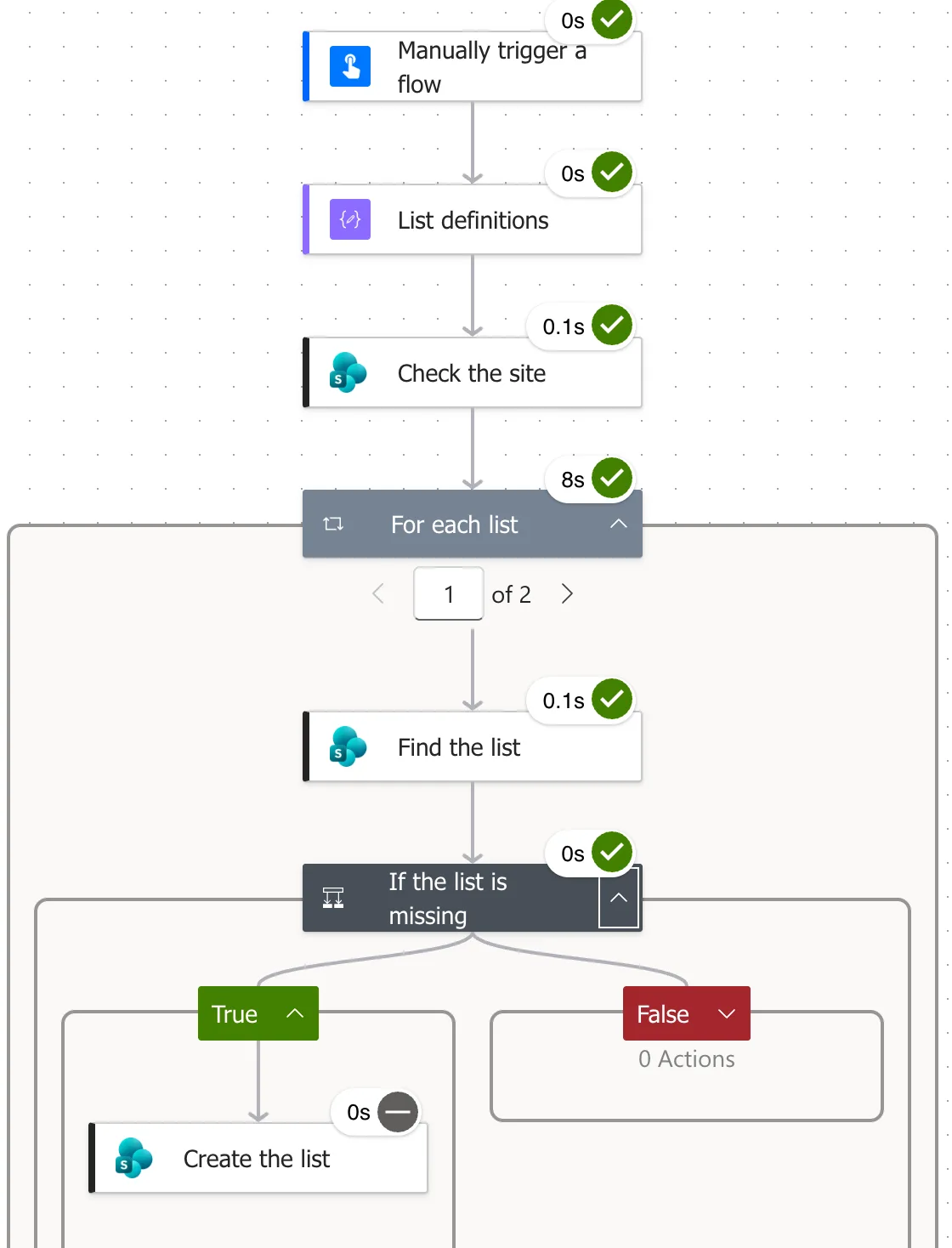
Each branch has its own +. Select it to add a step, or right-click it to paste a copied one (How to Copy and Paste an Action). Here, Create the list goes in True, and False stays empty: when the list exists, there's nothing to do.
The + buttons keep the condition's original name in their labels for screen readers, such as Insert a new action in Condition 1-actions, even after you rename it.
Step 5: Check It in a Run
In a run, the branch that didn't run shows its steps as skipped. In this run the list existed, so the condition was false and Create the list was skipped:
Common Mistakes
| Mistake | What happens | Do this instead |
|---|---|---|
| Selecting a connector action with condition in its name | You add the wrong action | Use Condition under Control |
true typed as text | The comparison may never be true | Add it as an expression |
| Steps in the wrong branch | They run in the opposite case | Read the name as a question: True is the yes |
Troubleshooting
| Symptom | Likely cause | Fix |
|---|---|---|
| The same branch always runs | One side is text, the other a Boolean | Make both expressions |
| An empty row appears under yours | The designer shows an extra, empty row | It isn't saved; check Code view |
FAQ
Can I compare more than two values?
Yes. Select Add row for each comparison, and choose And or Or for how they combine.
Can a branch be empty?
Yes. Here False has no steps, and the flow carries on after the condition.
Conclusion
Add Condition from Control, rename it as a question, set a value, an operator and a value to compare with, using expressions for anything that isn't plain text, and put steps in the branch that needs them.
Additional Resources
- Add a condition to a cloud flow: conditions in the designer.
