How to Add a Combo Box That Allows One Choice in Power Apps

The modern Combo box lists options for people to pick from. It allows several choices and a search box by default, so for a short list where one answer is right, turn both off. Then read the answer from Selected.
Prerequisites
- A table of options. The example uses
LevelOptions, the four levels of a SharePoint Choice column (How to Get the Options of a SharePoint Choice Column with Choices). - A screen to put it on. The example is the Competency screen of the Career Development Plan app (Part 9).
Step 1: Insert the Combo Box
Select the container it should go in, then Insert → Input → Combobox. Rename it, for example cmbLevelCS (How to Rename a Screen or Control). Its defaults were:
| Property | Default |
|---|---|
| Items | ComboBoxSample |
| ItemDisplayText | ThisItem.Value1 |
| SelectMultiple | true |
| IsSearchable | true |
| InputTextPlaceholder | "Find items" |
| Width, Height | 320, 32 |
| AccessibleLabel | empty |
In a container, it lands at the end. Move it where it belongs with Reorder (How to Reorder Controls in a Container).
Step 2: Give It Its Options
| Property | Value |
|---|---|
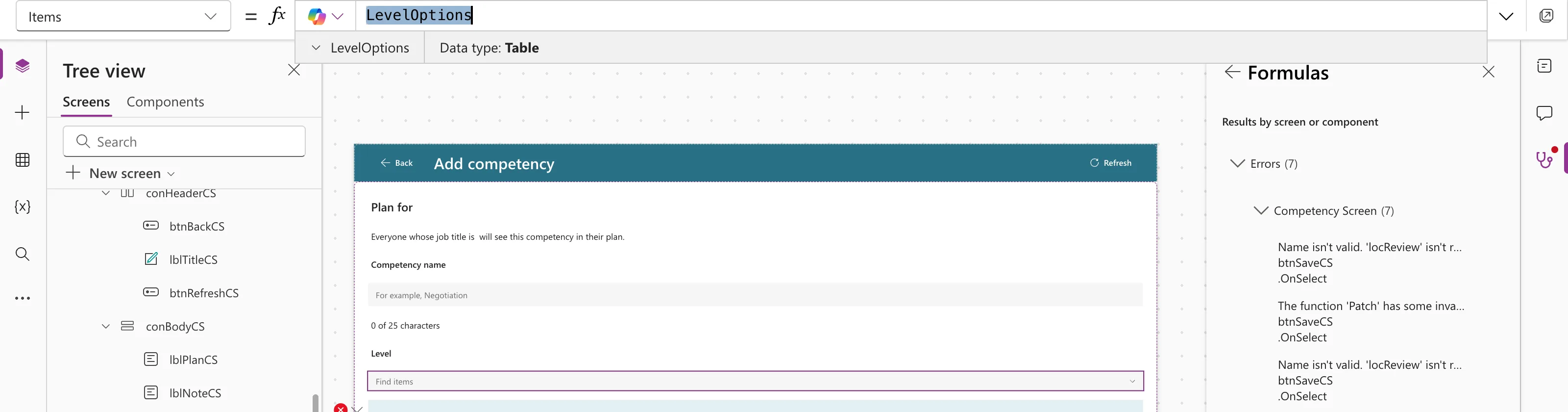
| Items | LevelOptions |
| ItemDisplayText | ThisItem.Value |
ItemDisplayText is the text each option shows. LevelOptions has one column, Value:
Step 3: Allow One Choice, Without Search
| Property | Value |
|---|---|
| SelectMultiple | false |
| IsSearchable | false |
Microsoft's Combo box modern control reference says SelectMultiple now defaults to true, so an app that needs one choice must set it to false. With IsSearchable off, the control works like a simple drop-down, which suits four options.
Step 4: Add a Placeholder and a Label
| Property | Value |
|---|---|
| InputTextPlaceholder | "Choose a level" |
| AccessibleLabel | "Level" |
| Height | 40 |
The reference asks for an AccessibleLabel that describes what the control is for, not the current choice. A visible label above it helps everyone else (How to Add a Text Control).
Step 5: Read the Choice
With SelectMultiple off, Selected is the chosen option as a record:
cmbLevelCS.Selected.Value
Until something is chosen, Selected is blank. The example's Save button stays disabled until there's a name and a level (How to Disable a Button Until a Text Box Has Text):
If(locIsSaving || IsBlank(Trim(txtNameCS.Text)) || IsBlank(cmbLevelCS.Selected), DisplayMode.Disabled, DisplayMode.Edit)
Step 6: Start on a Saved Value
When the screen edits an existing item, the combo box should start on its level. DefaultSelectedItems must be a table of records from Items, so filter the options:
Filter(LevelOptions, Value = locCompetency.Level.Value)
When there's no item, as when adding a new one, the filter returns an empty table and nothing is chosen. The screen's loading formula calls Reset(cmbLevelCS) after loading the item, so the control goes back to its default each time the screen opens (How to Reset a Control to Its Default Value).
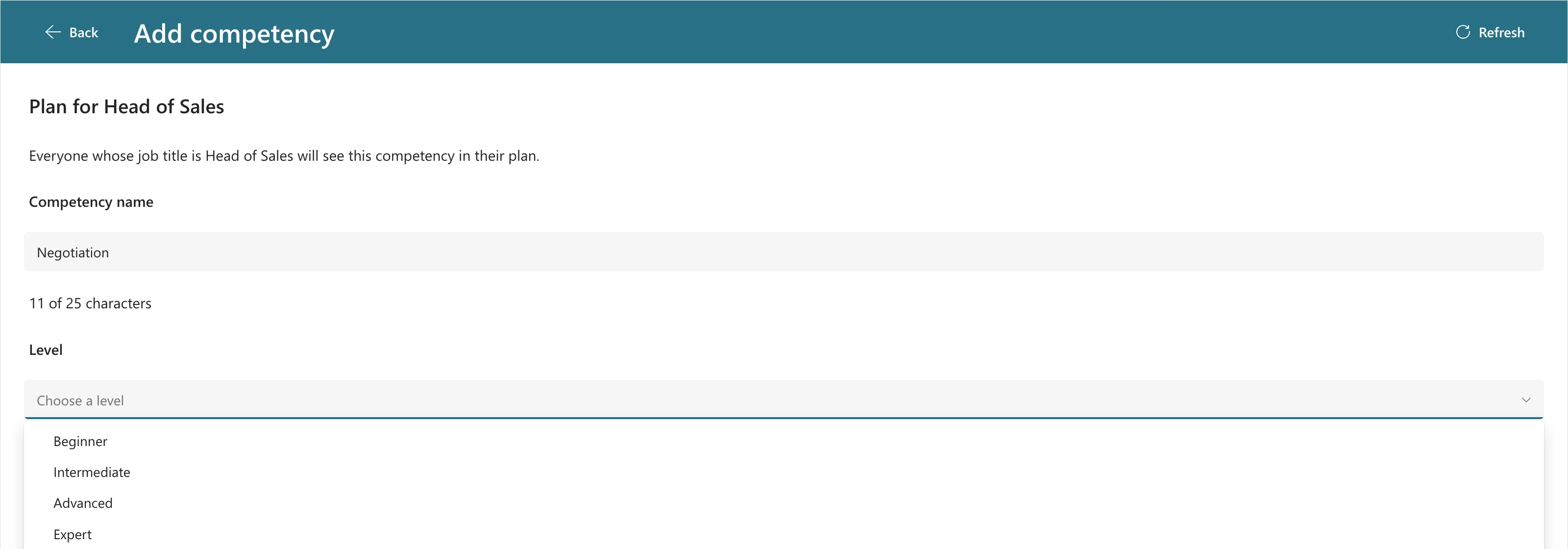
The Result
Common Mistakes
| Mistake | What happens | Do this instead |
|---|---|---|
| Leaving SelectMultiple on | People can pick several levels | Set it to false |
| A record in DefaultSelectedItems | The default doesn't apply | A table from Items, such as Filter(...) |
Using cmbLevelCS.Selected where text is expected | It's a record, not text | Read .Value |
Troubleshooting
| Symptom | Likely cause | Fix |
|---|---|---|
| The options aren't yours | Items is still ComboBoxSample | Set Items to your table |
| The options are blank | ItemDisplayText reads Value1 | ThisItem.Value |
| The previous choice shows when the screen opens again | The control wasn't reset | Reset it in the screen's loading formula |
FAQ
What's the difference between Selected and SelectedItems?
SelectedItems is a table of every chosen option. Selected is one record: the choice when SelectMultiple is off, or the first choice when it's on.
Should I use the Dropdown control instead?
The Insert pane lists both. The example uses the Combo box because its reference documents single selection, defaults and Reset, which is everything this screen needs.
Conclusion
Insert Combobox, set Items and ItemDisplayText, turn off SelectMultiple and IsSearchable, start it with DefaultSelectedItems, and read the answer from Selected.Value.
