How to Add a Column to a Table in Power Apps with AddColumns

Sometimes a gallery needs a value that isn't a column of its data: a status worked out from another list, a total, a label. AddColumns adds it as a new column, calculated once for each row, and the gallery's controls read it like any other column.
Syntax
AddColumns( Table, ColumnName1, Formula1 [, ColumnName2, Formula2, ... ] )
For each record of Table, the formula is worked out and stored in the new column. The original table isn't changed; AddColumns returns a new one (AddColumns, DropColumns, RenameColumns, and ShowColumns).
Column names are written without quotes. Microsoft notes that apps made before version 3.24042 used quoted names, and were updated automatically.
Prerequisites
- A table, such as a gallery's Items. The example is the Career Development Plan app's My Plan screen, where a gallery lists competencies and needs each one's status from a second list of responses.
Example: A Status Column
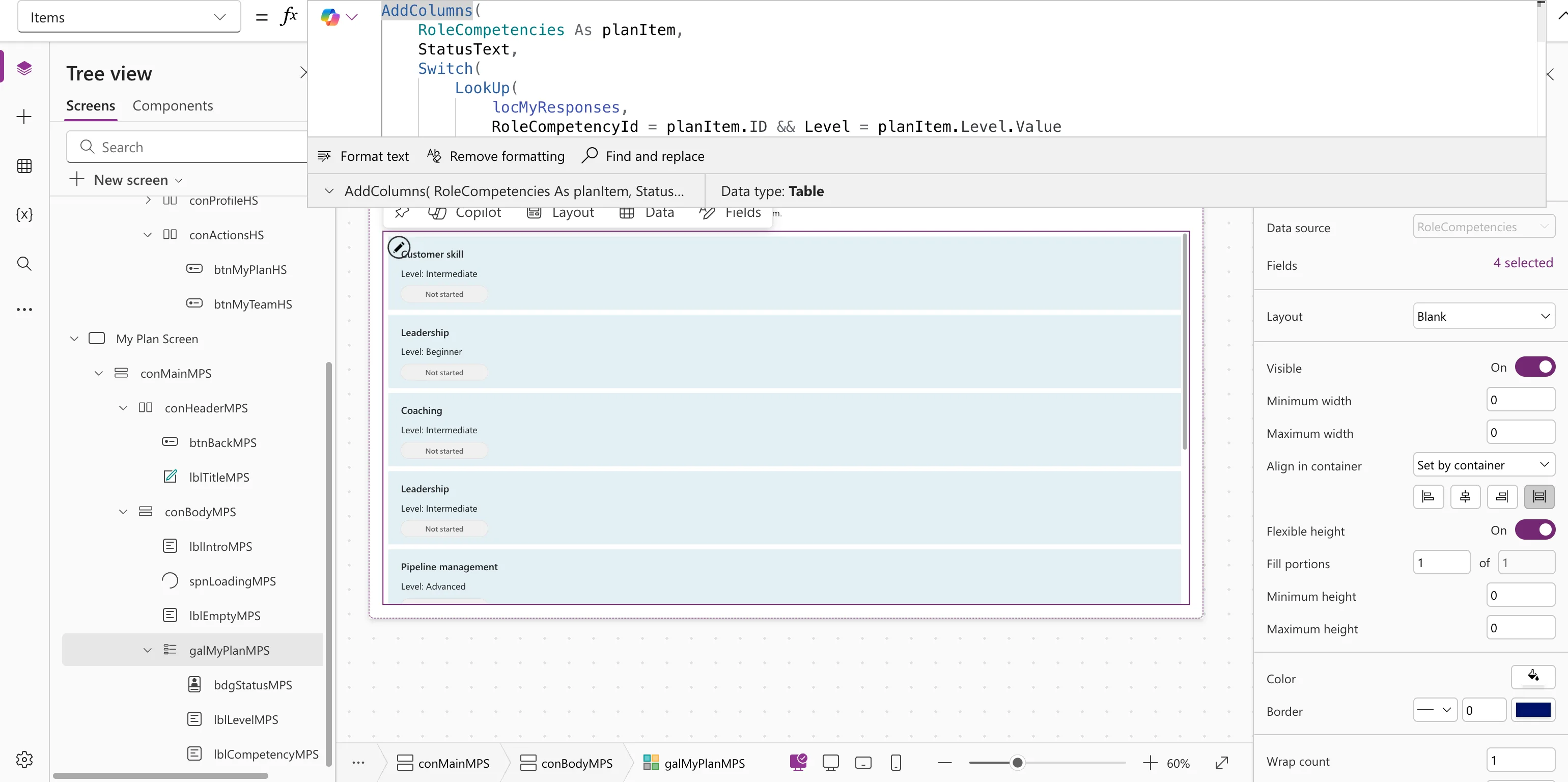
Each competency's status comes from the person's response to it, if there is one. AddColumns adds a StatusText column to the competencies:
AddColumns(
    locMyPlan As planItem,
    StatusText,
    Switch(
        LookUp(
            locMyResponses,
            RoleCompetencyId = planItem.ID && Level = planItem.Level.Value
        ).Status.Value,
        StatusPending, "Waiting for review",
        StatusApproved, "Approved",
        StatusDeclined, "Declined",
        "Not started"
    )
)
For each competency, LookUp finds the matching response, and Switch turns its status into text. As planItem names the competency, so the formula can tell its Level apart from the response's Level (How to Use the As Operator in Power Apps).
While the screen was being designed, the same formula ran over the whole RoleCompetencies list. With no responses yet, every row read Not started:
In the gallery, the new column is read like the others:
ThisItem.StatusText
Working the status out once per row, in Items, means the badge's Content, its color and the row's accessible label all use the same value.
Delegation
Microsoft notes that the arguments of AddColumns can be delegated, but its result is subject to the app's data row limit (500 by default). If the table comes straight from a large SharePoint list, only the first rows get the new column. In the example, the table is a variable that already holds just one person's plan. See What Is Delegation in Power Apps?
Common Mistakes
| Mistake | What happens | Do this instead |
|---|---|---|
| Expecting the data source to get a new column | Nothing changes in SharePoint | AddColumns only shapes the copy your formula uses |
| Using AddColumns on a big list directly | Only the first rows (data row limit) are processed | Filter first, or load the rows you need |
| Working the same value out in several controls | The formulas can drift apart | Add it once as a column |
Troubleshooting
| Symptom | Likely cause | Fix |
|---|---|---|
The new column isn't suggested after ThisItem. | Items doesn't use AddColumns, or has an error | Check the gallery's Items |
| The calculated value is wrong in some rows | The formula reads the wrong record's column | Name the record with As |
FAQ
Does AddColumns change my SharePoint list?
No. It returns a new table. To change a list's columns, change the list in SharePoint.
Can I add more than one column?
Yes: add more name and formula pairs.
Conclusion
AddColumns(table, Name, formula) adds a calculated column to a copy of the table. Use it in a gallery's Items to work a value out once per row, and name the record with As when the formula looks into another table.
Additional Resources
- AddColumns, DropColumns, RenameColumns, and ShowColumns functions: syntax, examples and delegation.
