How to Add a Column to a SharePoint List with CreateFieldAsXml in Power Automate

A list is only useful with its columns. The REST API's createfieldasxml adds a column of any type from a short XML definition, including its internal name, whether it's required, its choices and its default value. This guide adds columns from a flow, one per item of a loop, and only when they're missing.
Prerequisites
- Send an HTTP request to SharePoint: see How to Use Send an HTTP Request to SharePoint.
- A list: see How to Create a SharePoint List with the REST API.
The example comes from the setup flow in Part 11 of the Career Development Plan series. It adds the 16 columns that Part 2 created by hand. Each list definition carries its columns as an array of names and XML definitions:
{
  "name": "JobTitle",
  "schemaXml": "<Field Type='Text' Name='JobTitle' StaticName='JobTitle' DisplayName='JobTitle' Description='The job title this competency is for. Must match the job title in Microsoft 365 exactly.' Required='TRUE' MaxLength='255' Indexed='TRUE' />"
}
Step 1: Loop Over the Columns
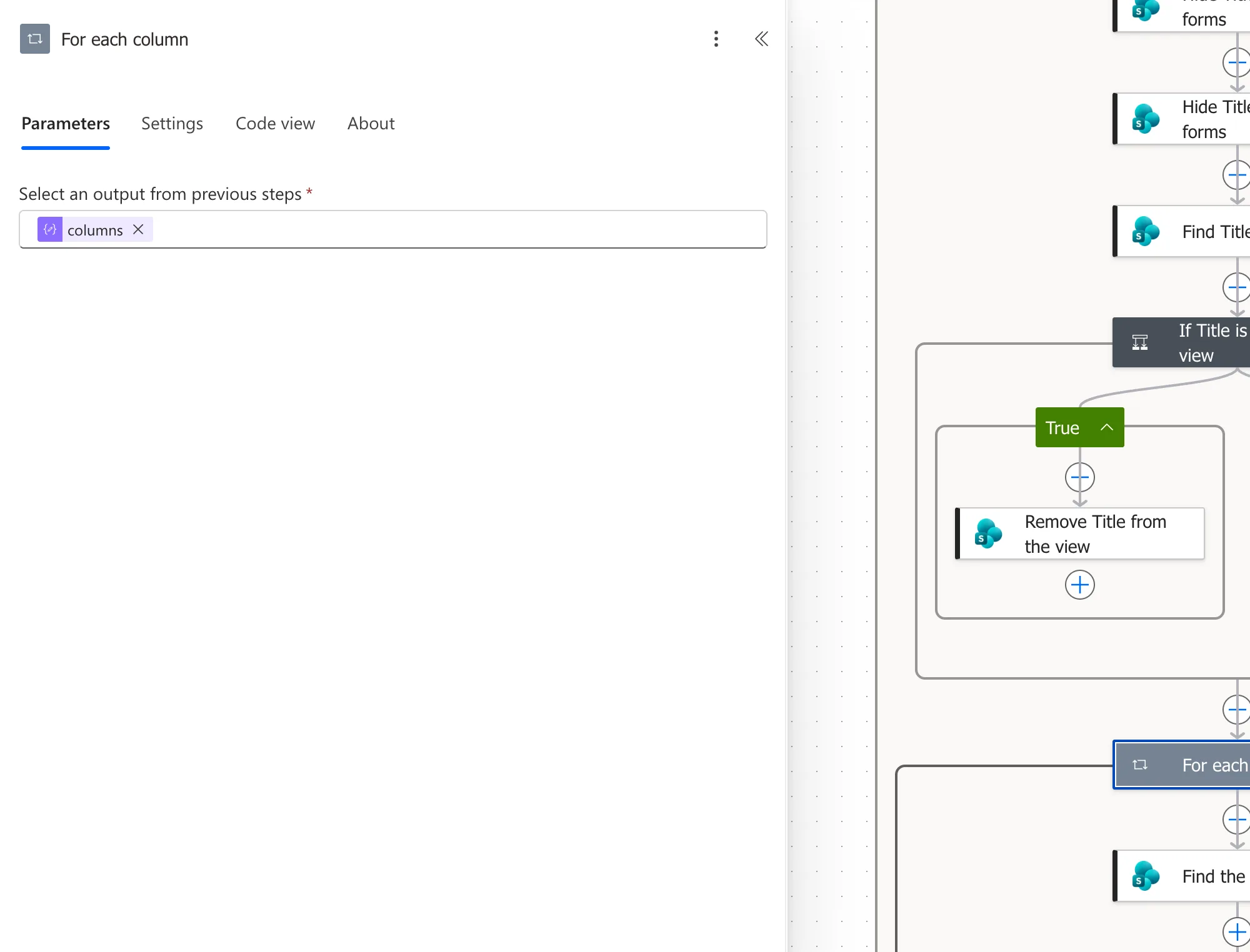
Add an Apply to each called For each column, over the current list's columns (How to Loop Through an Array with Apply to Each):
items('For_each_list')?['columns']
Step 2: Check Whether the Column Exists
Inside the loop, Find the column asks for the list's fields with that internal name:
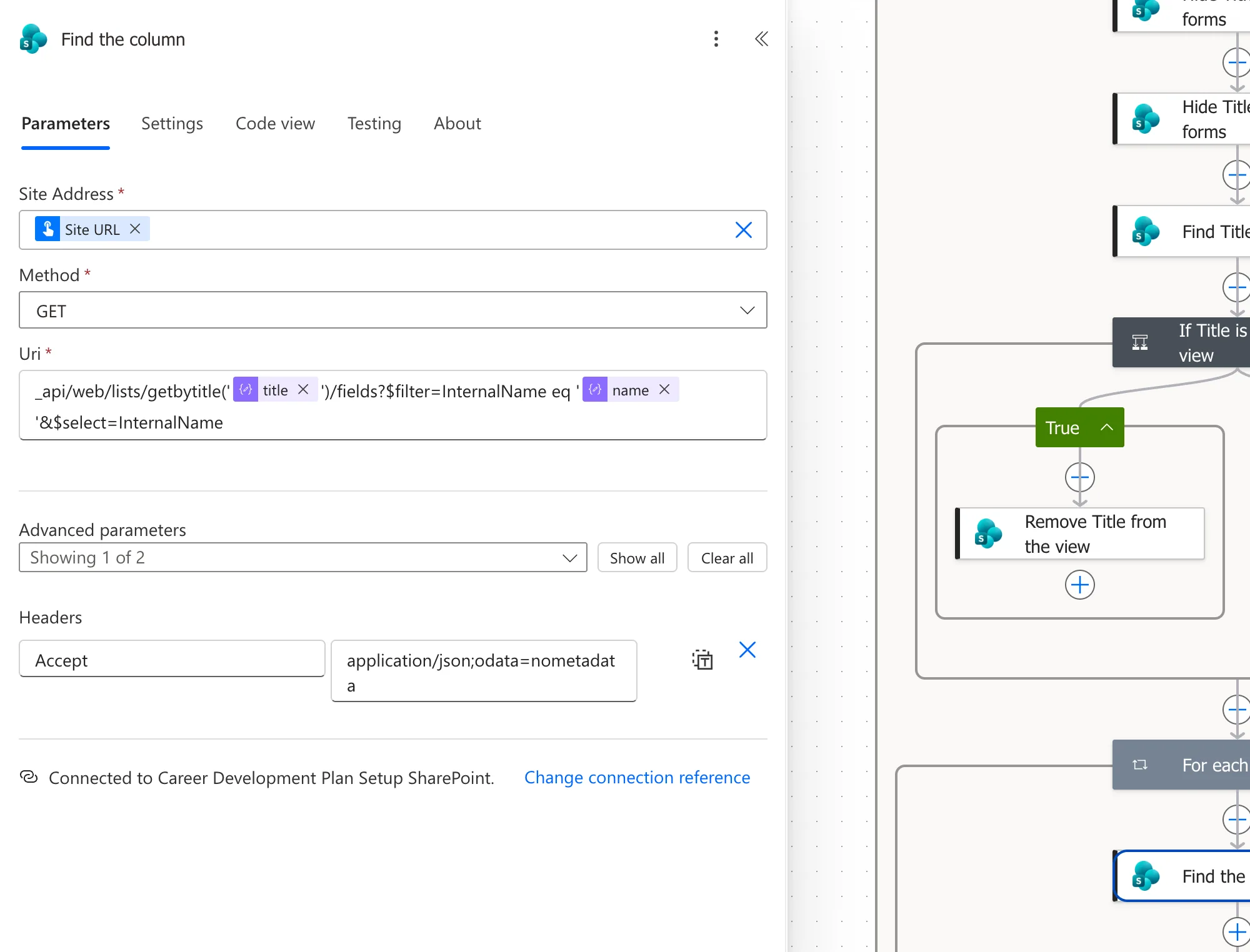
_api/web/lists/getbytitle('@{items('For_each_list')?['title']}')/fields?$filter=InternalName eq '@{items('For_each_column')?['name']}'&$select=InternalName
Then a Condition called If the column is missing tests empty(body('Find_the_column')?['value']) against true (How to Check Whether a SharePoint List Exists shows the same pattern for lists).
Step 3: Create the Column
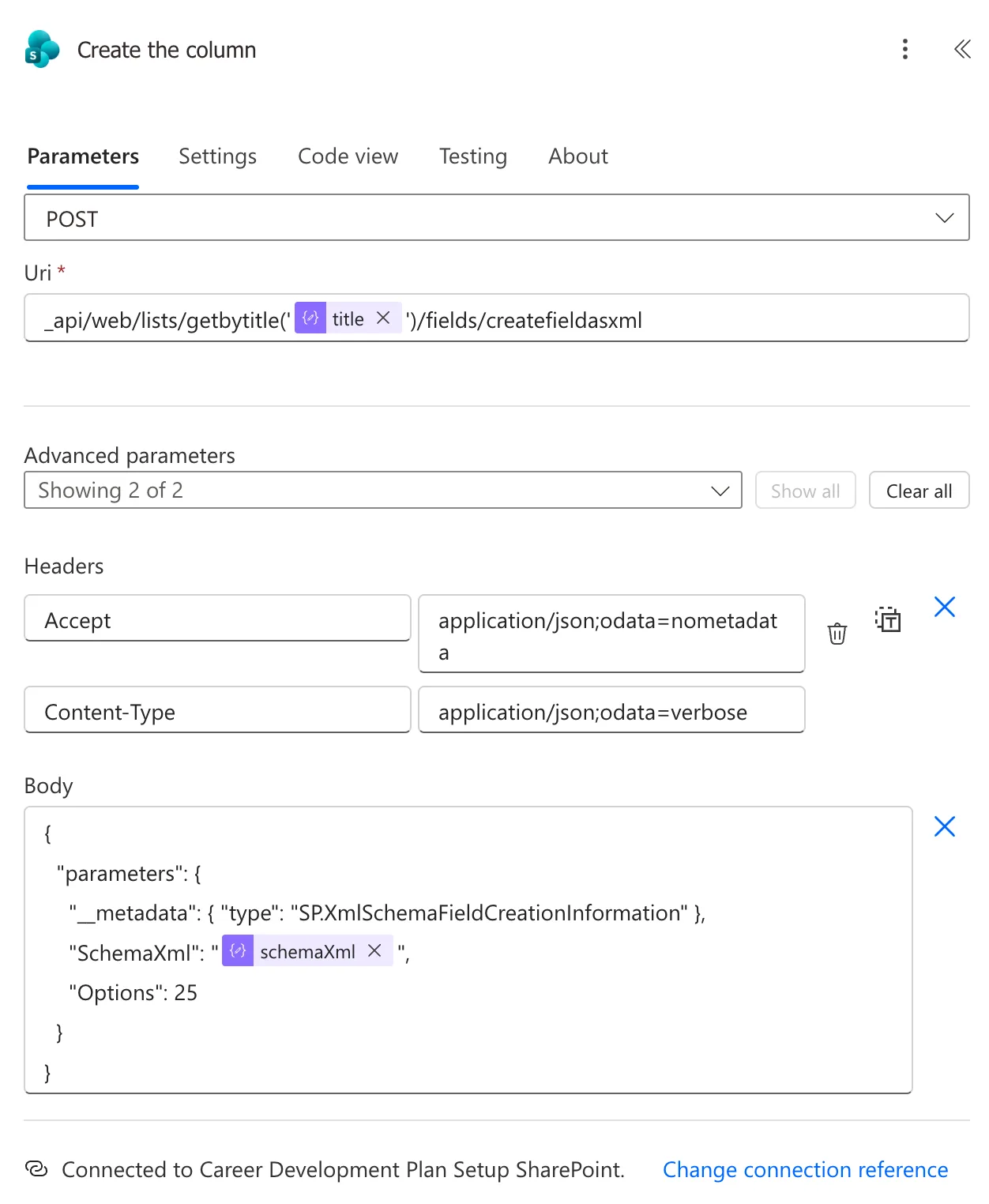
In the condition's True branch, add Create the column:
| Field | Value |
|---|---|
| Method | POST |
| Uri | _api/web/lists/getbytitle(' + the title + ')/fields/createfieldasxml |
| Headers | Accept: application/json;odata=nometadata |
Content-Type: application/json;odata=verbose |
{
  "parameters": {
    "__metadata": { "type": "SP.XmlSchemaFieldCreationInformation" },
    "SchemaXml": "@{items('For_each_column')?['schemaXml']}",
    "Options": 25
  }
}
What Options 25 Means
Options adds up values from Microsoft's AddFieldOptions list:
| Value | Name | Effect |
|---|---|---|
| 1 | AddToDefaultContentType | The column is added to the list's default content type, so it appears in the forms |
| 8 | AddFieldInternalNameHint | The Name in the XML becomes the column's internal name |
| 16 | AddFieldToDefaultView | The column is shown in the default view |
1 + 8 + 16 = 25. The hint, 8, is what makes the internal names match the XML, and the app reads columns by their internal names.
Write the SchemaXml
Each column is one Field element. Microsoft's Field element reference lists every attribute. These are the ones the Career Development Plan columns use:
| Attribute | Meaning |
|---|---|
Type | Text, Note, Choice, Boolean, Number or DateTime |
Name, StaticName | The internal name |
DisplayName | The name people see |
Description | The hint under the column in forms |
Required | TRUE when a value is needed |
MaxLength | The longest text allowed |
Indexed | TRUE to index the column |
Examples of each type, from the setup flow:
<Field Type='Text' Name='EmployeeId' StaticName='EmployeeId' DisplayName='EmployeeId' Description='The employee's Microsoft Entra object ID. The app finds a person's responses with it.' Required='TRUE' MaxLength='255' Indexed='TRUE' />
<Field Type='Choice' Name='Status' StaticName='Status' DisplayName='Status' Description='Pending until the manager approves or declines the response.' Required='TRUE' Format='Dropdown' FillInChoice='FALSE'><CHOICES><CHOICE>Pending</CHOICE><CHOICE>Approved</CHOICE><CHOICE>Declined</CHOICE></CHOICES><Default>Pending</Default></Field>
<Field Type='Boolean' Name='IsActive' StaticName='IsActive' DisplayName='IsActive' Description='Yes: part of the plan. No: removed from the plan (the row is kept for history).' Required='TRUE'><Default>1</Default></Field>
<Field Type='Number' Name='RoleCompetencyId' StaticName='RoleCompetencyId' DisplayName='RoleCompetencyId' Description='The ID of the RoleCompetencies row this response is for.' Required='TRUE' Decimals='0' CommaSeparator='FALSE' />
<Field Type='Note' Name='Response' StaticName='Response' DisplayName='Response' Description='What the employee has done to show this competency at this level.' Required='TRUE' RichText='FALSE' />
<Field Type='DateTime' Name='SubmittedOn' StaticName='SubmittedOn' DisplayName='SubmittedOn' Description='When the employee last sent the response.' Required='TRUE' Format='DateTime' FriendlyDisplayFormat='Disabled' />
The XML uses single quotes because it sits inside a JSON string, which uses double quotes. An apostrophe inside a description is written as ', as in employee's.
Check the Result
The new RoleCompetencies list showed its four columns in the view, and its New item form had each one, with its description, and IsActive set to Yes:
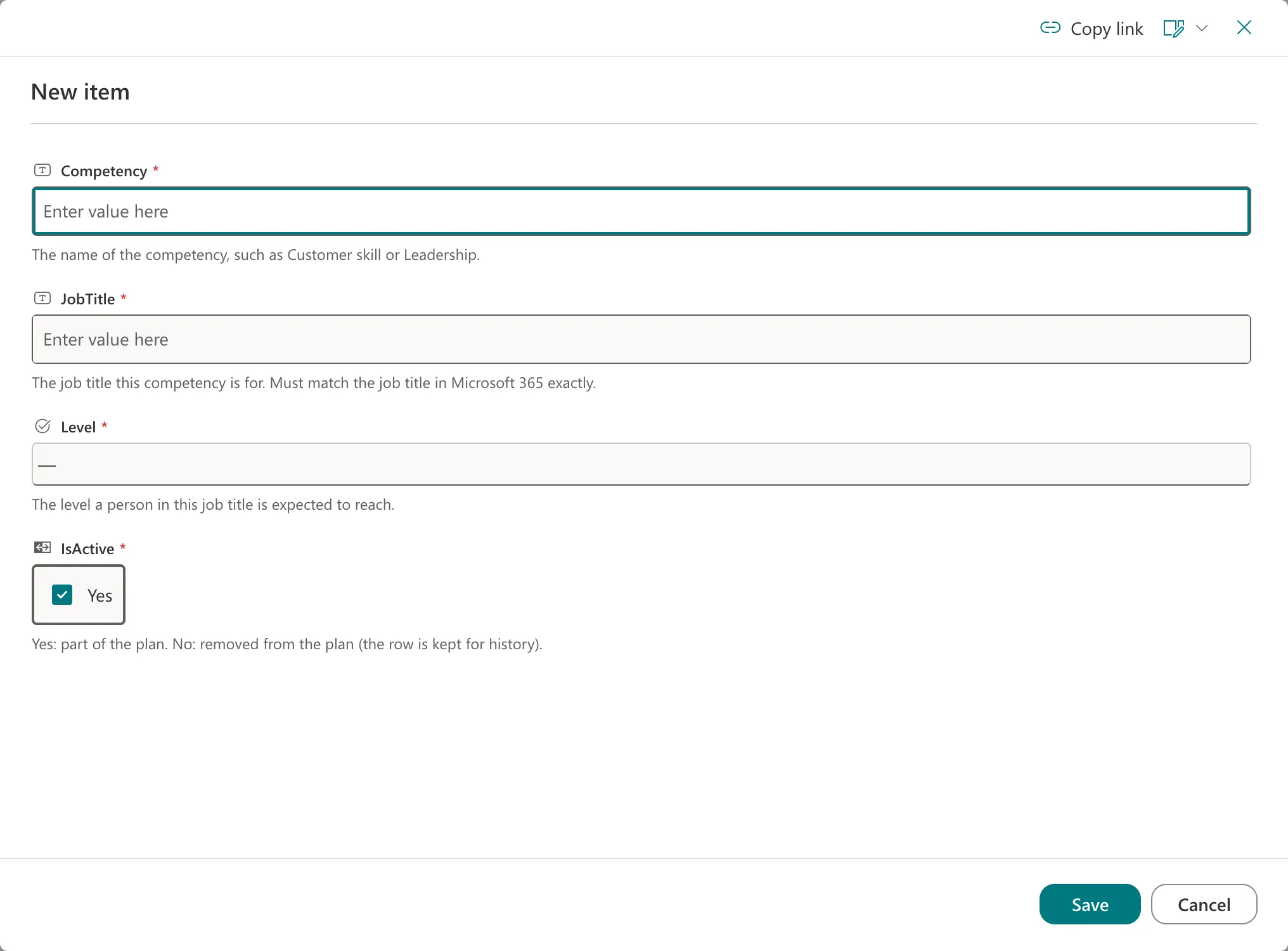
I compared every column with Part 2's hand-built ones through the REST API: the internal names, types, required settings, lengths, indexes, choices, defaults and descriptions matched. After the repeat runs, the lists still had exactly their 16 columns, with no duplicates.
Common Mistakes
| Mistake | What happens | Do this instead |
|---|---|---|
Leaving 8 out of Options | SharePoint may not use your Name as the internal name | Use 25 |
| Double quotes in the XML | The JSON body breaks | Use single quotes in the XML |
| An apostrophe in a description | The XML attribute ends early | Write ' |
| Creating without checking | A rerun adds the column again | Check with Find the column first |
Troubleshooting
| Symptom | Likely cause | Fix |
|---|---|---|
| The column has an unexpected internal name | AddFieldInternalNameHint (8) wasn't in Options | Use 25 |
| The step fails with an XML error | A quote or apostrophe isn't escaped | Check the schemaXml value |
| The column isn't in the forms or the view | 1 or 16 wasn't in Options | Use 25 |
FAQ
Can I add a lookup or person column this way?
Yes, the Field element supports them, but they need more attributes, such as the list a lookup points to. The Career Development Plan lists don't use them.
Why keep the XML in the flow's data instead of in each action?
One Create the column action then serves every column of every list, and the definitions are all in one place.
Conclusion
POST a Field element's XML to _api/web/lists/getbytitle('<title>')/fields/createfieldasxml as SP.XmlSchemaFieldCreationInformation, with Options 25 so the column keeps your internal name and shows in the forms and the view. Check for the column first, and the flow can run as often as you like.
Additional Resources
- Field element (List): every attribute of a column's XML.
- AddFieldOptions enumeration: the values that make up
Options. - Working with lists and list items with REST: creating fields with REST.
