How to Add a Column to a pandas DataFrame with assign

frame["new"] = values adds a column by changing the DataFrame in place. .assign() adds it to a new DataFrame instead and leaves the original as it was, which is handy when the original is still needed, such as the features a model was trained on. This guide adds a calculated column with assign, then one whose name is in a variable, with real output from pandas 3.1.1.
Syntax
new_frame = frame.assign(column_name=values)
| Part | What it means |
|---|---|
frame | The DataFrame to start from. It isn't changed |
column_name | The new column's name, written as a keyword. An existing column with that name is replaced in the copy |
values | The column's values: a Series, a list, a single value for every row, or a function that takes the DataFrame |
new_frame | The returned DataFrame: every column of frame, plus the new one |
pandas' reference for DataFrame.assign: "Returns a new object with all original columns in addition to new ones. Existing columns that are re-assigned will be overwritten."
Step 1: Add a Calculated Column
The example is three items of a café order, with their prices. assign adds each price with 20% tax:
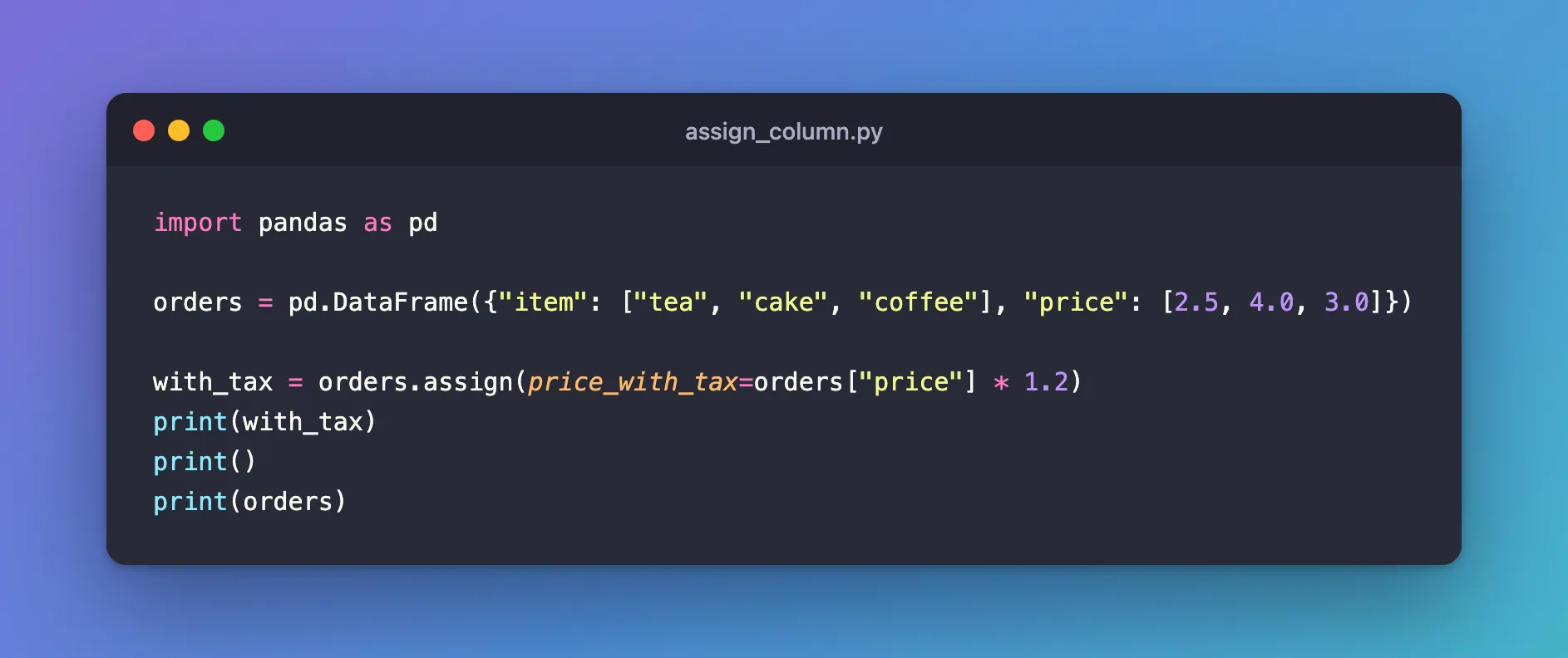
import pandas as pd

orders = pd.DataFrame({"item": ["tea", "cake", "coffee"], "price": [2.5, 4.0, 3.0]})

with_tax = orders.assign(price_with_tax=orders["price"] * 1.2)
print(with_tax)
print()
print(orders)
uv run python assign_column.py
     item  price  price_with_tax
0     tea    2.5             3.0
1    cake    4.0             4.8
2  coffee    3.0             3.6

     item  price
0     tea    2.5
1    cake    4.0
2  coffee    3.0
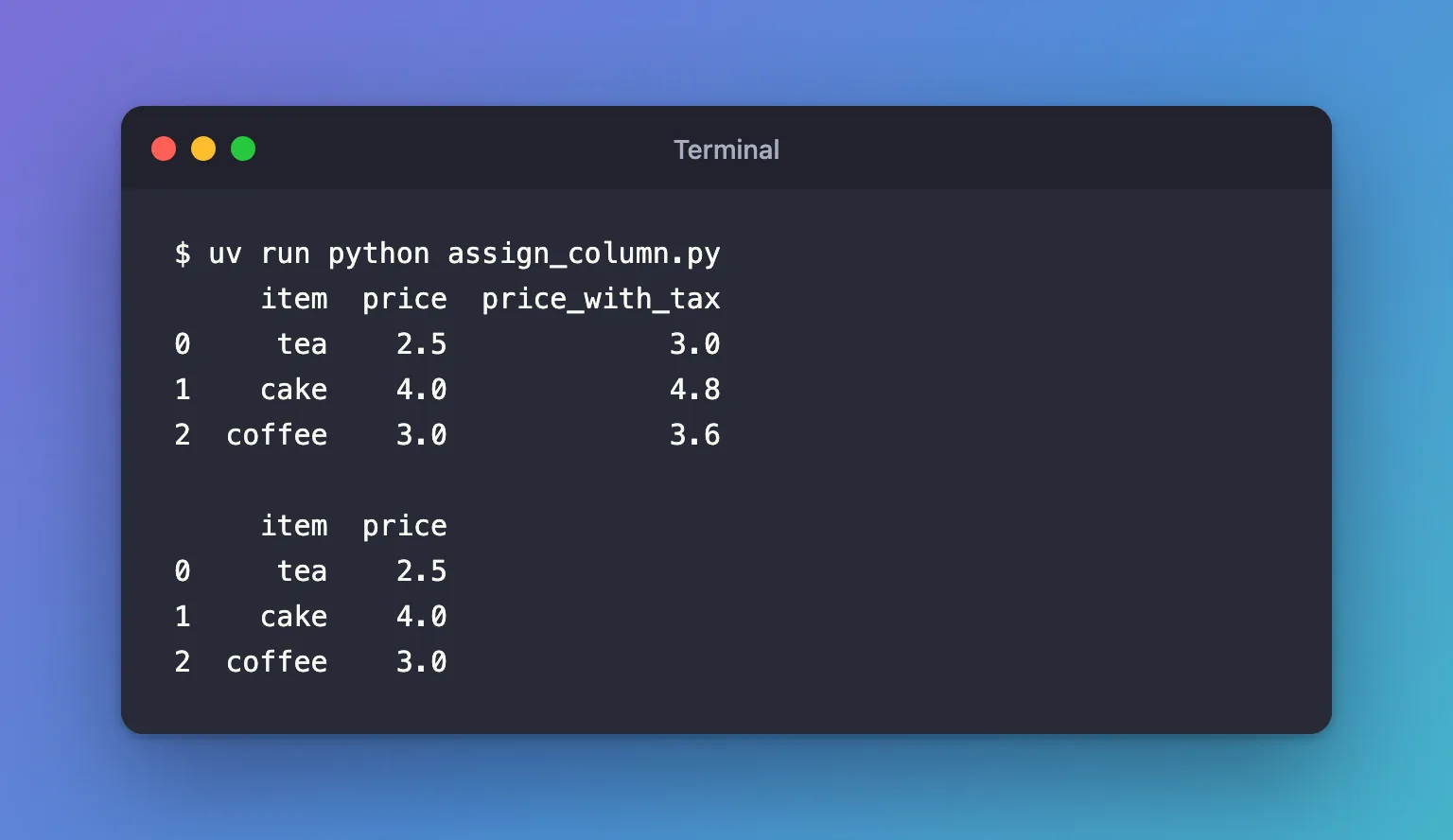
with_tax has the new column; orders is unchanged.
Step 2: Use a Name from a Variable
A keyword has to be a valid Python name, written in the code. When the name is in a variable, or holds spaces, put it in a dictionary and unpack it with **:
import pandas as pd

orders = pd.DataFrame({"item": ["tea", "cake", "coffee"], "price": [2.5, 4.0, 3.0]})

column = "price with tax"
print(orders.assign(**{column: orders["price"] * 1.2}))
uv run python assign_named.py
     item  price  price with tax
0     tea    2.5             3.0
1    cake    4.0             4.8
2  coffee    3.0             3.6
**{column: values} passes the dictionary's key as the keyword, so assign names the column price with tax.
Common Mistakes
| Mistake | What happens | Do this instead |
|---|---|---|
orders.assign(price_with_tax=...) without keeping the result | The new DataFrame is thrown away; orders has no new column | with_tax = orders.assign(...) |
orders.assign(column=...) with the name in a variable | The column is called column | orders.assign(**{column: ...}) |
Troubleshooting
| Symptom | Likely cause | Fix |
|---|---|---|
| The new column is missing | The returned DataFrame wasn't kept | Assign the result to a name |
SyntaxError on the keyword | The column name has spaces or starts with a digit | Use **{"name": values} |
FAQ
When should I use assign instead of frame["new"] = values?
When the original DataFrame must stay as it is: the bracket form changes it in place, assign doesn't.
Can I add several columns at once?
Yes: give assign several keywords, such as orders.assign(tax=..., total=...).
Conclusion
orders.assign(price_with_tax=orders["price"] * 1.2) returned a new DataFrame with the extra column and left orders unchanged, and **{column: values} handled a name held in a variable.
Additional Resources
- pandas.DataFrame.assign — the method and its values.
