How to Add a Canvas App to Microsoft Teams from Power Apps

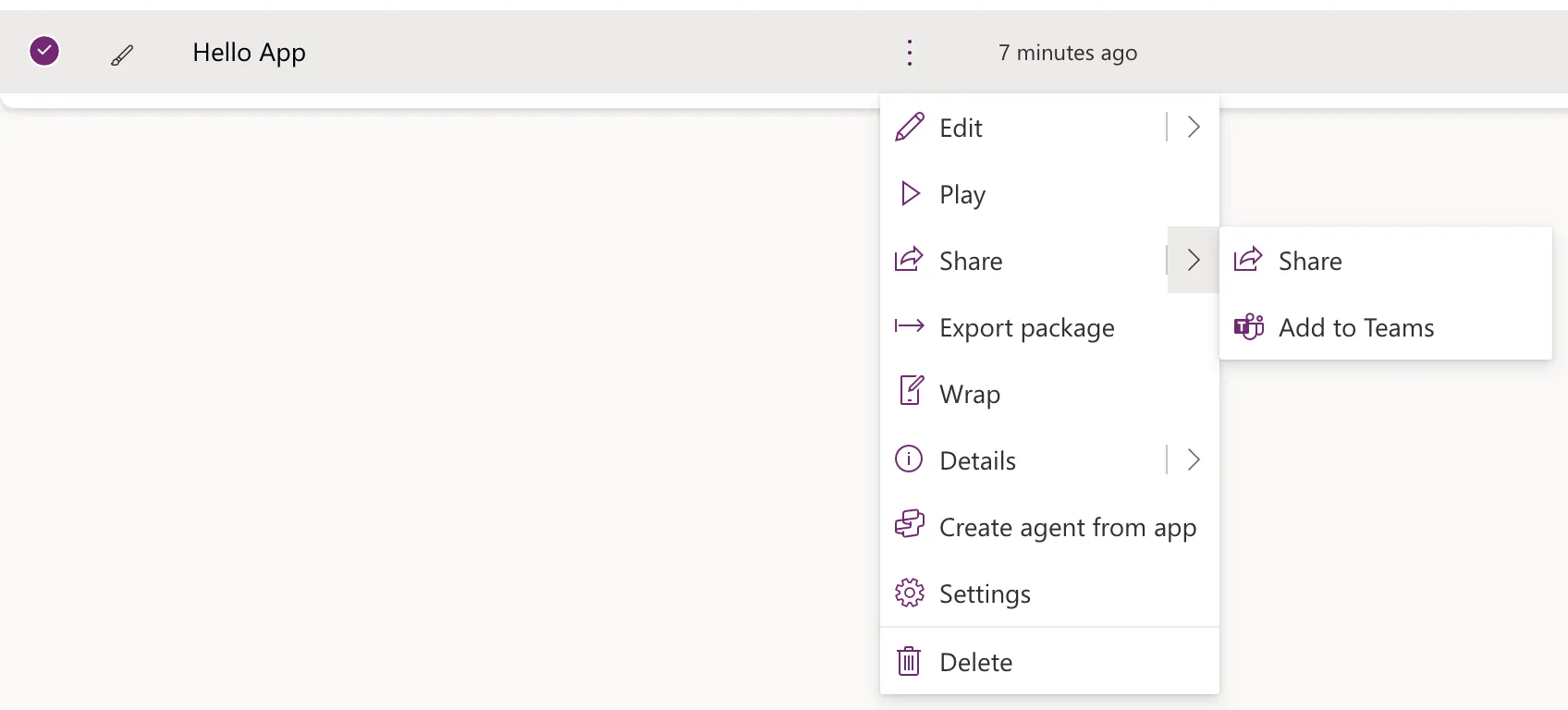
To use a canvas app inside Microsoft Teams, add it as a personal app: in Power Apps, select the app's More commands (⋮) > Share > Add to Teams, then Add to Teams in the panel. Teams opens and asks you to Add it, and the app then opens in Teams, in the app bar on the left.
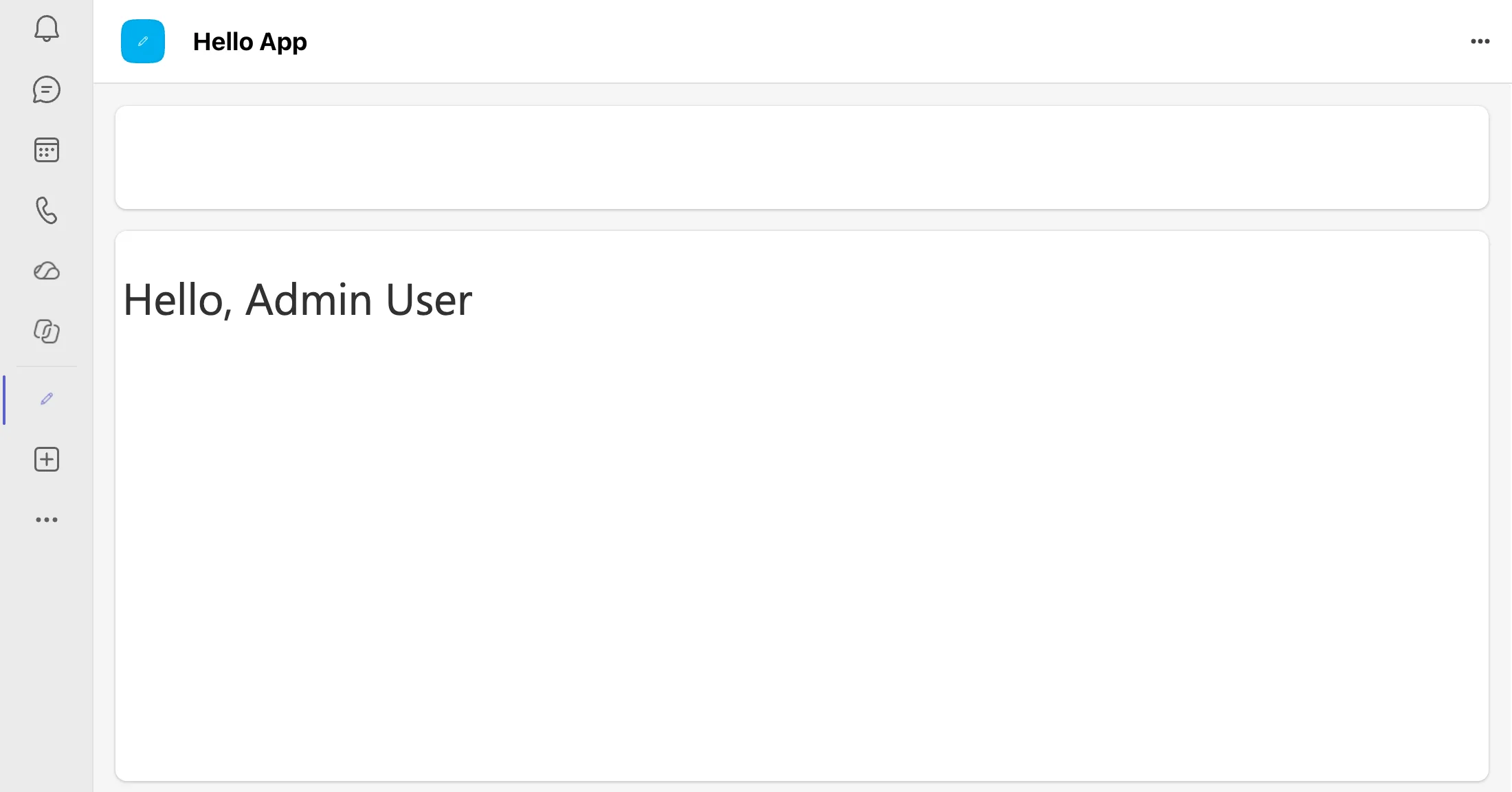
The example is Hello App, a one-screen canvas app whose label says "Hello, " & User().FullName, so it greets whoever opens it.
This adds the app for you only. To give it to your whole organization, a Teams admin uploads it to the organization's app catalog instead (How to Upload a Custom App in the Teams Admin Center).
Prerequisites
- Your organization allows custom apps in Teams. Microsoft's article says the Teams custom app policies must allow uploading custom apps.
Step 1: Choose Add to Teams
At make.powerapps.com, select Apps, find the app, and select its More commands (⋮). Point to Share and select Add to Teams:
Step 2: Review the App Details
The Add to Teams panel opens on the right, with the app's name and description, and a warning: App details can't be changed in Teams once added. Hello App had no description, so the panel said so and offered Edit details, which opens the app in Power Apps Studio to add one:
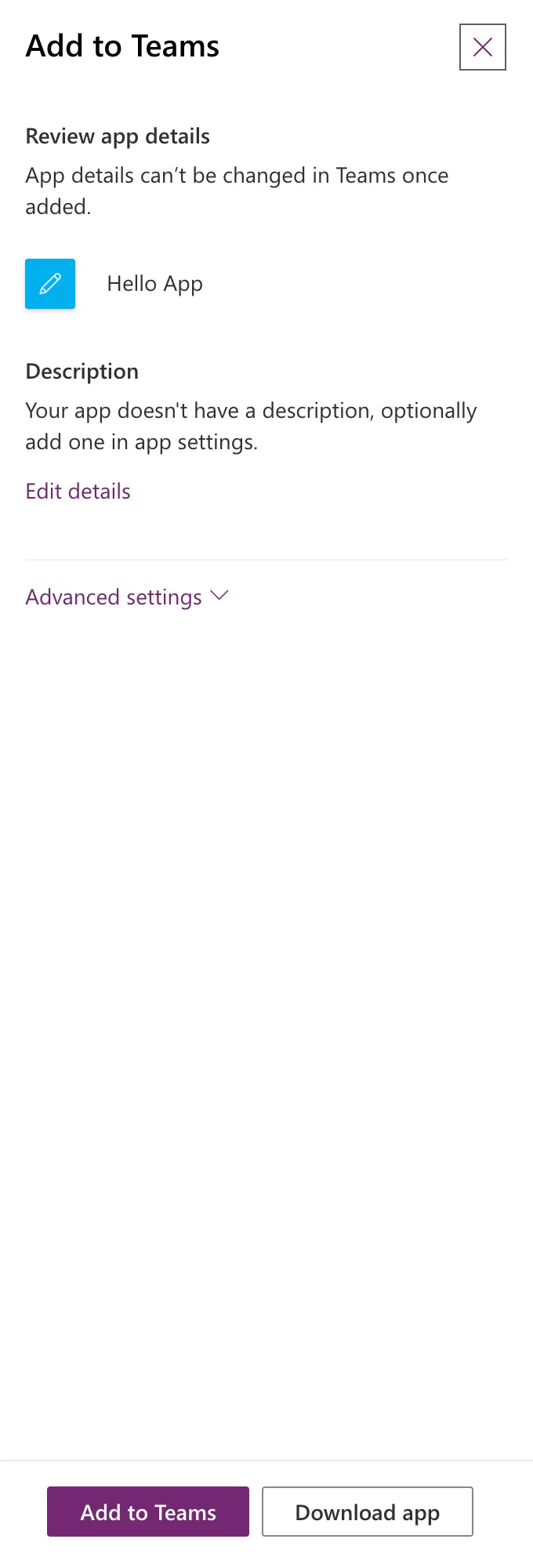
The description is what Teams shows about the app, so for an app other people will see, add one first. Advanced settings holds optional developer details, covered in How to Download a Canvas App as a Teams App Package in Power Apps.
Select Add to Teams.
Step 3: Open Teams
A new browser tab opens with the choice of Teams app:

Select Launch it now if you have the Teams desktop app, or Use the web app instead for Teams in the browser. I used the web app.
The first time, Teams on the web took more than five minutes to finish loading in that tab, and when it did, it showed Teams as usual, without asking about the app, and the app wasn't added. With Teams already open in the browser, I chose Add to Teams in Power Apps again, and this time Teams asked straight away.
Step 4: Add the App
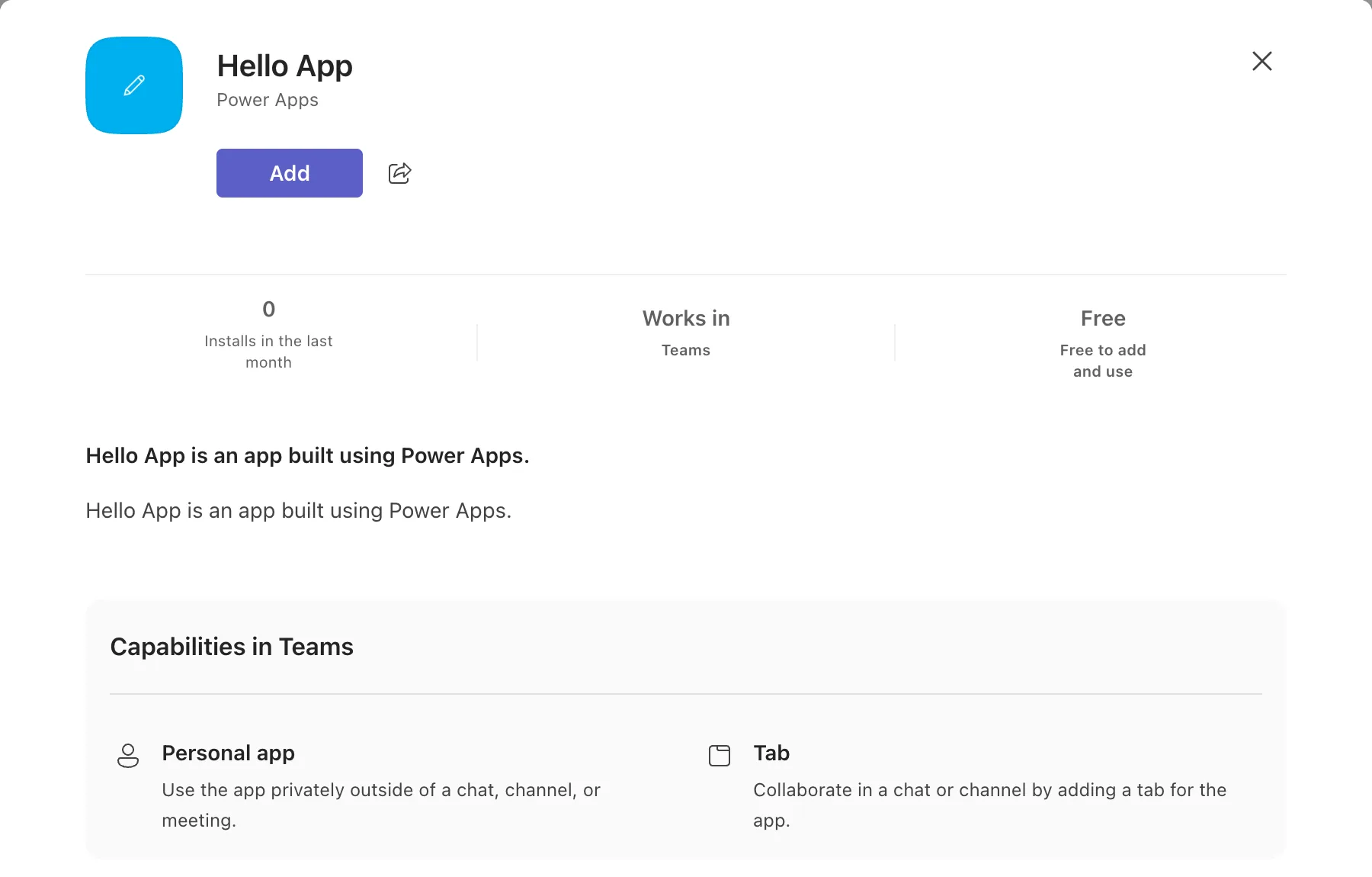
Teams shows the app's details: its name, Power Apps as the publisher, the description and what it can do, a Personal app and a Tab. Select Add:
Teams confirms with Added successfully! and asks where to use the app. Select Open to use it on its own, as a personal app:

The search box below is for adding it as a tab in a channel or chat instead.
The Result
The app opens in Teams, under its own name, and its icon is in the app bar on the left. Hello App greeted me by name:
To keep it in the app bar for quick access, pin it (How to Pin an App to the App Bar in Microsoft Teams).
Common Mistakes
| Mistake | What happens | Do this instead |
|---|---|---|
| Adding an app with no description | Teams has nothing to say about it | Edit details and add one first |
| Expecting colleagues to get it too | This adds it for you only | Share the app, and have the admin upload it to the catalog |
| Selecting a channel instead of Open | It's added as a tab in that channel | Open, for a personal app |
Troubleshooting
| Symptom | Likely cause | Fix |
|---|---|---|
| Teams opens but never asks to add the app | Not documented; it happened while Teams on the web loaded for the first time | Open Teams first, then Add to Teams again |
| No Add to Teams in the menu | It's under Share | Point to Share |
| Teams won't add it | Custom apps aren't allowed for you | Ask your Teams admin to check the custom app settings (How to Check If Custom Apps Are Allowed in Microsoft Teams) |
FAQ
Can I change the app's name or description in Teams later?
Not from Teams: the panel warns that App details can't be changed in Teams once added. Change them in Power Apps and add the app again.
Does the app in Teams update when I publish a new version?
The Teams app opens the app from its Power Apps web link, which plays the published version. Microsoft's article says to publish a change and then play the app within Teams to test it.
Who else can open it?
Only people the app is shared with (How to Share a Canvas App with Specific People in Power Apps).
Conclusion
Select the app's More commands (⋮) > Share > Add to Teams, check the details, select Add to Teams, open Teams, and select Add, then Open. The app runs inside Teams, for you; for everyone, the Teams admin uploads it to the organization's catalog.
