How to Add a Calculated Column to an Excel Table

In an Excel table, a formula belongs to the whole column. Type a heading next to the table and Excel adds the column; type a formula in its first row and Excel fills every row. That's a calculated column, and when you change its formula, the whole column changes with it.
The examples are from the OvertimeLog table in the old overtime timesheet, from Part 1 of the Overtime Timesheet series, which has two calculated columns: Time worked and Hours.
Prerequisites
- An Excel table, such as the one from How to Format Data as a Table in Excel.
Step 1: Type a Heading Next to the Table
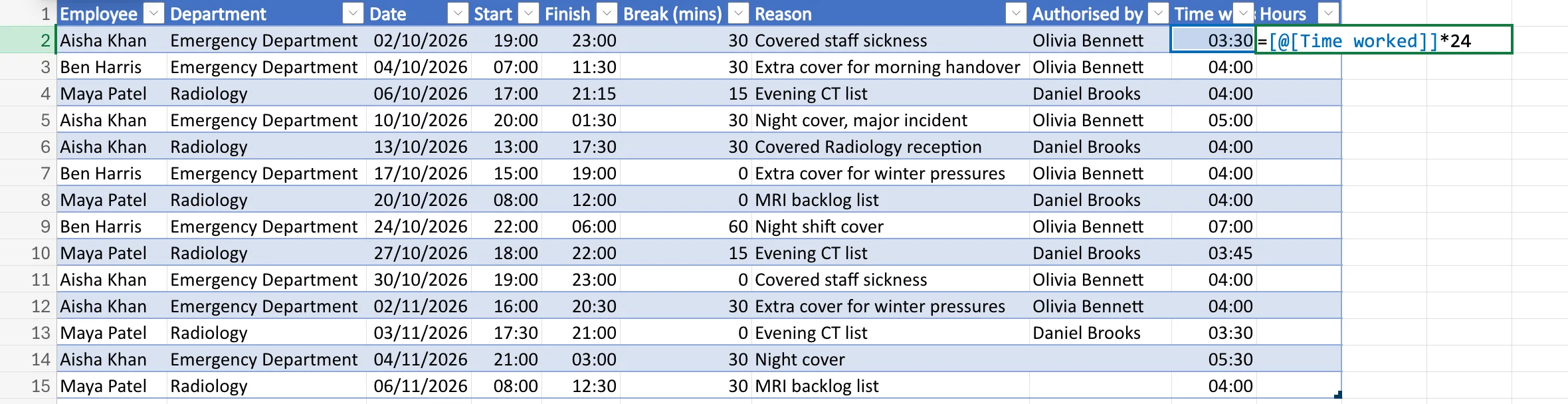
Select the cell to the right of the table's last heading and type the new column's name. I typed Hours in J1, next to Time worked, and pressed Enter. Excel made J part of the table, with the table's heading style and a filter button.
Step 2: Type the Formula in the First Row
In the first data row, type the formula. I typed in J2:
=[@[Time worked]]*24
Step 3: Press Enter
Press Enter. Excel copies the formula to every row of the column; there's nothing to drag or paste. Each row calculates from its own Time worked. (The first results showed as times; Fixed: Excel Shows Hours as 12:00 or 00:00 After Multiplying by 24 explains why and how I fixed the format.)
Step 4: Change the Formula Once
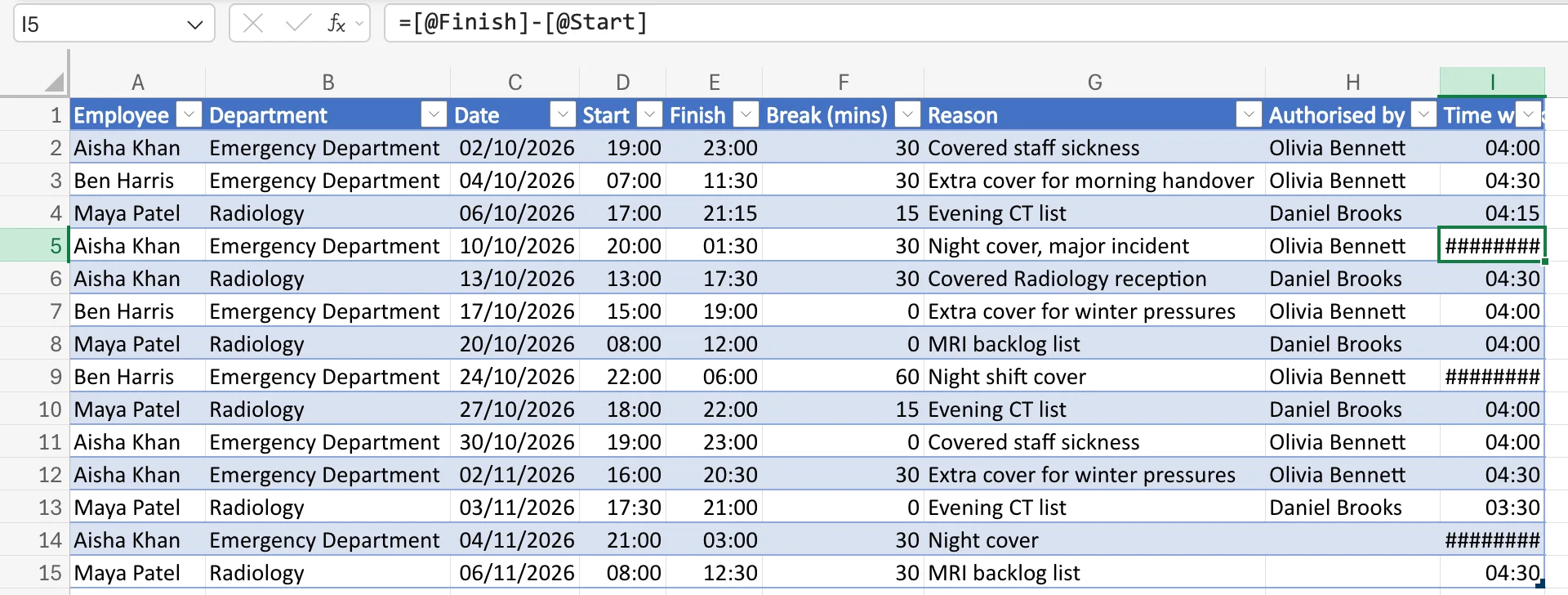
A calculated column has one formula. Type a new formula in any row and Excel updates the whole column. The Time worked column started as =[@Finish]-[@Start], which showed ######## for overnight shifts:
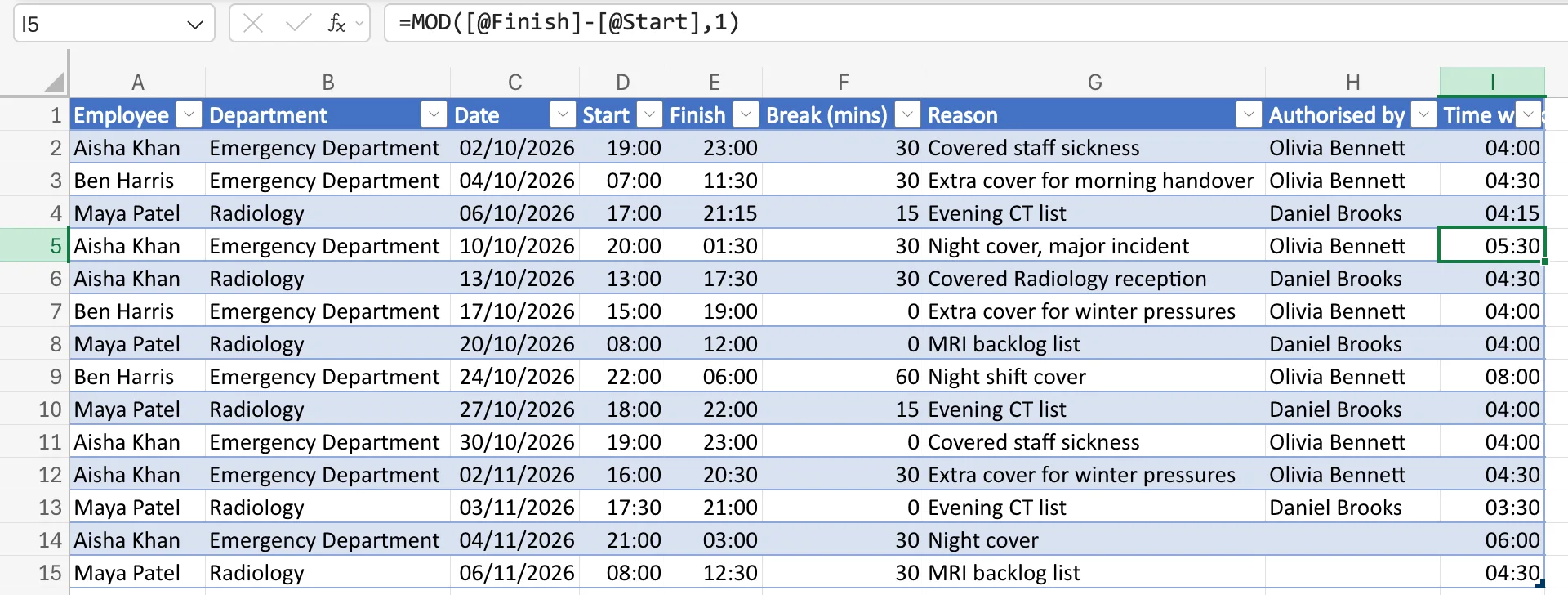
I typed a new formula in I2 only, =MOD([@Finish]-[@Start],1), and pressed Enter. Every row changed, overnight ones included:
Common Mistakes
| Mistake | What happens | Do this instead |
|---|---|---|
| Leaving an empty column between the table and the new heading | The new column isn't part of the table | Type the heading in the very next column |
| Typing a number over one row's formula | That row stops calculating and no longer matches the rest of the column | Keep the formula; put manual adjustments in a column of their own |
Using cell addresses like E2-D2 | It works, but is harder to read | Use structured references like [@Finish] |
Troubleshooting
| Symptom | Likely cause | Fix |
|---|---|---|
| The formula didn't fill down | The column isn't part of the table | Check it has the table's heading style; type the heading next to the table |
| New rows don't get the formula | They were added outside the table | Add rows directly under the table's last row |
FAQ
Does a calculated column update when I add rows?
Yes. A new row in the table gets the column's formula.
Can I see which formula the column uses?
Select any cell in the column; the formula bar shows the formula, the same in every row.
Conclusion
Type the heading next to the table, type the formula once in the first row, and Excel fills the column. Change it once, and the whole column follows.
