How to Add a Button in Power Apps

Buttons are how people do things in a canvas app: open a screen, save a record, send a request. The modern Button control follows your app's theme and works with keyboards and screen readers out of the box. Here's how to add one and set it up.
Prerequisites
- Modern controls turned on. See How to Turn On Modern Controls and Themes in Power Apps.
- A screen or container for it. The example adds a My plan button to a row of buttons on the Career Development Plan app's Home screen, from Part 4 of the series.
Step 1: Insert a Button
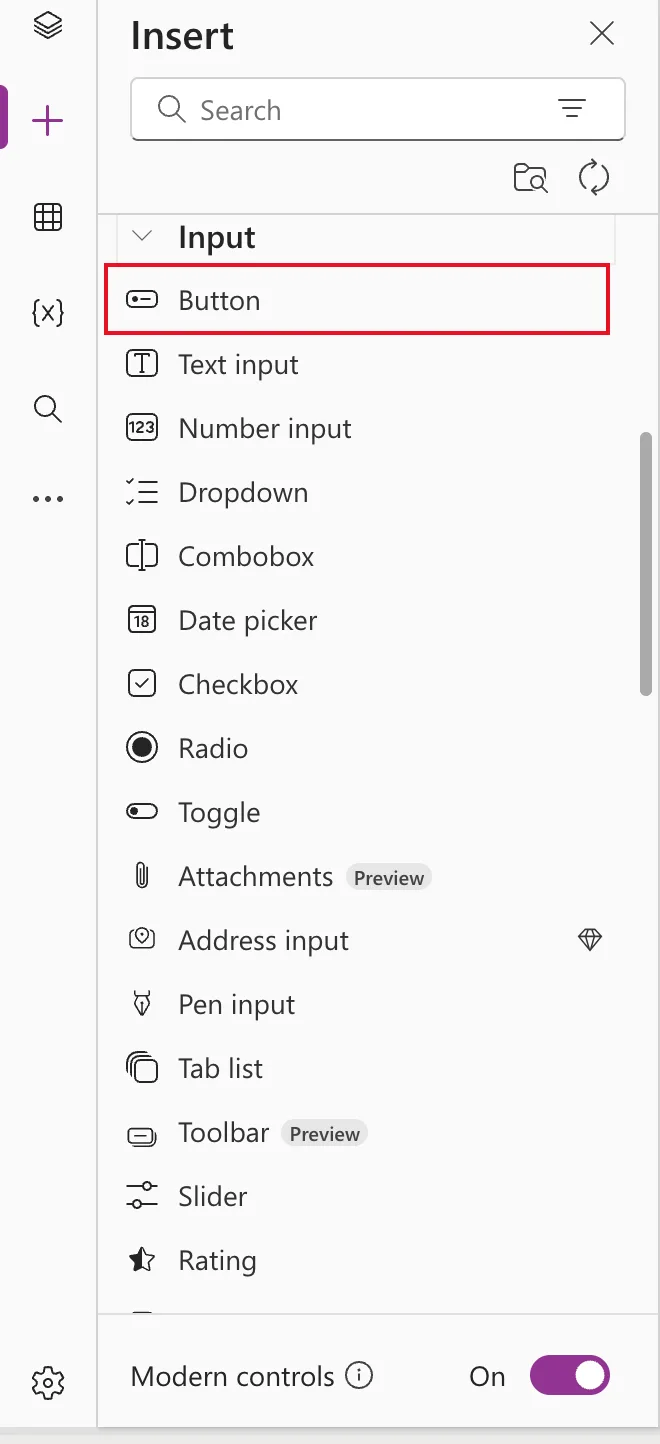
Select the container, open Insert, expand Input and select Button:
It arrives as a small filled button labelled Button:
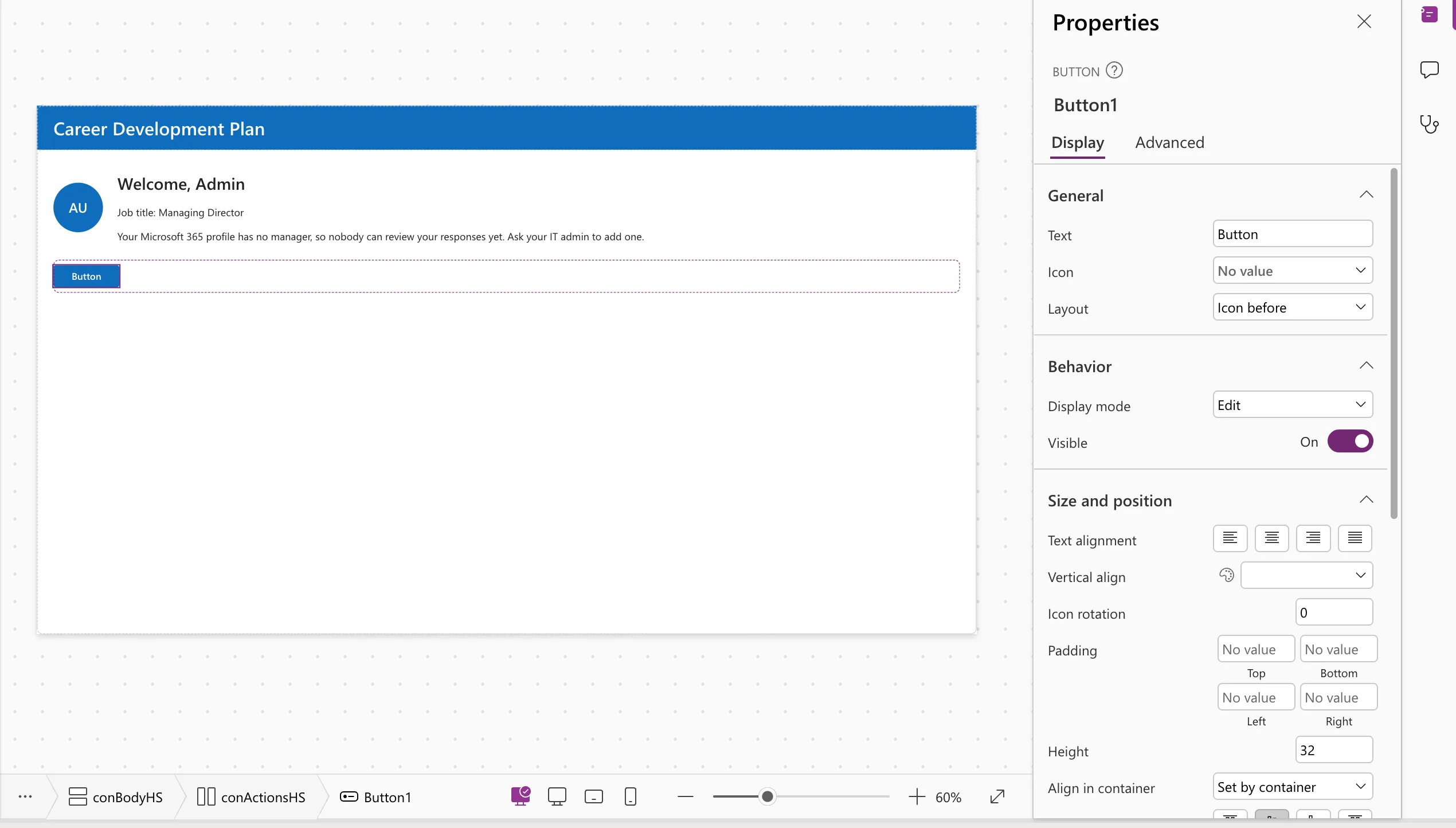
Rename it; the example uses btnMyPlanHS.
Step 2: Set the Text
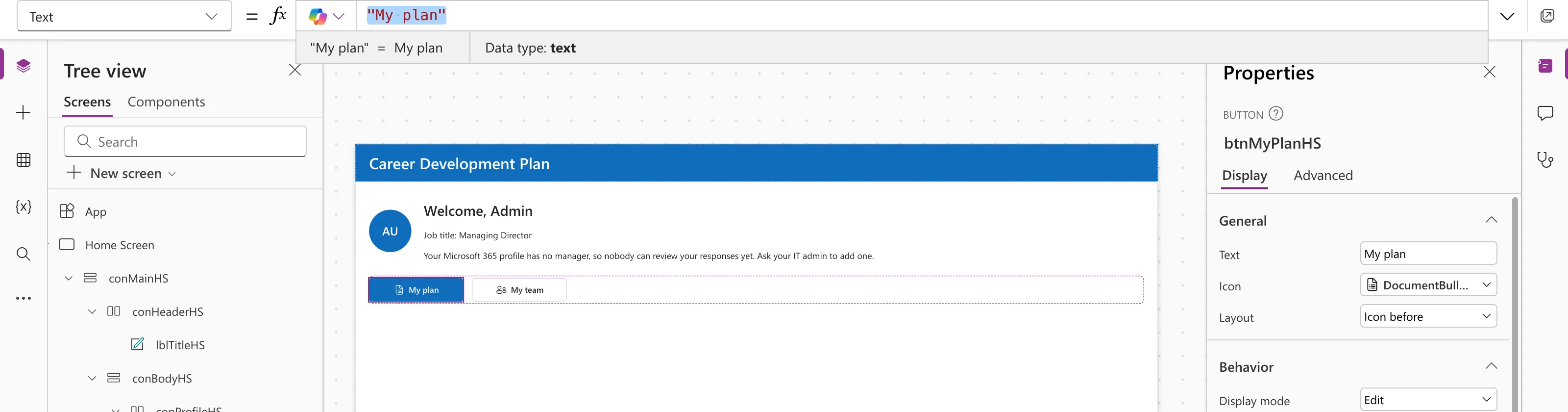
"My plan"
Step 3: Size It
A new button is 96 × 32. With an icon added, "My plan" wrapped onto two lines at that width, so the example uses:
| Property | Value |
|---|---|
| Width | 160 |
| Height | 40 |
Step 4: Choose an Appearance
Appearance sets the style. Use one Primary button for the main action on a screen:
| Appearance | Looks like | Example use |
|---|---|---|
ButtonAppearance.Primary (default) | Filled in the theme color | The main action, such as My plan |
ButtonAppearance.Secondary | Light fill | A second action, such as My team |
ButtonAppearance.Outline | Border only | Less important actions |
ButtonAppearance.Subtle / Transparent | No border or fill | Inline or toolbar actions |
ButtonAppearance.Secondary
Step 5: What OnSelect Does
OnSelect is the formula that runs when someone selects the button, or presses Enter or Space on it. A new button's OnSelect is false, which does nothing. A typical one opens another screen:
Navigate('My Plan Screen')
To try a button while editing, hold Alt and select it: Studio runs it as a user would. Or press F5 to preview the whole app; see How to Preview a Canvas App in Power Apps Studio.
Step 6: Give It an Accessible Label
Studio's App checker flags new buttons with Missing accessible label. Start the label with the visible text, then add context:
"My plan: the competencies for your job title"
See Fixed: Missing Accessible Label in the Power Apps App Checker.
Common Mistakes
| Mistake | What happens | Do this instead |
|---|---|---|
| Keeping the default 96 width with an icon | The text wraps onto two lines | Widen the button |
| Several Primary buttons on one screen | No clear main action | One Primary, the rest Secondary or Outline |
| Clicking the button in Studio to test it | It selects the button for editing | Hold Alt and click, or preview |
Troubleshooting
| Symptom | Likely cause | Fix |
|---|---|---|
| Nothing happens when selected | OnSelect is false | Add a formula |
| The button is greyed out | DisplayMode is Disabled | Set it to Edit |
| The button is missing in the app | Visible is false | Check the Visible formula |
FAQ
Classic or modern button?
Modern. It follows the theme, supports icons, and has keyboard support built in.
Can a button have an icon?
Yes. See How to Add an Icon to a Button in Power Apps.
How do I show a button only to some people?
With its Visible property; see How to Show or Hide a Control in Power Apps with Visible.
Conclusion
Insert Button, set its Text, widen it if it wraps, pick an Appearance, give it an OnSelect formula and an AccessibleLabel. Test it with Alt + click or in preview.
Additional Resources
- Button modern control: every property, including the appearance values.
- Keyboard shortcuts: alternate behavior: testing controls with Alt.
