How to Add a Badge Control in Power Apps

A badge is a small colored label for a short piece of information: a status, a count, a category. The modern Badge control follows the app's theme and has a property, Intent, that picks a color for what the badge means.
Prerequisites
- Modern controls turned on (How to Turn On Modern Controls and Themes in Power Apps).
- Somewhere to put the badge. The example adds one to each row of a gallery (How to Add a Vertical Gallery in Power Apps).
Step 1: Insert a Badge
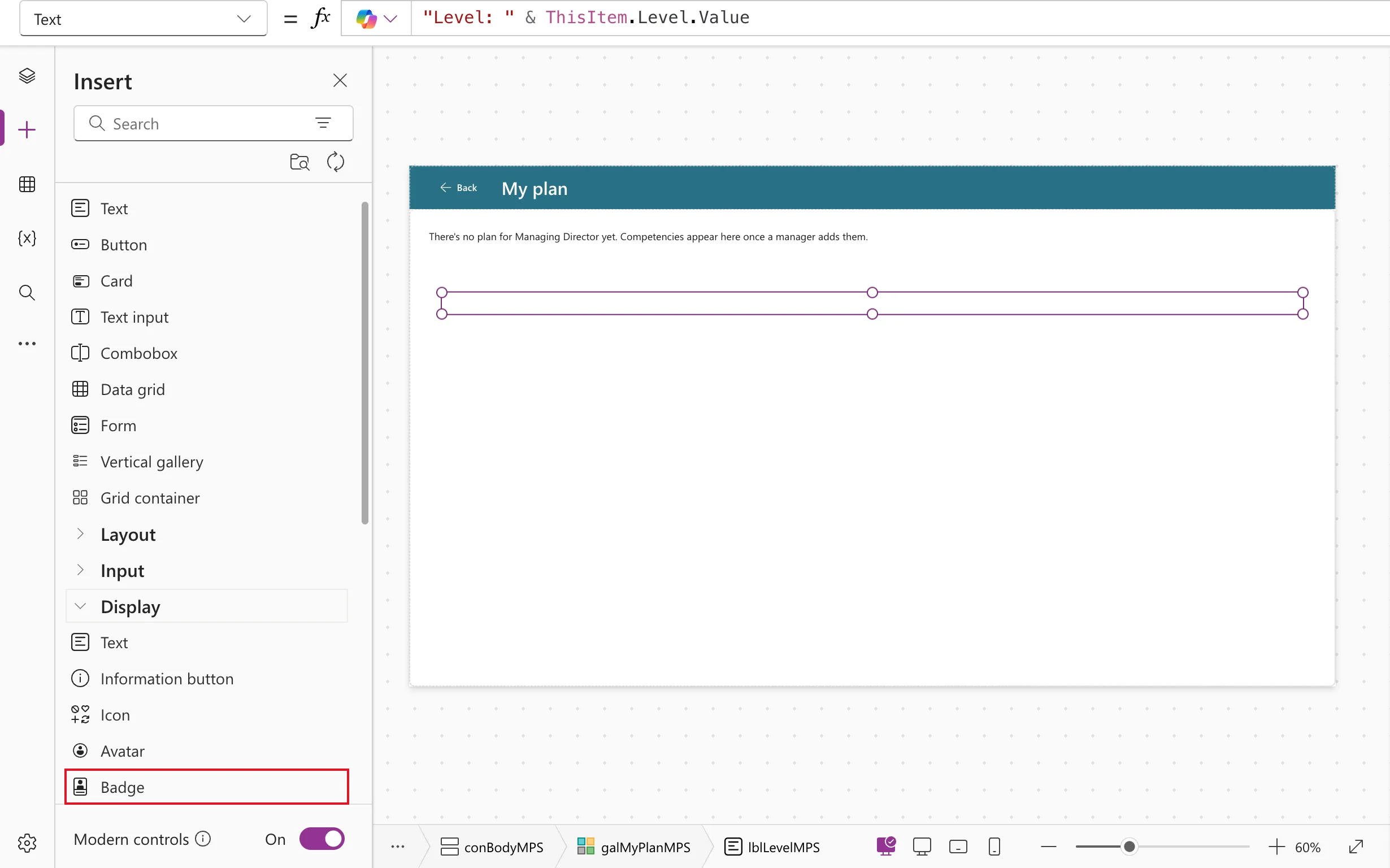
Select where it should go (for a gallery, a control in its template), then Insert → Display → Badge:
In the example, the new badge read AB, in green:
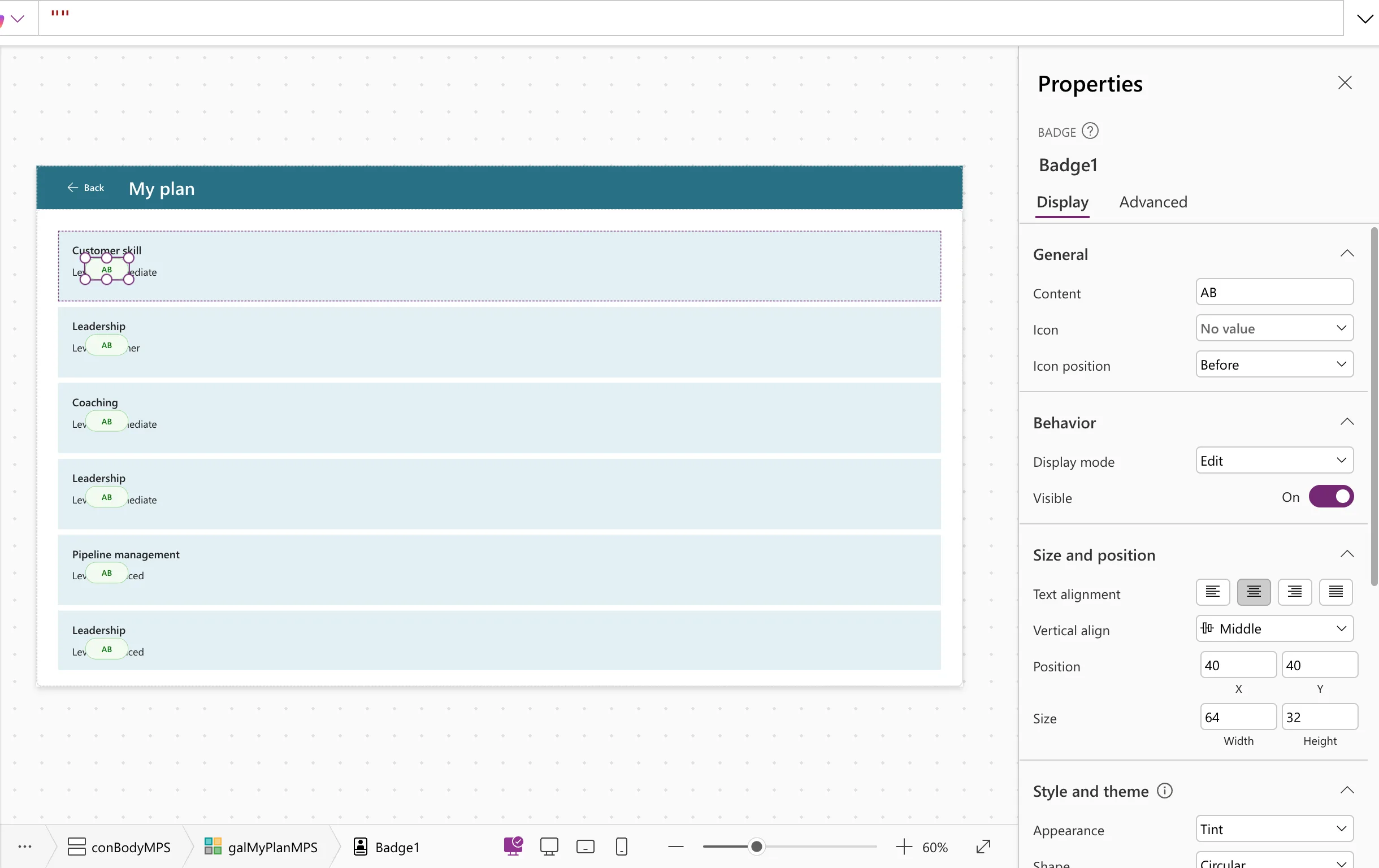
Its defaults were:
| Property | Default |
|---|---|
| Content | "AB" |
| Intent | BadgeIntent.Positive |
| Appearance | BadgeAppearance.Tint |
| Shape | BadgeShape.Circular |
| Width, Height | 64, 32 |
| AccessibleLabel | Empty |
Rename it with the bdg prefix (Power Apps Naming Conventions), for example bdgStatusMPS.
Step 2: Set What It Shows
Content is the text. In a gallery, it usually comes from the row:
ThisItem.Level.Value
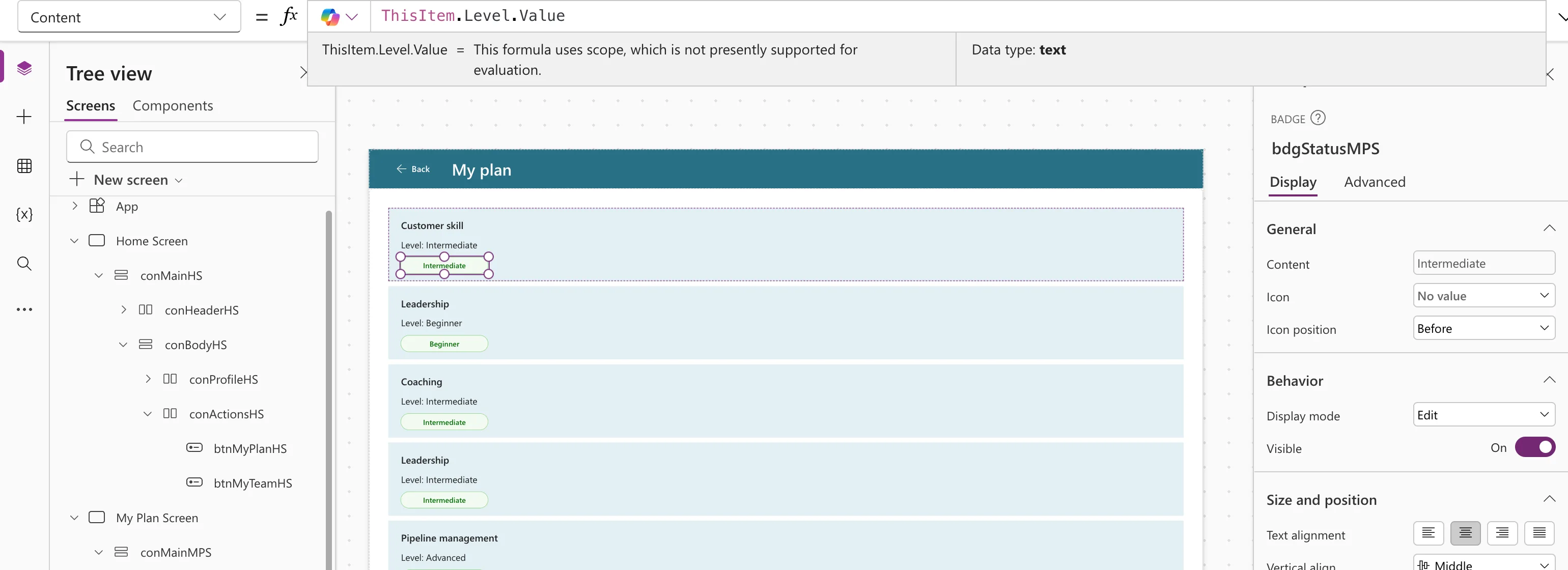
Keep it short: Microsoft's examples are 5, New and Active (Badge modern control). Make the badge wide enough for the longest text it can show.
Step 3: Choose a Color With Intent
Intent describes what the badge means, and the color follows: BadgeIntent.Neutral, Highlight, Informative, Positive, Attention, Caution, Urgent or Critical. To change it per row, use a formula, such as Switch:
Switch(
    ThisItem.Level.Value,
    "Beginner", BadgeIntent.Neutral,
    "Intermediate", BadgeIntent.Informative,
    "Advanced", BadgeIntent.Highlight,
    BadgeIntent.Positive
)
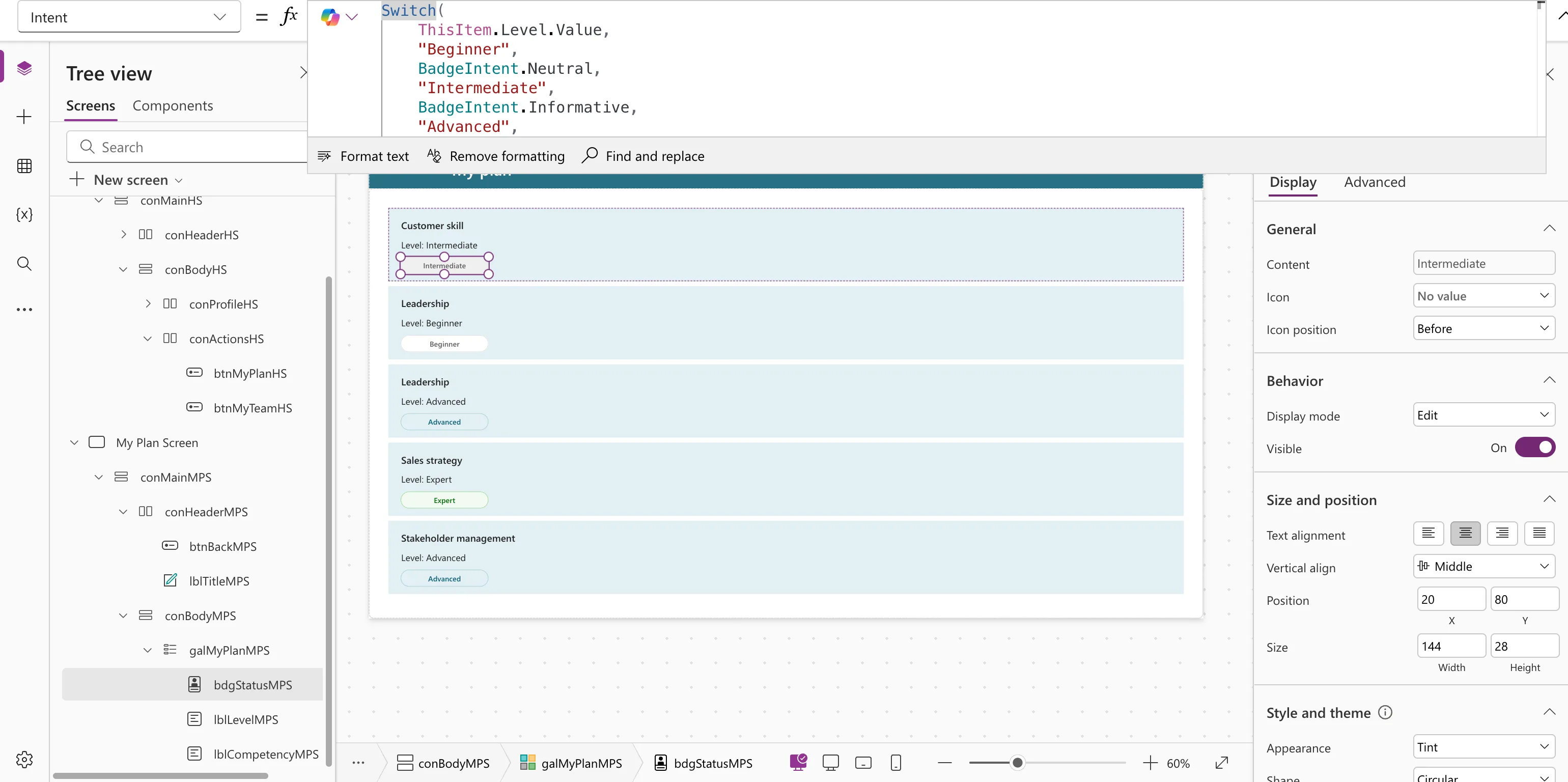
If you've seen ThemeColor in older tutorials: Microsoft renamed it to Intent in the updated Badge. Appearance sets the style (Filled, Ghost, Outline or Tint), and Shape the corners (Circular, Rounded or Square).
Step 4: Give It an Accessible Label
Microsoft recommends an AccessibleLabel that says what the badge means, not just its short text. The Career Development Plan app's status badge uses:
"Status: " & ThisItem.StatusText
Common Mistakes
| Mistake | What happens | Do this instead |
|---|---|---|
Reading the badge's own text with Self.Content | Name isn't valid. 'Content' isn't recognized | Use the same source value, such as ThisItem.Level.Value |
| Using ThemeColor | It's now called Intent | Set Intent |
| Relying on color alone | Some people can't tell the colors apart | Put the meaning in Content too |
Troubleshooting
| Symptom | Likely cause | Fix |
|---|---|---|
| The badge reads AB | Content is still the default | Set Content |
| Text is cut off | The badge is too narrow | Increase Width |
FAQ
Can a badge be clicked?
Yes. Microsoft says a badge with an OnSelect formula acts as a button and responds to Enter and Space. Without one, it's display-only.
Can a badge show an icon?
Yes, with Icon and IconPosition. Give an icon-only badge an AccessibleLabel.
Conclusion
Insert Display → Badge, set Content to a short value, choose Intent by meaning (with Switch when it varies), and add an AccessibleLabel.
Additional Resources
- Badge modern control: properties, accessibility and recent changes.
