Fixed: "You Can't Open Apps in This Environment. You Are Not a Member of the Environment's Security Group" in Power Apps

A manager opened a shared app in a new trial environment and got You can't open apps in this environment. You are not a member of the environment's security group. He was a member. The cause is how trial environments add people, and the fix is to add them to the environment yourself, or have them open the app again.
What I Was Doing
Part 13 of the Career Development Plan series installs the app in a brand-new environment, the way a buyer would:
- a trial environment, limited to the Career Development Plan Users security group (How to Create a Free Trial Environment);
- a group team that gives that group Basic User (How to Assign a Dataverse Security Role to a Microsoft Entra Group);
- both solutions imported, and the app shared with the group (How to Share a Canvas App with a Security Group).
Then Daniel Brooks, a sales manager and a member of the group since Part 1, opened the app's link.
What I Expected
The app's permissions dialog, as on any first run (How to Open a Shared Canvas App for the First Time), then its Home screen.
What I Got
Power Apps showed This app isn't opening correctly:
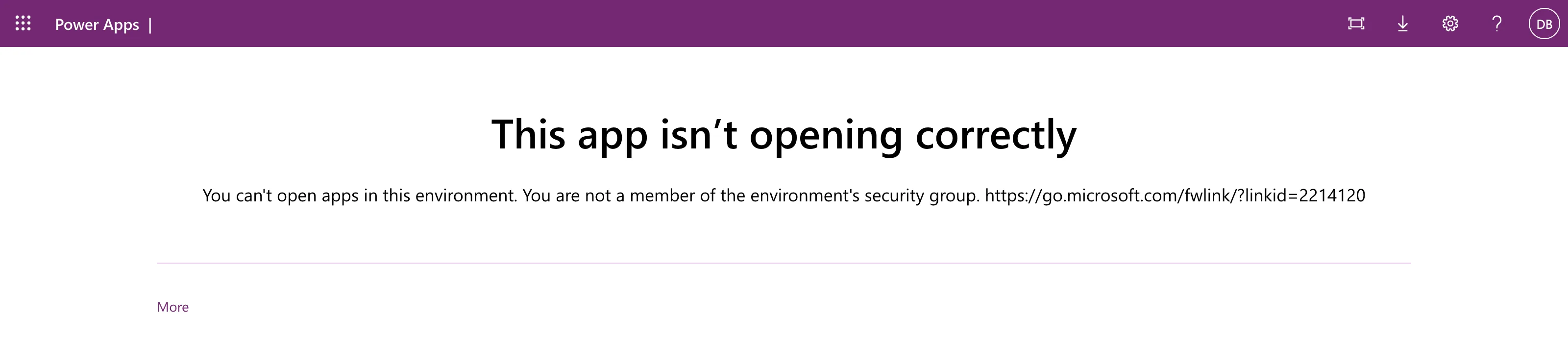
The text in full:
You can't open apps in this environment. You are not a member of the environment's security group. https://go.microsoft.com/fwlink/?linkid=2214120
What I Checked
The link. It opens Microsoft's Control user access to environments with security groups and licenses. Its note quotes this message: canvas apps can be shared with people outside the environment's group, but they must be members to run the apps. The same page says something more specific: Automatic user assignment to an environment isn't supported for trial environments. For trial environments, users must be assigned manually.
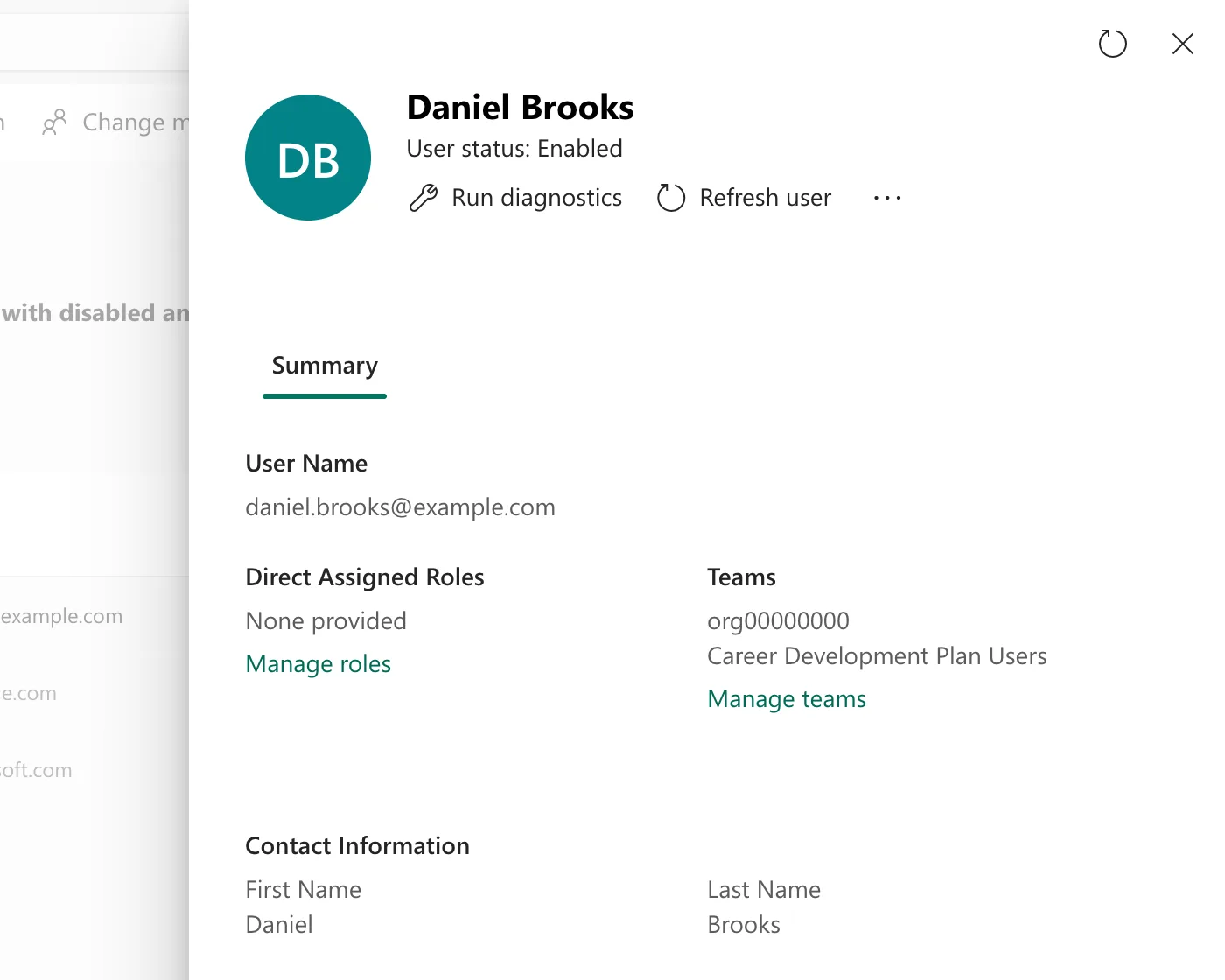
The environment's users. A minute later, in the Power Platform admin center, the environment's Users page already listed Daniel. His record said User status: Enabled, with no roles given directly and the Career Development Plan Users team under Teams:
The diagnostics. Run diagnostics checks the requirements one by one (How to Run User Diagnostics):
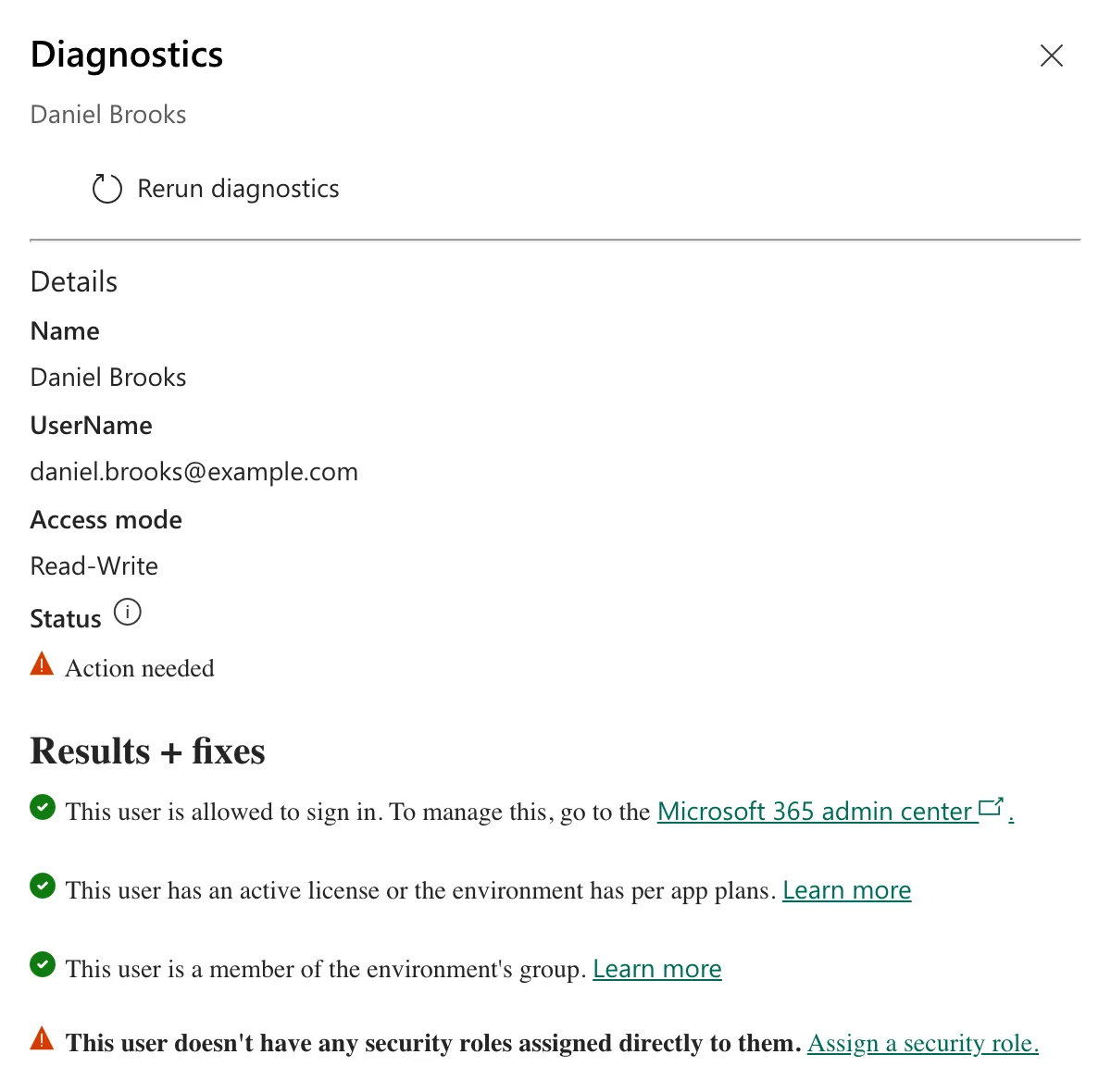
This user is a member of the environment's group, with a green check. The one warning, no security roles assigned directly, is a known gap in the diagnostics: they don't count roles that come from a group team, and Daniel's does.
So he met every requirement, a minute after being told he didn't.
Why It Happens
Two pages of Microsoft's documentation explain it together:
- Control user access: trial environments don't add users automatically.
- Create users: people who exist in Microsoft Entra ID are added when they first attempt to access the environment. People with only a Microsoft 365 license, like Daniel, get in on demand too.
So nobody was in the trial environment until they tried. Daniel was on the Users page a minute after his first try, yet that try itself got the error. Microsoft's pages don't describe that order: this part is what I saw, not what they say.
The Fix
Two ways, depending on who's affected:
- Someone who already got the message: ask them to open the app again. Daniel opened the same link three minutes later, and the app's permissions dialog appeared.
- Everyone who hasn't opened it yet: add them to the environment first, which is what Microsoft says to do in trial environments. In the admin center, open the environment's Users, select Add user, pick the person and select Add (How to Add a User to a Power Platform Environment).
I did the second for Aisha Khan, the next person to test the app, before she opened anything.
After the Fix
Aisha's very first try went straight to the permissions dialog:
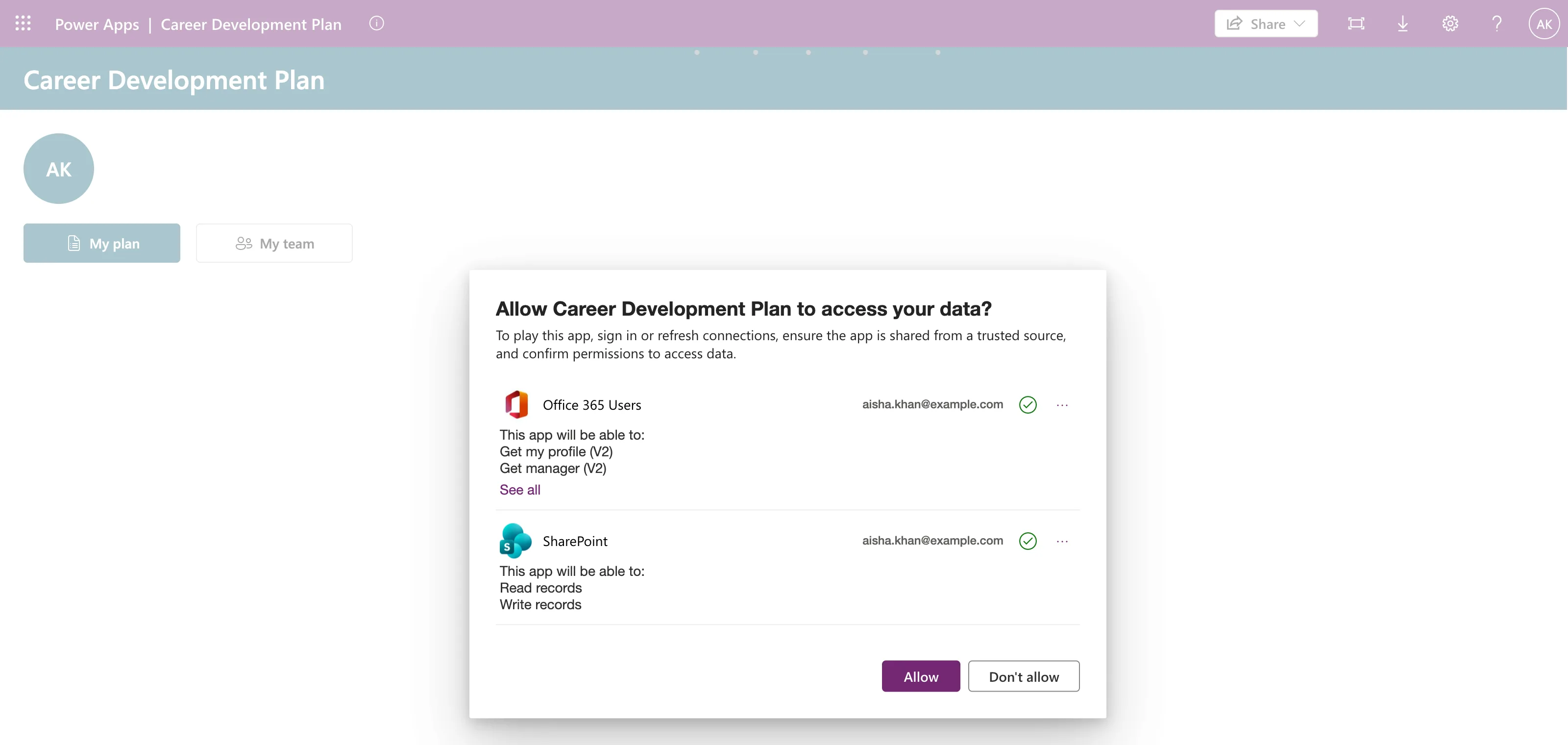
Both Daniel and Aisha then used the app: he added a competency for his team, she sent a response, and he approved it.
Common Mistakes
| Mistake | What happens | Do this instead |
|---|---|---|
| Adding the person to the group again | They're already in it | Check the diagnostics first |
| Giving everyone a role directly because of the diagnostics' warning | It's a known gap, not the problem | Keep the group team's role |
| Sharing the app and sending the link straight away in a trial environment | Everyone's first try fails | Add them to the environment first |
Troubleshooting
| Symptom | Likely cause | Fix |
|---|---|---|
| The diagnostics say the person isn't a member | They really aren't in the environment's group | Add them to the group, then add them to the environment |
| They're not on the Users page at all | They haven't tried yet, or they don't meet a requirement | Add user shows the requirements |
| The message stays after they're added | Their membership or license changed recently | Run diagnostics again; it syncs from Microsoft Entra ID first |
FAQ
Do I need to do this in a production environment too?
I've only seen it in a trial environment, which Microsoft says doesn't add users automatically. In the Default environment the same people opened the app without it.
Does adding someone give them access to the app?
No. They also need the app shared with them, and a security role, here from the group team.
Conclusion
You are not a member of the environment's security group can appear for a member, the first time they open an app in a trial environment, because trial environments only add people when they try. Check with Run diagnostics, ask them to open it again, and add everyone else to the environment before they start.
Additional Resources
- Control user access to environments: the message, and trial environments.
- Create users: Add users to Dataverse: how people are added on demand.
- Troubleshoot user access problems: the diagnostics and their known issue.
