Fixed: "We Couldn't Load Your Data" on the Power Apps Solutions Page

You've just added Dataverse to your Power Platform environment, opened Solutions in Power Apps, and instead of a list of solutions you get We couldn't load your data. Try again doesn't help. The cause is a missing security role, and in the Default environment it usually fixes itself within minutes.
The Error
Where the solutions list should be, Power Apps shows:
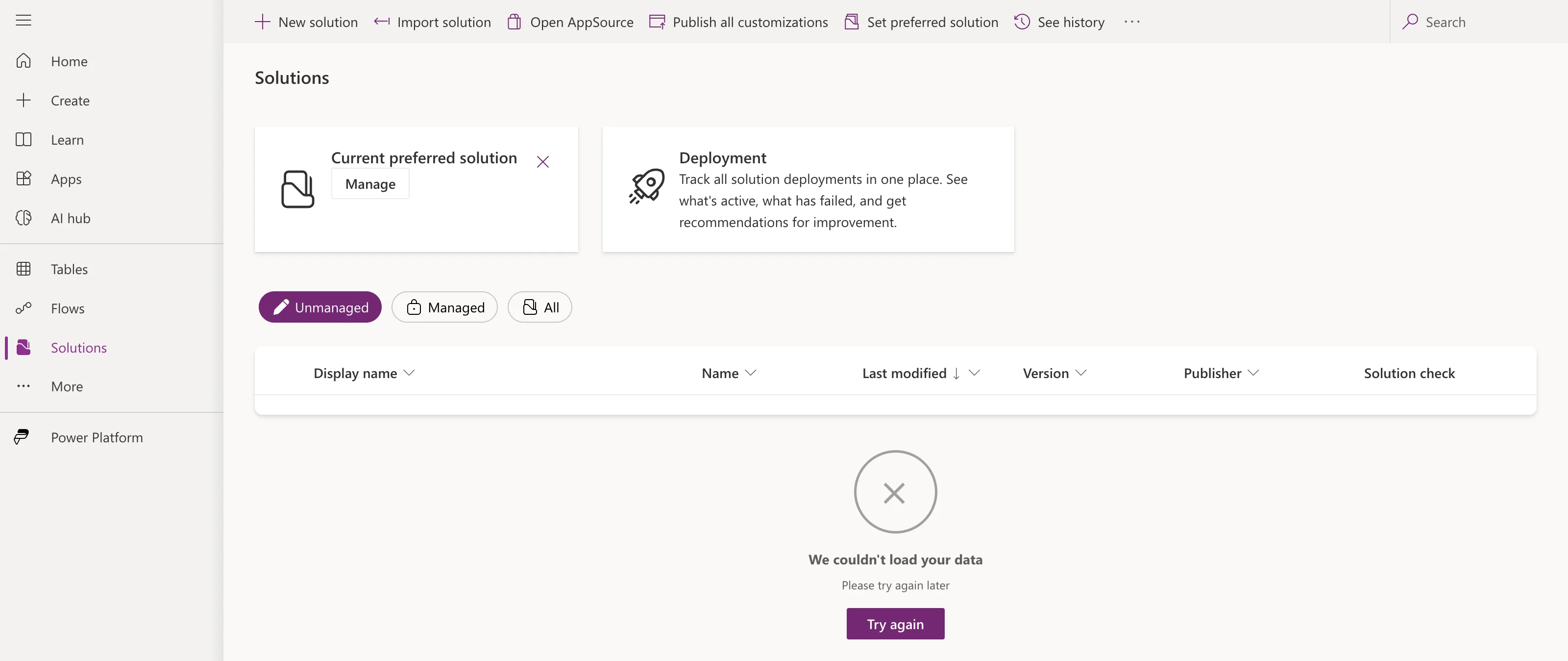
We couldn't load your data
Please try again later
The page itself gives no reason. The browser's developer tools do: on the Network tab, the requests Power Apps sends to Dataverse for solutions come back with status 403 and this message (IDs replaced with zeros):
Principal user (Id=00000000-0000-0000-0000-000000000000, type=8, roleCount=1, privilegeCount=488, accessMode='0 Read-Write', AADObjectId='00000000-0000-0000-0000-000000000000', MetadataCachePrivilegesCount=5219, businessUnitId=00000000-0000-0000-0000-000000000000), is missing prvReadSolution privilege (Id=00000000-0000-0000-0000-000000000000) on OTC=7100 …
What It Actually Means
Two parts of that message tell the story:
roleCount=1: your user in this environment's Dataverse has exactly one security role.is missing prvReadSolution privilege: that role doesn't allow reading solutions. Object type code 7100 is the solution table.
In an environment with Dataverse, Dataverse security roles decide what you can do, and your Microsoft 365 admin role doesn't count. The one role you have is Basic User, which lets people use apps but not open solutions. You need Environment Maker or higher.
Why It Happens Right After Adding Dataverse
For the Default environment, Microsoft assigns two roles automatically to everyone added to its Dataverse: Basic User and Environment Maker. Admins don't get System Administrator automatically any more.
The two roles don't necessarily arrive together. When I added Dataverse to a Default environment:
| Time | What I saw |
|---|---|
| 0 minutes | Dataverse ready |
| About 7 minutes | Solutions: We couldn't load your data, with only Basic User |
| About 10 minutes | Environment Maker added to my user |
| About 11 minutes | Solutions loads |
Prerequisites
- Access to the Power Platform admin center to check your roles.
- For Fix 3: the Global Administrator, Power Platform Administrator or Dynamics 365 Administrator role.
Fix 1: Wait a Few Minutes, Then Reload
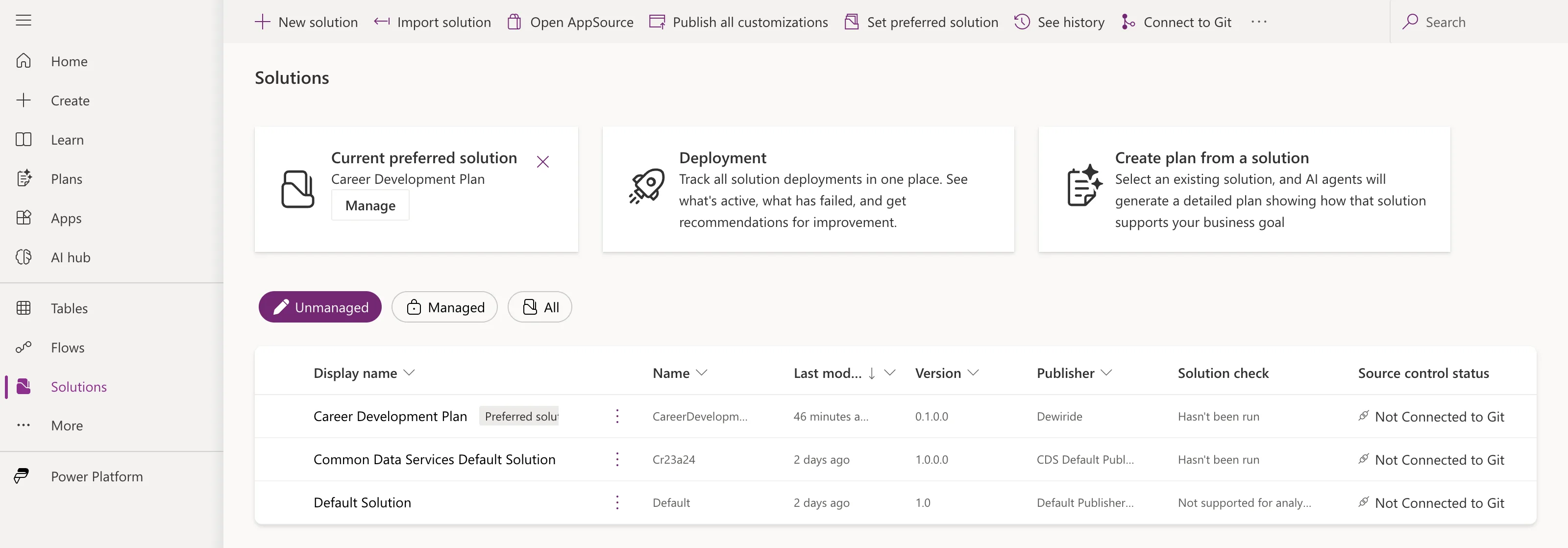
If you've only just added Dataverse, wait ten minutes or so and reload the page. Once Environment Maker arrives, the list loads:
Fix 2: Check Which Roles You Have
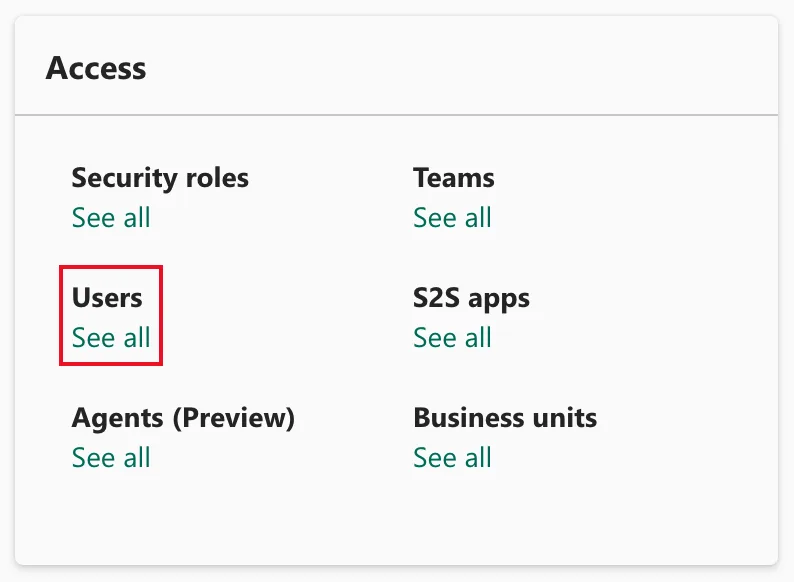
To see where things stand, open the Power Platform admin center, select Manage → Environments and the environment, then See all under Users in the Access card:
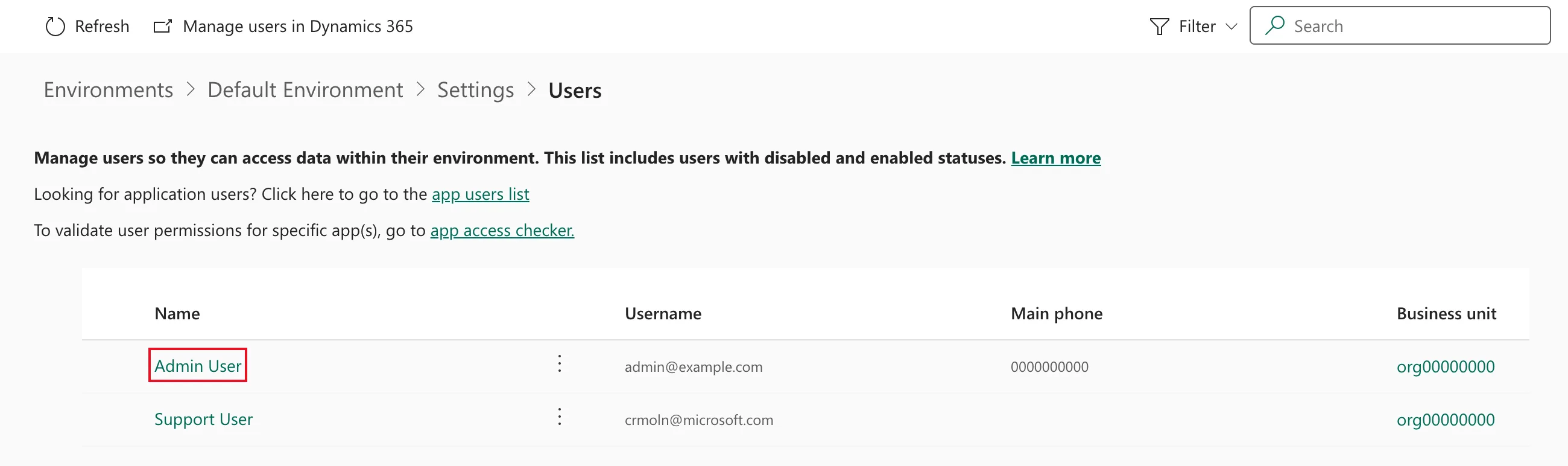
Select your name in the list:
Direct Assigned Roles shows your roles. While the error shows, it lists only Basic User. Once it's fixed, Environment Maker is there too:
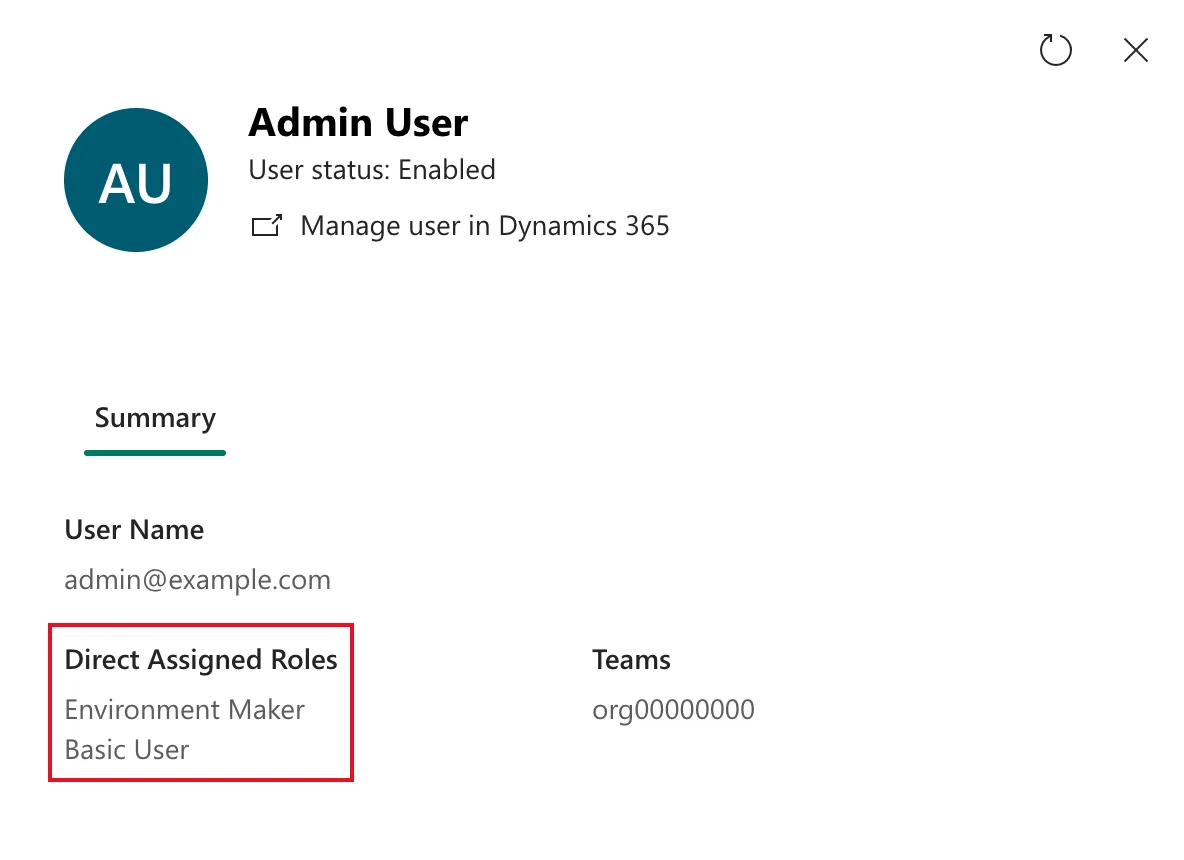
If Environment Maker is listed and Solutions still fails, reload the Power Apps page: it may have loaded before the role arrived.
Fix 3: Give Yourself a Role
If the role doesn't arrive, or you can't wait:
- If you're a Global, Power Platform or Dynamics 365 admin: make yourself System Administrator of the environment with Membership → Add me. How to Make Yourself System Administrator of a Power Platform Environment shows each click.
- If you're not an admin: ask a System Administrator of the environment to assign you Environment Maker under Settings → Users + permissions → Users → Manage security roles.
System Administrator is full control of the environment, so keep it for the people who administer it.
Common Mistakes
| Mistake | What happens | Do this instead |
|---|---|---|
| Selecting Try again over and over | The same 403 every time | Wait for the role, or fix the role |
| Assuming the admin role covers it | Dataverse ignores Microsoft 365 admin roles | Check your Dataverse roles |
| Making every maker System Administrator | Everyone can read all data | Give makers Environment Maker |
Troubleshooting
| Symptom | Likely cause | Fix |
|---|---|---|
| You aren't in the environment's Users list | Dataverse hasn't added you yet | Open Power Apps in that environment, then check again |
| Environment Maker never arrives | Automatic assignment didn't happen | Use Fix 3 |
| Solutions says No database found instead | The environment has no Dataverse at all | Add Dataverse first |
FAQ
Is my Dataverse database broken?
No. It's working, and it's refusing a request it should refuse: your user doesn't have the role to read solutions yet.
Why don't admins get System Administrator automatically?
Microsoft changed this: Global, Power Platform and Dynamics 365 admins now add the role themselves when they need it, and every such self-elevation is logged.
Does this happen in other environments?
The automatic Environment Maker assignment is specific to the Default environment. In other environments, an admin assigns roles, so you'd see the same message until someone gives you one.
Conclusion
We couldn't load your data on the Solutions page means your Dataverse user can't read solutions yet. The 403 response says exactly that: roleCount=1 and is missing prvReadSolution privilege. In a Default environment that has just had Dataverse added, wait for Environment Maker to arrive, which took about ten minutes here, then reload. If it doesn't arrive, give yourself, or have an admin give you, the role you need.
Additional Resources
- Assign a security role to a user: the roles the Default environment assigns automatically, and how to assign others.
- Role-based security roles for Dataverse: what each predefined role can do.
- Manage admin roles with Privileged Identity Management: self-elevating to System Administrator.
