Fixed: "We Are Unable to Find the List" When Editing a SharePoint Environment Variable

You open a SharePoint list environment variable in your Power Apps solution to change something small, such as its display name, and the panel starts with a red error: We are unable to find the list. Site is empty, the list isn't shown, and Save is disabled. The variable still works. The edit panel just needs you to choose the site and list again.
The Error
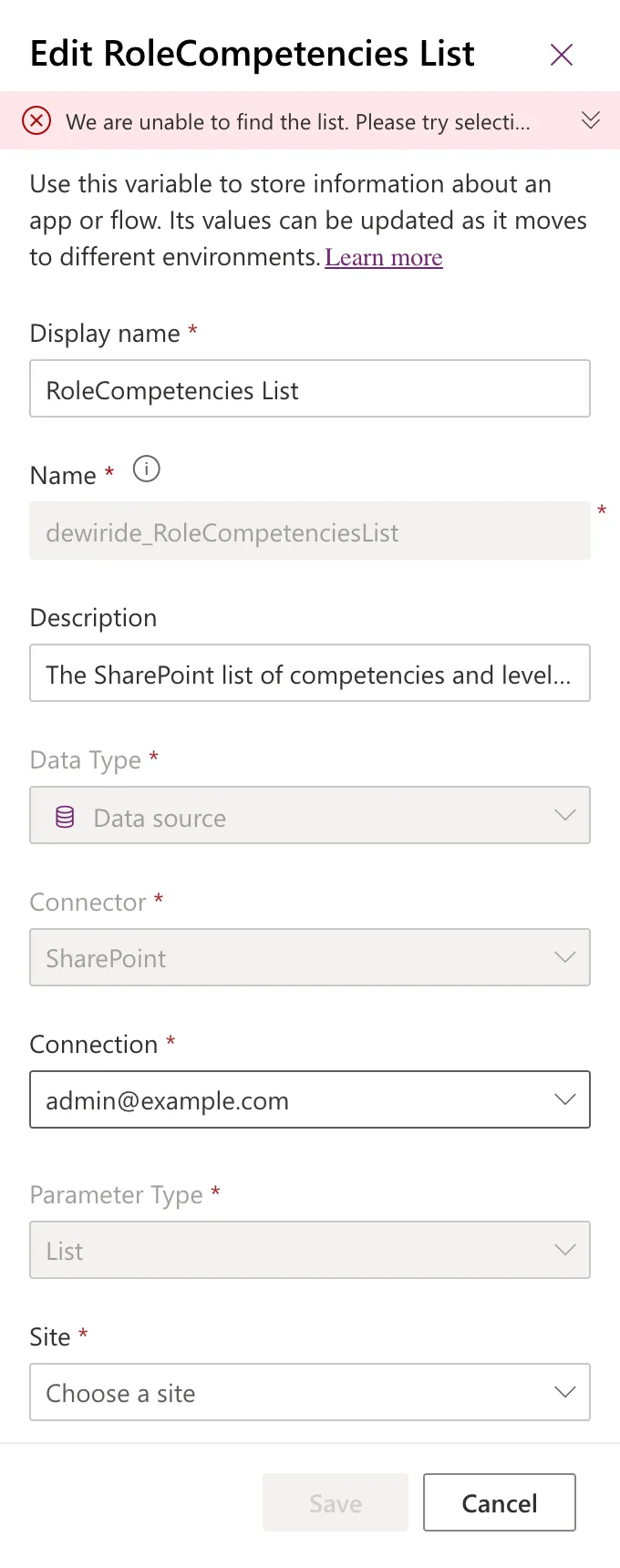
We are unable to find the list. Please try selecting a list from the dropdown or use a different connection.
What you see in the panel:
- Site says Choose a site, even though the variable was created with a site variable.
- There's no Current list value section until a site is chosen.
- Save is disabled.
Is the Variable Broken?
No. In the example, the canvas app connected to the list through this variable, on Power Apps Studio's Advanced tab, both before and after the error first appeared. Power Apps also lists the variable in the solution as usual. The stored value is fine; it's the edit panel that doesn't load the variable's site, and without a site it can't look up the list.
Microsoft doesn't document this message, so that's an explanation from what the panel shows, not an official one.
Prerequisites
- Environment Maker or higher in the environment, as for creating the variable.
- The SharePoint connection the variable was created with, shown under Connection.
The Fix: Choose the Site and the List Again
- In the panel, open Site and choose the site variable, such as Career Development Plan Site. The error disappears, and Current list value appears, with Current list empty.
- Open Current list and choose the same list as before, such as RoleCompetencies.
- Make the change you came to make, such as the display name.
- Select Save, which is now enabled.
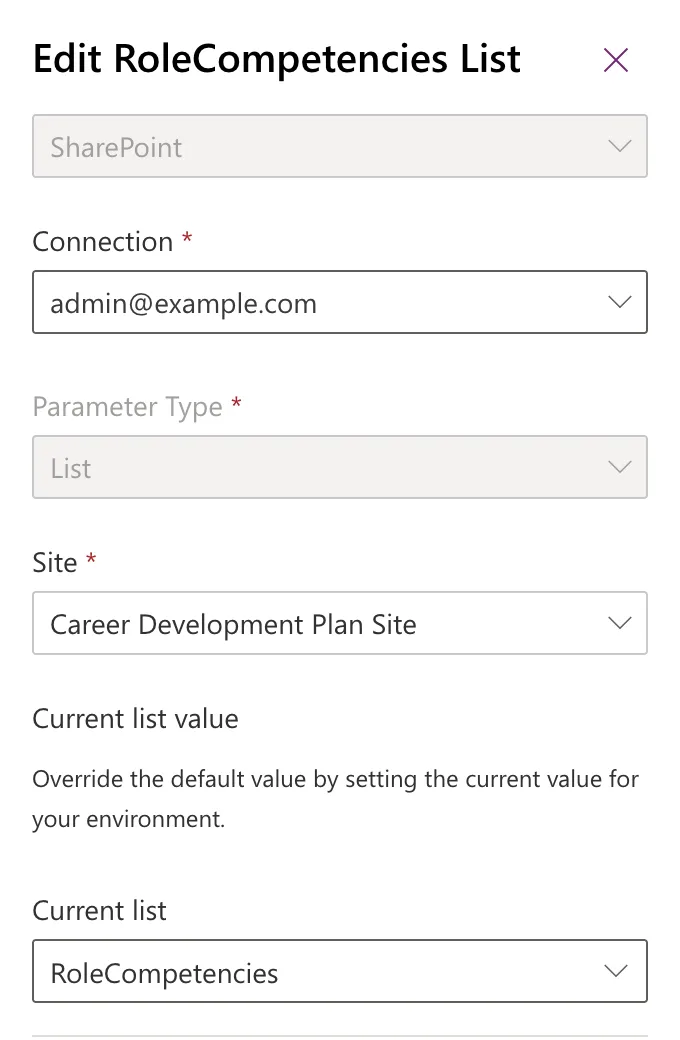
Choosing the same list again stores the same list ID, so nothing changes for the app.
It Comes Back
In the example, the variable reopened without the error straight after saving. But after the solution page was reloaded, opening it again showed Choose a site once more:
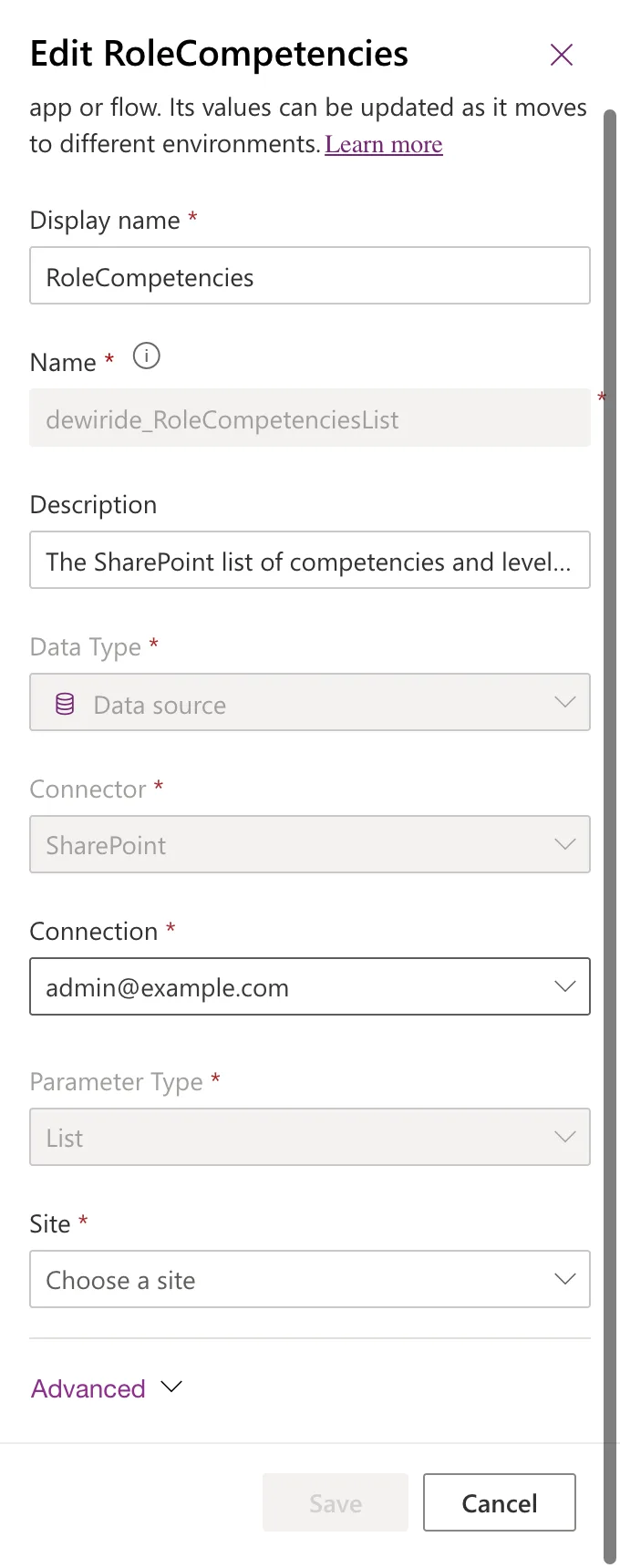
The display name change had been saved. So treat the steps above as part of editing a list variable: every time, choose the site and the list again before you save.
Common Mistakes
| Mistake | What happens | Do this instead |
|---|---|---|
| Assuming the variable is broken and recreating it | A new variable with a new name, and an app still using the old one | Edit the existing variable as above |
| Choosing a different list in Current list | The app starts reading another list | Choose the same list as before |
| Closing the panel when Save is disabled | The change is lost | Choose the site and list, then save |
Troubleshooting
| Symptom | Likely cause | Fix |
|---|---|---|
| Site offers no site variable | The site variable is missing from the solution | Create the site variable first |
| Current list doesn't show your list | The connection's account can't open the site | Use a connection whose account can reach the list |
| Save stays disabled | Site or Current list is still empty | Choose both |
FAQ
Does this affect the app?
Not in the example. The app connected through the variable after the panel had first shown this error.
Do site variables have the same problem?
Not in the example: the site variable's panel opened with its site filled in.
Why not just recreate the variable?
The app and any flows refer to the variable's Name, which is fixed once saved. A new variable means a new name and reconnecting everything that uses it.
Conclusion
We are unable to find the list is the edit panel failing to load the list variable's site, not a broken variable. Choose the site variable in Site, choose the same list in Current list, make your change and save. It can come back the next time you open the variable, so make those two choices part of every edit.
Additional Resources
- Use data source environment variables in canvas apps: how SharePoint site and list variables work together.
- Environment variables overview: editing variables and their values.
