Fixed: Users Still See the Old Version After You Publish a Canvas App in Power Apps

You publish a new version of a canvas app, and a user who has it open still sees the old one. In the example, no update notice appeared, and even the first reload, a few minutes later, still opened the previous version. Reloading again a few minutes after that loaded the new screens.
The Problem
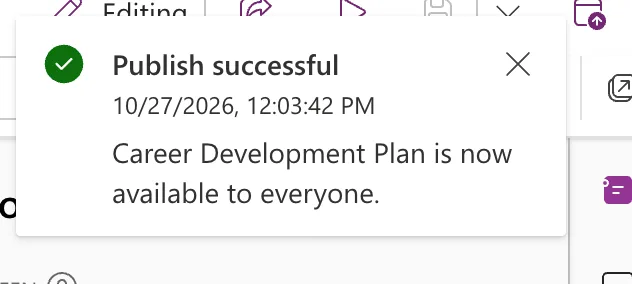
In Part 7 of the Career Development Plan series, the app was published a second time to add the My team screens. Studio confirmed it:
A demo user, Olivia Bennett, had the app open on its Home screen at the time. Here's what happened:
| Time after publishing | What Olivia's app did |
|---|---|
| 0 to 3 minutes | No notice appeared; the app stayed as it was |
| About 3 minutes, first reload | The app opened, but My team did nothing: still the old version |
| About 6 minutes, second reload | My team opened the new My Team screen |
Why It Happens
Microsoft's save and publish article covers each part of this:
- Users see a new version the next time they open or refresh the app, and someone who has it open needs to reload it.
- Newly published changes can take a little while to appear, and publishing large apps can take a few minutes.
- To start faster, Power Apps caches some details in the user's browser.
- In a browser, users who have the app open should get two notices: A new version of this app is coming and then You're using an old version of this app. Refresh to use the latest version.
In the example, the notices didn't appear within about three minutes, and the first reload came before the new version reached Olivia's browser.
The Fix: Reload Again After a Few Minutes
- Wait a few minutes after Publish successful.
- Ask users to reload the app, or to close and open it again.
- Check something that only exists in the new version. In the example, My team opening a screen was the test.
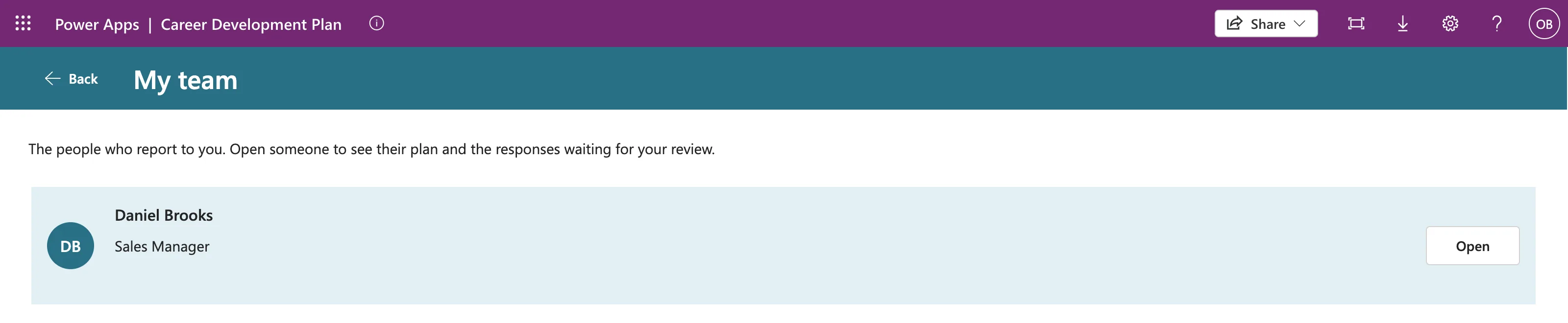
After the second reload, Olivia's My team button opened the new screen with her direct report:
To confirm which version is live, open the app's Details → Versions in Power Apps: the published one is marked Live (How to Publish a Canvas App in Power Apps).
Common Mistakes
| Mistake | What happens | Do this instead |
|---|---|---|
| Testing right after publishing | You see the old version and think the publish failed | Wait a few minutes, then reload |
| Saving without publishing | Users never get the change | Select Publish after Save |
| Telling users to clear their whole browser cache first | Usually unnecessary | Reload first; clear the cache only if a reload never helps |
Troubleshooting
| Symptom | Likely cause | Fix |
|---|---|---|
| The old version stays after several reloads | The change was saved but not published | Check Versions: the newest should be Live |
| Only one user sees the old version | Cached details in that browser | Close the app and open it again, or clear that browser's cache |
FAQ
Do users have to do anything after I publish?
If they have the app open, they need to reload it. If they open it later, they get the new version.
Why didn't the update notice appear?
Microsoft documents the notices for canvas apps in a browser. In the example, neither appeared within three minutes; I can't say why from the documentation. A reload a few minutes later worked.
Conclusion
A published change reaches users when their app reloads, and it can take a few minutes. If the first reload still shows the old version, wait and reload again, and check Versions to confirm what's live.
