Fixed: "Unexpected Characters. Characters Are Used in the Formula in an Unexpected Way" in Power Apps

A control gets a red error icon, and its details say Unexpected characters. Characters are used in the formula in an unexpected way. Power Apps found a character it can't place in one of the control's formulas. In the example it was one closing bracket too many.
The Error
In the Career Development Plan app, an Open button in a gallery row, btnOpenMPS, should sit in the middle of the row. Its Y property was meant to be (Parent.TemplateHeight - Self.Height) / 2. Instead the button jumped to the top of the row, and a red X appeared next to it. Its menu offers Edit in the formula bar and Get help for this error:
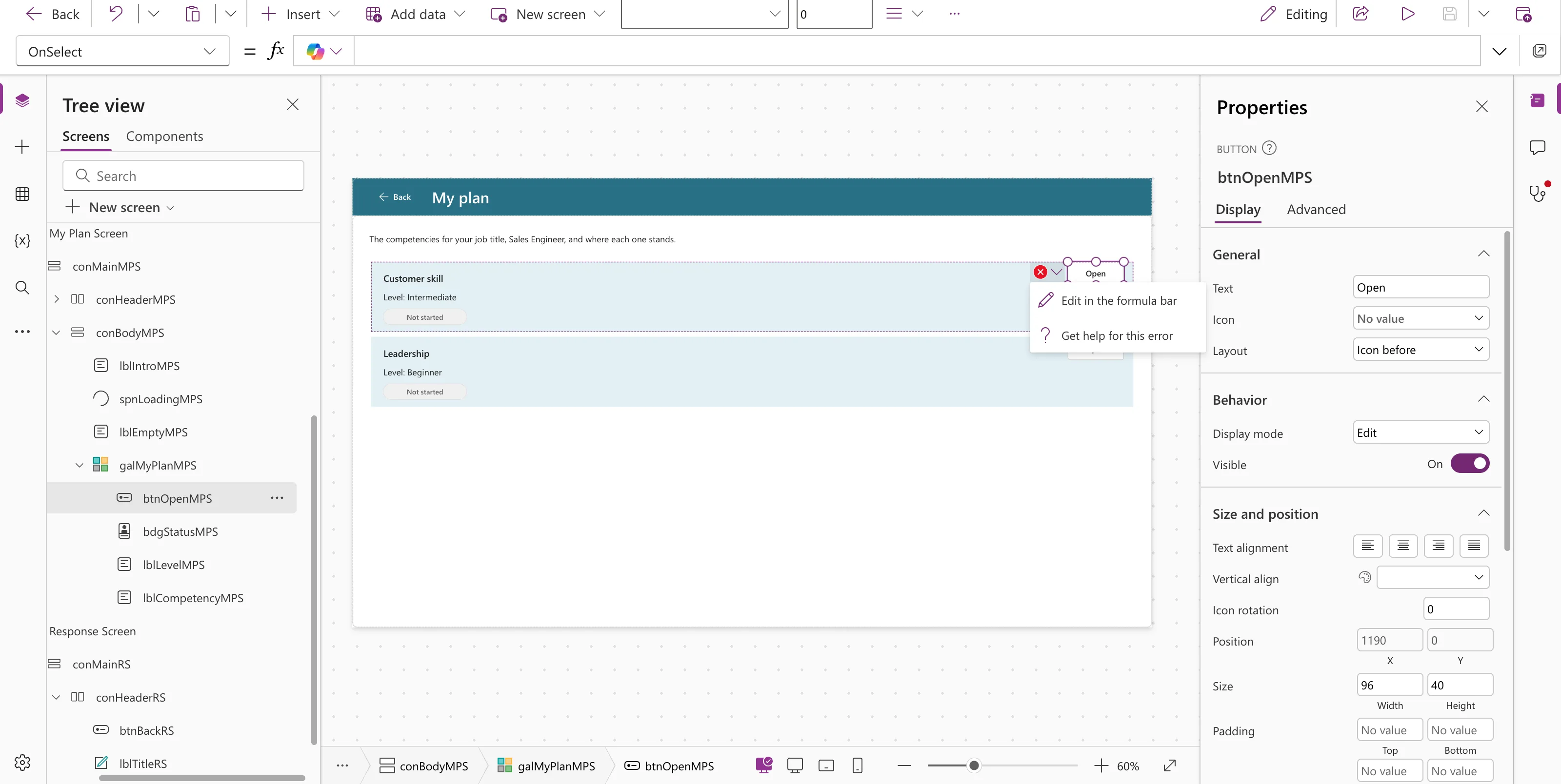
The properties pane showed Y as 0. The button had no usable value, so it sat at the top.
Find the Property with the Error
A control has many properties, and the icon doesn't say which one is wrong. The App checker (the stethoscope icon on the right) does. Select Recheck all, wait for the check to finish, and open Formulas:
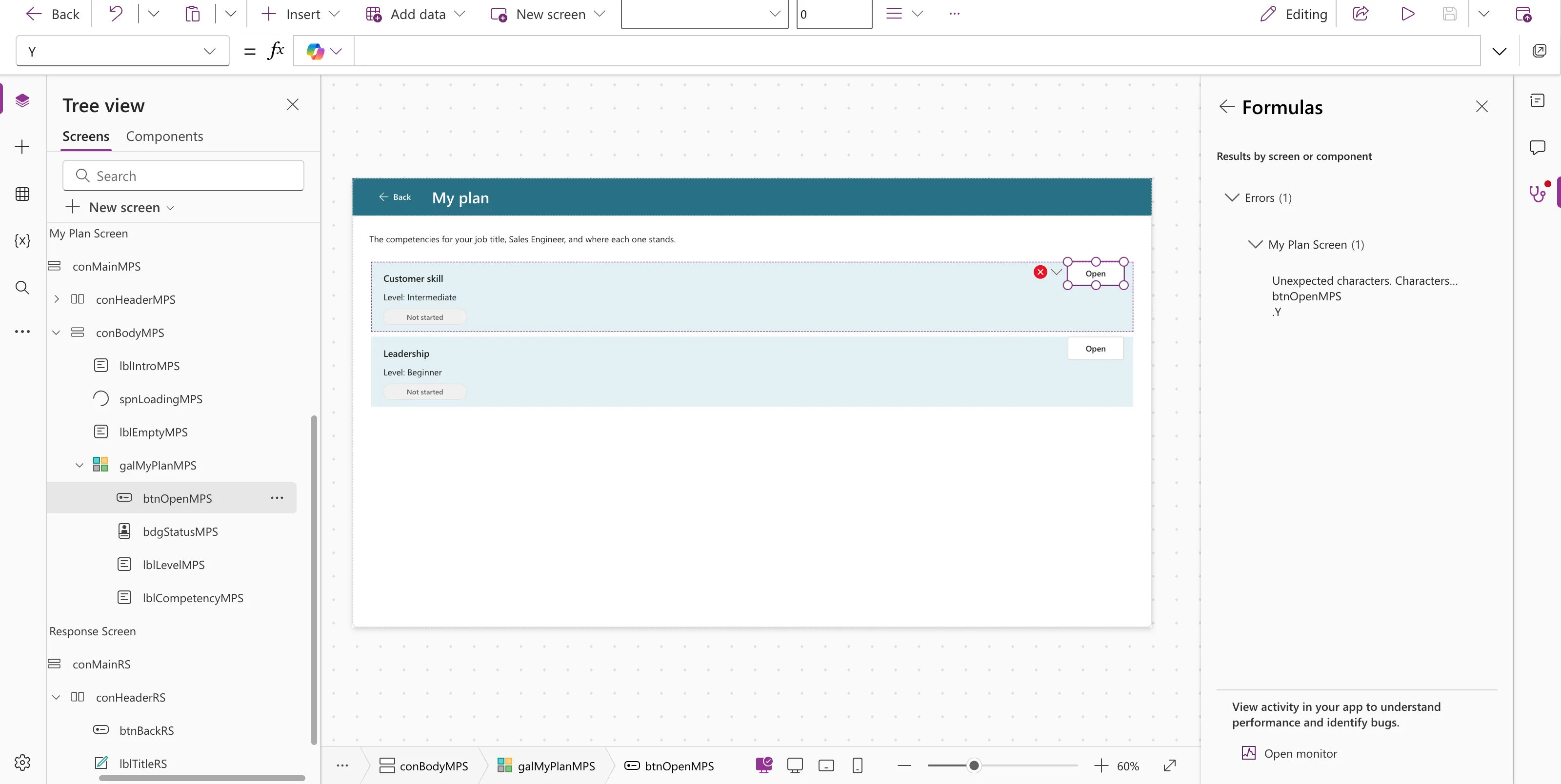
The arrow next to the item opens its details, with the property in Location:
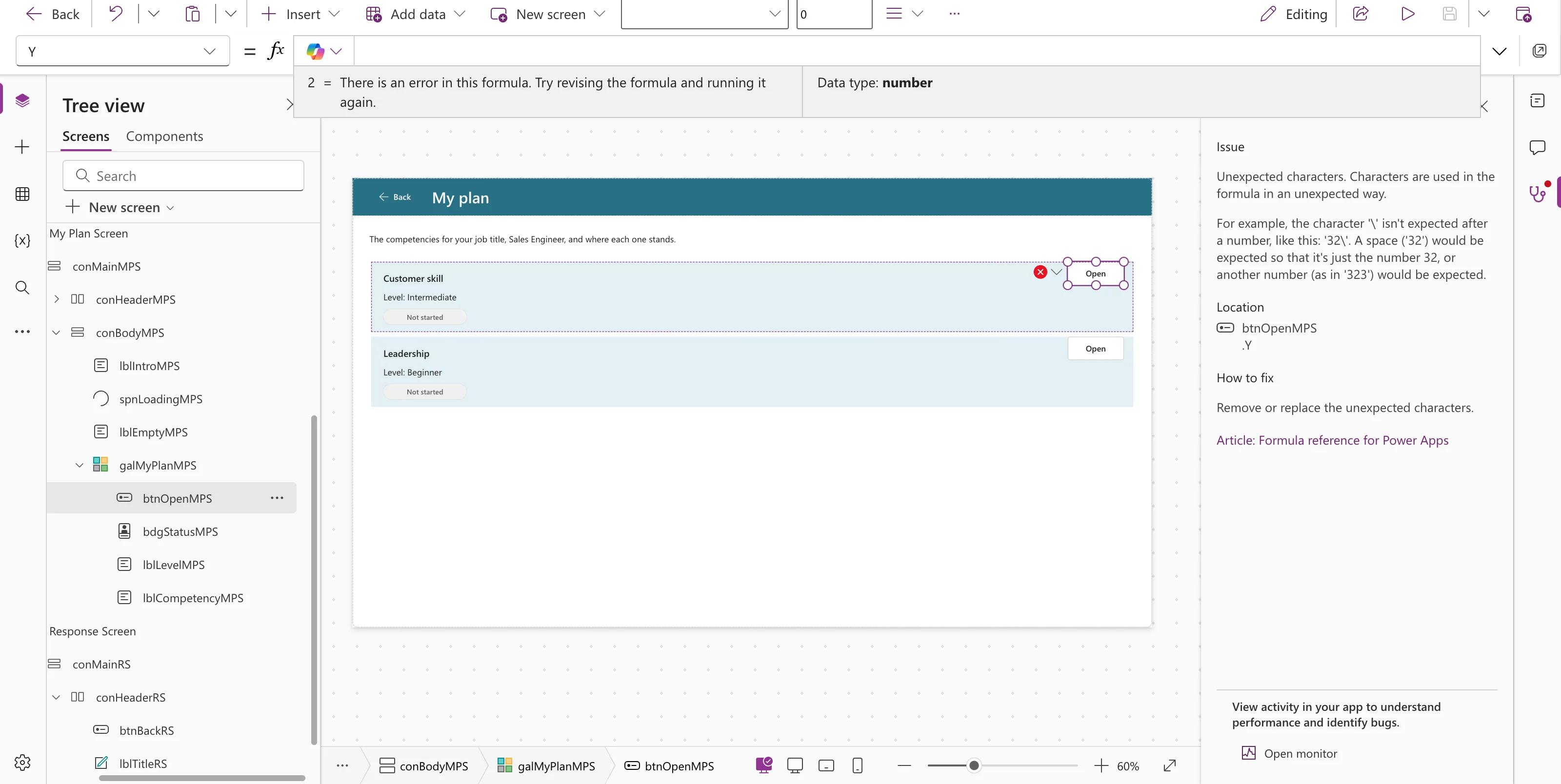
Issue: Unexpected characters. Characters are used in the formula in an unexpected way.
Location: btnOpenMPS .Y
How to fix: Remove or replace the unexpected characters.
Read the Formula
Select the control, pick Y in the property list, and look at the formula bar. The red wavy line marks the character that doesn't fit, here the last ):

(Parent.TemplateHeight - Self.Height) / 2)
Two brackets close, but only one opened. In the example the extra one came from the formula bar, which adds a closing bracket automatically while a formula is being entered.
The Fix
Remove the extra character:
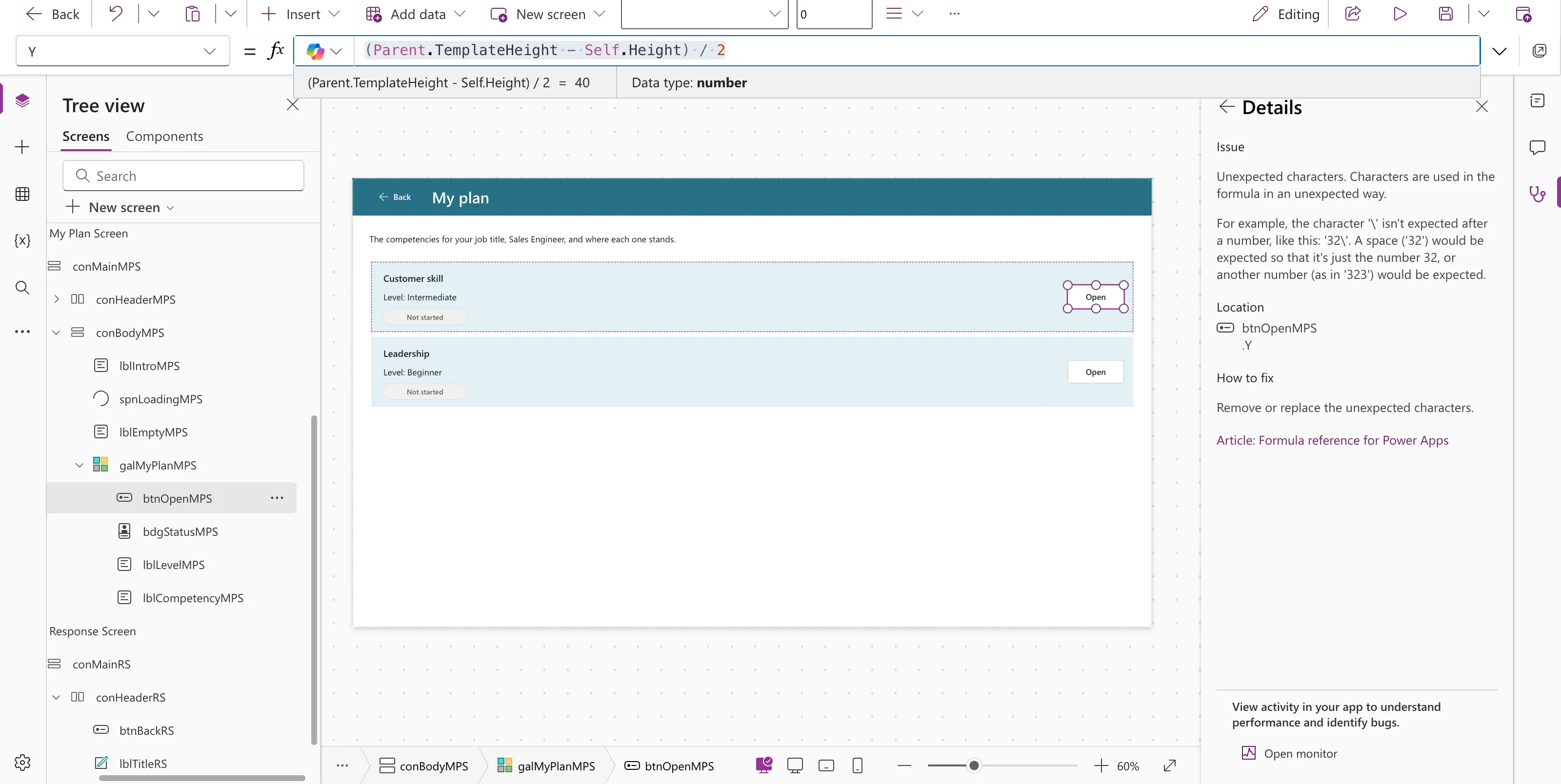
(Parent.TemplateHeight - Self.Height) / 2
The preview strip shows the value, 40, the button moved to the middle of the row, and the error icon was gone:
Common Mistakes
| Mistake | What happens | Do this instead |
|---|---|---|
| Looking for the error in Text or OnSelect only | The broken property is somewhere else | Read Location in the App checker |
| Deleting characters until the error goes away | The formula can end up valid but wrong | Count the brackets, then check the preview strip's value |
Troubleshooting
| Symptom | Likely cause | Fix |
|---|---|---|
| The App checker still lists the error after the fix | The list isn't refreshed | Select Recheck all and wait |
| The wavy line is under a word, not a bracket | A different character is out of place, such as a missing operator | Read the formula from left to right around the marked spot |
FAQ
What counts as an unexpected character?
Anything Power Fx can't fit at that position. The checker's own example is a backslash right after a number, as in 32\. In the example, it was a closing bracket with no opening one.
Why did the control move to the top?
Y had no usable value while its formula was broken, so the properties pane showed 0 and the button sat at the top of the row.
Conclusion
Unexpected characters points to one property with a stray character. Use the App checker's Location to find it, look for the red wavy line in the formula bar, and remove or replace the character. Then check that the preview strip shows the value you expect.
Additional Resources
- Formula reference for Power Apps: the link in the checker's details.
- Review a canvas app for accessibility: the App checker and its categories.
