Fixed: Timestamp Stuck to the Log Level in ASP.NET Core Console Logs

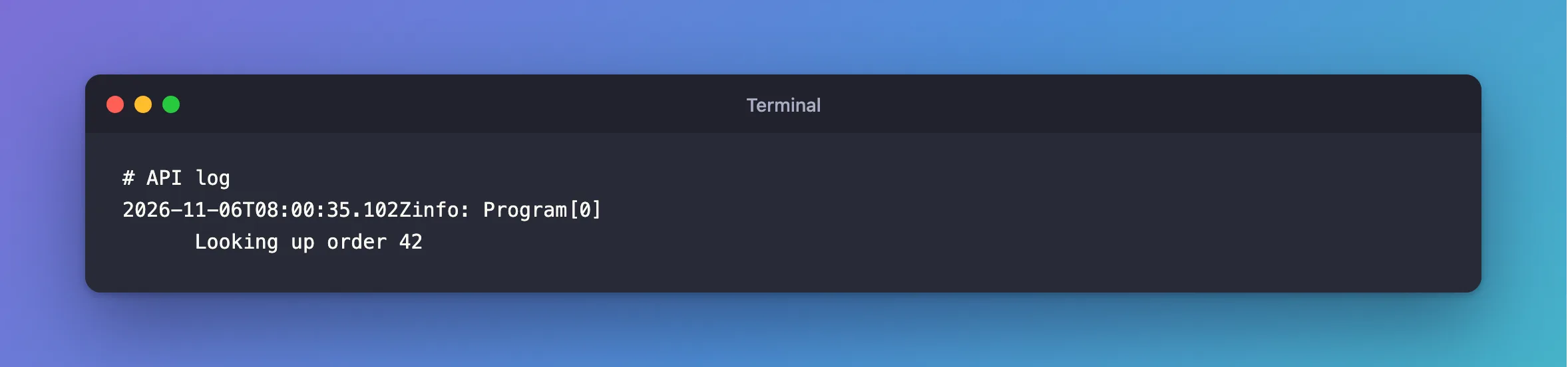
My plain-text logs came out as 2026-11-06T08:00:35.102Zinfo: Program[0], with the timestamp stuck to the log level. A TimestampFormat I'd set for JSON logs had carried over to Development. Here's why, and three ways to fix it.
What I Was Doing
I wanted JSON logs in production, set in configuration, with plain text on my own machine. So appsettings.json turns on the JSON formatter, on a .NET 10 ASP.NET Core app:
"Logging": {
  "Console": {
    "FormatterName": "json",
    "FormatterOptions": {
      "UseUtcTimestamp": true,
      "TimestampFormat": "yyyy-MM-ddTHH:mm:ss.fffZ"
    }
  }
}
And appsettings.Development.json switches back:
{
  "Logging": {
    "Console": {
      "FormatterName": "simple"
    }
  }
}
What I Expected
Plain logs in Development, as they always look:
info: Program[0]
      Looking up order 42
What I Got
2026-11-06T08:00:35.102Zinfo: Program[0]
      Looking up order 42
What I Checked
Where the setting comes from. FormatterOptions isn't tied to one formatter. It's one section, under Logging:Console, and appsettings.Development.json only changed FormatterName. So Development still has the format from appsettings.json.
How the documentation writes it. Every example on Microsoft's console log formatting page has a space at the end: "TimestampFormat": "HH:mm:ss ". The format is written just as it is, right before the level, so the space has to be part of it.
Whether a space in the shared format would do. It fixes the plain logs, and it puts a stray space in each JSON Timestamp:
{"Timestamp":"08:05:42 ","EventId":0,"LogLevel":"Information","Category":"Program","Message":"Looking up order 42","Stat
Why It Happens
The plain formatter writes the timestamp and then the level, with nothing between them. In JSON, the timestamp has a field of its own, so a format with no space at the end is the right one there. The two formatters share one setting, and what suits one doesn't suit the other.
The Fix
Any of these works. I'd use the third.
1. Clear the format in Development, with null in appsettings.Development.json:
{
  "Logging": {
    "Console": {
      "FormatterName": "simple",
      "FormatterOptions": {
        "TimestampFormat": null
      }
    }
  }
}
2. Give Development its own format, with a space at the end:
"FormatterOptions": {
  "TimestampFormat": "HH:mm:ss "
}
3. Set JSON logs in code, outside Development, so that Development never has these options at all. How to Write JSON Logs in ASP.NET Core shows this.
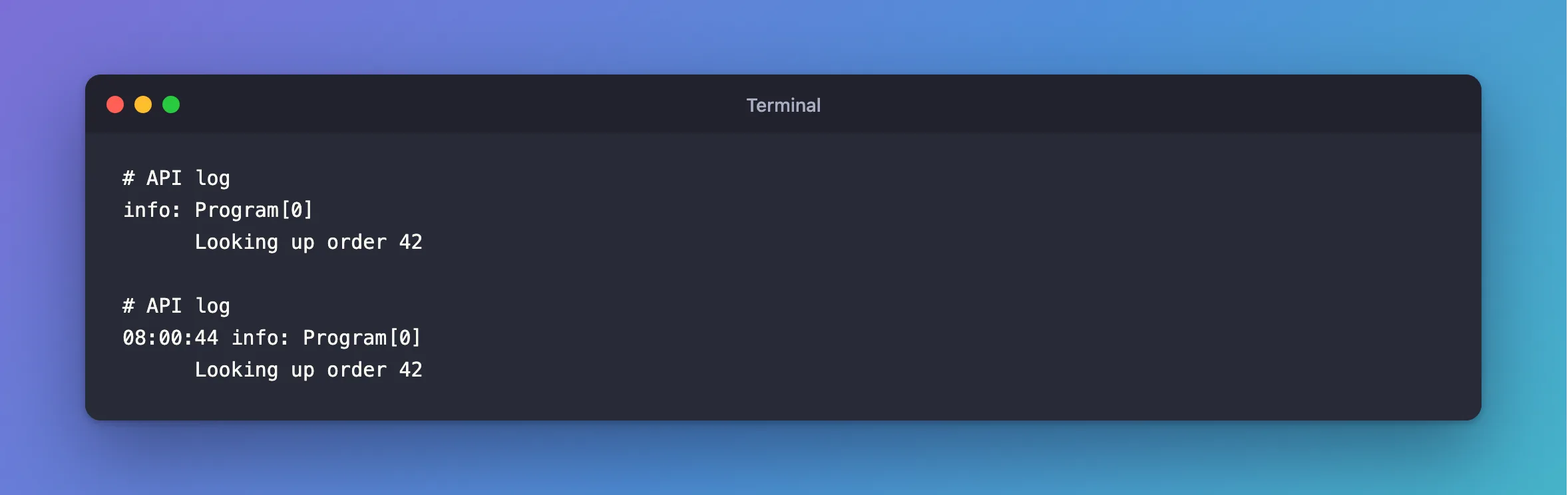
After the Fix
With the first:
info: Program[0]
      Looking up order 42
With the second:
08:00:44 info: Program[0]
      Looking up order 42
And production's JSON is as it was:
{"Timestamp":"2026-11-06T08:00:48.785Z","EventId":0,"LogLevel":"Information","Category":"Program","Message":"Looking up order 42","State":{"OrderId":42,"{OriginalFormat}":"Looking up order {OrderId}"}
Common Mistakes
| Mistake | What happens | Do this instead |
|---|---|---|
| Adding a space to the shared format | A stray space in each JSON Timestamp | Change only Development's |
Removing the options from appsettings.Development.json only | Settings merge, so the ones in appsettings.json still apply | Override them |
Troubleshooting
| Symptom | Likely cause | Fix |
|---|---|---|
| No timestamp in plain logs | That's the default | Set a format, with a space at the end |
No Timestamp field in JSON | That's the default too | Set TimestampFormat |
| The change does nothing | The environment isn't Development | Check it |
Conclusion
The plain formatter writes TimestampFormat right before the level, so it needs a space at the end, and JSON doesn't. Keep them apart: clear it or replace it for Development, or set JSON logs in code.
Additional Resources
- Console log formatting — the formatters and their options.
- Configuration in ASP.NET Core — how settings files merge.
