Fixed: "This Expression Has a Problem" for a Valid Expression in Power Automate

Power Automate's expression editor told me This expression has a problem. You can fix it manually or with Copilot. The expression was correct, and the same one worked elsewhere in the flow. Selecting Add again, sometimes two or three times, added it. Once, though, the message was right, and the reason is worth knowing.
What I Was Doing
I was building the setup flow in Part 11 of the Career Development Plan series. Create the list sends a request body with the new list's title, which comes from the loop the action sits in. In the Body box, after "Title": ", I typed /, chose Insert expression, typed this expression and selected Add:
items('For_each_list')?['title']
How to Add an Expression in Power Automate shows these steps, and How to Use the items() Function explains the expression.
What I Expected
The editor to close and a title token to appear in the body.
What I Got
The editor stayed open, with a red message under the expression:
![The expression editor beside the Create the list pane, containing items('For_each_list')?['title'], with the red message This expression has a problem. You can fix it manually or with Copilot. and the button Create an expression with Copilot](https://strdewiridedevblogsprod.blob.core.windows.net/images/blog/power-platform/power-automate/fixes/2026/fx-exprproblem-01-valid-expression-flagged.webp)
What I Checked
- The expression itself. The editor had accepted exactly the same expression in Find the list, a few actions earlier in the same loop. For_each_list is the loop's name with underscores for spaces, and
titleis a property of each item, as Microsoft's functions reference describesitems(). - Selecting Add again. On a later try, the editor closed and the token appeared. While I built the flow, the message came back for other valid expressions too, and Add took each of them on the second or third try.
- Microsoft's documentation. Classic designer vs. new designer for cloud flows lists known issues with the new designer's expression editor, such as it being slow on large flows. It doesn't describe a correct expression being rejected.
- The one time it was right. In a Condition, I typed
trueas the value to compare with, and the editor flagged it. This time the box didn't saytrue: it saidtriggerFormDataMultiValues. The editor shows a list of suggestions while you type, and the keypress aftertruehad accepted the first suggestion in place of my text. That expression really was wrong.
Why It Happens
Microsoft's documentation doesn't explain the first case. From what I saw, the editor sometimes checks the expression before it has caught up with what's in the box, and checks it again on the next Add. The second case is the editor's suggestion list doing what it's designed to do.
The Fix
- Read the box first. If it isn't what you typed, a suggestion replaced it. Retype it, and press Esc to close the suggestion list before you do anything else.
- If the expression is right, select Add again. Two or three tries were enough every time.
- If it still won't add, change something and change it back, such as typing a space at the end and deleting it. Then select Add.
- Check what was saved. Open the action's Code view and look for the whole expression. A body with an expression inside text shows it as
@{...}:
"Title": "@{items('For_each_list')?['title']}"
After the Fix
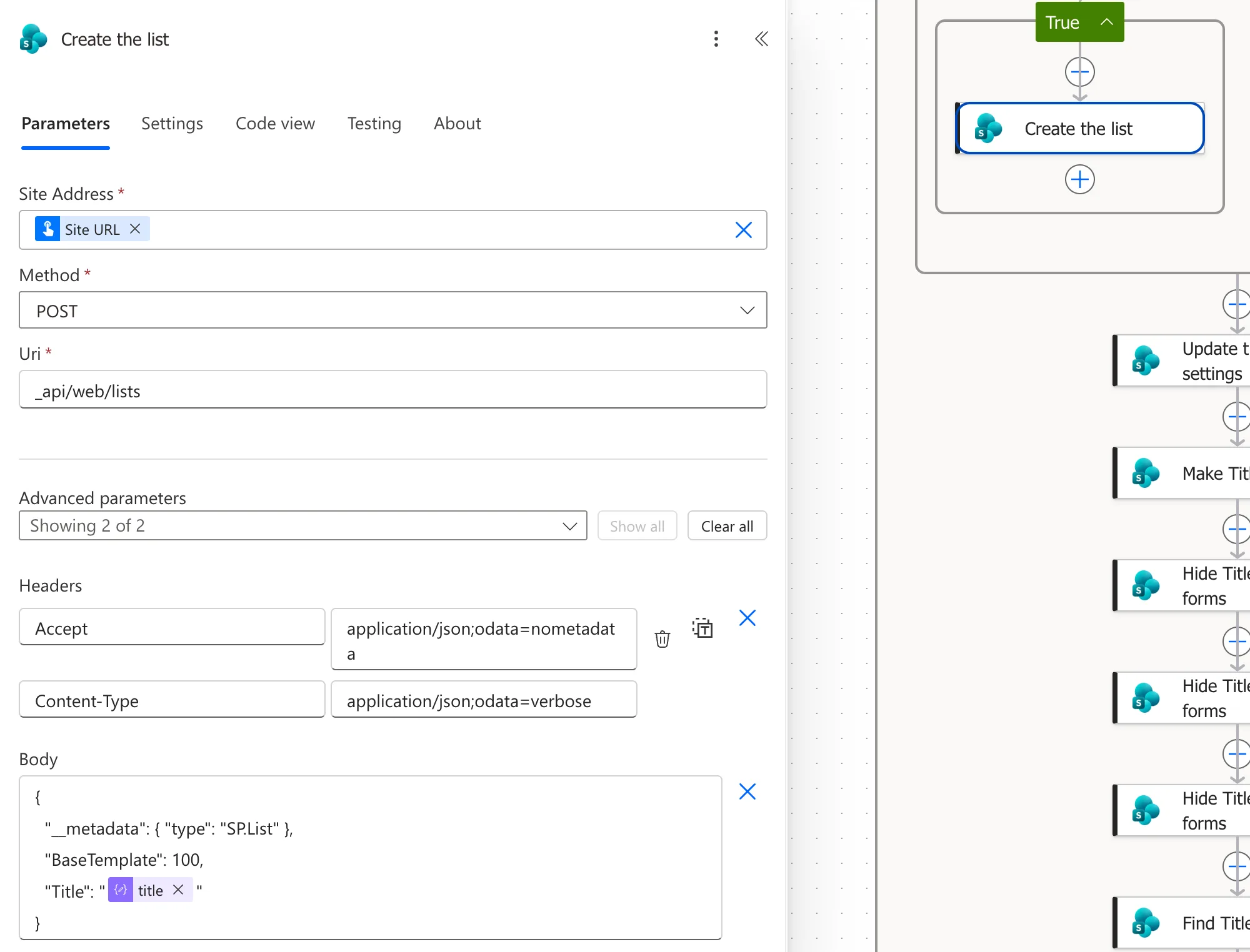
The title token sat in the body where the list's name goes, and the flow created both lists with the right names:
Common Mistakes
| Mistake | What happens | Do this instead |
|---|---|---|
| Rewriting a correct expression | You change something that wasn't wrong | Select Add again first |
| Pressing Space, Tab or Enter with suggestions open | A suggestion replaces your text | Press Esc to close the suggestions |
| Not checking Code view | A wrong or partial expression goes unnoticed | Check the saved expression after Add |
Troubleshooting
| Symptom | Likely cause | Fix |
|---|---|---|
| A correct expression is flagged | The editor checked an earlier state of the box | Select Add again, up to two or three times |
| The box shows a function name you didn't type | You accepted a suggestion | Retype, press Esc, then Add |
| The token appears but the run fails | The saved expression isn't what you meant | Read it in Code view |
FAQ
Should I use Create an expression with Copilot?
You can, but it doesn't help when the expression is already correct. Check the box and retry Add first.
Does this happen in the classic designer?
I built this flow in the new designer only, and the message I saw is the new designer's.
Conclusion
When the expression editor says This expression has a problem, read what's in the box. If a suggestion replaced your text, retype it and press Esc. If the expression is right, select Add again; two or three tries were enough every time. Then confirm the saved expression in Code view.
Additional Resources
- Reference guide to functions in expressions: every function Power Automate expressions use.
- Classic designer vs. new designer for cloud flows: known issues in the new designer.
