Fixed: "The '.' Operator Cannot Be Used on Error Values" in Power Apps

The '.' operator cannot be used on Error values means the name on the left of a dot has already failed, so Power Apps can't read a field from it. In my case, a copied control brought along a context variable that only exists on another screen. The fix is on the left of the dot.
What I Was Doing
I was adding the Review screen to the Career Development Plan app (Part 8). Every screen in the app has the same header: a Back button and a title. To reuse it, I copied the Team Member screen's header, conHeaderTMS, and pasted it onto the new screen (How to Copy and Paste Controls Between Screens).
On the Team Member screen, the title shows the person's name:
locMember.displayName
What I Expected
A copy of the header on the new screen, with the same title formula, ready for me to change.
What I Got
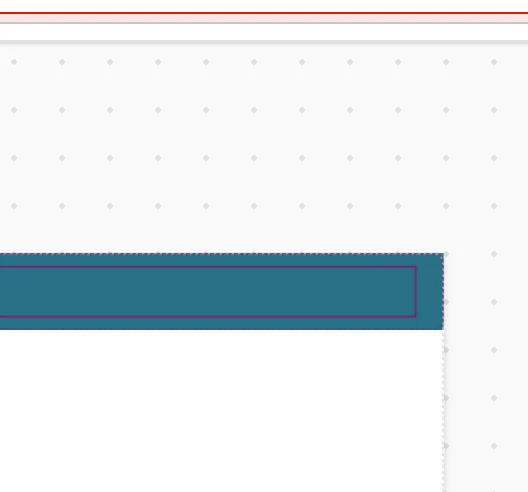
The pasted title, lblTitleTMS_1, showed a red ⊗ on the canvas, and the App checker icon got a red dot. In the formula bar, the formula was underlined in red, and pointing at it showed this message:

The '.' operator cannot be used on Error values.
View Problem (⌥F8)    No quick fixes available
What I Checked
The formula has a name, locMember, a dot and a field, displayName. The message is about the dot, so I checked whether the name on its left had a problem of its own.
- View Problem said 1 of 2 problems, and the first one was Name isn't valid. 'locMember' isn't recognized.
- The App checker's Formulas list showed both errors, on the same property:
So the dot error was a consequence. The real problem was that locMember wasn't valid on this screen. On the Team Member screen, the same formula has no errors.
Why It Happens
locMember is a context variable. The Team Member screen gets it from the Navigate that opens it, Navigate('Team Member Screen', ScreenTransition.None, {locMember: ThisItem}) (How to Go to Another Screen with Navigate).
Microsoft's article on variables gives context variables the scope Screen: you reference them from only one screen (Understand variables in canvas apps). Copying a control copies its formulas, but the variable stays on its own screen. On the new screen, locMember is an error, and .displayName asks for a field of that error.
If a variable doesn't exist anywhere in the app yet, Studio shows only the name error. That's the case in Fixed: "Name Isn't Valid. 'locMember' Isn't Recognized".
The Fix
Fix the left side of the dot: give the copied control a value that exists on its new screen. The Review screen's title is fixed text, so I set:
"Review response"
If the new screen needs the same value, pass it to that screen with its own Navigate, which creates a context variable there (How to Use Context Variables with UpdateContext).
After the Fix
The underline and the red ⊗ were gone, and the header showed its new title:

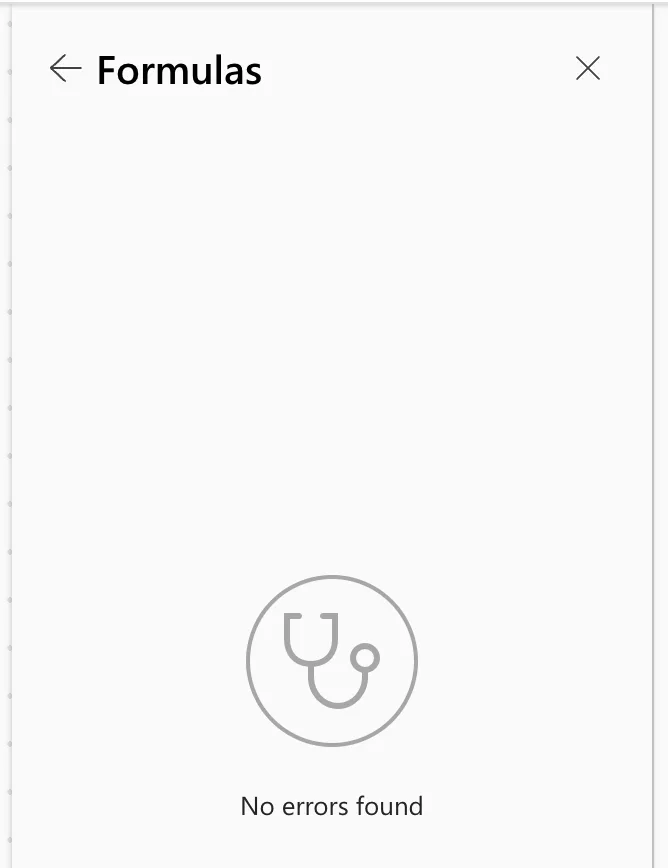
The App checker's Formulas list was empty:
Then I renamed the pasted controls for their new screen (How to Rename a Screen or Control).
Common Mistakes
| Mistake | What happens | Do this instead |
|---|---|---|
Fixing the dot, for example by removing .displayName | The name error stays | Fix the name on the left |
Pasting controls without checking their loc variables | Errors on the new screen | Change each formula that uses a variable from the old screen |
| Switching to a global variable to get around it | The value becomes app-wide, shared by every screen | Pass the value with Navigate |
Troubleshooting
| Symptom | Likely cause | Fix |
|---|---|---|
| The error is on a pasted control | Its formula uses a context variable from the old screen | Give it a value that exists on this screen |
| The error is on a control you didn't copy | The variable isn't created anywhere yet | Fixed: "Name Isn't Valid" |
FAQ
Why did the hover show the dot error and not the name error?
Pointing at the formula showed the dot error, but the formula had both. View Problem and the App checker list every problem on the property, so check them before fixing the first message you see.
Do I need to fix every control I pasted?
Only the formulas that use variables or controls from the old screen. Plain values, such as sizes and colors, work anywhere.
Conclusion
The '.' operator cannot be used on Error values points at the dot, but the cause is the name on its left. After copying controls between screens, a context variable from the old screen is the usual suspect, because context variables only exist on their own screen.
