Fixed: Text Is Cut Off Inside a Container on Small Screens in Power Apps

The screen looks perfect on your monitor. Then you preview it on a phone, and the text is cut off: half of a heading disappears under the header, and a sentence ends mid-way. Auto height is on, so the text controls are growing. The problem is the container around them, which has a fixed height and doesn't.
The Problem
In the example, the Career Development Plan app's Home screen has a profile row: an avatar, and next to it three Text controls (welcome, job title, manager). At a phone size, Apple iPhone 12, 13, 14 (390 × 844) in preview, it looked like this:

The welcome line is clipped at the top and the manager message at the bottom.
Why It Happens
The layout was:
| Control | Setting |
|---|---|
conProfileHS (horizontal container) | Flexible height Off, Height 120 |
conProfileTextHS (vertical container inside it) | Stretched to the row's height, content centered |
| The three Text controls | Auto height On |
On a narrow screen the text wraps, and with Auto height the Text controls grow taller. Together they became taller than 120, but the row stayed at 120. The text column centers its content, so it overflowed equally at the top and bottom, and the container clipped both ends.
Auto height did its job; the fixed-height container around it was the problem.
The Fix: Make the Row as Tall as Its Content
Replace the fixed Height with a formula: the larger of the avatar's height and the total height of the text column (three Text controls plus the two gaps between them). With Max (see How to Get the Largest Value in Power Apps with Max):
Max(
    avtMeHS.Height,
    lblWelcomeHS.Height + lblJobTitleHS.Height + lblManagerHS.Height + 2 * conProfileTextHS.LayoutGap
)
At the default canvas width, it came to 114. On a phone, the Text controls grow, and the row grows with them:

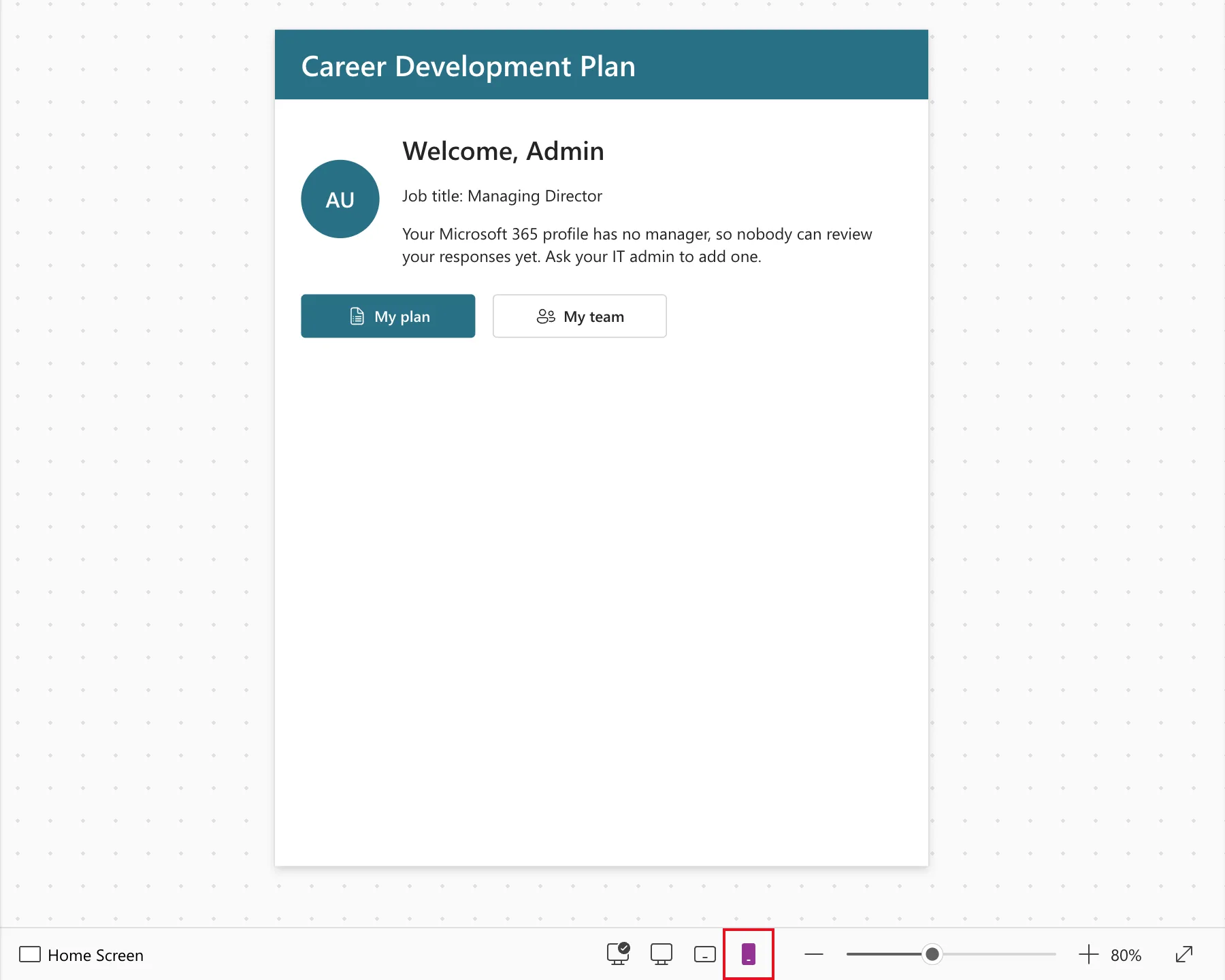
The same fix shows at Studio's Small canvas size, where the manager message wraps onto two lines:
The Same Problem in a Gallery Row
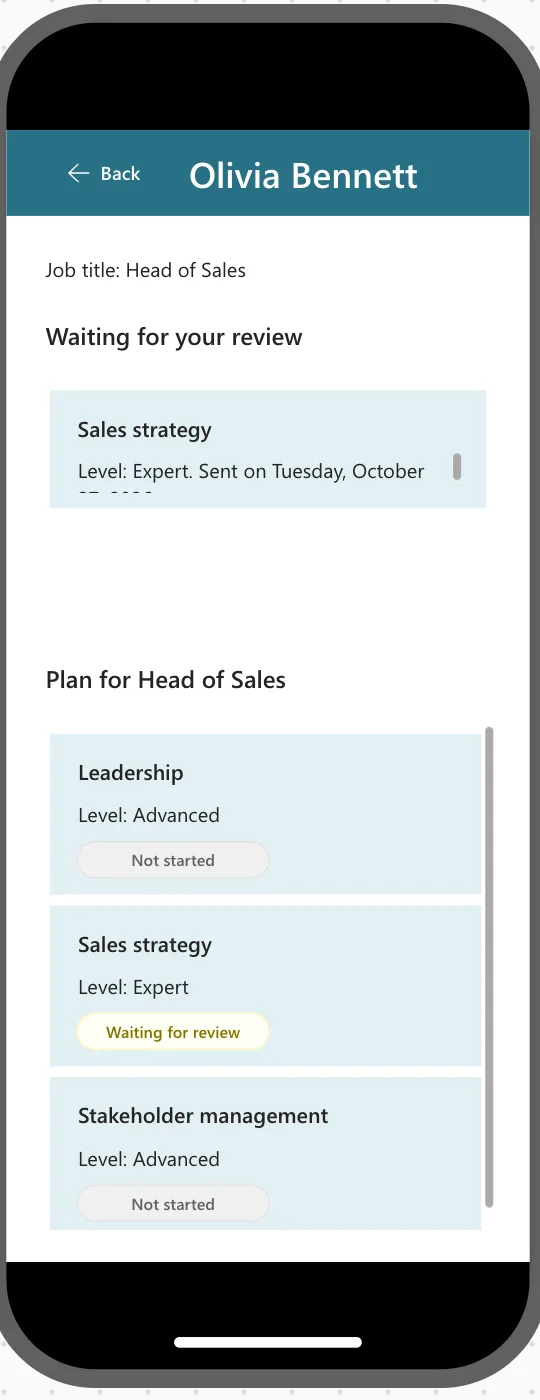
A gallery's rows have a fixed height too: the TemplateSize. In Part 7, my first version of a row listing a pending response had a second line reading Level: Expert. Sent on Tuesday, October 27, 2026. in one Text control, 32 high. On a phone, that line wrapped, and the end of the date was cut off:
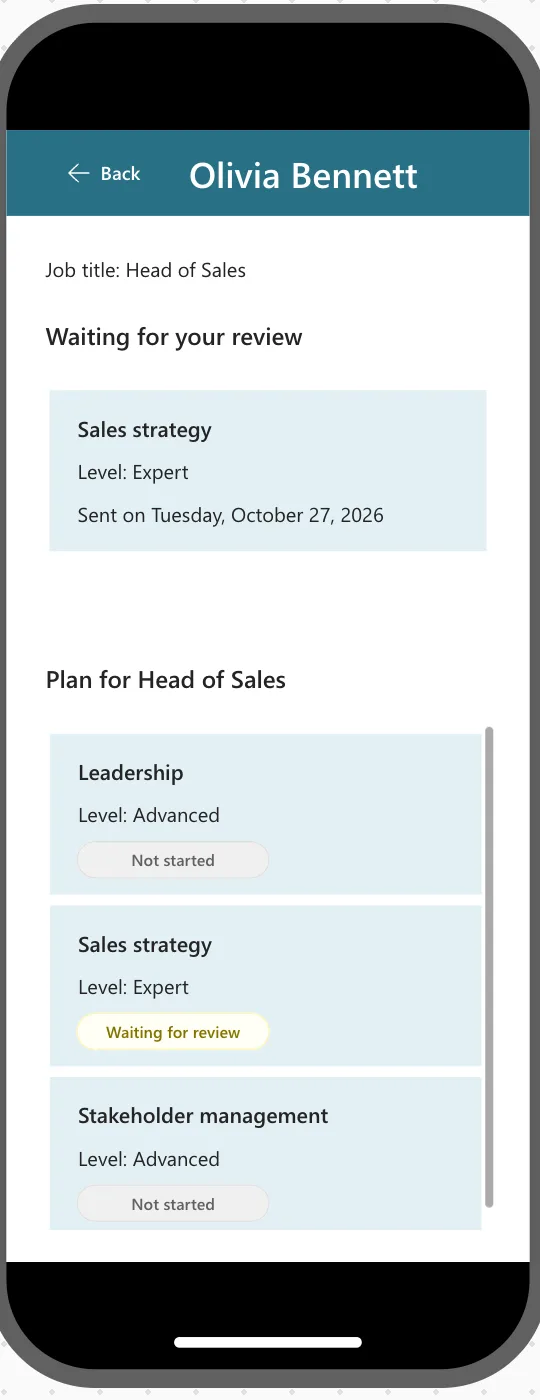
Auto height wouldn't help here: the text would grow, but the row stays at TemplateSize. The fix was to split the line in two, so each fits on a phone, and make the row taller to match the other rows in the app:
| Control | Text | Y |
|---|---|---|
lblPendLevelTMS | "Level: " & ThisItem.Level | 44 |
lblPendSentTMS | "Sent on " & Text(ThisItem.SubmittedOn, DateTimeFormat.LongDate) | 76 |
| The gallery | TemplateSize 120 (was 88) |
When a row's text can be any length, Microsoft's documented option is a Flexible height gallery, whose rows grow with Auto height text (Show items of different heights in a gallery).
The Same Problem in a Screen Header
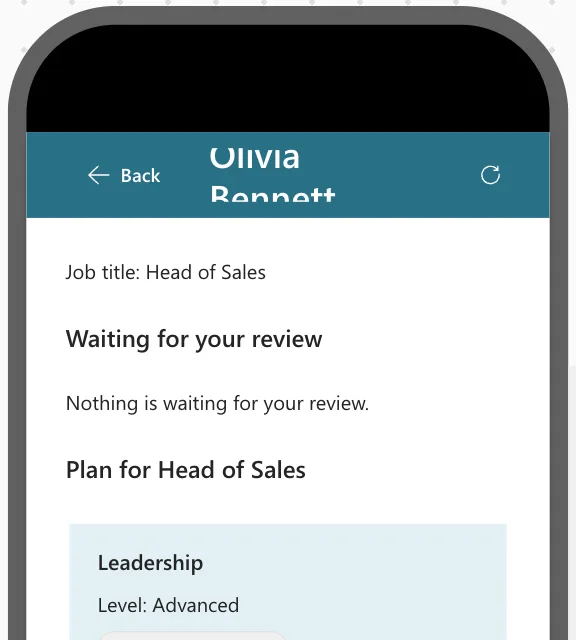
In Part 8, I added a Refresh button to the right of each screen's header, next to Back and the title. At Apple iPhone 12, 13, 14 size, the Team Member screen's title, Olivia Bennett, wrapped onto two lines and was cut off at the top and bottom:
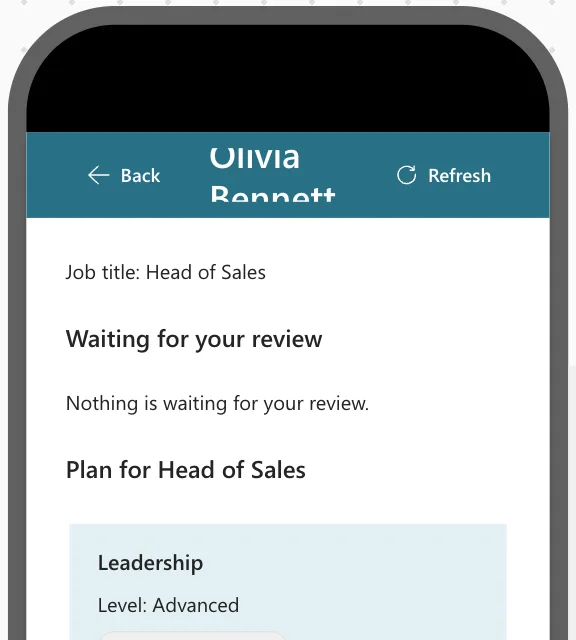
The header is a row 64 high, and the title gets the width the two buttons leave. Font sizes are in points, so the 20-point name needed more room than that.
Microsoft's Button reference has a Layout property, and ButtonLayout.IconOnly shows only the icon (Button modern control). Microsoft's responsive-layout article classifies screen sizes, with ScreenSize.Small for phones (Create responsive layouts). My first attempt made only the Refresh button an icon on small screens. The title was still cut off:
So both header buttons got the same formulas:
| Property | Back buttons | Refresh buttons |
|---|---|---|
| Layout | If(App.ActiveScreen.Size = ScreenSize.Small, ButtonLayout.IconOnly, ButtonLayout.IconBefore) | the same |
| Width | If(App.ActiveScreen.Size = ScreenSize.Small, 40, 96) | If(App.ActiveScreen.Size = ScreenSize.Small, 40, 112) |
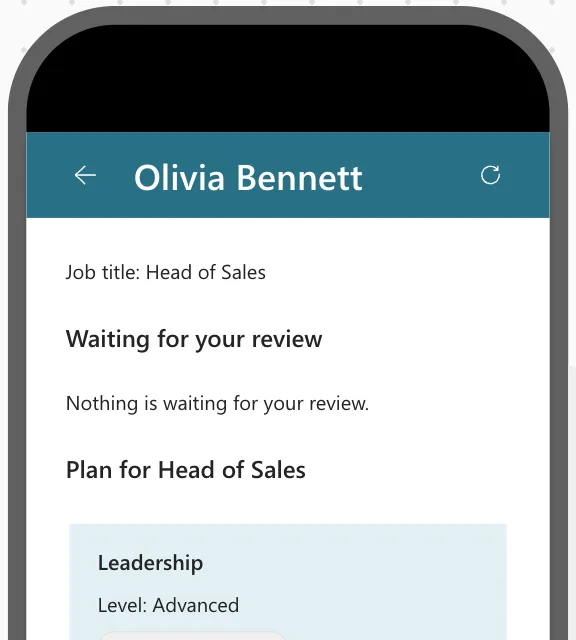
Each button keeps an AccessibleLabel that names its action, which Microsoft recommends for icon-only buttons. With both buttons as icons, the title fits on one line:
The whole technique, with how to test it, is in How to Show Only the Icon on a Button on Phones in Power Apps.
How to Find This Early
Preview at a phone size after building each screen; see How to Test a Power Apps Canvas App on Phone and Tablet Sizes. A wide monitor hides this bug completely.
Common Mistakes
| Mistake | What happens | Do this instead |
|---|---|---|
| Relying on Auto height alone | The controls grow, the container doesn't | Size the container from its content |
| Picking a "big enough" fixed height | Wasted space on wide screens, still too small on some phones | Use a formula |
| Turning Flexible height on for the row | It takes a share of the screen, not the size of its content | Use the Max formula |
Troubleshooting
| Symptom | Likely cause | Fix |
|---|---|---|
| Still clipped after the fix | Auto height is off on a Text control | Turn it on for each |
| The row is too short by a few pixels | Gaps or padding not counted | Add the container's LayoutGap and padding to the sum |
| The row doesn't shrink back | A Text control has a fixed Height | Use Auto height |
FAQ
Why not let the outer container scroll?
Scrolling the page is fine for long content, but the row itself would still clip its text. The row needs the right height.
Does the same apply to vertical containers?
Yes. The idea is the same for any fixed-height container holding text that can wrap: its height has to come from its content. In a vertical container, add up the children's heights and gaps instead of taking the larger one.
Can a container size itself to its content?
Microsoft's Horizontal container reference lists no auto-height property for containers; AutoHeight belongs to text controls. A Height formula is how a container follows its content.
Conclusion
Text that wraps needs room to grow, and so does every container around it. Give a fixed-height container a Height formula based on its content, such as Max(...) of its children's heights, and the text stops getting cut off on small screens.
Additional Resources
- Building responsive canvas apps: containers and responsive layouts.
- Text modern control: AutoHeight.
- Horizontal container control: the container's properties.
