Fixed: Text and Buttons Cut Off on Narrow Phones in Power Apps

On the narrowest phones, 360 pixels wide, my Power Apps app had three layout problems: a title cut in half, a button running off the screen, and list rows where a button left almost no room for the text. Each fix uses the screen's size, so phones get a tighter layout and larger screens stay as they were.
What I Was Doing
In Part 9 of the Career Development Plan series, I was about to add an Edit button to each row of a list. A button next to the text leaves the text less room, so I first previewed the app at the narrowest phone in Studio's Phones list, the Samsung Galaxy A33 5G, 360 × 800 (How to Test on Phone and Tablet Sizes). Earlier parts had tested phones at 390 × 844.
What I Expected
The same layout as at 390 pixels: the app's title on one line, the buttons inside the screen and full names in the lists.
What I Got
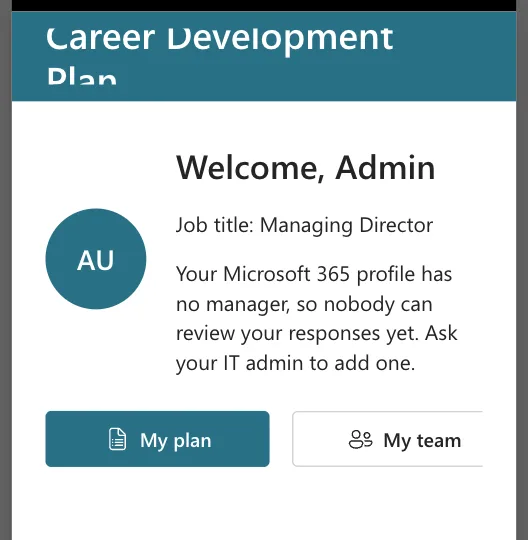
The Home screen. The header title wrapped onto two lines, and the header cut both of them. The My team button ran off the right edge:
The lists. On My team, each row showed only Olivia and Head of, next to a wide Open button:
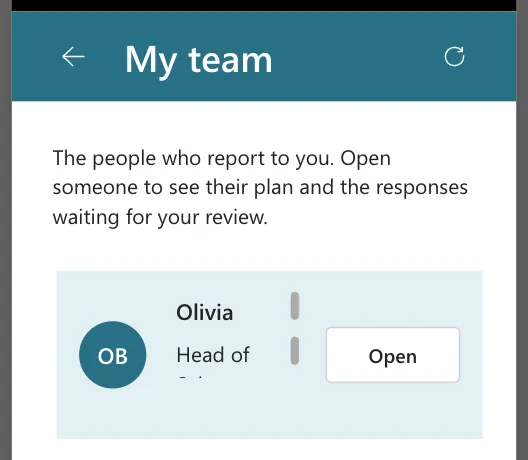
The button took more of the row than the name did, which raised the obvious question: on a phone, why not drop the button and make the whole row clickable?
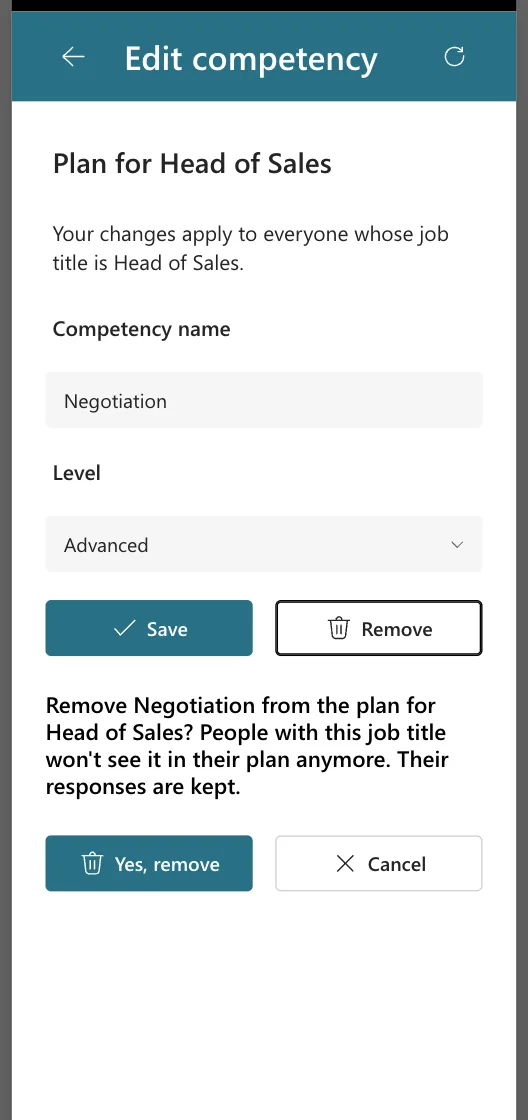
Rows of two buttons. Later in Part 9, the new screen's Save and Remove buttons, and its Yes, remove and Cancel buttons, didn't fit side by side. Cancel lost its right edge. The Review screen's Approve and Decline row from Part 8 has the same layout.
What I Checked
I compared what each control needs with what a 360-pixel screen gives it.
| Where | Needs | Has at 360 px |
|---|---|---|
Home title, Career Development Plan at 20 pt | More than one line's width | 312 px: the header has 24 px of padding on each side |
| Home buttons, 2 × 160 px with a 16 px gap | 336 px | 312 px: the body has 24 px of padding on each side |
| Two-button rows on the Review and Competency screens | 336 px | About 310 px |
My team row text, Parent.TemplateWidth - 208 | A name on one line | About 96 px, because of the 96 px Open button |
My plan and waiting-list row text, Parent.TemplateWidth - 144 | A name on one line | About 160 px |
Then the question about the whole row. The rows already were clickable: Parts 6 to 8 set each list's Selectable to true and navigate from its OnSelect (How to Open Another Screen When a Gallery Row Is Selected). The button is there because of Microsoft's gallery guidance: when clicking anywhere in an item selects it, keyboard users still need a way to select it, for example a Button whose OnSelect is Select(Parent) (Gallery control: keyboard support). Removing it on phones would leave people with external keyboards or switch access no way to open a row.
Microsoft's Button modern control reference has the middle way: Layout ButtonLayout.IconOnly shows only the icon. That's what I used: a 40-pixel chevron on phones, the full text on larger screens.
Why It Happens
Fixed sizes that fit at 390 pixels don't fit at 360. Text wraps when its label is too narrow, and a fixed-height label or header cuts off the wrapped line (Fixed: Text Is Cut Off Inside a Container on Small Screens). Buttons with fixed widths don't shrink, so a row of them runs past the container's edge.
The Fix
Each fix tests the screen's size, App.ActiveScreen.Size = ScreenSize.Small, which is true on phones (Create responsive layouts).
1. Row buttons become a chevron on phones. On every row button, Open in My team and My plan, Review in the waiting list and Edit in the plan list:
| Property | Value |
|---|---|
| Icon | "ChevronRight" |
| Layout | If(App.ActiveScreen.Size = ScreenSize.Small, ButtonLayout.IconOnly, ButtonLayout.IconAfter) |
| Width | If(App.ActiveScreen.Size = ScreenSize.Small, 40, 96) |
| Tooltip | "Open", "Review" or "Edit" |
Each button keeps its AccessibleLabel, such as "Open " & ThisItem.displayName, so screen readers still say what it opens. The row's text then takes the room the button doesn't need, by reading the button's width:
Parent.TemplateWidth - btnOpenMPS.Width - 48
The 48 is the text's 16-pixel left margin plus 16 pixels on each side of the button. In My team, the text starts after the avatar, so its formula is Parent.TemplateWidth - btnOpenMTS.Width - 112. How to Show Only the Icon on a Button on Phones explains Layout and Width.
2. Titles are 18 points on phones. On every screen's title label:
If(App.ActiveScreen.Size = ScreenSize.Small, 18, 20)
3. Two buttons share the row on phones. On both buttons of each two-button row, on the Home, Review and Competency screens:
If(App.ActiveScreen.Size = ScreenSize.Small, (Parent.Width - Parent.LayoutGap) / 2, 160)
Parent.Width is the row's container, and Parent.LayoutGap is its Gap, so each button gets half of what's left after the gap.
After the Fix
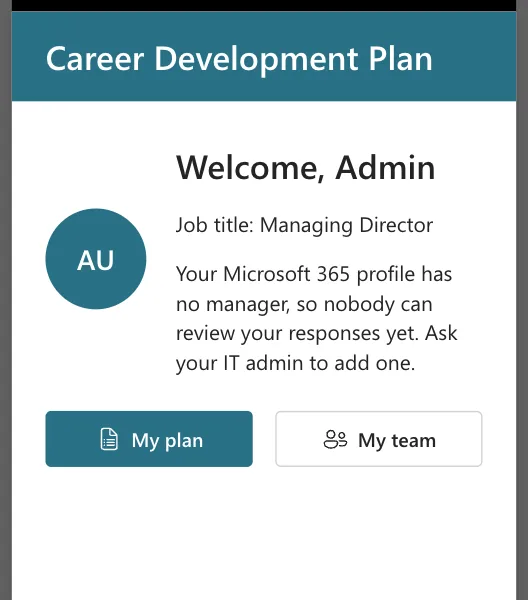
The first check didn't look fixed: the Home buttons fit, but the title was still 20 points. I had switched the preview to the phone after opening it on Home. Formulas that only read the screen size didn't run again until I changed screens, while the buttons' width also reads Parent.Width and updated at once. Microsoft's responsive layout article says the authoring canvas doesn't respond to sizing formulas and recommends testing the published app. After going to My team and back, the title fit on one line and both buttons fit:
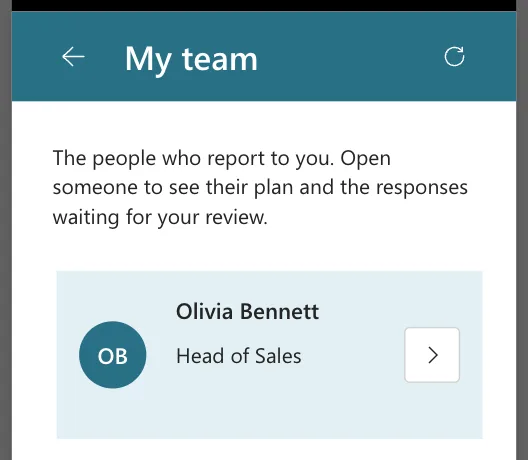
The My team row shows the full name and job title, with a chevron button:
The two-button rows fit inside the screen's margins:
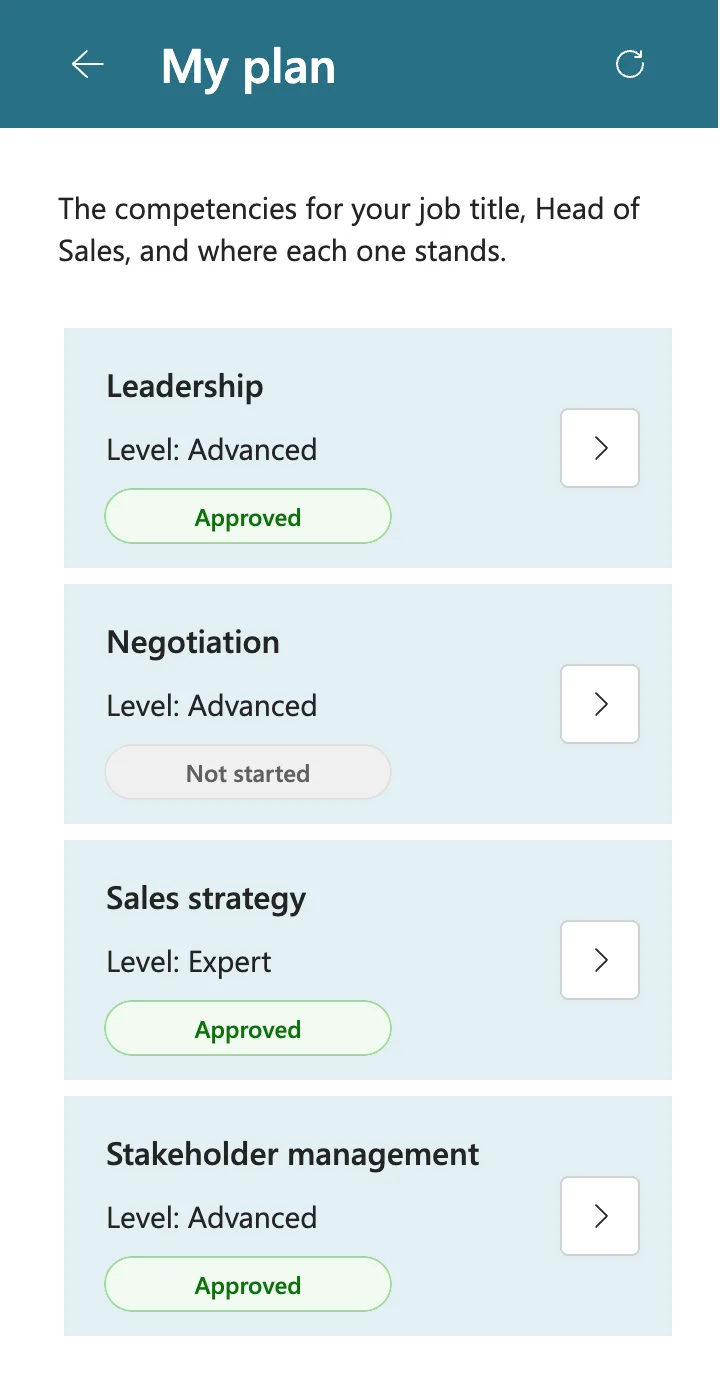
Then I published the app and checked the published version in an employee's browser narrowed to 360 × 800. Her My plan rows had the chevron, and Stakeholder management fit on one line:
On a tablet or a laptop, the buttons keep their text, now with a chevron after it, such as Open ›.
Common Mistakes
| Mistake | What happens | Do this instead |
|---|---|---|
| Removing the row button on phones | Keyboard users can't open a row | Keep the button and show only its icon |
| Changing Layout without Width | The icon sits in a wide, empty button | Narrow the width on phones too |
| Fixed text widths in a row | The text doesn't use the space the icon frees | Subtract the button's Width in the text's formula |
| Testing only at 390 pixels | 360-pixel phones cut text and buttons | Check the narrowest size in the Phones list |
Troubleshooting
| Symptom | Likely cause | Fix |
|---|---|---|
| Buttons keep their text in a phone preview | The preview size changed while the screen was open | Go to another screen and back, or test the published app |
| The canvas's Small size still shows text buttons | The canvas doesn't run sizing formulas | Use the preview or the published app |
| A title still wraps at 18 points | A long title, such as a long name | Keep header titles short, or lower the phone size further |
FAQ
Isn't the whole row already clickable?
Yes. Tapping or clicking anywhere in a row opens it, on every screen size. The button is for keyboard users, as Microsoft's gallery guidance asks.
Why 360 pixels?
It's the narrowest phone in Studio's Phones list. A layout that works there works on the wider phones too.
Conclusion
Narrow phones need tighter layouts, not different screens. With App.ActiveScreen.Size = ScreenSize.Small, row buttons become a chevron, titles drop to 18 points and paired buttons share their row. The row stays clickable, and keyboard users keep a button.
Additional Resources
- Gallery control: accessibility guidelines
- Button modern control
- Create responsive layouts in canvas apps
