Fixed: Teams Store Says "Let's Go" for an App That Isn't Added Yet

On a new starter's first day, the Teams Store showed a tick on Overtime Timesheet, an app built for the organization, and a Let's go dialog with Open. Open didn't open it: it showed the app's page with an Add button. Selecting Add added the app, and Open then opened it.
What I Was Doing
Noah Ellis had joined the organization that morning. I had added him to Overtime Timesheet Users, the security group the app is installed for in the Teams admin center (How to Install a Teams App for Specific Users in the Teams Admin Center). About an hour later, the app still wasn't in his app bar or under View more apps in Teams on the web, so, as Noah, I opened the Store and searched for it (How to Find an App Built for Your Organization in Microsoft Teams).
What I Expected
The app's page with Add, as other staff had seen it before it was installed for them, or, if the install had reached him, the app itself.
What I Got
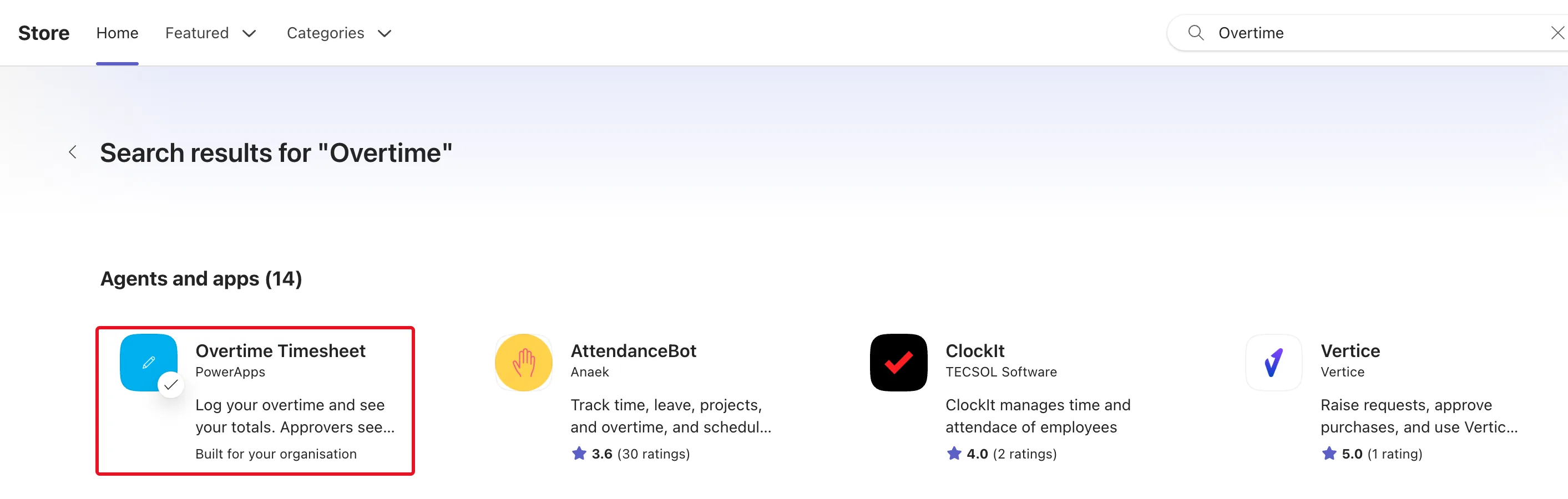
The first result was Overtime Timesheet, marked Built for your organisation, with a tick on its icon, the same tick the Store shows on apps such as Power BI that were already in his Teams:
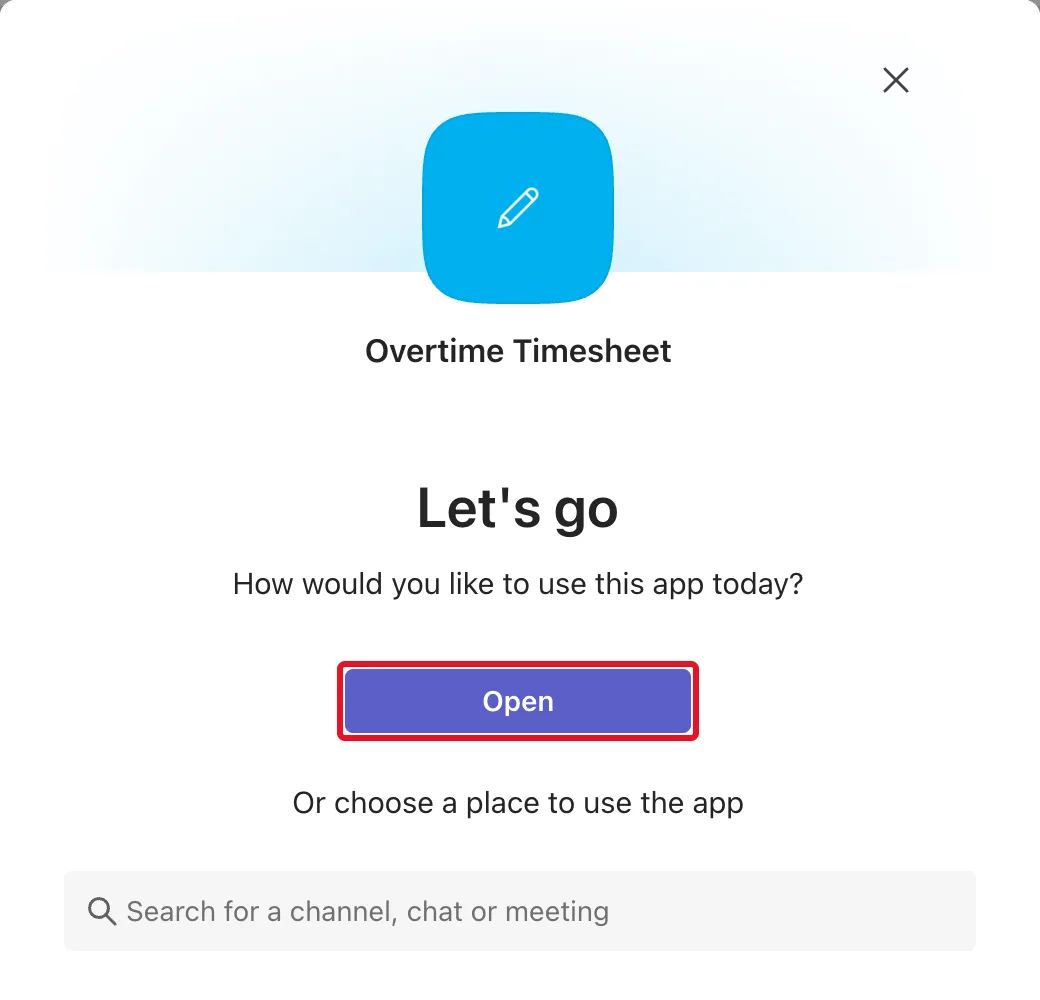
Selecting it showed Let's go, How would you like to use this app today?, with Open, the dialog Teams shows for an app that's already added:
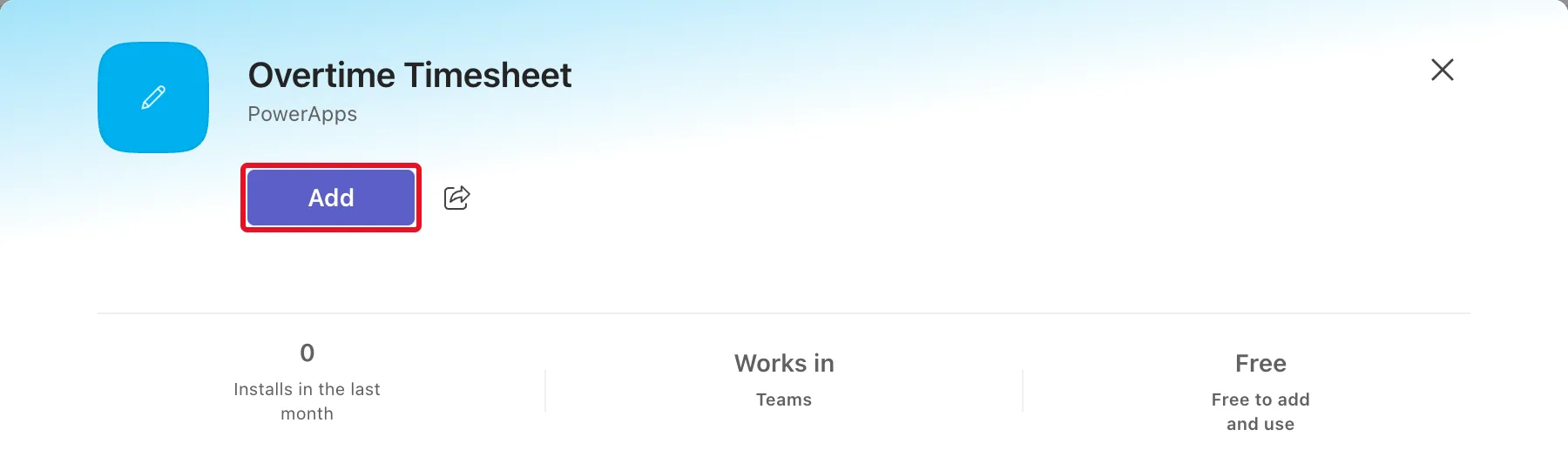
But Open didn't open the app. It showed the app's page, with Add, 0 Installs in the last month, Works in Teams and Free to add and use:
What I Checked
The install in the admin center. The app is installed for Overtime Timesheet Users, and Noah was a member of that group.
How long installs take. Microsoft's app centric management article says it takes up to 24 hours for the availability changes to take effect. In rare cases, it might take up to six days for the changes to reflect in the client. Noah had been in the group for about an hour. Daniel, who has been in the same group since the app was installed for it three days earlier, didn't have it in his Teams either.
The tick and the dialog. Microsoft's articles on installing apps for users and on custom apps describe how admins install apps and where users find them, but not the tick or this Let's go dialog.
Why It Happens
Microsoft doesn't explain it. What I saw fits an install that was on its way to Noah but hadn't reached his Teams yet: the Store already marked the app, while Teams itself still offered Add.
The Fix
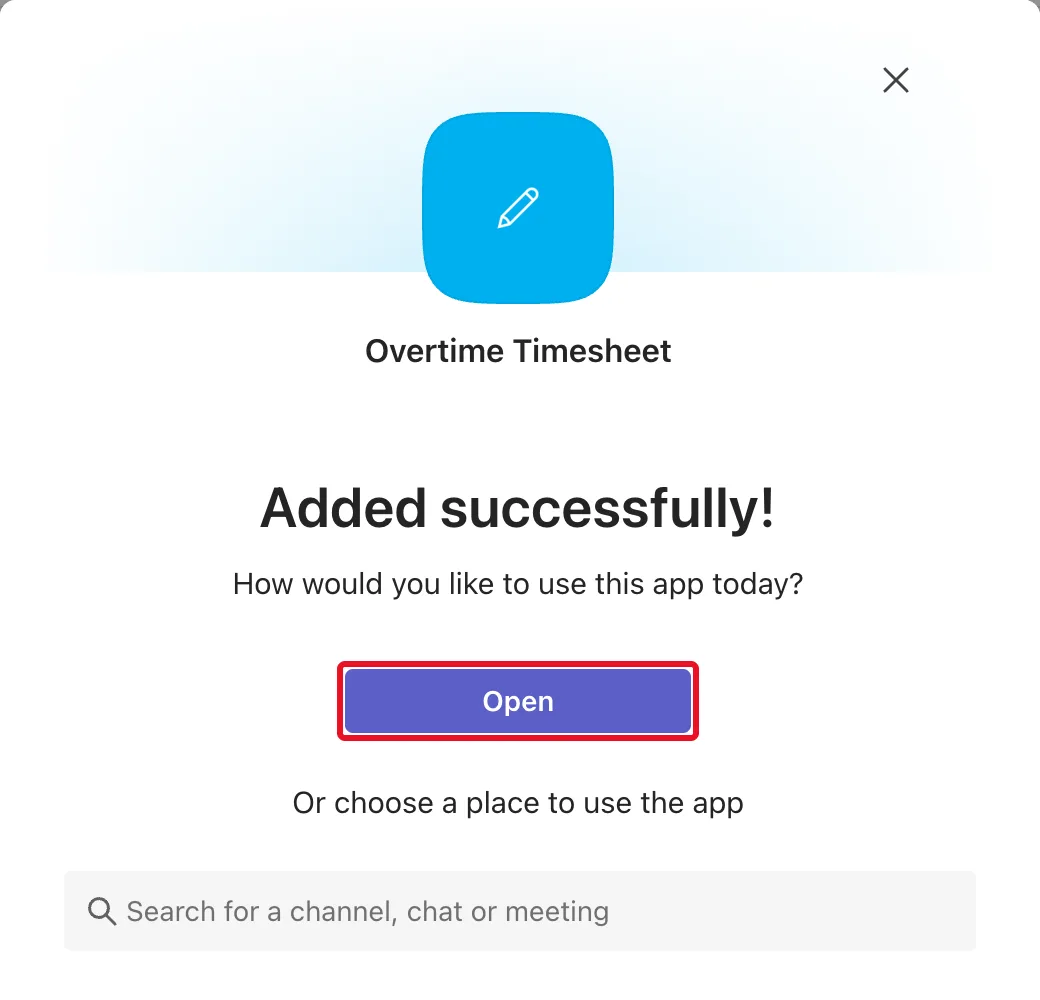
Select Add on the app's page. Teams said Added successfully!; select Open:
Adding an app yourself only needs it to be available to you, and the admin center's install had made it available to the group.
After the Fix
Open opened the app. The first time, Power Apps asked Noah to allow its connections, then showed its Home screen with his name and department. He could log overtime the same morning.
Common Mistakes
| Mistake | What happens | Do this instead |
|---|---|---|
| Waiting for the tick to turn into an app in the app bar | It can take up to 24 hours, rarely six days | Select Add on the app's page |
| Selecting Open again and again | The app's page comes back each time | Select Add, then Open |
| Removing and re-adding the person to the group | Nothing changes sooner | Let them add it from the Store |
Troubleshooting
| Symptom | Likely cause | Fix |
|---|---|---|
| No Add on the app's page, and no app in the Store | The app isn't available to the person | Check its availability in the Teams admin center |
| Add is there but the app doesn't open | A first-run prompt is waiting, such as Power Apps' connection prompt | Allow it, or ask the app's owner |
FAQ
Does adding the app yourself clash with the admin's install?
Not in my case. When the install arrives, the app is already there.
Should I tell new starters to add the app themselves?
For their first day, yes: it's in the Store under Built for your organisation, with the steps above.
Conclusion
A tick on an app in the Teams Store and a Let's go dialog didn't mean the app was in Noah's Teams yet: Open led to the app's page. Add added it, and Open then opened it.
Additional Resources
- Use app centric management to manage access to apps
- Preinstall apps for your users
- Manage custom apps in Microsoft Teams admin center
