Fixed: Teams Developer CLI Says "Not logged in" Right After teams login

I signed in to the Teams developer CLI, and it answered Logged in as …. One command later, teams status said ⚠ Not logged in. Run teams login to authenticate. npm 12 had blocked the install script of keytar, the library the CLI uses to save your sign-in in the macOS Keychain, so the CLI kept the sign-in only in memory, and it vanished as soon as teams login ended.
What I Was Doing
I was setting up the Teams developer CLI (teams), Microsoft's command-line tool for registering bots and managing Teams apps, on a Mac with Node.js 24.22.3 and npm 12.2.3. Microsoft's documentation installs it with npm and then signs in with teams login. I pinned the version and installed it globally:
npm install -g @microsoft/teams.cli@3.1.0
npm warn deprecated prebuild-install@7.1.3: No longer maintained. Please contact the author of the relevant native addon; alternatives are available.

added 123 packages in 3s
npm warn install-scripts 2 packages had install scripts blocked because they are not covered by allowScripts:
npm warn install-scripts   @azure/msal-node-extensions@5.6.3 (install: exit 0)
npm warn install-scripts   keytar@7.9.0 (install: prebuild-install || npm run build)
npm warn install-scripts
npm warn install-scripts Run `npm install -g --allow-scripts=@azure/msal-node-extensions,keytar` to allow these scripts once, or `npm config set allow-scripts=@azure/msal-node-extensions,keytar --location=user` to allow them for all global installs.
The teams command worked, so I moved on and signed in. --device-code signs in with a code you type into any browser, instead of opening one:
teams login --device-code
To sign in, use a web browser to open the page https://login.microsoft.com/device and enter the code A1B2C3D4E to authenticate.
Logged in as user@example.com
✔ Sideloading: enabled
Below these lines, the CLI also reported on my Azure CLI sign-in, which doesn't matter here.
What I Expected
Every later teams command signed in as the same account. teams status shows who you are:
teams status
What I Got
⚠ Not logged in
  Run teams login to authenticate.
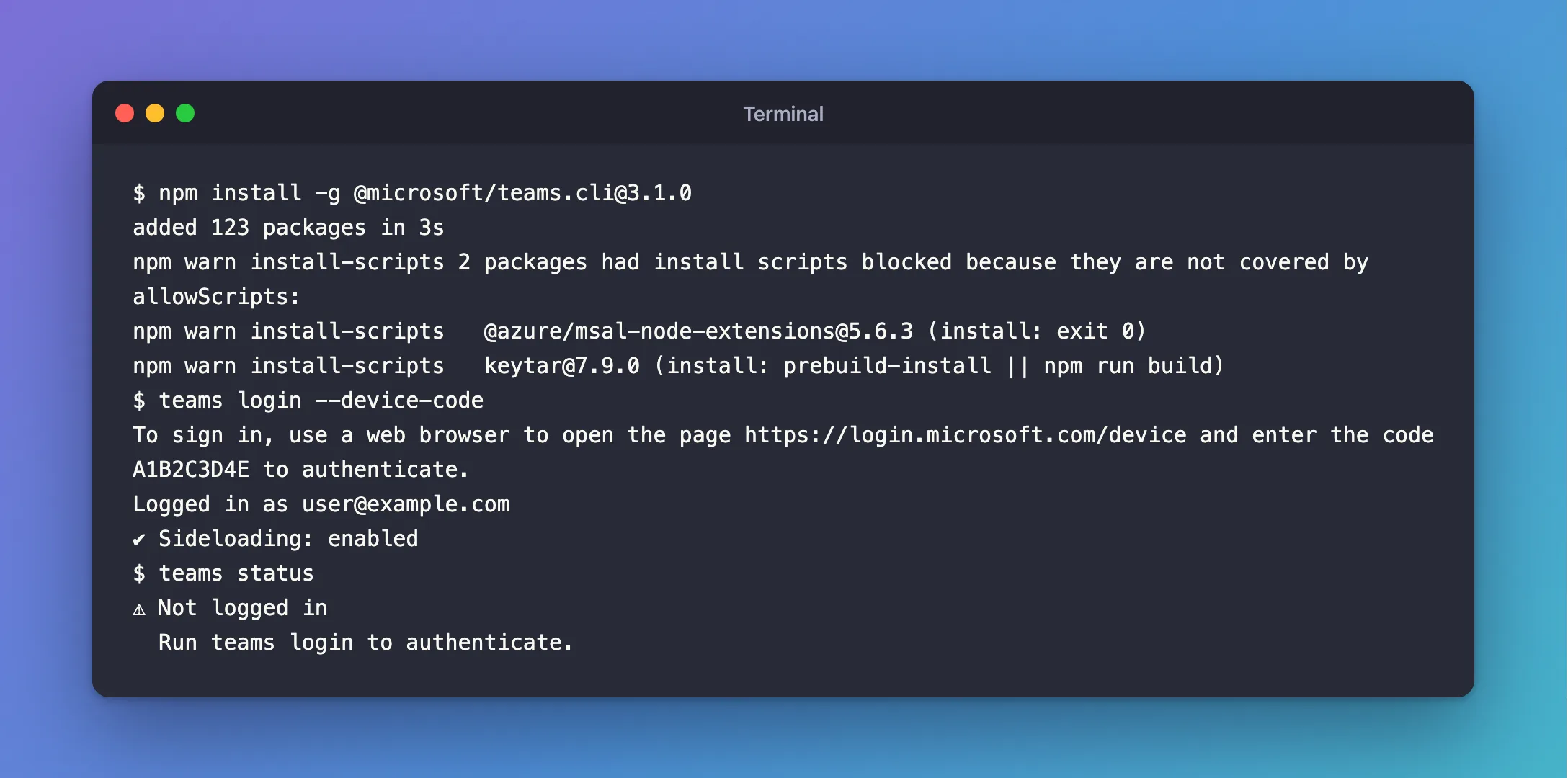
The sign-in had worked a moment earlier, so the account wasn't the problem.
What I Checked
The install warning. npm 12 runs a dependency's install script only when you allow it. The documentation that ships with npm says: Dependency install scripts are blocked by default. Install commands silently skip lifecycle scripts for any dependency that does not have a matching entry in allowScripts, and end with a list of the packages whose scripts were skipped so you can review them here. Two scripts were skipped. @azure/msal-node-extensions runs exit 0, which does nothing. keytar's script, prebuild-install || npm run build, downloads or builds keytar's native part: the piece of compiled code that talks to the operating system's credential store, such as the macOS Keychain.
Whether keytar loads. I loaded it from the CLI's own folder. npm root -g prints the folder that global packages live in:
node -e "require('$(npm root -g)/@microsoft/teams.cli/node_modules/keytar')"
Error: Cannot find module '../build/Release/keytar.node'
The native part was missing, because its install script never ran.
What the CLI does about it. The CLI has a --verbose option that prints its debug messages. On an install with the same blocked scripts, teams status --verbose says exactly what it fell back to:
teams status --verbose
[debug] Native credential storage unavailable, using in-memory cache: Cannot find module '../build/Release/keytar.node'
Require stack:
- …/node_modules/@microsoft/teams.cli/node_modules/keytar/lib/keytar.js
CLI version: 3.1.0
⚠ Not logged in
  Run teams login to authenticate.
The CLI's code. Microsoft's documentation for the Teams developer CLI doesn't say where it keeps your sign-in, so I read the CLI's published code, in dist/auth/cache.js of the package. It saves the sign-in through @azure/msal-node-extensions, and its comment says it tries encrypted storage first (libsecret on Linux, Keychain on macOS, DPAPI on Windows). When that storage can't load at all, it writes the debug message above and continues with no saved cache, so the sign-in stays in the memory of the one command that made it.
Why It Happens
Each teams command is a separate program run. teams login signs you in and keeps the result in memory, because without keytar it has nowhere to save it. When the command ends, the sign-in goes with it, and teams status starts with nothing. Nothing in the CLI's normal output tells you, because it reports the missing storage only in --verbose mode. The only clue is npm's warning at install time.
The Fix
Install the CLI again with the option npm's warning suggests. It allows the two listed scripts for this install only:
npm install -g --allow-scripts=@azure/msal-node-extensions,keytar @microsoft/teams.cli@3.1.0
npm warn deprecated prebuild-install@7.1.3: No longer maintained. Please contact the author of the relevant native addon; alternatives are available.

changed 123 packages in 2s
The install-scripts warning is gone, and keytar loads now:
node -e "require('$(npm root -g)/@microsoft/teams.cli/node_modules/keytar'); console.log('keytar loaded')"
keytar loaded
The first sign-in was never saved, so sign in once more:
teams login --device-code
To sign in, use a web browser to open the page https://login.microsoft.com/device and enter the code A1B2C3D4E to authenticate.
Logged in as user@example.com
✔ Sideloading: enabled
After the Fix
The next command remembers the sign-in:
teams status
✔ Logged in as user@example.com
✔ Sideloading: enabled
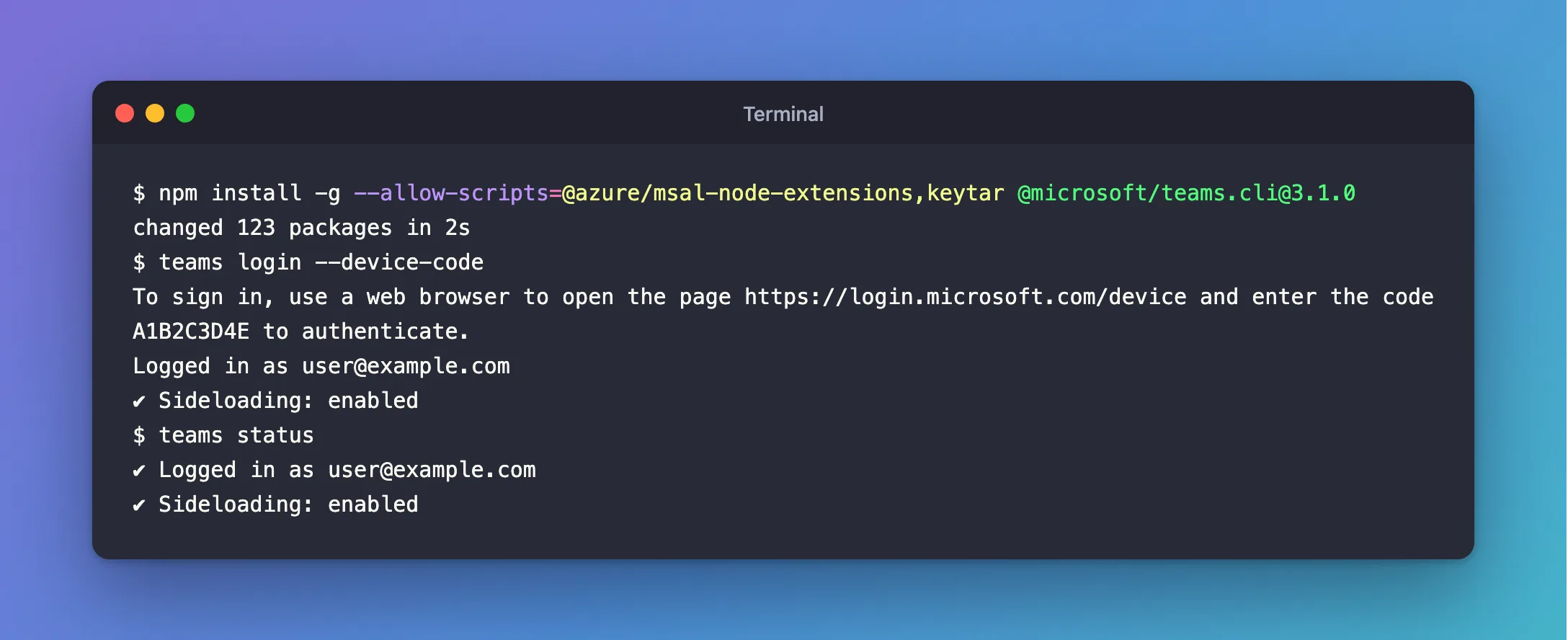
From here on, every teams command, such as teams app create, runs as that account.
Common Mistakes
| Mistake | What happens | Do this instead |
|---|---|---|
Ignoring the install warning because teams runs | Every sign-in is lost when teams login ends | Reinstall with --allow-scripts |
| Signing in again without changing the install | The CLI still has nowhere to save the sign-in | Fix the install first, then sign in once |
Allowing every package's scripts with --dangerously-allow-all-scripts | Any package can run code at install time again | Allow only the scripts the warning names |
Troubleshooting
| Symptom | Likely cause | Fix |
|---|---|---|
⚠ Not logged in right after Logged in as … | keytar's install script was blocked | Reinstall with --allow-scripts=@azure/msal-node-extensions,keytar |
Cannot find module '../build/Release/keytar.node' | The same blocked script | The same reinstall |
teams status --verbose mentions an in-memory cache | The CLI couldn't load its credential storage | Check that keytar loads, as above |
FAQ
Do I need to allow both scripts?
keytar's is the one that matters. The other one, @azure/msal-node-extensions, only runs exit 0, as the warning shows, so allowing it changes nothing. I used the list exactly as npm's warning suggested.
Where does the CLI keep my sign-in now?
In the operating system's credential store: the Keychain on a Mac, according to the CLI's code. teams logout signs you out.
Can I allow these scripts for every future global install?
Yes. The warning's second suggestion, npm config set allow-scripts=@azure/msal-node-extensions,keytar --location=user, saves the list in your user configuration, so later global installs that include these packages run their scripts too.
Conclusion
If the Teams developer CLI says Not logged in right after Logged in as …, look at the npm warning from its install. On npm 12, keytar's install script is blocked, keytar can't reach the Keychain, and the CLI keeps your sign-in only for the life of one command. Reinstall with --allow-scripts=@azure/msal-node-extensions,keytar, sign in once more, and teams status remembers you.
Additional Resources
- Teams developer CLI — Microsoft's overview, with the install and sign-in commands.
- npm install-scripts — npm's documentation for approving install scripts.
