Fixed: SUBTOTAL 109 Still Includes a Hidden Row in Excel for the Web

I hid a row in Excel for the web, and =SUBTOTAL(109,B2:B4), a total that leaves out hidden rows, still counted it: 600 instead of 400. Calculation was on Automatic, and Calculate Sheet changed nothing. Selecting the cell and pressing F2 and then Enter made it 400.
What I Was Doing
I was comparing SUBTOTAL's codes 9 and 109 on a small Sales sheet: January 100, February 200 and March 300 in B2:B4. B6 held =SUBTOTAL(9,B2:B4) and B7 =SUBTOTAL(109,B2:B4), and both showed 600. Then I right-clicked the row number 3, February's row, and selected Hide Row 3.
What I Expected
B6 at 600 and B7 at 400. Microsoft's SUBTOTAL function article says that with the codes from 101 to 111, the SUBTOTAL function ignores values of rows hidden by the Hide Rows command.
What I Got
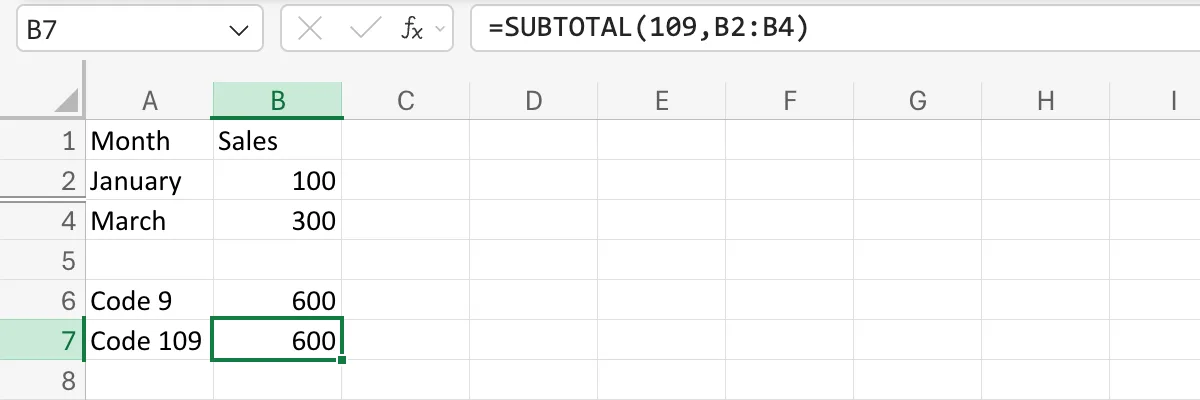
Row 3 was hidden, but B7 still showed 600:
What I Checked
-
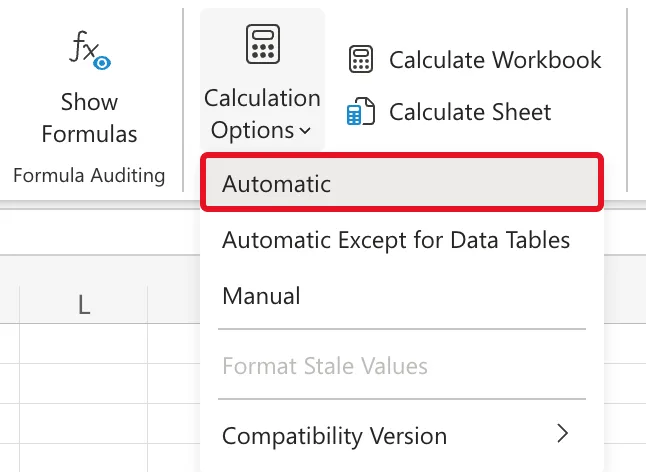
The calculation mode. On the Formulas tab, Calculation Options was set to Automatic, so Excel should recalculate by itself:
-
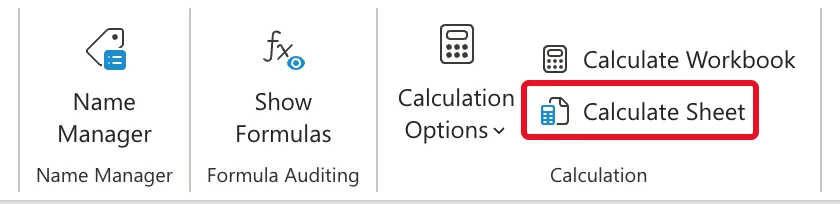
Calculate Sheet. Next to Calculation Options, I selected Calculate Sheet. B7 still showed 600:
-
Microsoft's documentation. The SUBTOTAL article's own example says For formulas to show results, select them, press F2, and then press Enter. The Excel Recalculation article, written for the desktop app, lists Hiding or unhiding rows, but not columns among the actions that make Excel recalculate. It also says the active-sheet calculation recalculates the cells marked for calculation in the active worksheet only.
Why It Happens
In my Excel for the web, hiding the row didn't make B7 recalculate, and Calculate Sheet recalculates only the cells Excel has marked as needing it. Since it changed nothing, B7 apparently wasn't marked when the row was hidden. The formula and the code were right; the value on screen was simply out of date. Microsoft's documentation doesn't say why Excel for the web didn't recalculate here, when the desktop app's documentation lists hiding a row as a reason to.
The Fix
Make Excel calculate the formula again by entering it again, as the SUBTOTAL article's example says:
- Select the cell with the total, here B7.
- Press F2 to edit the formula.
- Press Enter without changing anything.
After the Fix
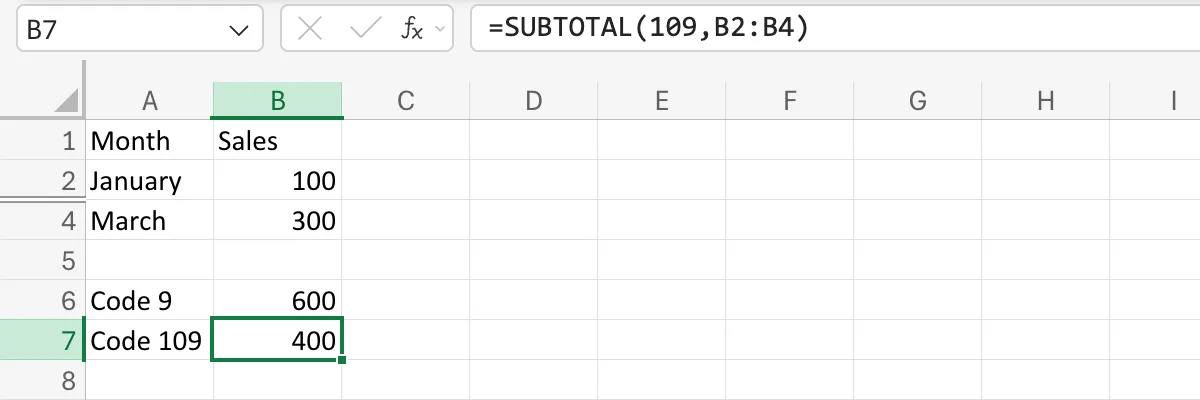
B7 shows 400, January plus March, while B6, code 9, still includes February's 200:
Common Mistakes
| Mistake | What happens | Do this instead |
|---|---|---|
| Changing the code to 9 | Code 9 counts hidden rows, so the total stays 600 for good | Keep 109 and re-enter the formula |
| Deleting the row to get the right total | The row's data is gone | Hide it, then re-enter the total with F2 and Enter |
| Trusting a total right after hiding rows in Excel for the web | It can still include them | Re-enter the total, then read it |
Troubleshooting
| Symptom | Likely cause | Fix |
|---|---|---|
| A 109 total still includes a hidden row | The formula hasn't recalculated | Select it, F2, Enter |
| Calculate Sheet changes nothing | It recalculates only cells marked as needing it | F2 and Enter on the total |
| Codes 9 and 109 both leave the row out | The row was hidden by a filter, which SUBTOTAL always leaves out | Nothing to fix |
FAQ
Is my calculation set to Manual?
Check Formulas → Calculation Options. Mine was Automatic, and the total still didn't change, so the mode wasn't the cause here.
Do I have to change the formula?
No. Press F2 and Enter without editing it. The formula is right; it only needed to be calculated again.
Does a table's Total Row use the same codes?
Yes. Its drop-down writes codes from 101 to 111, such as 109 for Sum (How to Add a Total Row to an Excel Table).
Conclusion
When a SUBTOTAL with a code from 101 to 111 still includes a row you've just hidden in Excel for the web, the value hasn't been recalculated. Select the cell, press F2 and Enter, and it leaves the hidden row out.
