Fixed: "Sign Out of All Sessions" Missing After Blocking a User in Microsoft 365

When someone leaves, Microsoft's offboarding steps sign them out of everything and block their sign-in. I blocked first, and the Microsoft 365 admin center then stopped offering Sign out of all sessions. Microsoft Entra's Revoke sessions still worked.
What I Was Doing
In Part 10 of the Career Development Plan series, Leo Martin, a Sales Engineer in the demo company, leaves. I blocked his sign-in in the Microsoft 365 admin center (How to Block Sign-In for a User in Microsoft 365). Then I went back to his details to sign him out of any sessions he still had.
What I Expected
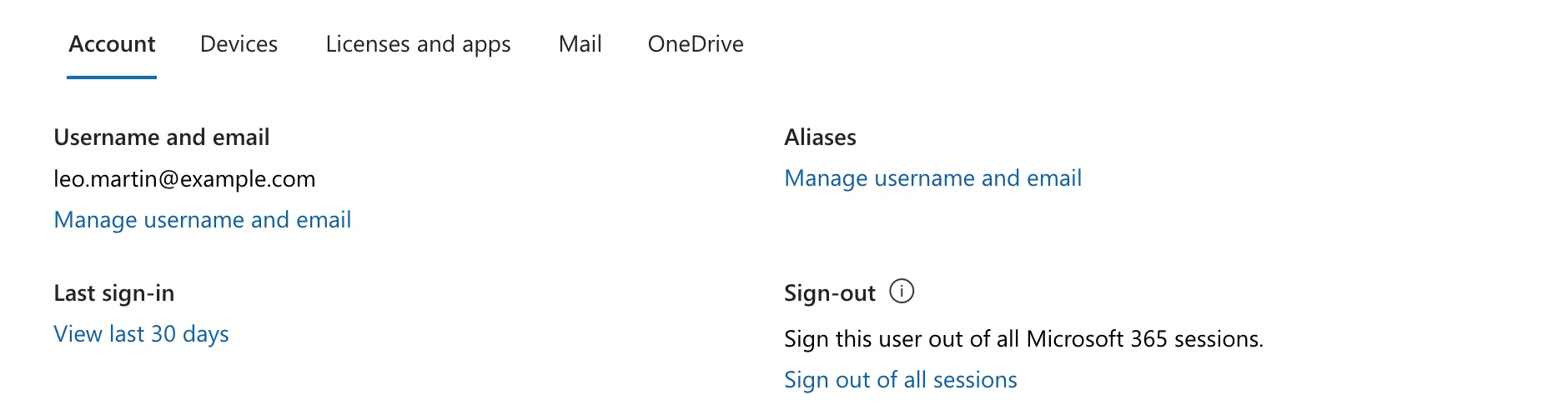
Microsoft's article Step 1 - Prevent user sign-in and block access to Microsoft 365 says to select the user's name and, on the Account tab, select Sign out of all sessions. Before the block, Leo's Account tab had it, in a Sign-out section:
What I Got
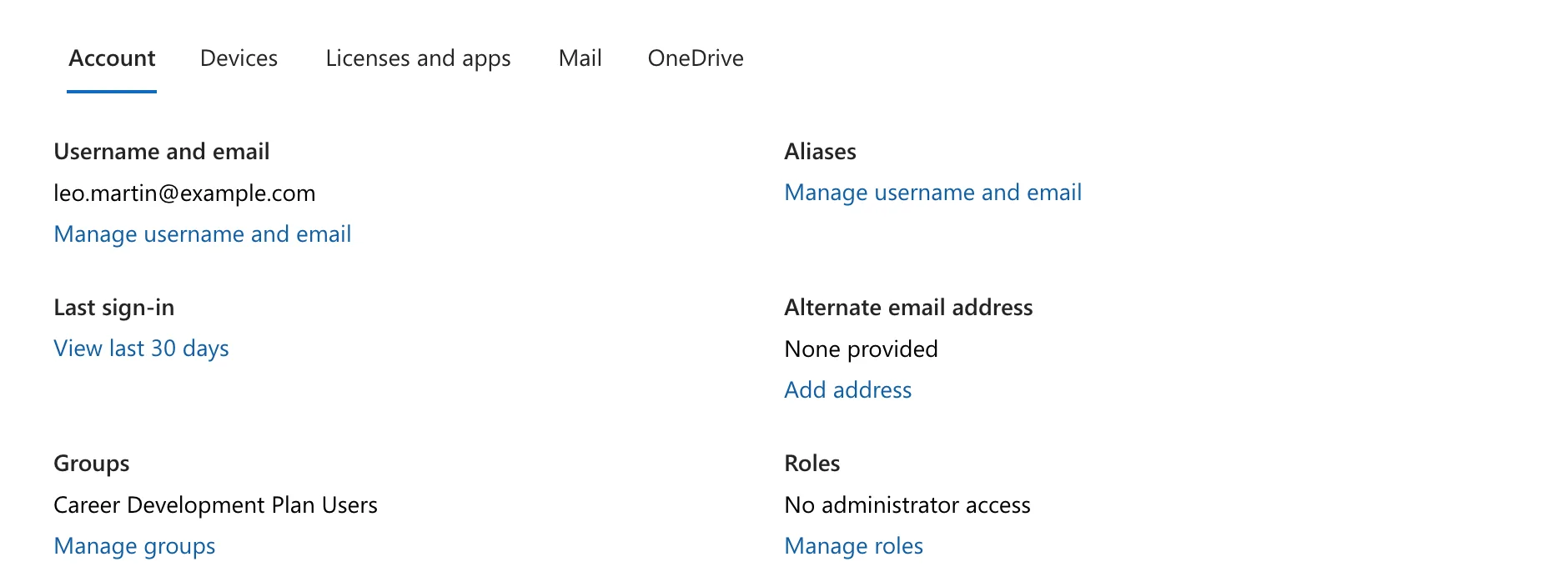
After saving the block, Leo's details said Sign-in blocked, and the Account tab had no Sign-out section. Alternate email address had moved up into its place:
What I Checked
- The order in Microsoft's offboarding article. Its first section is Reset password and sign out of all sessions. Blocking comes after that, with a note that a block can take up to 24 hours to take effect, and that resetting the password stops sign-in at once. I had done it the other way round.
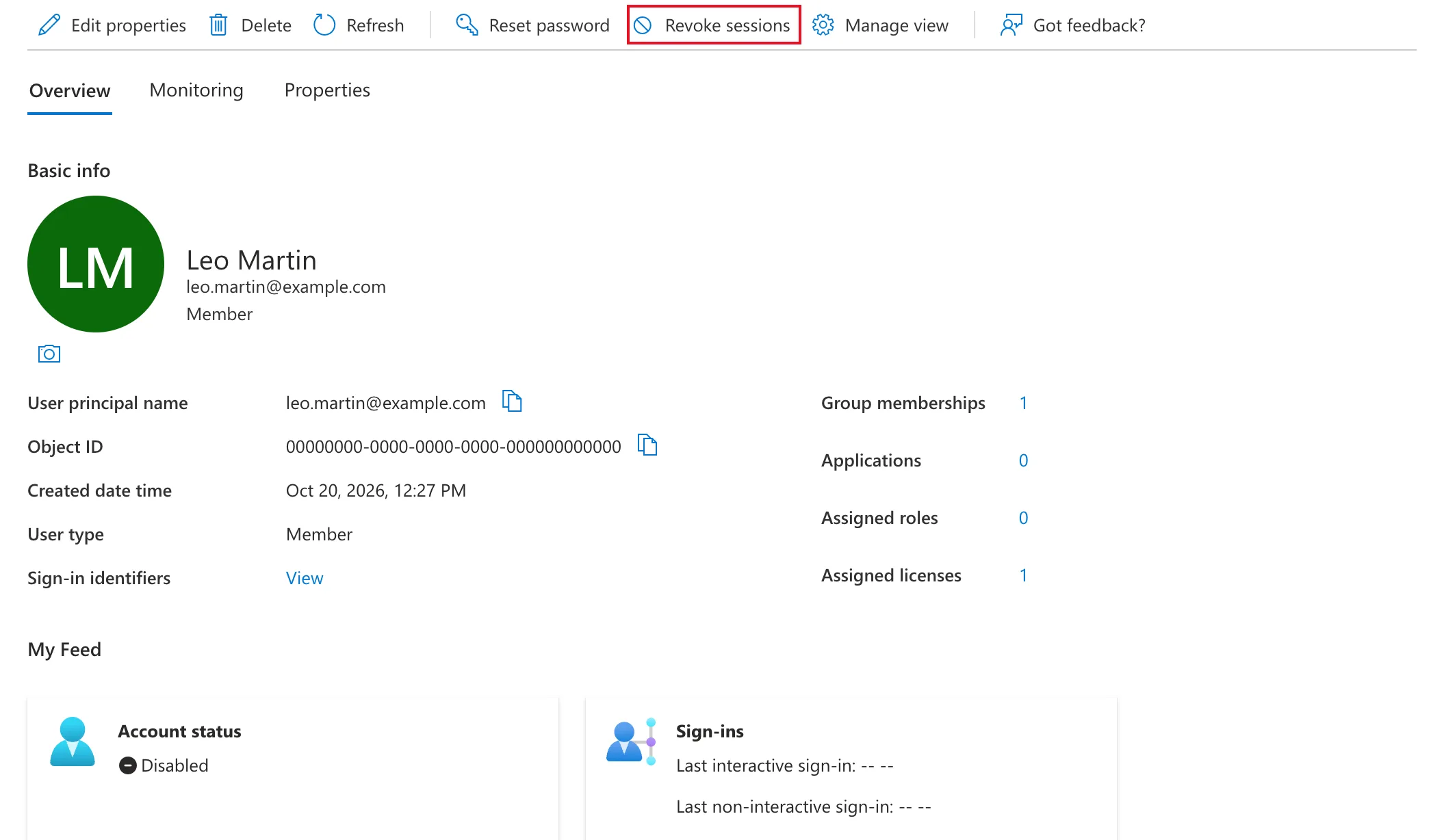
- Microsoft Entra's article, Revoke user access in Microsoft Entra ID. For an organization that lives only in Microsoft Entra, it turns off Account enabled first and then says to select Revoke sessions on the user's Overview page. Blocking sign-in in the Microsoft 365 admin center turns off that same switch. Leo's overview in Entra showed Account status: Disabled.
- Neither article mentions that the Microsoft 365 admin center hides Sign out of all sessions for a blocked user. That part is only what I saw.
Why It Happens
Microsoft's documentation doesn't say why the section disappears. What it does show is that the two admin centers put the steps in a different order. The Microsoft 365 article signs people out before blocking them, and the Entra article revokes sessions after the account is disabled.
The Fix
Use Revoke sessions in the Microsoft Entra admin center:
-
Go to Entra ID → Users and select the person.
-
On their Overview, select Revoke sessions in the command bar.
-
Answer the question with Yes. It says what it does: This will revoke all sessions for the user "Leo Martin", requiring the user to re-sign in from all devices.

After the Fix
The notifications panel confirmed it:
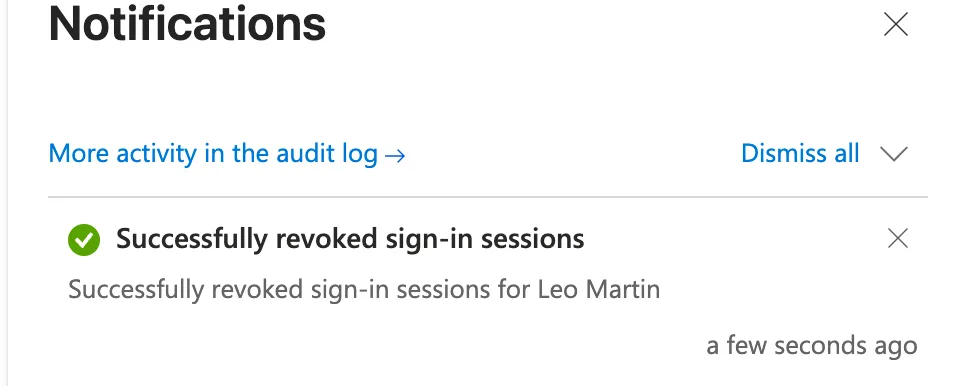
Microsoft's Entra article explains what happens next: the person can't get new tokens, and apps that use access tokens lose access when the current token expires. The Microsoft 365 article says an access token is good for an hour.
Leo had never signed in, so there was nothing to end. His account stayed blocked: when he tried to sign in an hour later, Microsoft said his account was locked.
Do It in Microsoft's Order Next Time
Sign the person out first, and reset their password if they might still know it. Then block sign-in. If you've already blocked them, use Entra's Revoke sessions as shown above.
Common Mistakes
| Mistake | What happens | Do this instead |
|---|---|---|
| Blocking first, then looking for Sign out of all sessions | The Account tab doesn't offer it | Use Revoke sessions in Microsoft Entra |
| Treating the block as an instant sign-out | The block pane says signed-in people are signed out within 60 minutes | Sign them out or revoke their sessions too |
Troubleshooting
| Symptom | Likely cause | Fix |
|---|---|---|
| No Sign-out section on the Account tab | The user's sign-in is blocked | Microsoft Entra → Users → the person → Revoke sessions |
| The person keeps working for a while after Revoke sessions | Their current access token hasn't expired | Microsoft's articles allow up to an hour |
FAQ
Does Revoke sessions unblock the user?
No. It only ends sessions. Leo's account stayed disabled, and his sign-in an hour later failed.
Do I need both?
Microsoft's offboarding steps use both. Signing out ends sessions that already exist, and blocking stops new sign-ins.
Conclusion
Once a user is blocked, the Microsoft 365 admin center stops offering Sign out of all sessions. Sign people out before you block them, as Microsoft's offboarding article does, or use Revoke sessions in Microsoft Entra afterwards.
Additional Resources
- Step 1 - Prevent user sign-in and block access to Microsoft 365
- Revoke user access in Microsoft Entra ID
