Fixed: SharePoint Saves a Typed Date in the Wrong Month

Maya Patel typed 07/11/2026, 7 November, into a date and time field on a SharePoint site set to UK dates. SharePoint saved 11 July 2026. The date-only field in the same form, typed the same way, got 7 November, and a colleague doing exactly the same got 7 November everywhere. Picking the date from the calendar instead of typing it fixed the entry.
What I Was Doing
In Part 3 of the Overtime Timesheet series, two members of staff each logged a Saturday shift in the OvertimeEntries list, signed in as themselves, to test the list's permissions. The site uses English (United Kingdom) dates and the 24-hour clock: How to Change the Date Format of a SharePoint Site.
In the New item form, Maya typed 07/11/2026 into WorkDate (a date-only column), then into StartTime and EndTime (date and time columns), setting the times 08:00 and 12:00 in the picker's time box.
What I Expected
7 November 2026 in all three fields. Aisha Khan, the other member of staff, had just done the same steps and got that: 07/11/2026 07:00 to 07/11/2026 11:00.
What I Got
Before saving, Maya's StartTime field showed 11/7/2026 08:00 and EndTime 11/7/2026 12:00, while WorkDate showed 07/11/2026. After saving, the list showed her WorkDate as 07/11/2026 but StartTime as 11/07/2026 08:00: 11 July.
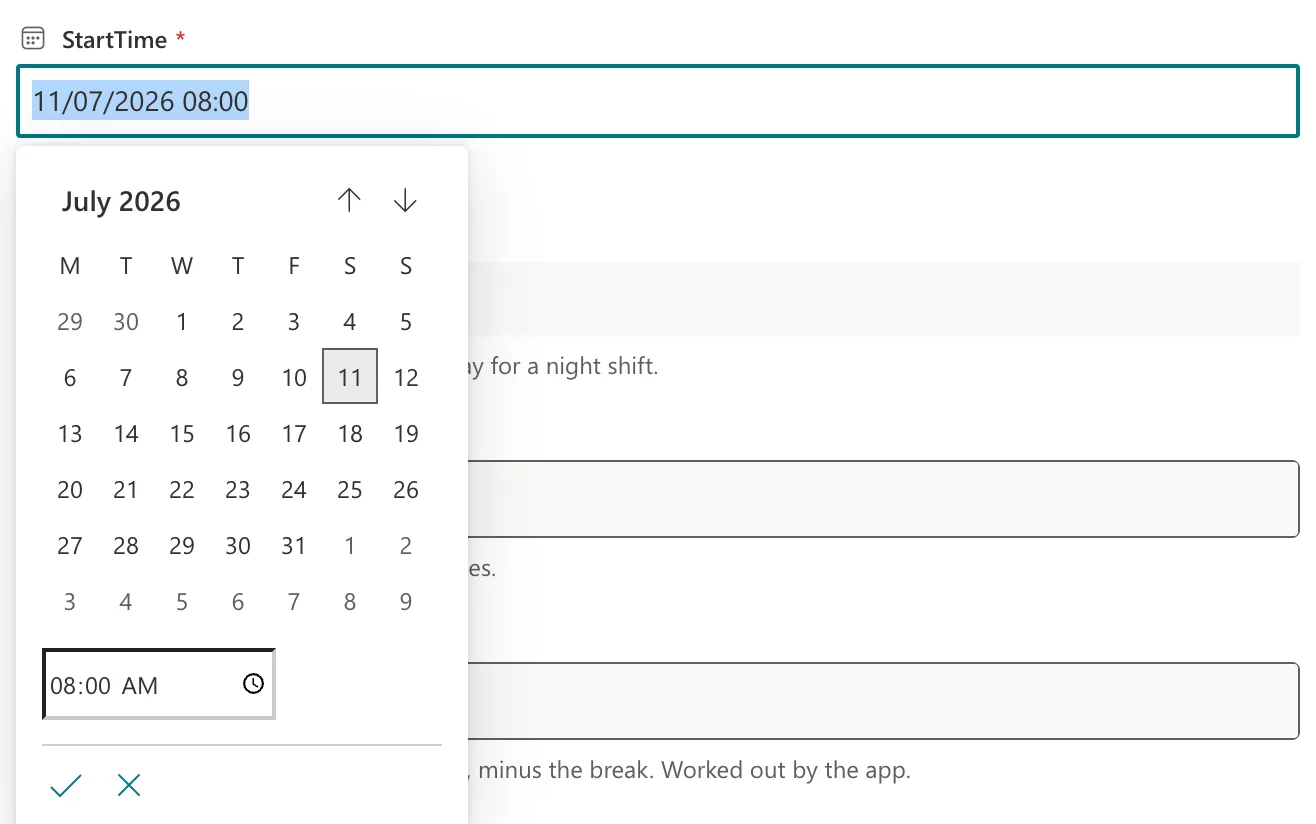
Opening the item to edit it confirmed it. The StartTime calendar opened on July 2026, with the 11th marked:
Nothing warned about it. The list's validation rule, How to Add List Validation in SharePoint to Compare Two Columns, compares the start, the end and the break, and all three were consistent on 11 July.
What I Checked
- The site's regional settings. English (United Kingdom), unchanged since Part 2.
- The form and the columns. Aisha's identical steps saved 7 November, so the list itself wasn't the cause.
- Maya's own SharePoint settings. Her Language and Region page had Always follow web settings ticked, so she follows the site's UK settings.
- Maya's Microsoft 365 regional format. Not set on her account's Language & Region page.
- The culture the page ran with. A SharePoint page reports the culture it uses to its own scripts. At the time, Maya's list page reported English (United States) (
en-US), while classic settings pages on the same site reported English (United Kingdom) for her, and Aisha's list page reported English (United Kingdom). A while later, without any setting being changed, Maya's list page reported English (United Kingdom) too. - Microsoft's documentation. Change regional settings for a site explains that people can choose personal settings that override the site's. I found nothing that explains a user who follows the site getting US settings in the modern form.
Why It Happens
07/11/2026 is a valid date in both orders: 7 November day first, 11 July month first. Typed text is read in the order of the culture the form uses, and in Maya's session the date and time fields read it month first. Since the result was a real date, SharePoint saved it without a message.
Why her session used the US culture while her settings and the site said UK, I couldn't establish: Microsoft's documentation doesn't cover it, and it stopped on its own. What I could establish is the safe way to enter dates.
The Fix
Correct the item by picking the date in the calendar rather than typing it:
- Select the item and Edit.
- Select the StartTime field. The calendar opens on the month the field holds: here July 2026.
- Use the down arrow, Go to next month, until it shows November 2026, and select 7.
- Set the time box to 08:00 and select the ✓ to apply.
- Do the same for EndTime with 12:00, then Save.
Selecting a day in the calendar sets the date itself, so there's no text left for SharePoint to read in the wrong order.
After the Fix
The edit form showed both fields on 7 November:
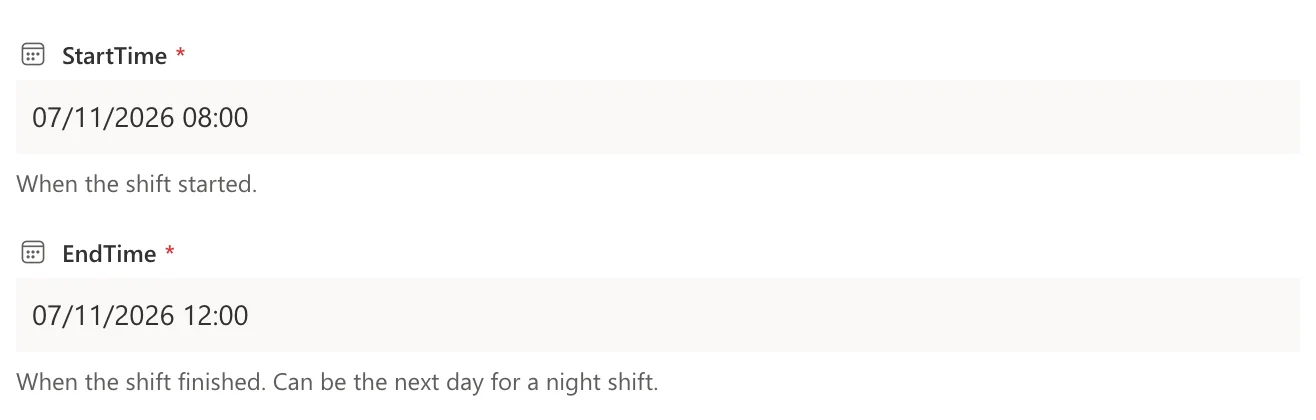
After saving, the list showed 07/11/2026 08:00 and 07/11/2026 12:00, matching the WorkDate, and the item's stored values were 7 November.
Common Mistakes
| Mistake | What happens | Do this instead |
|---|---|---|
| Typing day-first dates and saving straight away | A date with a day of 12 or less can be read month-first | Pick the day in the calendar |
| Checking only the date-only column | It can be right while the date and time columns are wrong | Check every date field before saving |
| Fixing it by typing the date again | It can be read the same way again | Use the calendar's arrows and days |
Troubleshooting
| Symptom | Likely cause | Fix |
|---|---|---|
| A date and time field shows 11/7/2026 after you typed 07/11/2026 | The form read it month first | Open the calendar, check the month, pick the day |
| The calendar opens on the wrong month | The saved date is in that month | Move to the right month and pick the day |
| Only one person's dates go wrong | Their session is using another culture | Have them pick dates from the calendar, and check their personal regional settings |
FAQ
Which dates are at risk?
Only those whose day is 12 or less, such as 07/11/2026: they're valid dates in both orders. A date like 13/11/2026 has only one valid reading, because there's no 13th month.
Where did this happen?
In SharePoint's own New item form, while testing the list's permissions. In the Overtime Timesheet series, staff enter overtime through the app, which later parts build and test separately.
Conclusion
A day-first date typed into a SharePoint date and time field was saved month first for one user, even though the site and her settings were UK. I couldn't find the cause in Microsoft's documentation, and it stopped by itself. Picking the date from the calendar sets it exactly, and that's how the entry was fixed.
