Fixed: Security Role Isn't Assigned After You Create a Team in the Power Platform Admin Center

I created a Microsoft Entra group team, ticked Basic User, selected Save and got a success message. When I opened the team's roles again, nothing was ticked. Selecting Save in the roles pane only opens a confirmation, and the role is assigned when you select Save a second time, in that confirmation.
What I Was Doing
Part 13 of the Career Development Plan series installs the app in a new trial environment. The app's users need read access to its environment variables, which the Basic User role includes, so I gave that role to their security group with a group team (How to Assign a Dataverse Security Role to a Microsoft Entra Group).
In the Power Platform admin center, I opened the environment's Teams, selected Create team, filled in the New team pane with the type Microsoft Entra ID Security Group, and selected Next. The Manage security roles pane opened, I ticked Basic User, and selected Save.
What I Expected
A team for the group, with Basic User.
What I Got
A green bar said Create of team Career Development Plan Users completed successfully, and after a reload the team was in the list. To check the role, I selected the team and Manage security roles. Basic User wasn't ticked, and Save was greyed out, which means there was nothing to save:
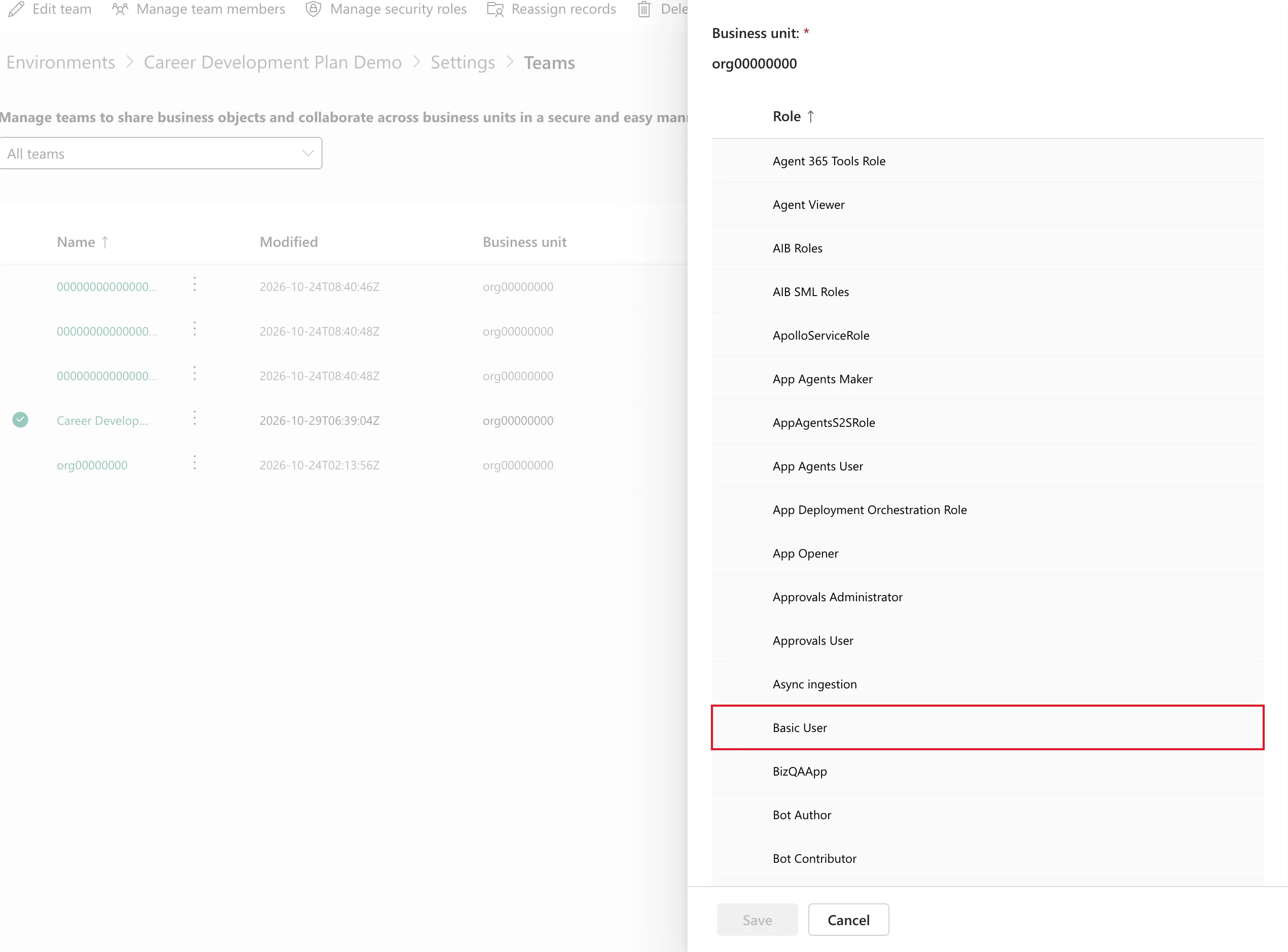
The team existed, without a role.
What I Checked
I ticked Basic User again in that pane and selected Save. No message appeared. I reloaded the page and opened the team's roles once more: still unticked.
So the pane accepted my selection and threw it away, twice. Microsoft's Manage teams has the answer in its steps for a team's roles: Select the role or roles you want, and then select Save twice to confirm.
Why It Happens
The first Save doesn't save. It opens a Role assignment confirmation dialog over the page, which lists the roles and asks again. Only its Save assigns them.
The first two times, I went on as soon as I'd selected Save in the pane, then reloaded the page, so the second Save never happened. On my third try I waited, and the confirmation appeared in the middle of the page, over the list, not in the pane. The team itself was created at the first Save; only the role depends on the confirmation.
The Fix
Open the team's roles, tick the role, and select Save. When the confirmation appears, read it and select Save in it:
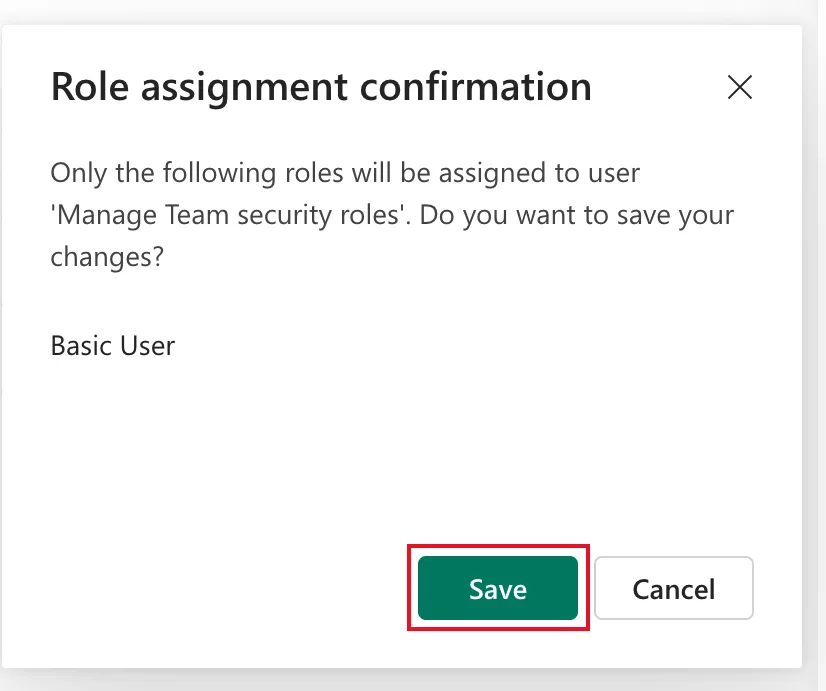
Its wording is odd: it says user, and gives the pane's title, Manage Team security roles, as the name. It's still the team's roles it's confirming: Basic User, the one I ticked.
After the Fix
I reloaded the page, selected the team and opened Manage security roles again. Basic User was ticked, and Save was greyed out because nothing had changed:
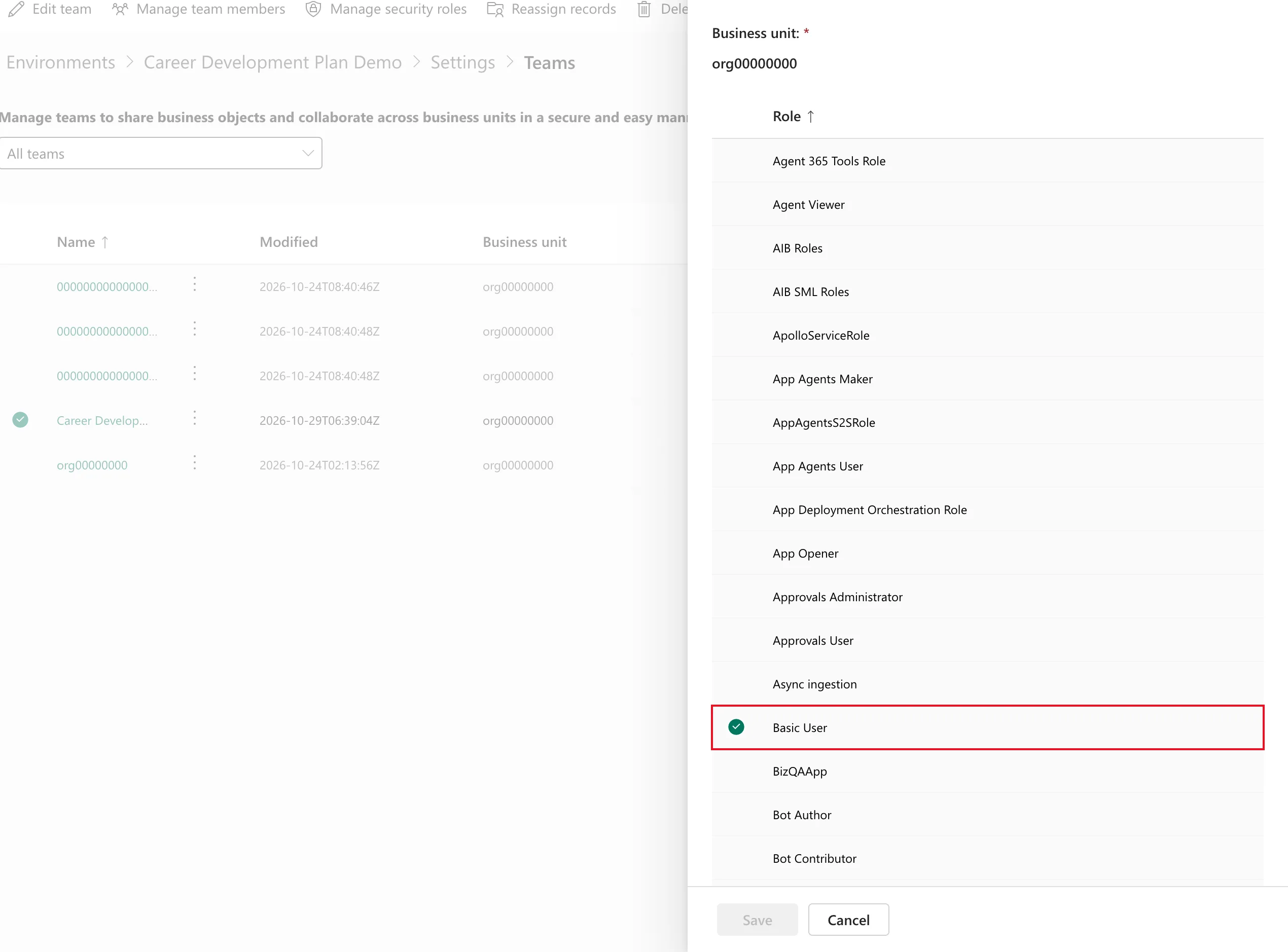
The group's members then opened the app in that environment and used its data.
Common Mistakes
| Mistake | What happens | Do this instead |
|---|---|---|
| Leaving after the first Save | No role is assigned | Wait for the confirmation and select Save in it |
| Trusting Create of team … completed successfully | It confirms the team, not its role | Reopen Manage security roles to check |
| Giving the role to each person instead | It works, but every new person needs it too | Fix the team's role once |
Troubleshooting
| Symptom | Likely cause | Fix |
|---|---|---|
| The role isn't ticked when you reopen the pane | The confirmation's Save wasn't selected | Tick it, Save, Save |
| You don't see a confirmation | It opens in the middle of the page, not in the pane | Look over the list, away from the pane |
| The team's members still can't use data | They haven't signed in since, or have no license | Members get the role when they next access the environment |
FAQ
Why does the confirmation say "user"?
That's the dialog's own wording; for this team it gave the pane's title as the name. What matters is the list of roles under it.
Does the team need to be created again?
No. The team was fine; only its role was missing. Add the role to the existing team.
Conclusion
The Manage security roles pane needs two Save selections: one in the pane and one in the Role assignment confirmation that follows. Microsoft's article says so in one line, and a team created without the second one has no role. Reopen the pane afterwards to check.
Additional Resources
- Manage teams: Manage the security roles of a team: the steps, with Save twice.
- Manage group teams: Microsoft Entra group teams.
