Fixed: "Revise Screen Name" in the Power Apps App Checker

The Power Apps App checker shows a tip on Screen1 under Accessibility: Revise screen name. A screen reader announces a screen's name each time the screen opens, and "Screen1" doesn't tell anyone where they are. Rename the screen after what it's for, select Recheck, and the tip is gone.
What I Was Doing
Part 5 of the Overtime Timesheet series builds the app's first screen, the Home screen. The app was created in Part 4 as a blank tablet app, so its only screen had the name Power Apps gives every new screen: Screen1.
Before adding anything to the screen, I opened the App checker, the stethoscope icon at the right end of Studio's command bar, to see where the app stood.
What I Expected
The screen was still empty: no labels, no buttons, nothing to tab to. With nothing on the screen to check, the Accessibility category should have had no count.
What I Got
The checker showed Accessibility (1):
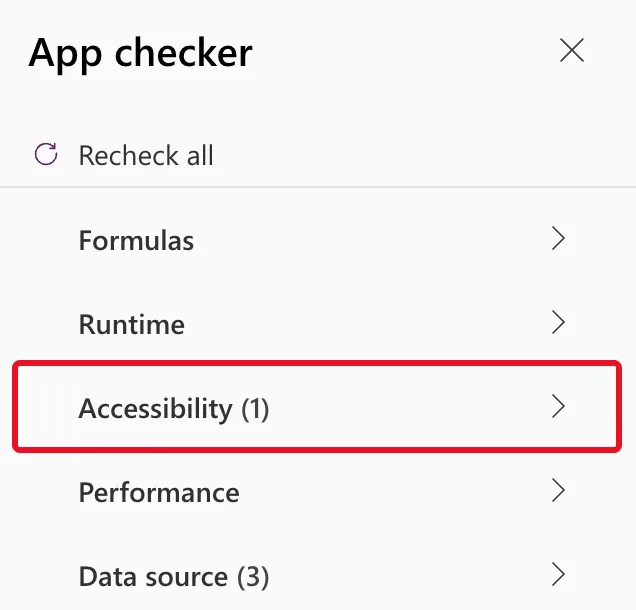
Data source (3) was the three data sources no formula used yet, which Fixed: "Unused Data Sources" covers.
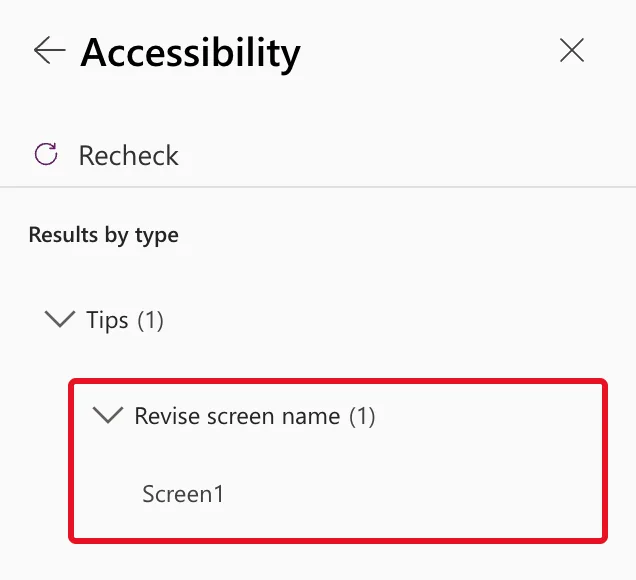
Selecting Accessibility showed one item, under Tips: Revise screen name (1), on Screen1:
I selected Screen1 under the tip, then the arrow that appears next to it, to open the details:
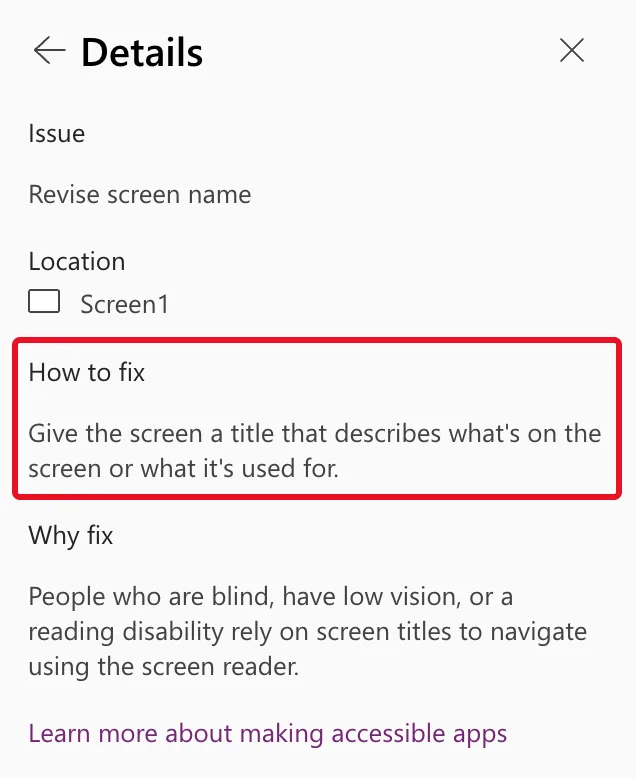
Issue
Revise screen name

Location
Screen1

How to fix
Give the screen a title that describes what's on the screen or what it's used for.

Why fix
People who are blind, have low vision, or a reading disability rely on screen titles to navigate using the screen reader.
What I Checked
- How serious it is. Microsoft's accessibility checker article sorts every finding into errors, warnings and tips. Tips help you improve the experience of users who have a disability. Nothing is broken: the app runs and publishes as it is.
- When this tip appears. The same article's table lists Revise screen name as a tip shown when a screen has a default name, which will be read out by screen readers when users navigate the app.
- What a screen reader does with the name. Organize controls in accessible canvas apps says screen readers say a screen's name when it loads. The name is the first element on the screen, hidden from sight and read only by screen readers.
Why It Happens
Power Apps names new screens Screen1, Screen2 and so on. The checker flags a screen for as long as it keeps that default name, because the name is the first thing a screen reader user hears when the screen opens, and "Screen1" doesn't say whether they're on the home page, a form or a report. An empty screen is enough to trigger it: the check is about the screen itself, not its controls.
The Fix
Rename the screen after what it's for. In the Tree view:
- Hover over Screen1 and select More options (…).
- Select Rename.
- Type
Home Screenand press Enter.
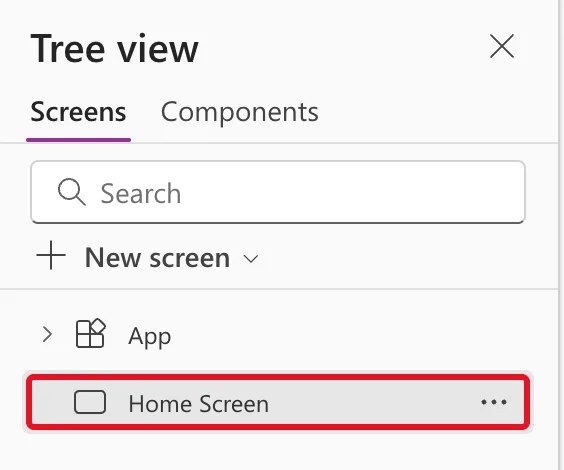
The tree now lists the screen by its new name:
How to Rename a Screen or Control in Power Apps has every step with screenshots, and the F2 shortcut. Screen names may contain spaces. Formulas then put the name in single quotes, as in 'Home Screen'.
After the Fix
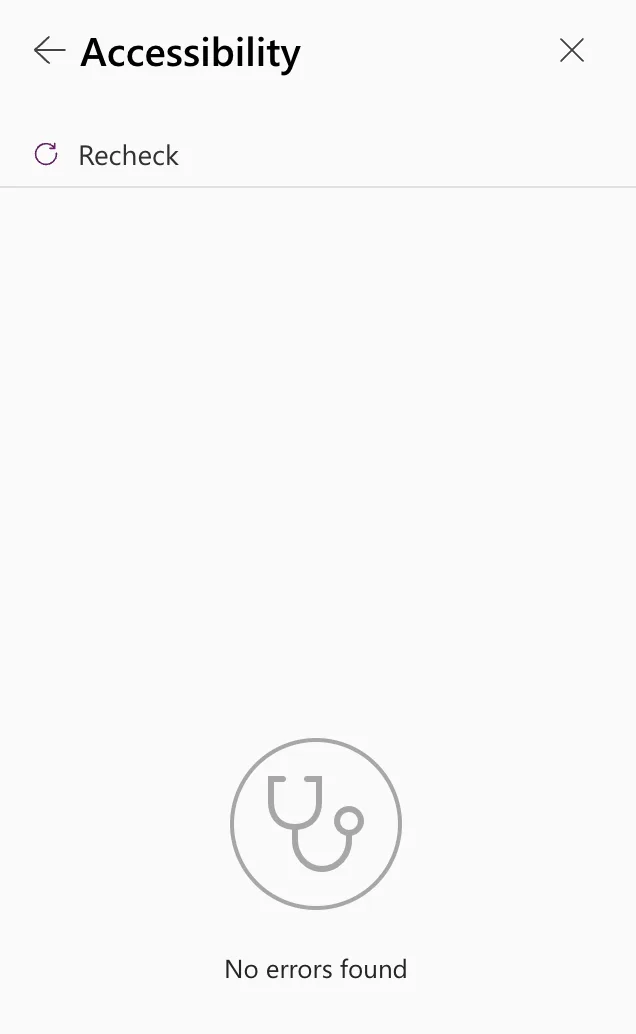
I went back from Details with the pane's own back arrow. The list still showed the tip, now pointing at Home Screen: the checker doesn't run again by itself. I selected Recheck, and Accessibility said No errors found:
Common Mistakes
| Mistake | What happens | Do this instead |
|---|---|---|
| Leaving the tip because it's only a tip | Screen reader users hear "Screen1" every time the screen opens | Rename each screen as soon as you add it |
| Naming screens by position, such as Page 1 | The tip goes away, but the name still says nothing | Name the purpose: Home Screen, Log Overtime Screen |
| Waiting for the list to update | The tip stays, now showing the new name | Select Recheck |
Troubleshooting
| Symptom | Likely cause | Fix |
|---|---|---|
| The tip is still listed after the rename | The checker hasn't run again | Select Recheck |
| Rename isn't in the menu | The menu belongs to another item | Hover over the screen itself, then … |
| A formula shows an error after the rename | It refers to the new name without quotes | Write it as 'Home Screen' |
FAQ
Is "Revise screen name" an error?
No. It's a tip, the lowest of the checker's three levels, and the app runs and publishes with it. It still deserves the few seconds it takes, because every screen reader user hears the name.
Does a heading label on the screen count as its name?
No. The check reads the screen's own name. A visible heading is a separate control, and it helps too: How to Add a Heading for Screen Readers in Power Apps.
Do I have to fix formulas after renaming?
Microsoft's documentation on renaming says formulas that refer to a control are updated with its new name. In the example, the screen was renamed before any formula referred to it.
Conclusion
Revise screen name means a screen still has its default name, the name screen readers announce when it opens. Rename it after what it's for, such as Home Screen, select Recheck, and the checker shows No errors found.
Additional Resources
- Review a canvas app for accessibility in Power Apps: severity levels and every check, including Revise screen name.
- Organize controls in accessible canvas apps: meaningful screen names and when screen readers announce them.
- Screen control in Power Apps: the screen's accessibility guidelines.
