Fixed: Power Query Shows [List] for a SharePoint Choice Column

Power Query showed [List] in every cell of a SharePoint Status column, where I expected Approved, Rejected or Submitted. In SharePoint, the column turned out to be a Choice column with Allow multiple selections on, and no choices defined. Turning multiple selections off, and adding the three choices, made Power Query read it as text.
What I Was Doing
I was getting data from a SharePoint list called Expenses into a Power BI semantic model in the browser (How to Get Data from a SharePoint List in Power BI in the Browser). I had created the list from a CSV file, whose Status column held one word per row: Approved, Rejected or Submitted (Fixed: SharePoint List Created from a CSV Shows Dates a Day Early).
What I Expected
A Status column of text, like Category next to it, ready to filter on Approved.
What I Got
Every Status cell read [List], a column of lists, with the ABC 123 icon of an untyped column:
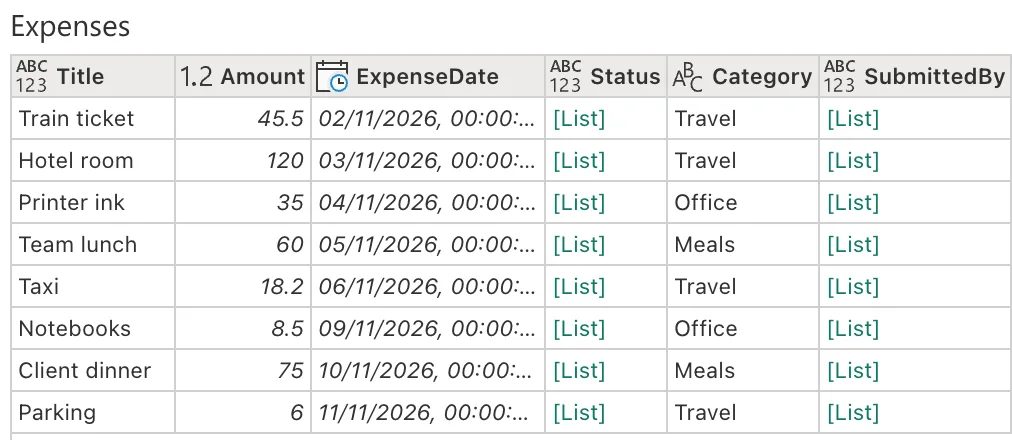
SubmittedBy, a Person column, showed [List] too, which is expected for people. Status wasn't a Person column.
What I Checked
The column in SharePoint. In the list, Status > Column settings > Edit showed a Choice column. Under More options, Allow multiple selections was Yes:
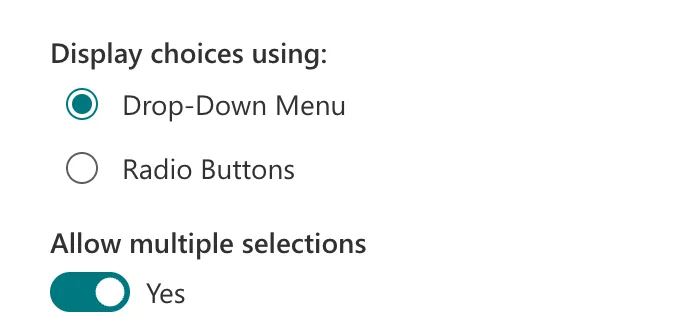
The column also had no choices defined: the import had kept the values on the items without listing them as choices, and Save stayed disabled until I added some.
What the setting means. Microsoft's List and library column types and options describes a Choice column, and the option to allow several selections. A column that can hold several values gives a list per row, which is what Power Query showed.
Why It Happens
When I created the list from the CSV file, SharePoint set up Status as a Choice column that allows multiple selections. Each item's value is then a list of choices, even when it holds one, and the SharePoint Online list connector passes that list to Power Query. Microsoft's article on creating a list based on a spreadsheet asks you to check the columns of the list to make sure that the data was imported as you expected; it doesn't say how the import chooses column types.
The Fix
In the list, open Status > Column settings > Edit:
- Add the three choices, Submitted, Approved and Rejected.
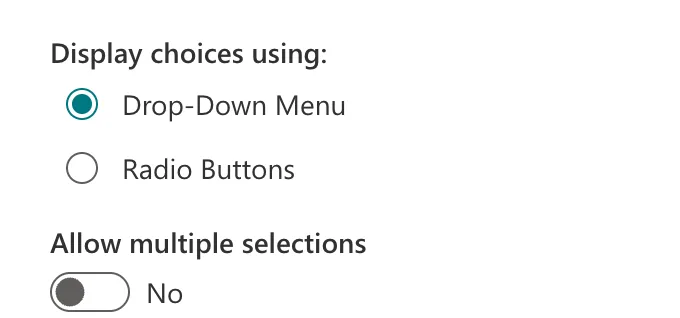
- Under More options, turn Allow multiple selections to No:
- Select Save. SharePoint asks to confirm:
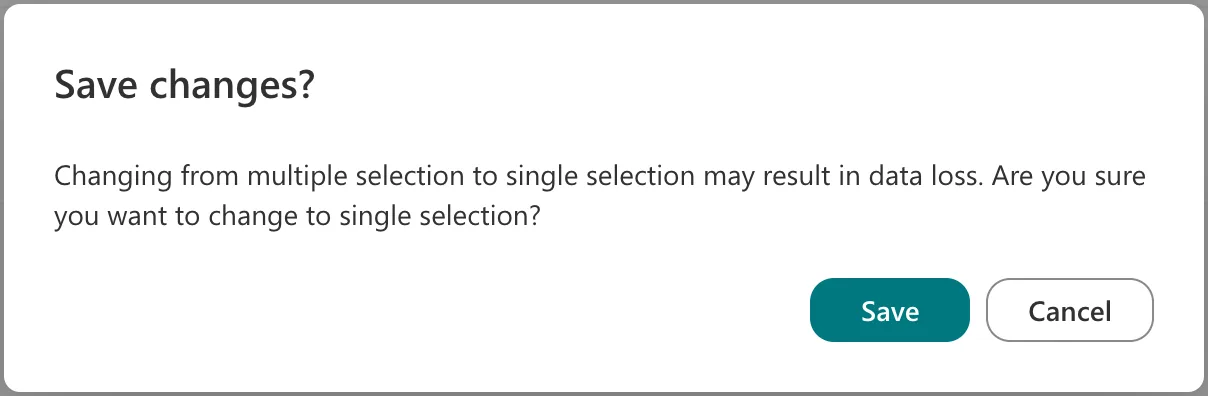
Every item held one value, so nothing could be lost; I selected Save. If some of your items hold several choices, keep the column as it is and expand the lists in Power Query instead.
After the Fix
After refreshing the preview in Power Query, Status came in as text, with the ABC icon, and showed each item's value:
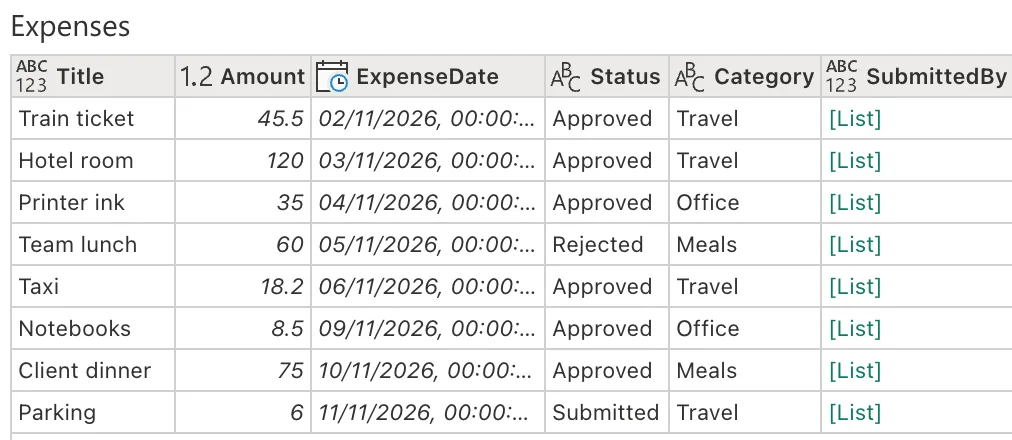
The filter on Approved worked as expected (How to Filter Rows by Two Conditions in Power Query).
Common Mistakes
| Mistake | What happens | Do this instead |
|---|---|---|
| Expanding the lists in Power Query when each holds one value | An extra step for a column that should be text | Fix the column in SharePoint |
| Switching to single selection when items hold several choices | SharePoint warns that data may be lost | Keep multiple selections and expand in Power Query |
| Trusting the column types of an imported list | Columns can come in with options you didn't expect | Check each column after importing |
Troubleshooting
| Symptom | Likely cause | Fix |
|---|---|---|
| [List] in a Choice column | Allow multiple selections is Yes | Set it to No, if one value per item is right |
| Save is disabled in the column settings | The Choice column has no choices | Add the choices |
| [List] in a Person column | Person columns come in as lists | Expand it (How to Get the Email from a SharePoint Person Column in Power Query) |
FAQ
Can I keep multiple selections and still use the column?
Yes: expand the list column in Power Query, which gives a row per selected value.
Did the existing values survive the change?
Yes. Each item kept its value, as the screenshot after the fix shows.
Conclusion
A SharePoint Choice column with Allow multiple selections on comes into Power Query as [List]. When each item holds one value, set it to No in the column settings, add the choices, and confirm; Power Query then reads it as text.
Additional Resources
- List and library column types and options
- Create a list based on a spreadsheet
- Power Query SharePoint Online list connector
