Fixed: Power Apps Avatar Shows a Grey Person Icon Instead of Initials

The modern Avatar control is supposed to show a person's initials when they have no photo. With its default settings, for a user without a photo, it showed a grey person silhouette instead. The cause is User().Image, which returns a default picture rather than nothing. One check with Office 365 Users brings the initials back.
The Problem
The Avatar's defaults are Image = User().Image and Name = User().FullName. For the example's admin account, which has no photo, it showed this:
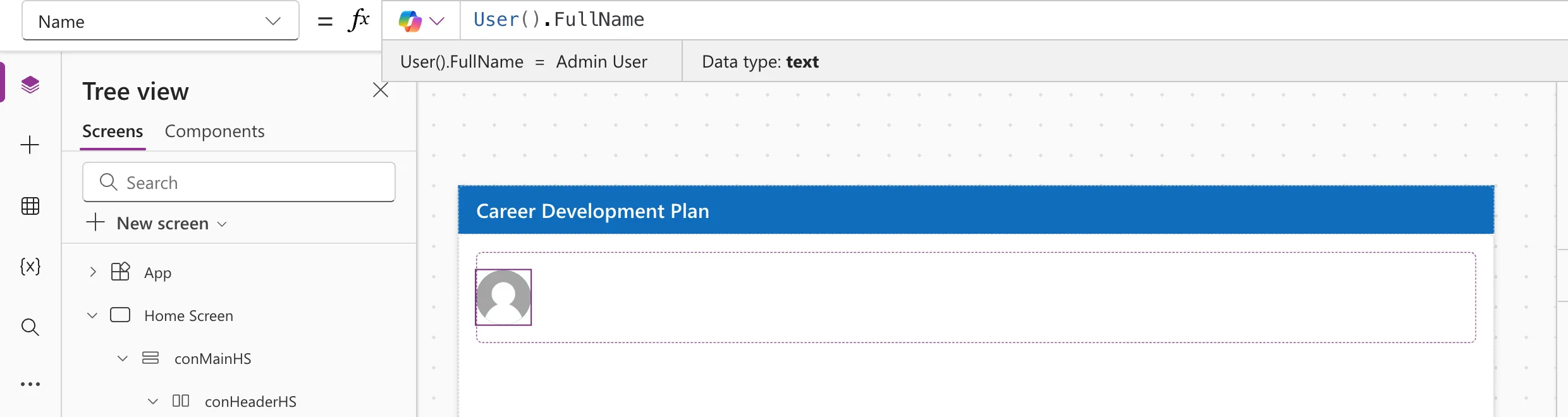
The Name has a value, so initials were expected.
Why It Happens
Microsoft's Avatar documentation describes the order: the control shows the image in Image, falls back to initials from Name when there's no image, and shows a generic person icon only when neither is available.
But User().Image wasn't empty. The preview strip showed an image even for this account:
![The formula bar with the Image property set to User().Image, the preview strip showing [Image] with Data type image, and the grey silhouette in the avatar](https://strdewiridedevblogsprod.blob.core.windows.net/images/blog/power-platform/power-apps/2026/pa-avatar-02-avatar-image-user-image.webp)
So the Avatar did what it was told: it displayed the image it was given, a default silhouette.
Diagnosis: Does the User Have a Photo?
The Office 365 Users connector has Get user photo metadata, which says whether a photo exists:
Office365Users.UserPhotoMetadata(User().Email).HasPhoto
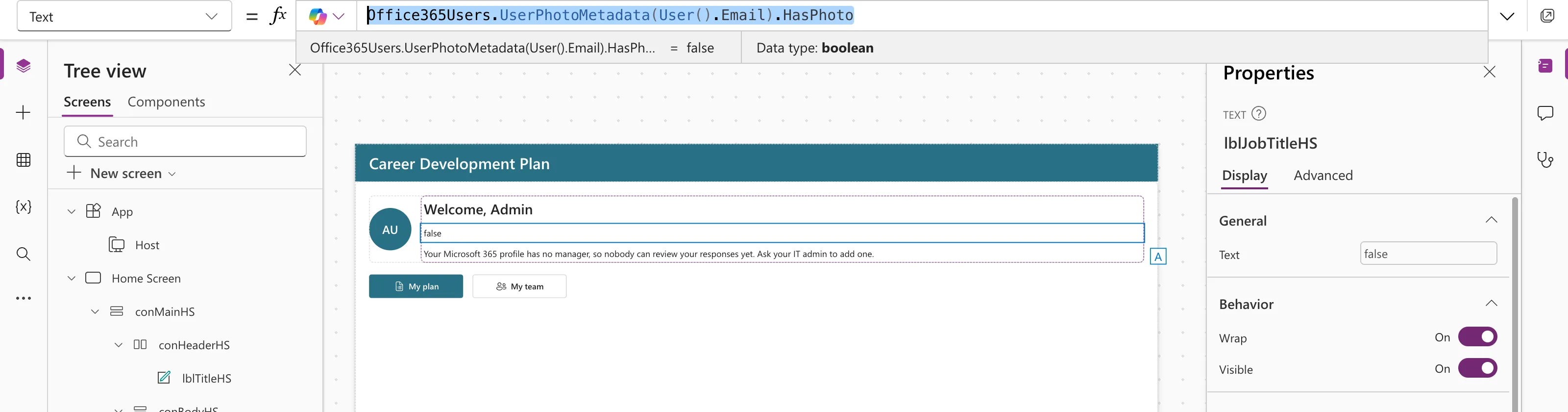
false: no photo, yet User().Image returned a picture.
The Fix: Only Use the Image When There's a Photo
Set the Avatar's Image to use User().Image only when HasPhoto is true:
If(Office365Users.UserPhotoMetadata(User().Email).HasPhoto, User().Image)
An If without an else returns blank when the condition is false, so for people without a photo, Image is blank and the Avatar falls back to initials:
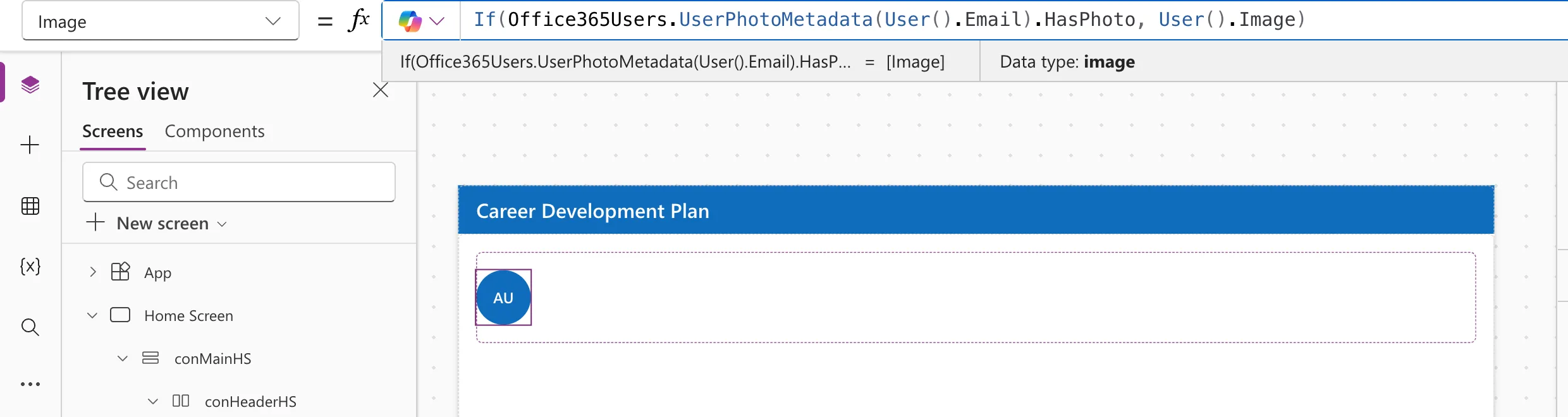
People who do have a photo still see it.
Prerequisites for the Fix
- The Office 365 Users data source in the app. It's a standard connector; see Part 3 of the Career Development Plan series.
Common Mistakes
| Mistake | What happens | Do this instead |
|---|---|---|
Setting Image to Blank() for everyone | Nobody sees their photo | Check HasPhoto first |
Checking IsBlank(User().Image) | It isn't blank | Use UserPhotoMetadata |
| Calling the photo check in many gallery rows | One connector call per row | Use it for the signed-in user, or accept the extra calls |
Troubleshooting
| Symptom | Likely cause | Fix |
|---|---|---|
| Still a silhouette | Image still User().Image alone | Apply the formula above |
| A generic person icon even after the fix | Name is empty too | Set Name, for example to User().FullName |
Office365Users is unknown | The connector isn't added | Add Office 365 Users in Data |
FAQ
What else does UserPhotoMetadata return?
HasPhoto, Height, Width, ContentType and ImageFileExtension, according to the connector reference.
Does this work for other people's avatars?
Yes. Pass their user principal name or ID instead of User().Email, and use their photo from Office 365 Users.
Where do the initials come from?
From Name. With User().FullName, it's the first letters of the first and last names.
Conclusion
User().Image returns a default silhouette for people without a photo, so the Avatar never reaches its initials fallback. Wrap it in If(Office365Users.UserPhotoMetadata(User().Email).HasPhoto, User().Image) and the Avatar shows a photo when there is one and initials when there isn't.
Additional Resources
- Avatar modern control: the image, initials and icon fallbacks.
- Office 365 Users connector: Get user photo metadata.
- User function:
User().Image.
