Fixed: "Only 1 item can be selected" When Changing a User's Manager in Microsoft Entra

When I changed a user's manager in the Microsoft Entra admin center, ticking the new manager gave me Only 1 item can be selected, and Select went grey. The old manager was still in the Selected list. Removing them with the bin icon next to their name cleared the message.
What I Was Doing
For the Overtime Timesheet series, I was moving Aisha Khan from the sales team to the Emergency Department. Her manager had to change from Daniel Brooks to Olivia Bennett, who manages that department.
-
In the Microsoft Entra admin center, I opened Entra ID → Users → Aisha Khan and selected Edit properties.
-
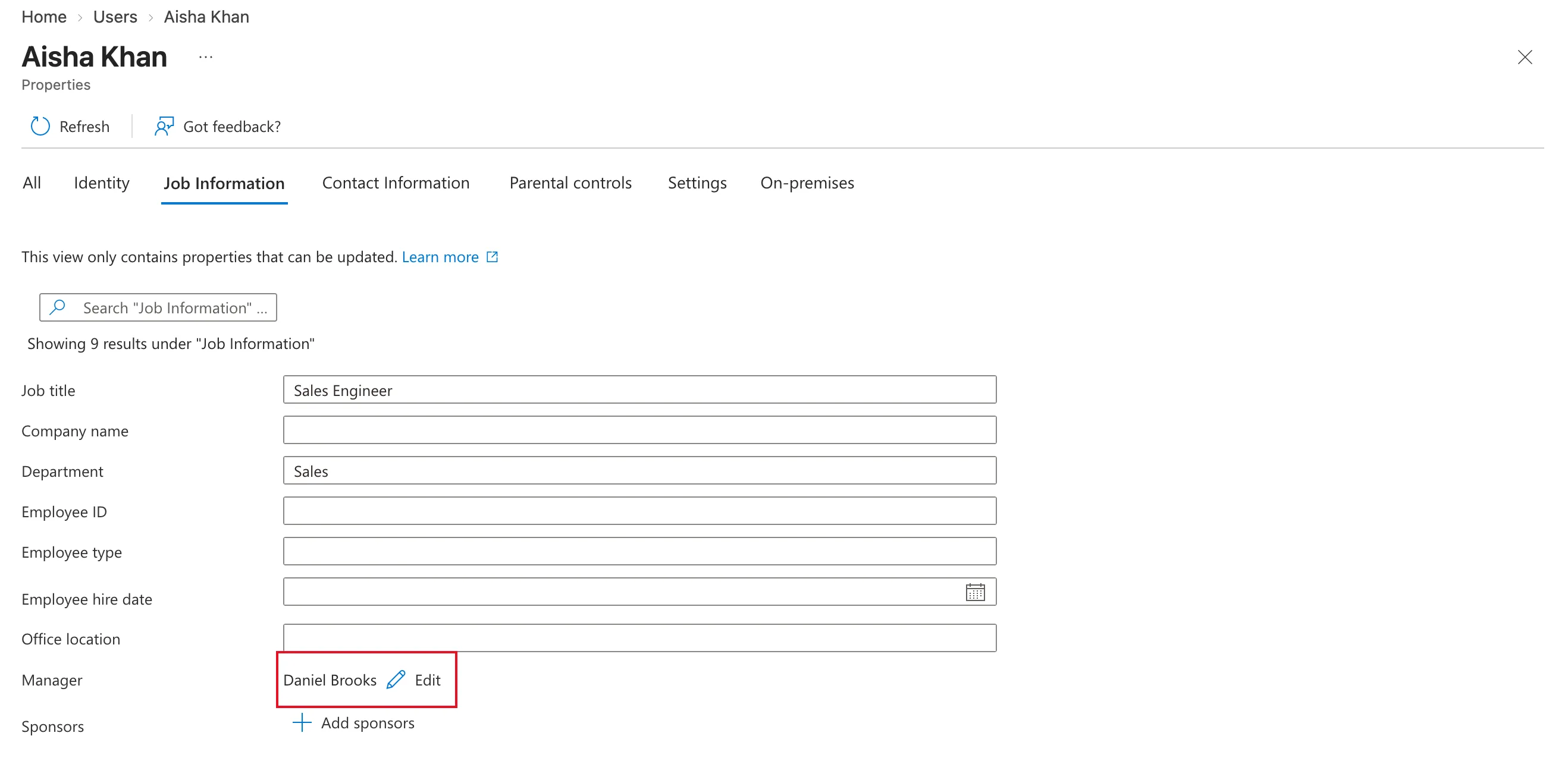
On the Job Information tab, the Manager row showed Daniel Brooks with an Edit link. I selected Edit.
-
In the Edit Manager panel, I typed
Oliviain its Search box and ticked Olivia Bennett.
What I Expected
Olivia replacing Daniel under Selected, and Select ready to use, the same as when setting a manager for the first time.
What I Got
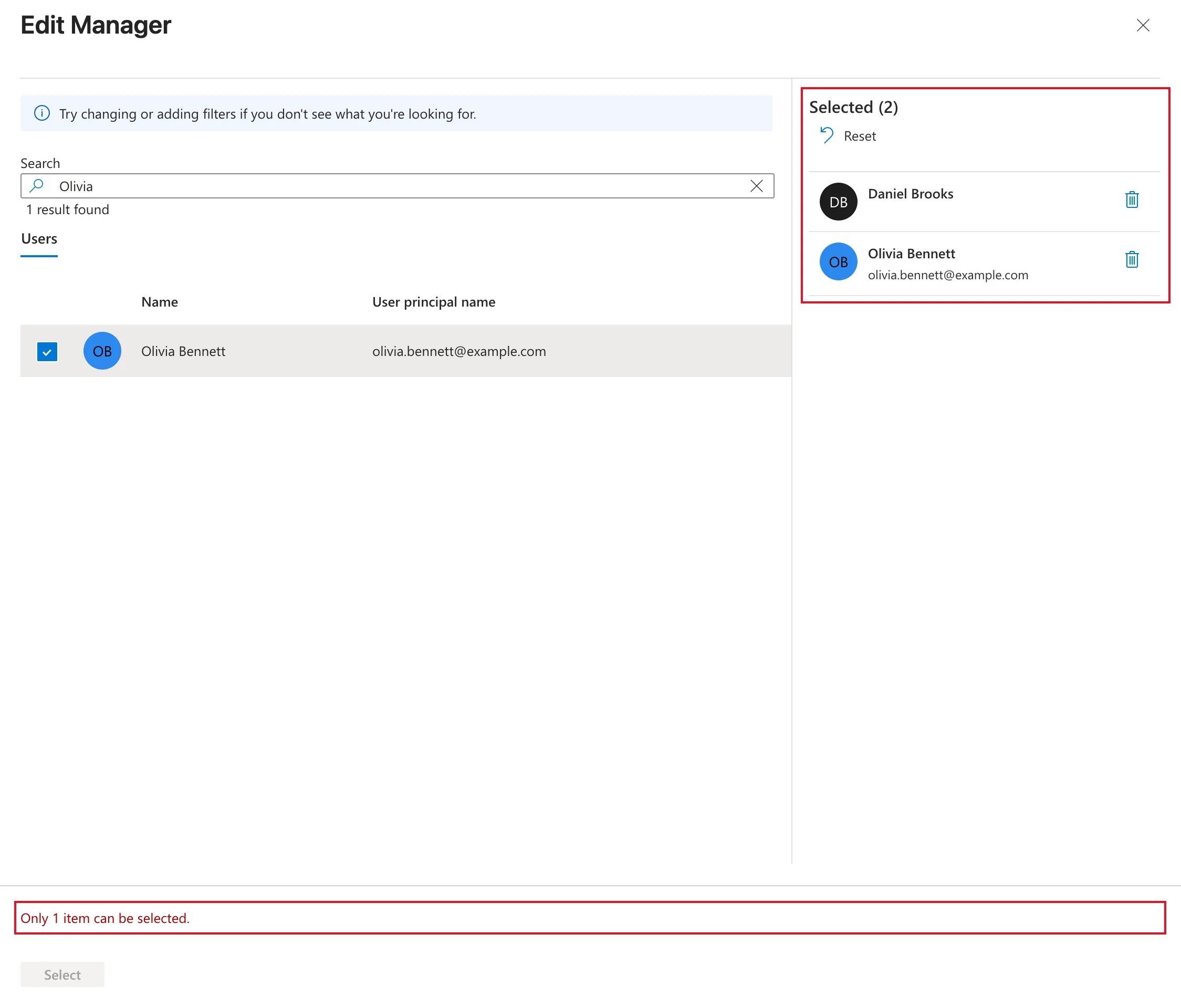
The right-hand side said Selected (2) and listed both Daniel Brooks and Olivia Bennett. At the bottom, in red: Only 1 item can be selected. Select was greyed out:
What I Checked
- What the panel was showing. Selected isn't only what you tick in this search: it starts with the person who's already the manager. Daniel was there before I searched for anyone.
- Whether a user can have two managers. No. Manager holds one person, which is why the panel stops at one. Sponsors, the field below it, is for something else: the people responsible for a guest user.
- Microsoft's documentation. Add or update a user's profile information and settings describes editing Job Information, including the manager, but doesn't mention the current manager staying selected when you pick a new one.
Why It Happens
When you open Edit Manager for someone who already has a manager, the panel lists the current manager under Selected. Ticking someone new adds to that list instead of replacing it, so you have two people selected for a field that takes one.
The Fix
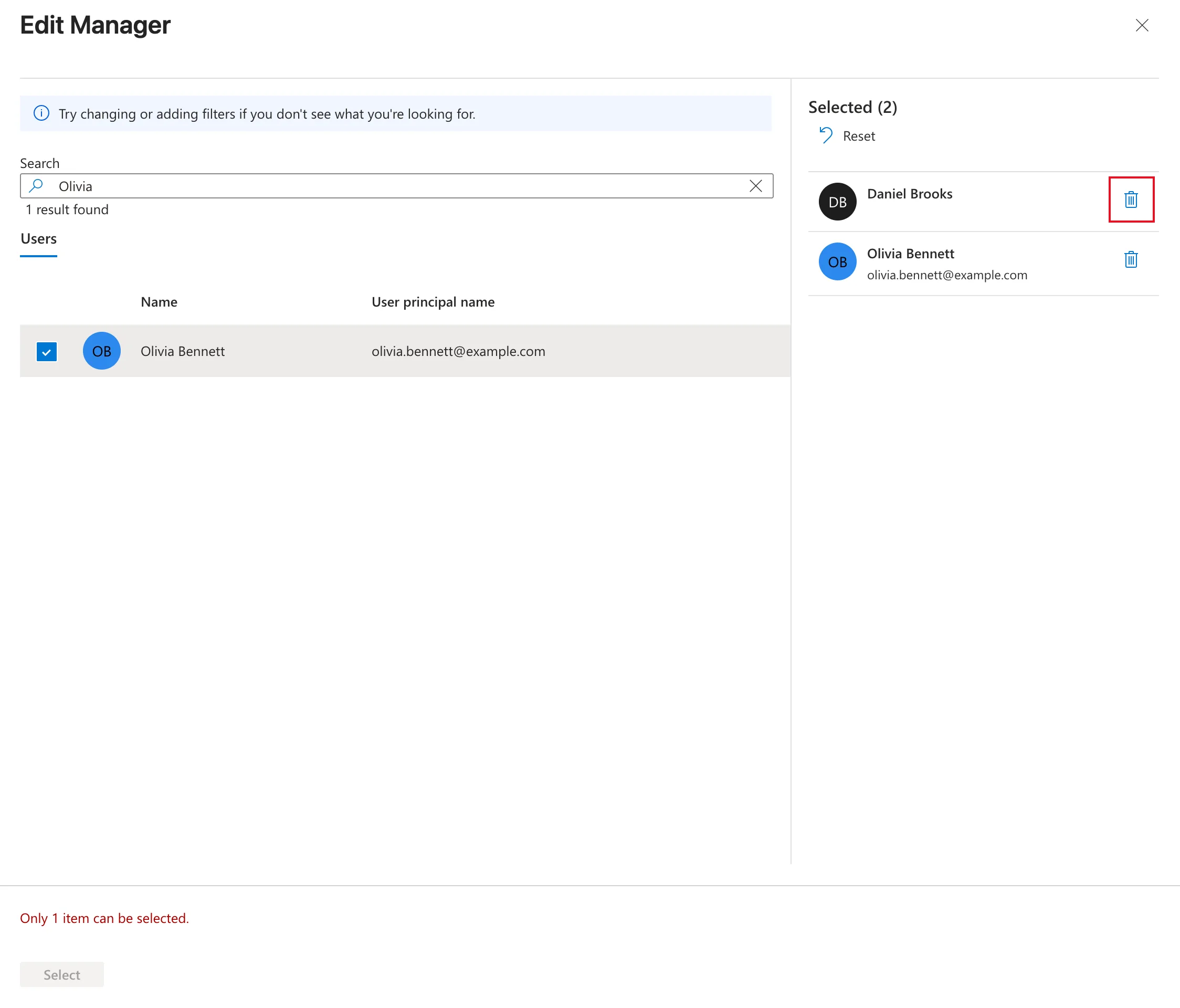
Remove the current manager from the Selected list. Each person there has a bin icon at the right of their name. I selected the one next to Daniel Brooks, labelled Remove Daniel Brooks:
The list dropped to Selected (1) with only Olivia, the message disappeared, and Select worked again:
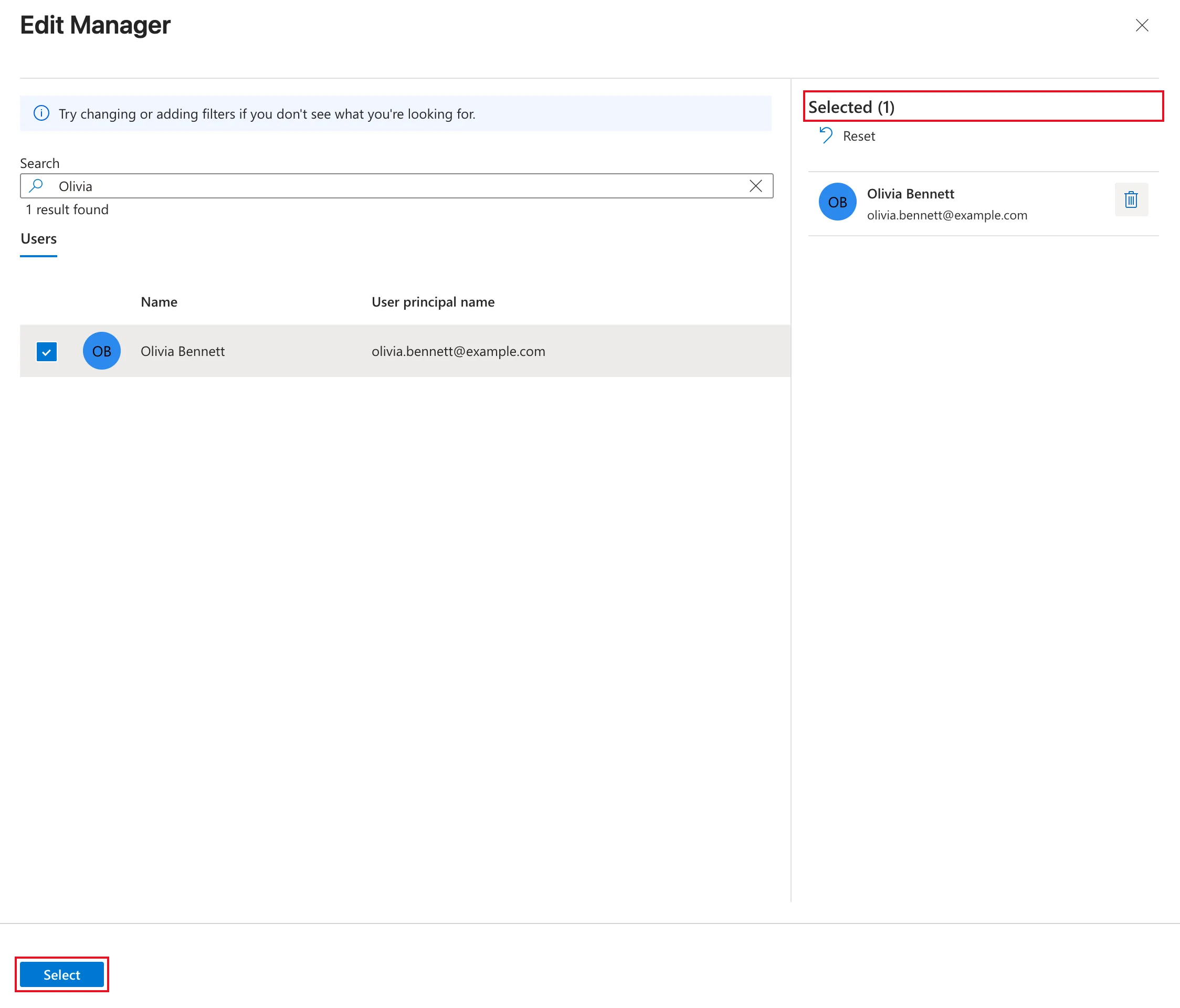
I selected Select, then Save at the bottom of the Job Information tab. How to Change a User's Manager in Microsoft Entra has the whole change, step by step.
After the Fix
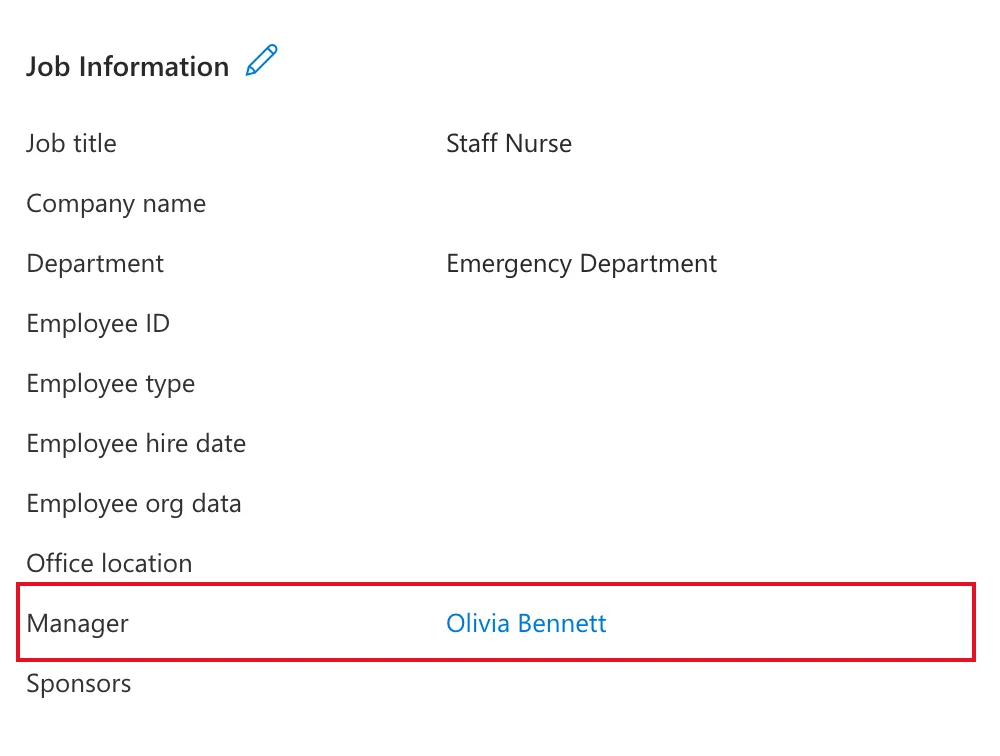
Aisha's Properties tab shows Olivia Bennett as her manager, along with her new job title and department:
Common Mistakes
| Mistake | What happens | Do this instead |
|---|---|---|
| Ticking the new manager and selecting Select straight away | Select is greyed out while two people are selected | Remove the current manager first |
| Forgetting Save after Select | The panel closes but nothing is stored | Select Save on the Job Information tab |
| Adding the new manager as a sponsor | Sponsors are for guest users, and the manager doesn't change | Use the Manager row |
Troubleshooting
| Symptom | Likely cause | Fix |
|---|---|---|
| Only 1 item can be selected. | The current manager is still under Selected | Remove them with the bin icon |
| Searching finds nobody | You typed into the portal's search bar at the top of the page | Use the Search box inside the Edit Manager panel |
| Properties still shows the old manager after saving | The tab was already open before the change | Reload the browser page (Fixed: Microsoft Entra Admin Center Shows the Old Job Title After Saving) |
FAQ
Do I have to clear the manager in a separate save first?
No. Removing the old manager and picking the new one in the same panel, then one Save, is enough.
Does the old manager lose anything?
No. Only Aisha's Manager field changes. Daniel's account and his other direct reports stay as they were.
Can I change the manager with PowerShell instead?
Yes. Setting a manager with Set-MgUserManagerByRef replaces the one that's there. How to Set a User's Manager and Job Title shows the command.
Conclusion
Only 1 item can be selected means the current manager is still selected. Remove them with the bin icon next to their name, then Select and Save.
