Fixed: One or More Commands Are Unavailable Due to Your Current Privileges for This Environment

You open a solution in Power Apps and a yellow bar across the top says One or more commands are unavailable due to your current privileges for this environment. Nothing is broken. Your Dataverse security role simply doesn't allow some of the solution's commands, so Power Apps hides or disables them.
The Warning
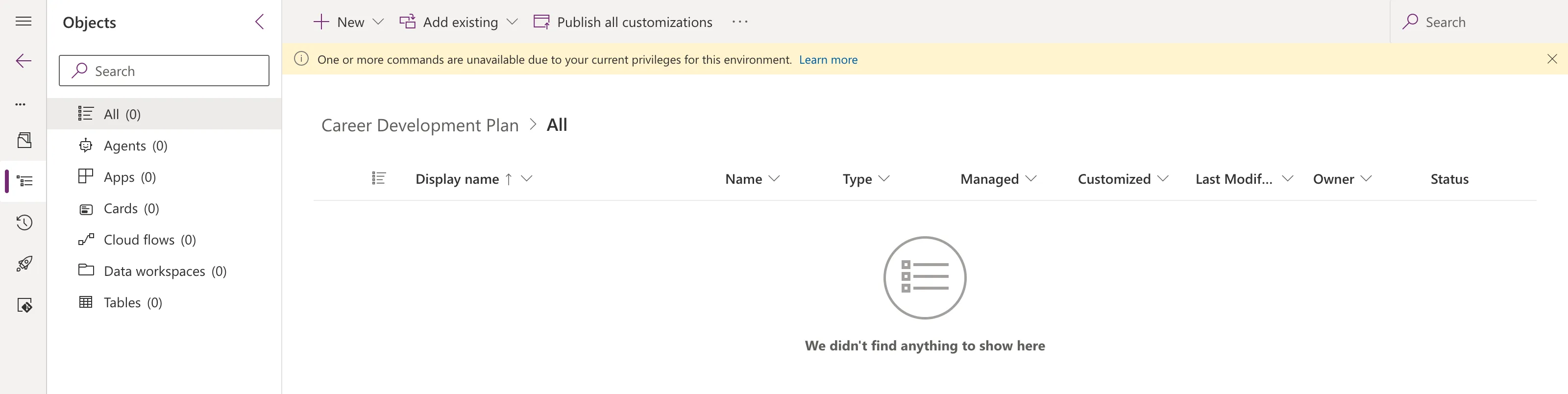
One or more commands are unavailable due to your current privileges for this environment.
Its Learn more link goes to Microsoft's article on Dataverse security roles, which is the clue.
What It Means
In an environment with Dataverse, what you can do depends on your Dataverse security roles, not on your Microsoft 365 admin role. This warning appears when your role is Environment Maker: enough to build apps, but not to customize everything.
Two places show what's missing. New → Table is greyed out:
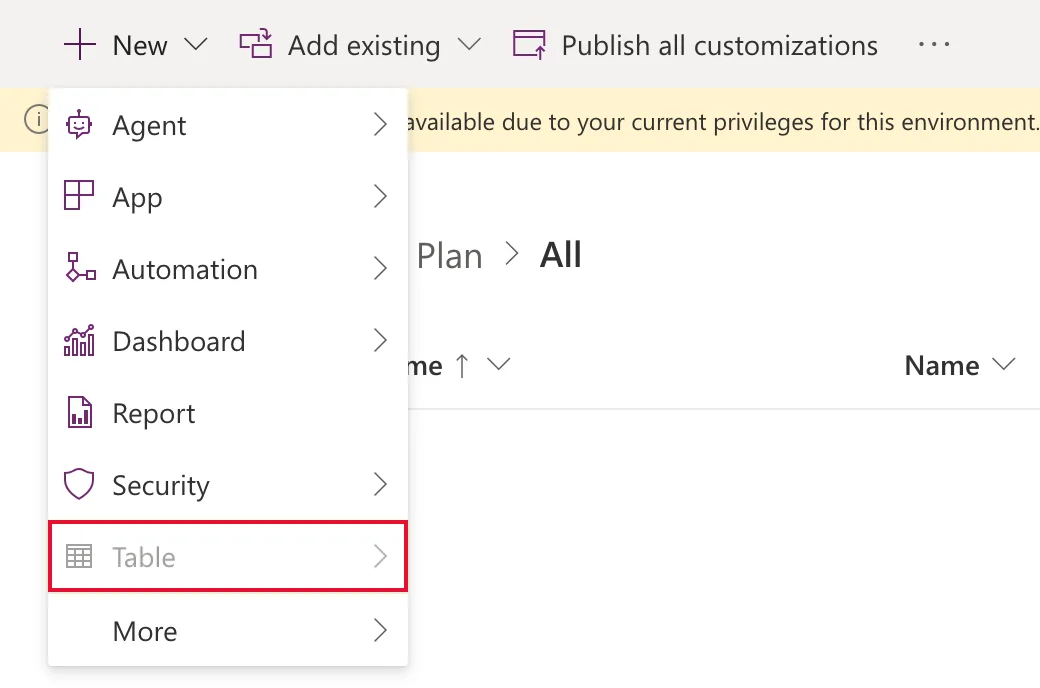
Microsoft's documentation is clear that creating a Dataverse table needs the System Customizer or System Administrator role; without one, the option to create a table is disabled. And More commands (...) offers only Switch to classic:

Do You Need to Fix It?
It depends on what you're building:
| You want to | Environment Maker is enough? |
|---|---|
| Create a publisher and a solution | Yes. That's how the solution in the screenshot was created |
| Create canvas apps and environment variables | Yes, according to Microsoft's role descriptions |
| Create Dataverse tables | No: System Customizer or System Administrator |
| Assign security roles, administer the environment | No: System Administrator |
If you only build canvas apps on SharePoint, you can leave the warning there. If you need tables, or you're the admin who looks after the environment, get the role below.
Prerequisites
- For Fix 1: the Global Administrator, Power Platform Administrator or Dynamics 365 Administrator role, assigned to your account directly.
- For Fix 2: someone who is System Administrator of the environment.
Fix 1: Make Yourself System Administrator (Admins)
If you're a tenant admin, give yourself the role. In the Power Platform admin center, open Manage → Environments → the environment, and select Membership:

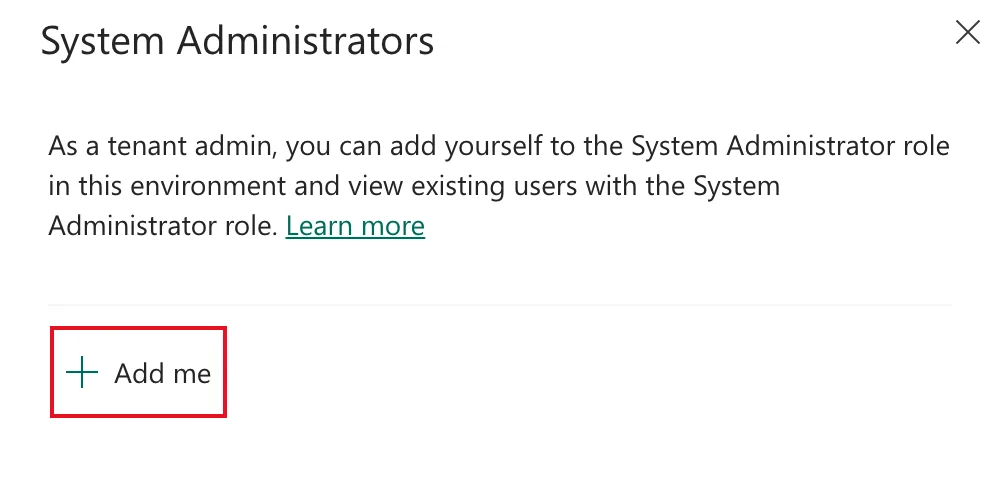
In the System Administrators pane, select Add me:
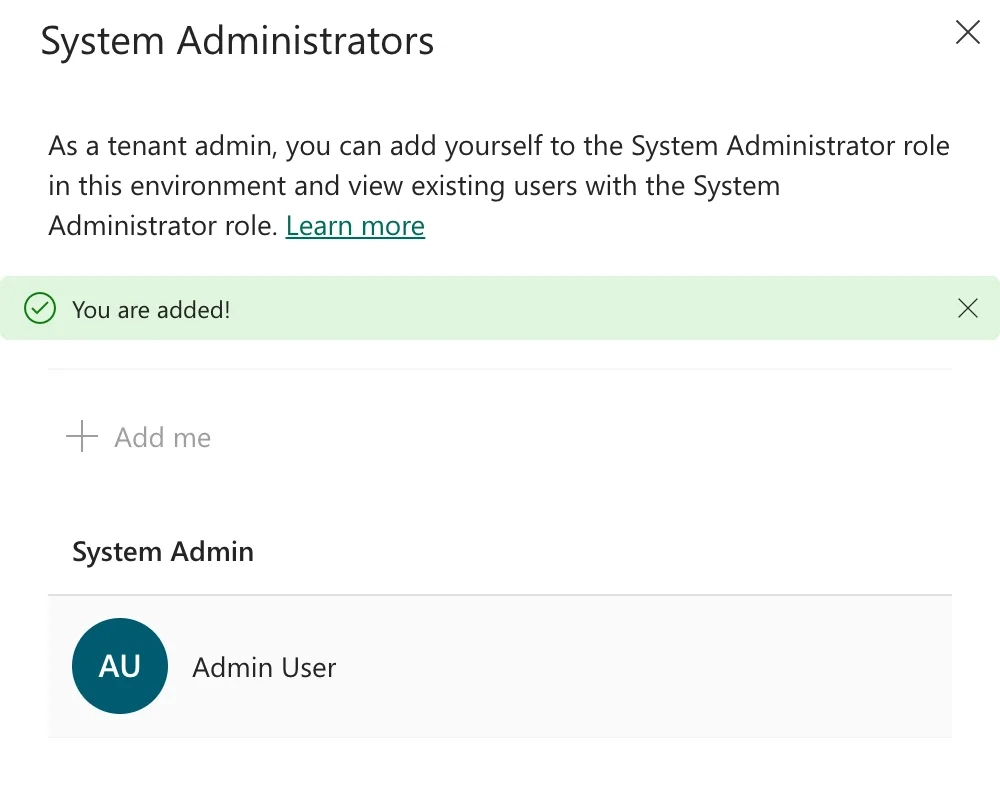
The pane confirms You are added! and lists you under System Admin:
How to Make Yourself System Administrator of a Power Platform Environment covers this step by step, including what the role allows.
Fix 2: Ask for System Customizer (Makers)
If you're a maker who needs to create tables but not to administer the environment, System Customizer is the narrower role. A System Administrator assigns it under Settings → Users + permissions → Users → your name → Manage security roles.
The Result
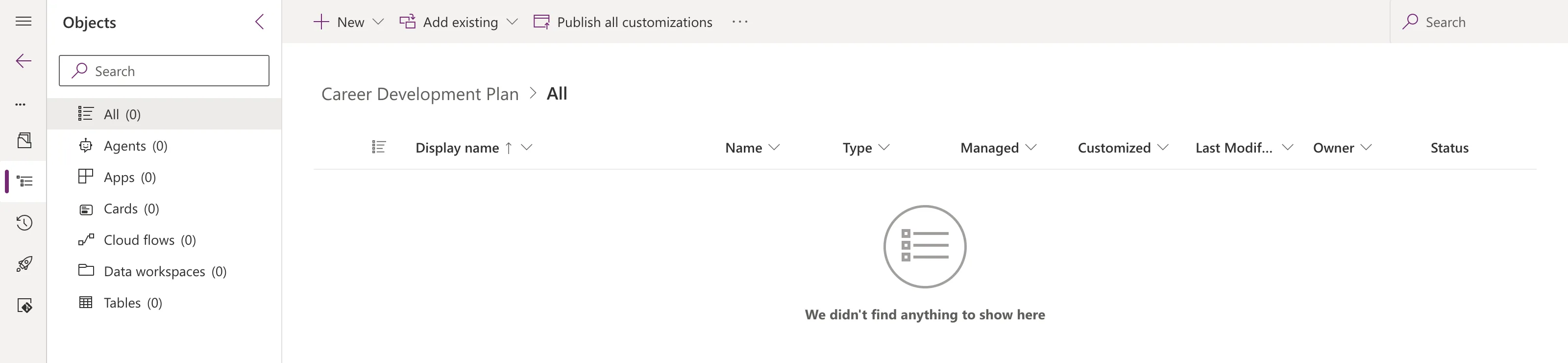
Reload the solution. The warning is gone:
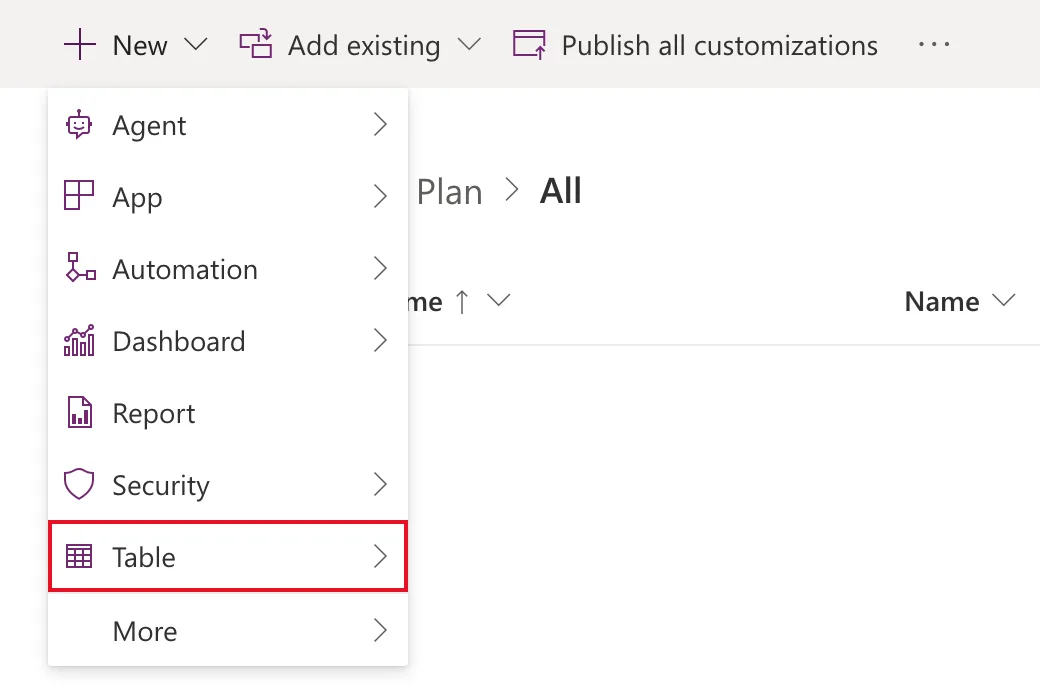
And New → Table is available:
More commands still offered only Switch to classic here after the change, so don't expect that menu to grow.
Common Mistakes
| Mistake | What happens | Do this instead |
|---|---|---|
| Treating the warning as an error | Time spent fixing nothing | Check whether you need the hidden commands |
| Making every maker System Administrator | Everyone can read all data and change security | Use Environment Maker or System Customizer |
| Not reloading after getting the role | The warning stays on screen | Reload the solution |
Troubleshooting
| Symptom | Likely cause | Fix |
|---|---|---|
| No Membership command | You're not a Global, Power Platform or Dynamics 365 admin | Ask an admin, as in Fix 2 |
| The warning is still there after Add me | The page loaded before the change | Reload it |
| Solutions doesn't load at all | You don't even have Environment Maker yet | See Fixed: "We Couldn't Load Your Data" |
FAQ
Does the warning stop me building a canvas app?
No. Environment Maker can create canvas apps, and add environment variables, inside the solution.
Which commands exactly are hidden?
It depends on your role. With Environment Maker in the example, New → Table was the visible one: it was disabled until the role changed.
Is System Administrator safe to give myself?
It's full control of the environment, including all of its data. Fine for the admin who looks after the environment; too much for everyone else.
Conclusion
The warning means your Dataverse role, usually Environment Maker, doesn't cover every solution command. Creating tables is the clearest example. If you need those commands, an admin can self-elevate to System Administrator, or give a maker System Customizer. After a reload, the warning is gone and Table is available.
Additional Resources
- Role-based security roles for Dataverse: what Environment Maker, System Customizer and System Administrator can do.
- Create and edit tables using the table designer: the roles needed to create tables.
- Self-elevate to the System Administrator role: Microsoft's steps.
- Assign a security role to a user: giving someone System Customizer.
