Fixed: A New Cloud Flow Shows Up in Two Solutions in Power Automate

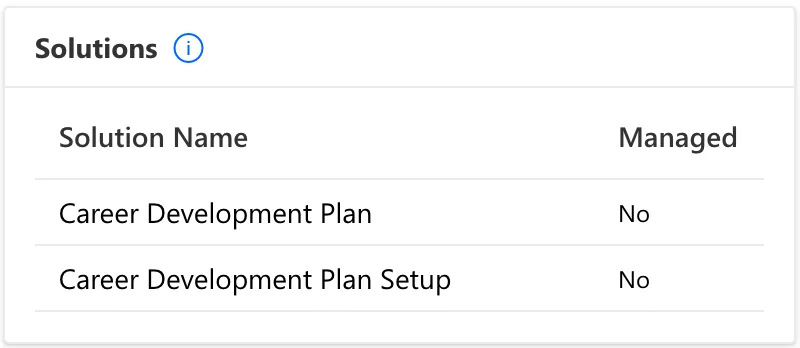
I created a cloud flow from inside one solution, and the flow's details page said it belonged to two. The second one was my preferred solution. Microsoft documents why, and the fix moved the flow to a single solution without deleting anything.
What I Was Doing
Part 11 of the Career Development Plan series adds a second solution, Career Development Plan Setup, for a flow that creates the app's SharePoint lists. The app's own solution, Career Development Plan, was still my preferred solution: I had set it when I created it in Part 3.
I opened the Setup solution and created the flow from its Objects page with New → Automation → Cloud flow → Instant, as How to Create an Instant Cloud Flow Inside a Solution shows.
What I Expected
The flow in the Setup solution, the one I created it in, and nowhere else.
What I Got
The flow's details page in Power Automate has a Solutions card. It listed both solutions:
The app's solution agreed. Its Objects list now had five objects instead of four, and the fifth was the new flow:
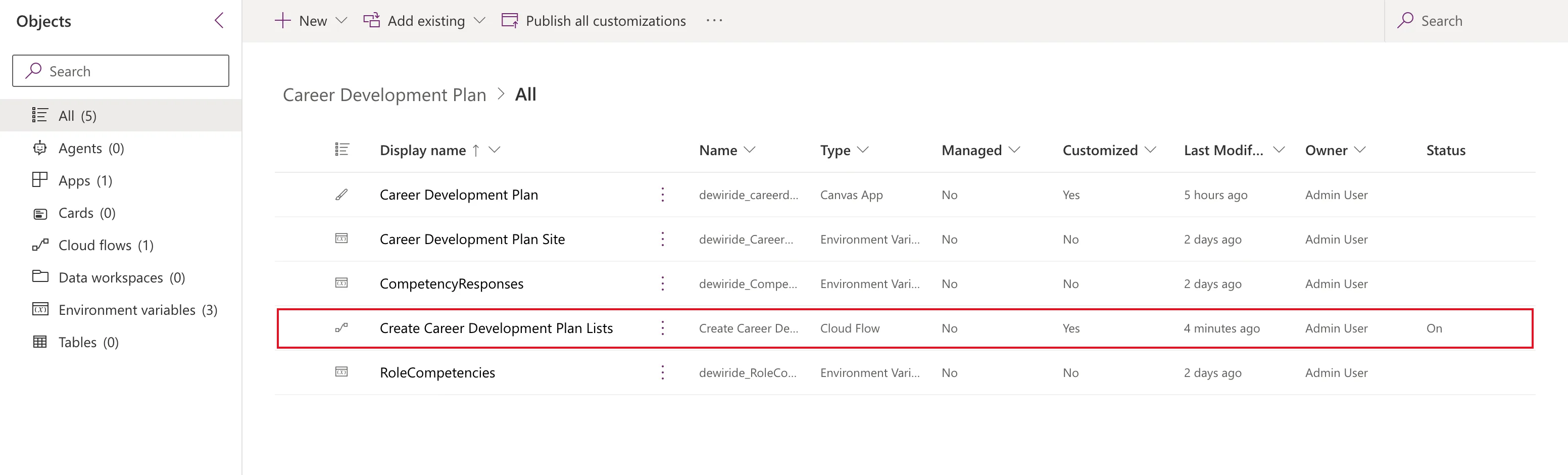
That matters, because a solution takes its objects with it when you export it. The app's solution would have shipped the setup flow too.
What I Checked
- Which solution was preferred. The Solutions page in Power Apps showed Career Development Plan as the current preferred solution, the app's, not the Setup one.
- Microsoft's article Set the preferred solution. Its Limitations section covers exactly this: a component that's already part of an unmanaged solution is still added to the preferred solution as well. The flow was part of the Setup solution because I created it there, and it was added to the preferred one on top.
- The same article's list of what the preferred solution supports. It lists Power Automate flows as limited, and its prerequisites recommend an environment setting that stores new cloud flows in Dataverse and adds them to the maker's preferred solution.
Why It Happens
When you create a component inside a solution, Power Apps adds it to that solution, and then to your preferred solution too, if that's a different one. Creating the flow inside the right solution isn't enough while another solution is your preferred one.
The Fix
Two steps: make the solution you're working in your preferred one, then take the flow out of the other solution.
1. Change the preferred solution
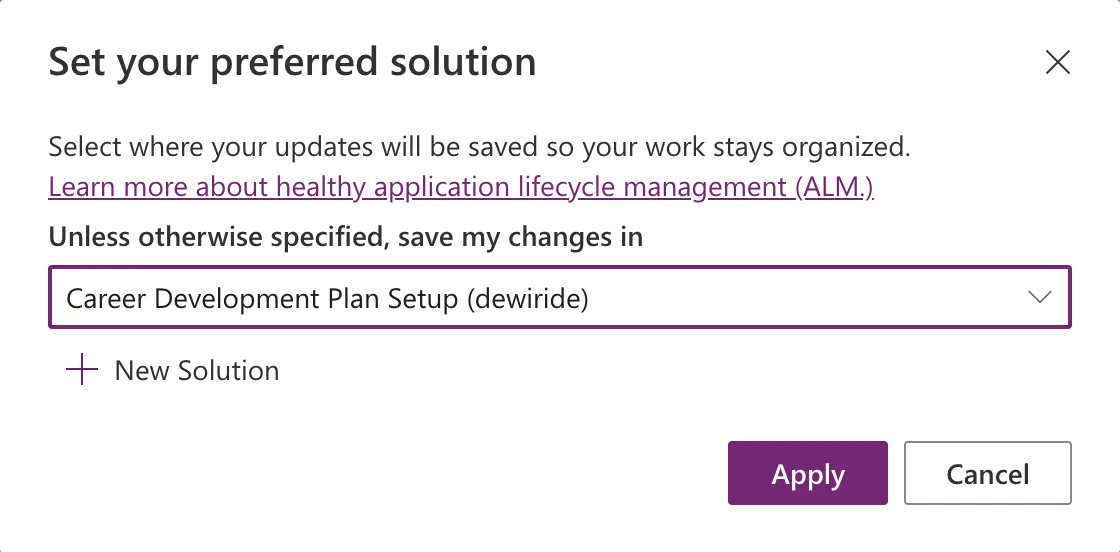
In Power Apps, go to Solutions and select Set preferred solution in the command bar. In the Set your preferred solution dialog, choose the solution you're working in, here Career Development Plan Setup (dewiride), and select Apply:
How to Create a Solution and Publisher in Power Apps has this step on its own.
2. Remove the flow from the other solution
Open the solution the flow shouldn't be in, here Career Development Plan. Select the flow's row, then its More actions (⋮) → Remove → Remove from this solution:
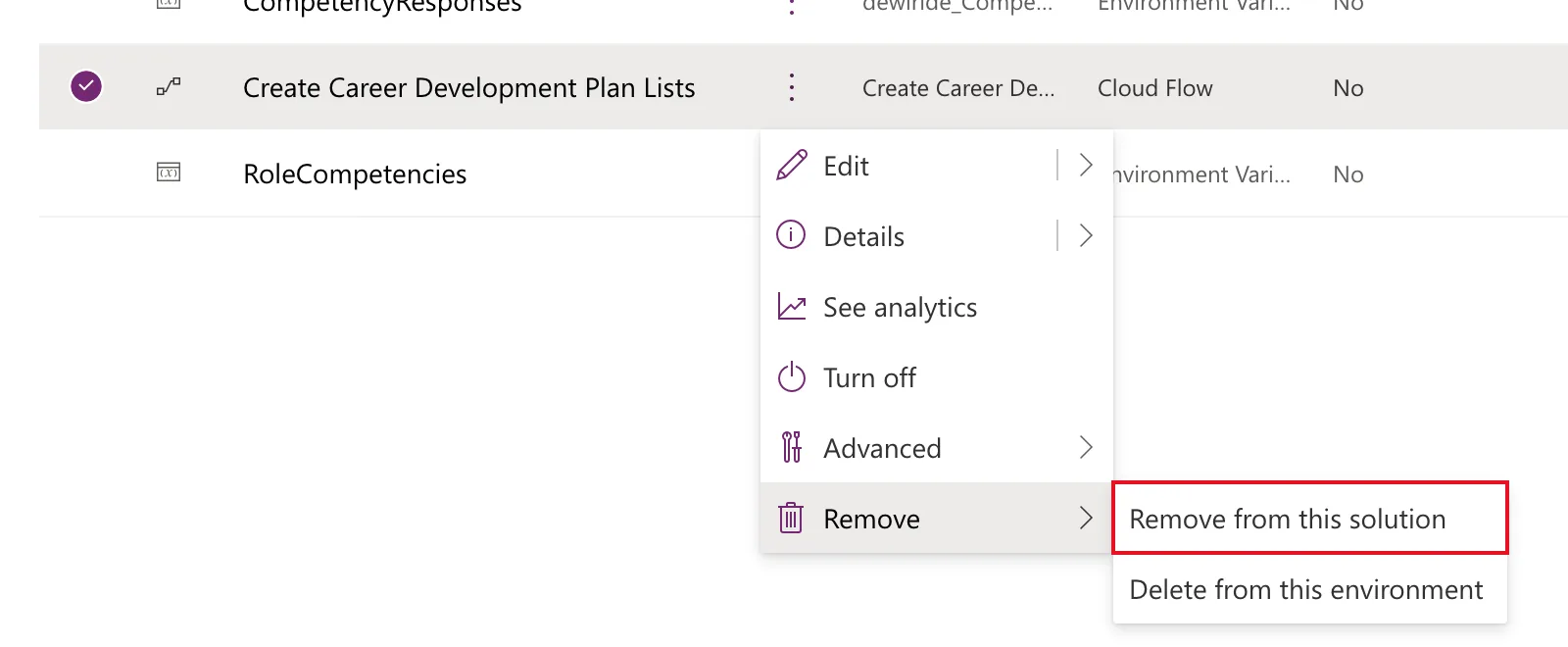
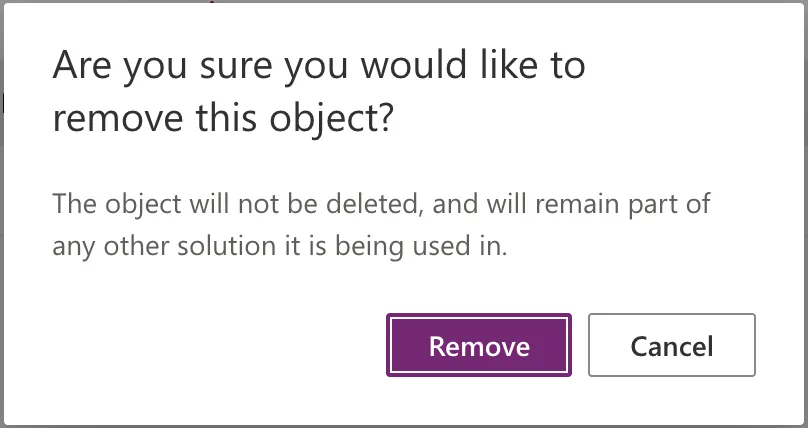
Not Delete from this environment, which deletes the flow itself. Power Apps asks you to confirm, and says what happens: The object will not be deleted, and it stays in any other solution that uses it. Select Remove:
How to Remove an Object from a Solution Without Deleting It covers this step in general.
After the Fix
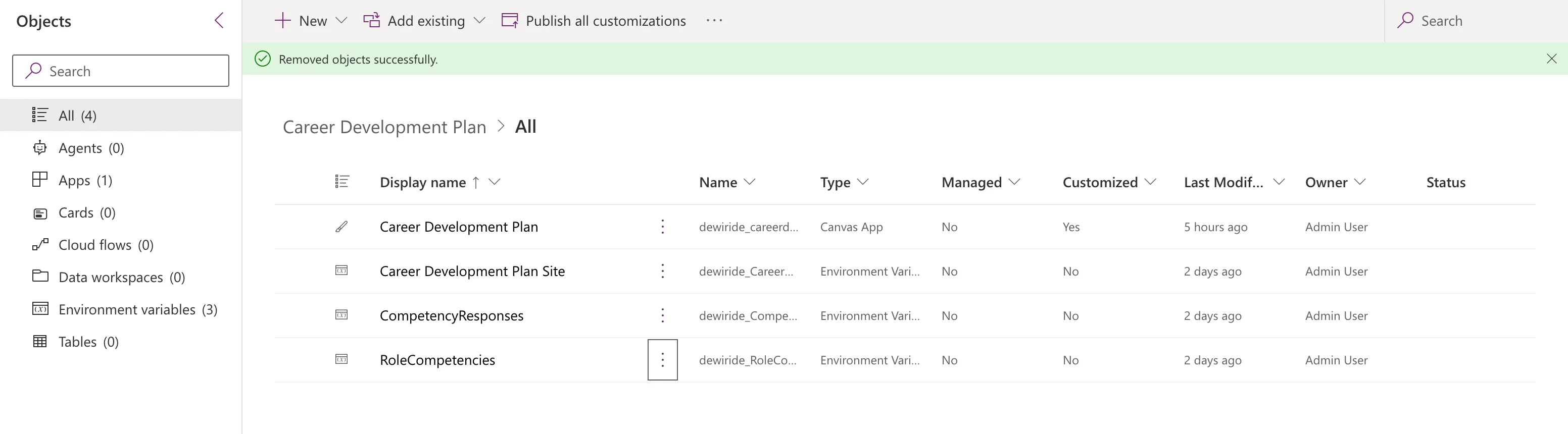
Removed objects successfully. The app's solution was back to its four objects, with Cloud flows (0):
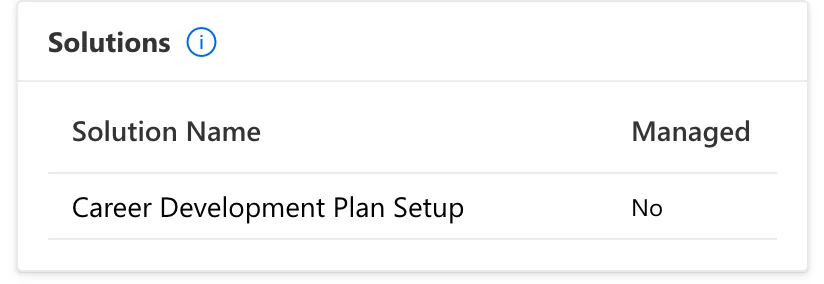
And the flow's details page listed one solution, the right one:
The flow kept working: every test run afterwards ran the same flow.
Do It in This Order Next Time
Before you create anything in a solution, make that solution your preferred one. Then whatever you create lands in one place.
Common Mistakes
| Mistake | What happens | Do this instead |
|---|---|---|
| Creating in one solution while another is preferred | The new object is added to both | Set the preferred solution first |
| Choosing Delete from this environment | The flow is deleted everywhere | Choose Remove from this solution |
| Exporting without checking the objects list | The other solution ships the extra flow | Check Objects before exporting |
Troubleshooting
| Symptom | Likely cause | Fix |
|---|---|---|
| A new flow appears in two solutions | It was added to your preferred solution too | Remove it from the solution it doesn't belong in |
| Set preferred solution is missing | You're in the classic solution explorer | Use Solutions in Power Apps; Microsoft's article says the classic explorer can't set it |
FAQ
Does removing the flow from a solution delete it?
No. The confirmation says so, and the flow kept running from the Setup solution afterwards.
Would the flow have run twice?
No. It's one flow listed in two solutions, not two copies. The problem is what each solution carries when you export it.
Should every solution be my preferred one while I work on it?
Yes. Switch the preferred solution whenever you switch the solution you're building in.
Conclusion
A component you create inside a solution also lands in your preferred solution. Set the preferred solution to the one you're working in before you create anything. If something has already landed in the wrong one, remove it from that solution with Remove from this solution. That deletes nothing.
Additional Resources
- Set the preferred solution: how it works, and its limitations.
- Solutions in Power Apps overview: the objects list and its commands.
