Fixed: "Name Isn't Valid. 'locMember' Isn't Recognized" in Power Apps

A label's formula uses a variable, and Power Apps underlines it in red: Name isn't valid. 'locMember' isn't recognized. The name is spelled correctly. The variable simply doesn't exist yet, because nothing in the app creates it.
The Error
In the Career Development Plan app, the Team Member screen shows one person from the manager's team. The person arrives in a context variable, locMember, so the screen's title was set to their name:
locMember.displayName
The formula got a red underline, and the title in the header a red error icon:
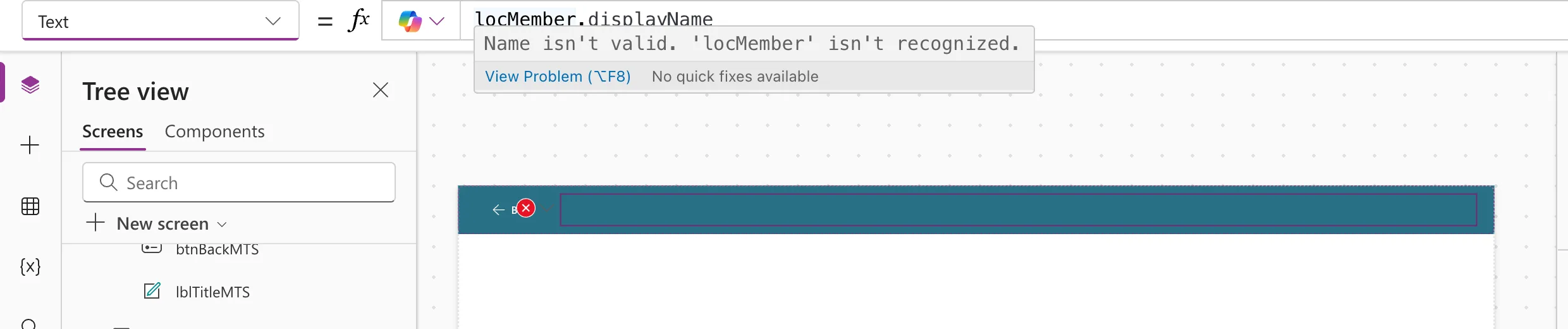
Name isn't valid. 'locMember' isn't recognized.
View Problem (⌥F8)    No quick fixes available
Why It Happens
In Power Apps you never declare a variable. Microsoft's article on variables explains that a variable comes into being when a Set, UpdateContext, Navigate, Collect or ClearCollect formula mentions it. If no formula does, the variable doesn't exist, and every formula that uses it shows an error (Understand variables in canvas apps).
That's what happened here. locMember was meant to come from the My Team screen, through Navigate's third argument, but that Navigate wasn't written yet. The Team Member screen was built first, so no formula anywhere mentioned locMember in a Navigate or UpdateContext, and the name meant nothing to Power Apps.
The message is the same one you get for a misspelled name, which is why it's confusing. Check the spelling first; if it's right, look for the formula that should create the variable.
The Fix: Create the Variable Where It Belongs
Write the formula that passes the value. On the My Team screen, the gallery of team members opens the Team Member screen with the selected person (How to Open Another Screen When a Gallery Row Is Selected):
Navigate('Team Member Screen', ScreenTransition.None, {locMember: ThisItem})
Navigate creates locMember as a context variable of the Team Member screen (Back and Navigate functions). As soon as this formula was in place, the title's error was gone, with no change to the title itself:
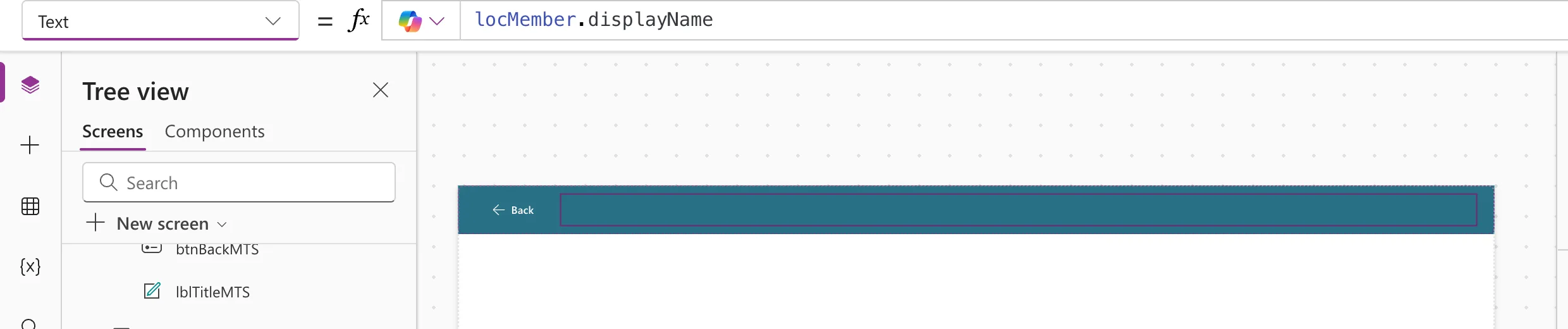
The title is empty in the designer because locMember has no value until someone opens the screen from the gallery. In preview, it shows the person's name.
Common Mistakes
| Mistake | What happens | Do this instead |
|---|---|---|
| Renaming the variable until the error goes away | A new name isn't recognized either | Write the Navigate or UpdateContext that creates it |
| Creating it with Set instead | locMember becomes a global variable with a different scope | Keep context variables for one screen's values, as the app's naming convention says |
Reading galMyTeamMTS.Selected on the other screen | The value can change when the gallery reloads | Pass the row once, with Navigate |
Troubleshooting
| Symptom | Likely cause | Fix |
|---|---|---|
| The error stays after adding Navigate | The name in the record differs, such as locmember | Use exactly the same name in both places |
| No error, but the title is empty in preview | The screen was opened without the Navigate | Start the preview from the screen with the gallery |
FAQ
Is this the same as "Name isn't valid. 'Content' isn't recognized"?
Same message, different cause. There, the name was a property that can't be read back (Fixed: "Name Isn't Valid. 'Content' Isn't Recognized"). Here, the name was a variable that nothing creates.
Does the formula that creates the variable have to run first?
No. Microsoft's article says it's the mention that counts, not whether that formula has run. The formula only has to be in the app.
Conclusion
Name isn't valid. '…' isn't recognized on a variable means no Set, UpdateContext or Navigate in the app creates it. Write the formula that passes the value, here Navigate(..., {locMember: ThisItem}), and the error disappears.
Additional Resources
- Understand variables in canvas apps: how variables are created and removed.
- Back and Navigate functions: passing context variables to a screen.
