Fixed: "Missing Tab Stop" in the Power Apps App Checker

The App checker lists Missing tab stop under Accessibility errors: a control it considers interactive has no place in the keyboard's Tab order. For a gallery, the fix is TabIndex 0. For a plain heading, Microsoft's guidance points the other way, so think before you change it.
The Error
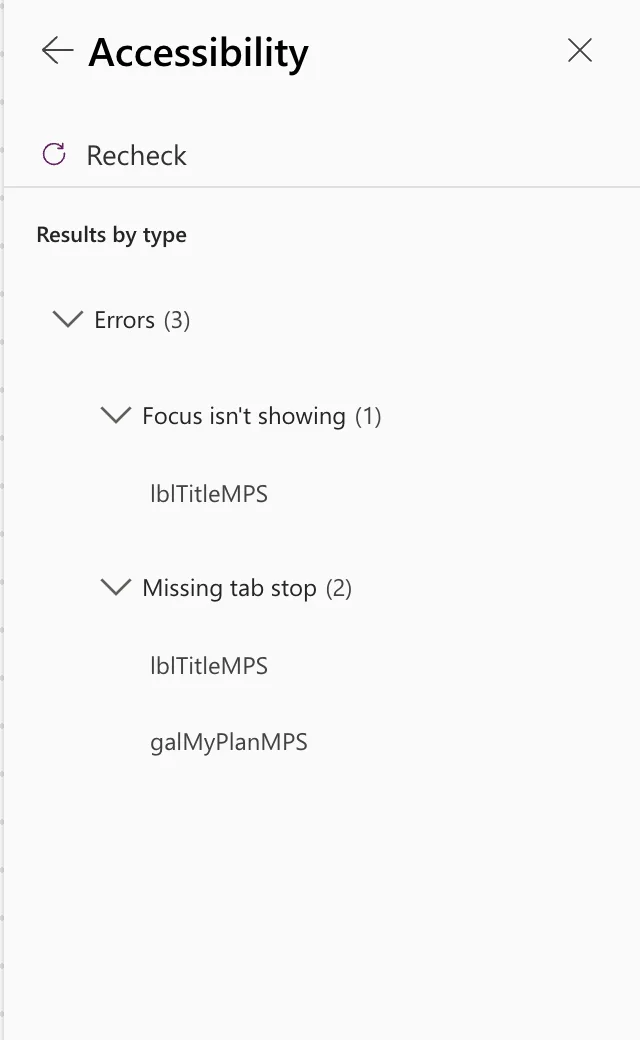
In the example, the Career Development Plan app's new My Plan screen had a header with a Back button and a title label, lblTitleMPS, and a gallery of competencies, galMyPlanMPS. The App checker (stethoscope icon, right edge of Studio) → Accessibility showed Errors (3):
The gallery's details:
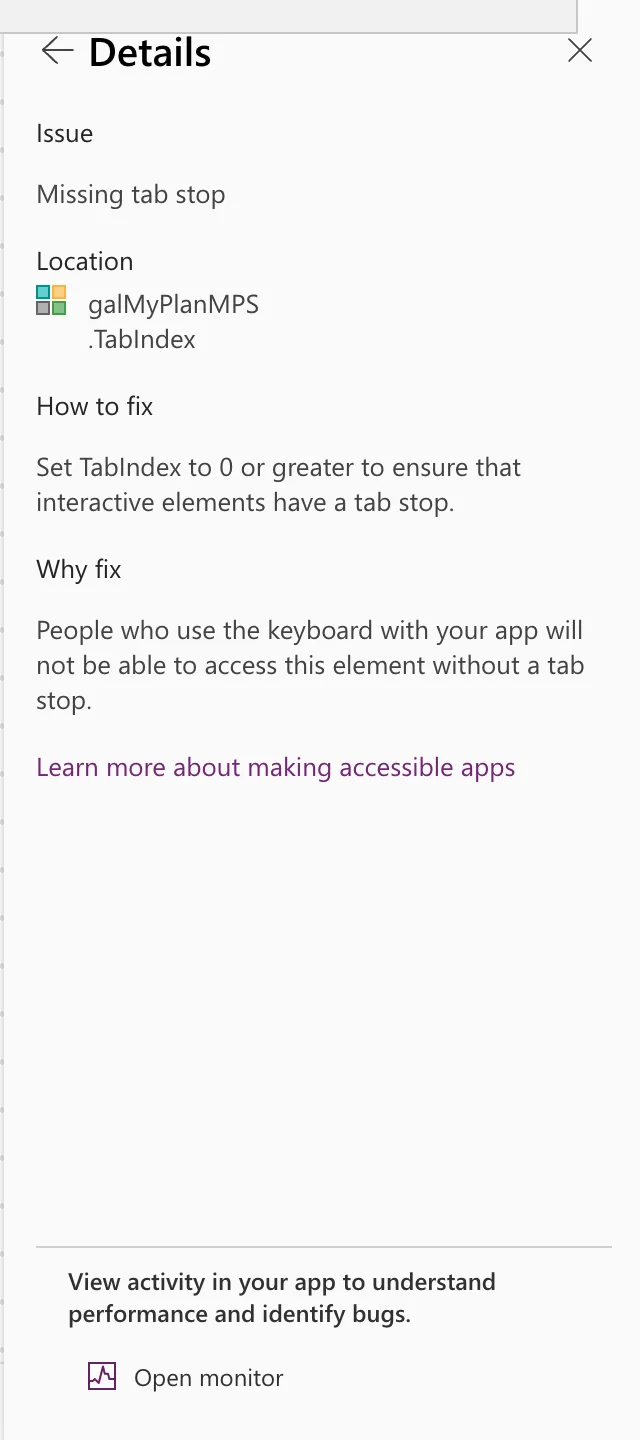
Missing tab stop
Location: galMyPlanMPS .TabIndex
How to fix: Set TabIndex to 0 or greater to ensure that interactive elements have a tab stop.
Why fix: People who use the keyboard with your app will not be able to access this element without a tab stop.
Why It Happens
TabIndex decides whether a control takes part in keyboard navigation. Microsoft's accessibility properties say 0 or more puts it in the Tab order and below 0 leaves it out, and recommend using only 0 or -1. In the example, a new gallery started at -1.
The Fix for the Gallery: TabIndex 0
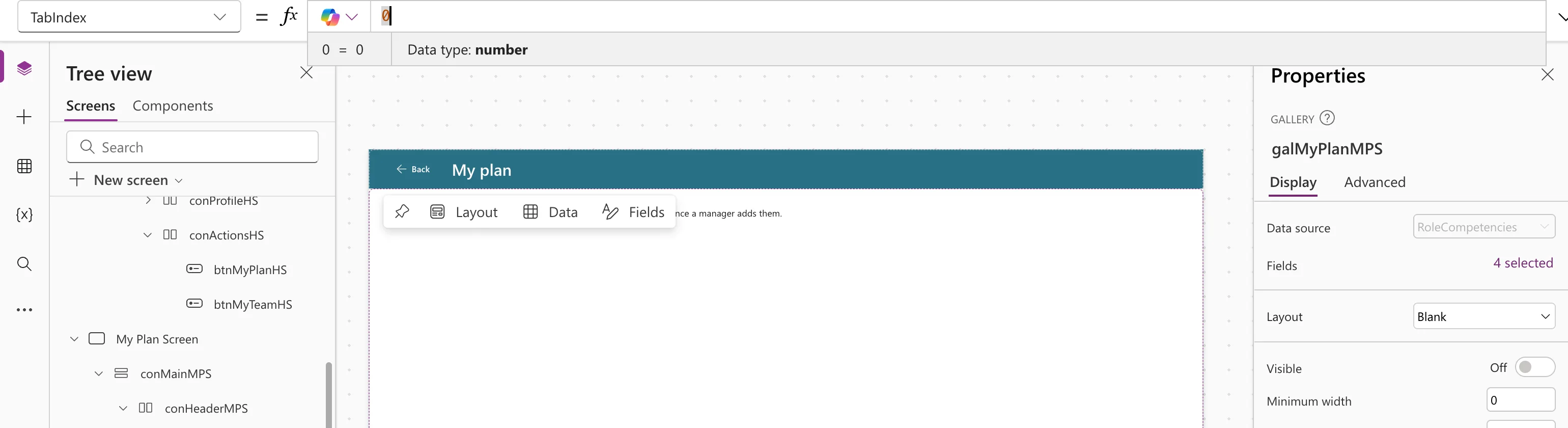
The gallery is a scrollable list, and keyboard users need to reach it:
0
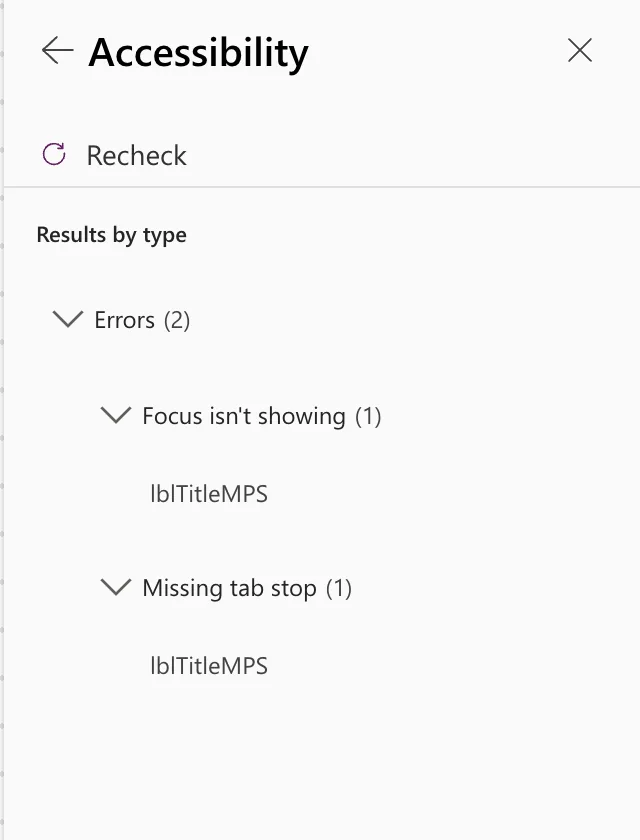
After Recheck, the gallery was gone from the list. The heading's two items remained:
The Heading: Keep TabIndex -1
The checker also flagged lblTitleMPS, the screen's main heading (a classic Text label with Role TextRole.Heading1):
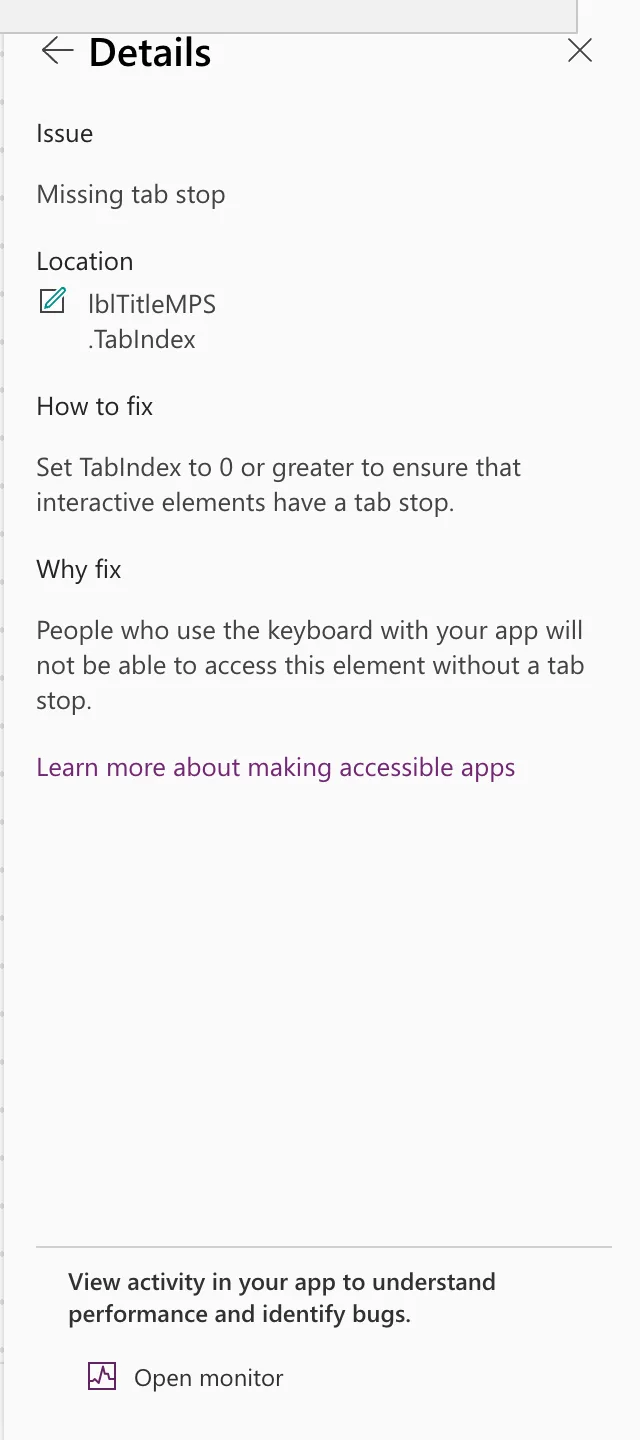
The heading isn't interactive: its OnSelect is false and it does nothing when selected. Microsoft's guidance for labels is clear:
- Labels, images, icons and shapes should have TabIndex
0only if they're interactive, and-1otherwise (Create accessible canvas apps). - Screen readers treat a Label as a button when its TabIndex is
0or more (Label control).
Setting it to 0 would announce the heading as a button, which is worse for screen reader users than the warning. The Accessibility checker documentation says to weigh each suggestion against what the app needs, and that you can ignore any that do more harm than good (Review a canvas app for accessibility). So the heading keeps -1.
For the record: the Home screen's heading in the same app has the same properties (only its text differs) and the checker doesn't list it.
Common Mistakes
| Mistake | What happens | Do this instead |
|---|---|---|
Setting TabIndex 0 on every flagged control | Plain text and headings are announced as buttons | Only on controls people need to reach or use |
Using values above 0 to force an order | Microsoft calls this hard to get right and bad for screen readers | Use 0 and -1, and containers for order |
Troubleshooting
| Symptom | Likely cause | Fix |
|---|---|---|
| The item stays after the change | The checker hasn't rerun | Select Recheck and wait for it to finish |
| A heading is flagged | The checker considers it interactive | Keep -1 if it doesn't do anything when selected |
FAQ
What's a tab stop?
A place the Tab key stops on. Keyboard users move through an app with Tab, so anything they need to use must be one.
Does a modern control use TabIndex?
Microsoft's reference says modern controls use AcceptsFocus for the same purpose, and classic controls use TabIndex.
Conclusion
Missing tab stop means the checker thinks keyboard users can't reach a control. Give interactive controls, such as a gallery, TabIndex 0. Keep -1 on headings and plain text, as Microsoft's label guidance says, even if the checker lists them.
Additional Resources
- Accessibility properties: TabIndex and AcceptsFocus.
- Review a canvas app for accessibility: the checker's issue types.
